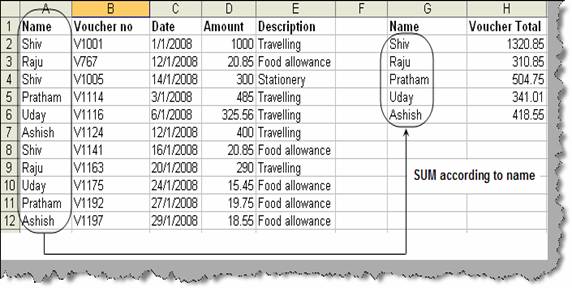
There are scenarios where we want to sum numeric amounts according to criteria. Consider the figure ‘SUM according to criteria’. EXCEL sheet consists of voucher entries according to employees. Now you would like to sum the voucher amount taken by every individual as shown in the right hand side of the same image.
Figure: - SUM according to criteria
The above situation can be achieved by using ‘SUMIF’ formula. ‘SUMIF’ takes three inputs range, criteria and sum_range. ‘Range’ takes the column on which the sum will be done. Currently it is the name column so we have selected ‘A2:A12’. Criteria take the value for which you want the sum, currently it’s the G2 column. ‘sum_range’ takes the column which needs to be added according to the criteria, currently it’s the ‘Amount’ column. Figure ‘sumif’ in action shows the same in a more pictorial format.
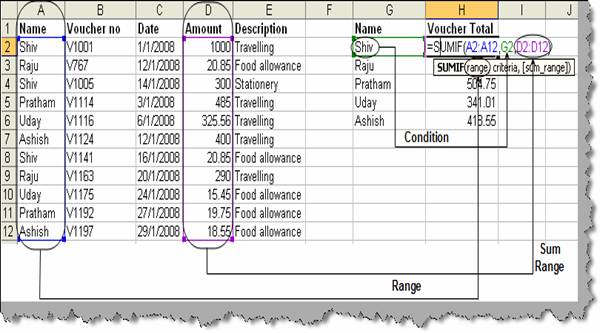
Figure: - ‘sumif’ in action