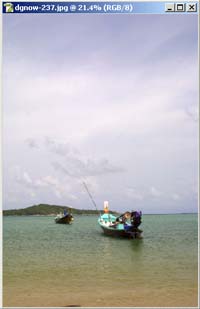
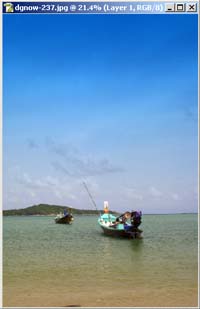
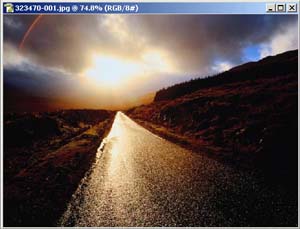
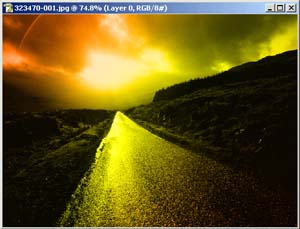
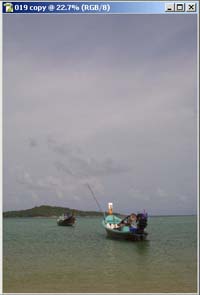
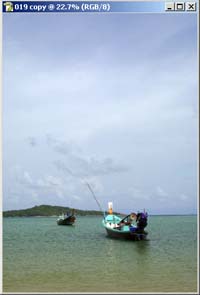
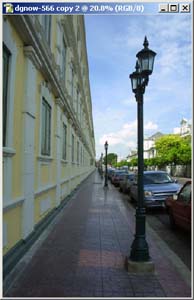
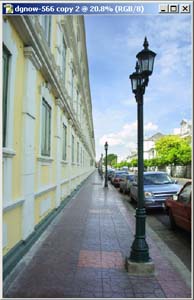
Lesson 1 Make a picture more colorful and bright
-Frist click at create new layer then you will get the new layer -Then you will put the color on the picture that you want to make more colorful -Then you go to set forground color -Then click at ok and then click at Geadient tool and then you change the layer became Multiply
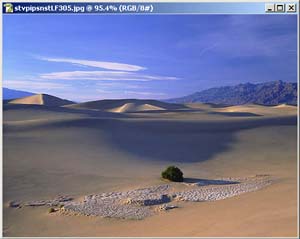
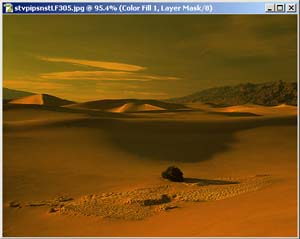
Lesson 2 Filter for picture
• Normally if you want to make a picture more interesting and nice to look at, you can do that by put the filter in the picture on lens and you will get a picture as you expected • First open file of the picture that we want to put the fliter ( you have to work in place layers ) • Then click create new fill or adjustment layer • Then solid color then you will see color part, • So choose color that you need • Then click at OK • Then click at layer at the color mode use Mautiply and you will get it
Lesson 3 Make more colorful by put the Gradient
• First open file of the picture which you have to unlock the picture before ( dubble click at layer ) • Then Add thrnlayer style • Then go to Gradient overlay • So you will see the window which called layer style • Blend Mode : Color • Opacity : 100% • Gradient : Linear • Angle : 130 • Scale : 100 • Then click ok
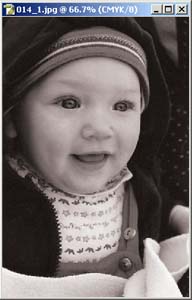
Lesson 4 Change the color picture become Cpier picture
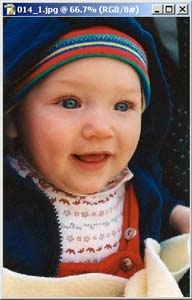
• First open file the picture • Then Click Image ? and then click at Mode • Then Grayscale becouse you have to change became black and white picture before • After that click at the image ? then Mode ? then CMYK color • Then click at image then adjustment • Then Desaturate
Lesson 5 Change the color more colorful and Brightness
• First open file of the picture • Then click at image • Then adjustment • Then auto level ..so you will get it
Lesson 6 Adapt Brightness of the picture only the part that you need
• we can change how brightness of the picture that we want, Not all of the picture. • First Open file picture that you want to adapt • You can use CURVES, then click at the image • Then Adjustment at Curves • Then you can chage how bright as much as you wany • Then you have to go to the window which on the right hand side on then screen called History • Then click at Create new snapshop • Then back to History's window again • Then click at Snapshop one work and clicl at the First Snapshop • Then click at History brush tool • Then we paint at the part that we want to make more bright • Then you will get it
Close this window to go back |