|
Getting Started
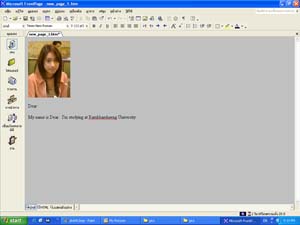
Main FrontPage Screen
Front Page Tool Bars
Creating folders • Right click in the area that shows your FOLDER list. A menu will pop up, You also see an Images FOLDER. This is where you should keep all the images you are using for this Front Page web.
Font Style Arial, Verdana, and Times New Roman are good choices for the web and are used extensively.
Font size Don't go much smaller than size 8, or much larger than size 14. Most content should be size 10 or 12.
Font decoration Do not underline words, unless they're a hyperlink. Use italics sparingly, it's difficult to read. Bold is typically used for headings.
Cautions If you choose an oddball font and the PC used to view the page doesn't have that font, a "default" font will be used in its place, usually giving undesirable results. Don't mix too many font types on a single web page - this is confusing to the eye. Instead, use different sizes and/or decorations of the same font to set off headings and sections of content.
Editing Page Elements Spell Check FrontPage automatically spell checks your document. A wavy red line underneath a word indicates that word is misspelled.
Check Spelling Icon Method to correct errors: Click on the word that has the correct spelling. OR
Create a Link A link can be created to a web page within your site, a specific section within a web page, a web page at an external web site, a person's email address, and to another resource (such as a document, image, sound clip, video clip, etc.). A link that is created to a person's email address is discussed in a later section. Method to create a link to a web page within your site: 1.Select the text for which you want to create a link. Use Your Web Browser to Select a Page or File Button Link Button to make a Hyperlink to a File on YourComputer Method to create a link to a web page at an external site: 6.Select the text for which you want to create a link. OR Click the Use Your Web Browser to Select a Page or File button. This opens your default web browser. Using the browser, navigate to the web page that you want to link too. Return back to FrontPage. The web address for that page is automatically inserted into the URL box. Press the OK button. Refer to the diagram on the previous page for the location of the button. Method to create a link to a resource (such as an image): 9.Select the text or resource for which you want to create a link. Refer to the diagram on the earlier page for the location of the button. 12. Click on the drop-down arrow next to the Look In box. Navigate to and select the proper drive and directory that contains the resource. 14. Select the text for which you want to create a link. Refer to the diagram below for the location of the button. 17.At the New dialog box, click on the General tab and then click on the icon for Normal Page. Click the OK button.
Create an Email Link A link can be created for an email address. This allows a visitor to send email to the specified person. Method: 20.Select the text for which you want to create an email link. Refer to the above diagram for the location of the button. 23. Type the complete email address for the person in the dialog box. Click the OK button. The URL box now contains the prefix, mailto:, immediately followed by the email address. Click the OK button.
Setting Page Color (Background) The background color of a page may be changed. Method: 24.Select File/Properties from the menu. (OR right click on the page, and select page properties) OR Click on More Colors. Click on one of the colors from the color chart. Click the OK button. Click the OK button again. If you choose "default" as the background color for a web page in "Page Properties" in FrontPage, the background color will be white on a Windows platform and gray on a Macintosh. For this reason, always set your page background color to white to insure the page renders the same on both platforms.
Set Default Text Color The default color of text on a web page may be changed. Method: 28.Select File/Properties from the menu. Click the OK button. Click the OK button again.
Set Link Colors The text color for a hyperlink, a visited hyperlink, and an active hyperlink may be changed. Method: 32.Select File/Properties from the menu.
Apply Bold and Italic to Text Bold and italic formatting may be applied to text. (Avoid underlining text. It could be confused with a hyperlink.) Method: 36.Select the text you want to make bold or italic.
Change Font and Font Size for Selected Text Text may be formatted with a different font and font size. Method: 38.Select the text that you want to change the font or font size for.
Change Text Color for Selected Text The color of text may be changed. Method: 41.Select the text that you want to change the text color for.
Change Paragraph Alignment Right, left, and center justification may be applied to paragraphs. Method: 44.Click in the paragraph that you wish to align. Create Bulleted Paragraphs Paragraphs may be formatted with regular or numeric bullets. Method: 46.Click in the paragraph (or select a group of paragraphs) that you wish to format with bullets. Bullets may also be removed from paragraphs. Method: 48.Click in the paragraph (or select a group of paragraphs) that you wish to remove the bullets.
Recommendations: Graphics JPEG's: This file format is typically used for photos of living things that contain lots of shades of color. The format supports literally millions of color combinations. The pitfall of this file format is that the large file size makes the graphics download slower. For this reason, if you're going to use a jpeg format, keep the physical image dimensions small (like 2 x 3 inches). GIF's: This file format only supports 256 colors and is therefore, not good for photos of people or living things. GIF file sizes are small though and download fast! Therefore, when there are only a few simple (plain, common) colors in your image, use this format to decrease the overall download speed. Typical applications include: table and cell backgrounds, horizontal rules, text images, bullets, etc.
Image Editors: Editors available to create and edit your images on campus include: Microsoft Image Composer (included with FrontPage), Microsoft Photo Editor and Microsoft Paint (a bitmap paint program). Adobe Photoshop and Adobe Image Ready along with Macromedia's Fireworks are probably the best graphics editors on the market and are available in some departments.
Caution: Some image editors (Adobe comes to mind) allow you to custom tailor the quality of the image, which increases/decreases the image file size. Choose the smallest quality setting possible (while not degrading your image) to minimize file size and download time.
Insert Images Images may be inserted within a page or table. 50. Click in the paragraph or table cell where you want to insert the image. 51.Select Insert/Picture/Clip Art from the menu. Other attributes may be set for the image. To do so, right-click on the image and select Picture Properties from the short-cut menu. (The section for adding alternative text is found under the General tab. The section for changing the alignment, adding a border, or altering the spacing around an image is found under the Appearance tab.) Make the desired changes and click the OK button.
24 Method to insert images from another source: 56. Click in the paragraph or table cell where you want to insert the image. To do so, right-click on the image and select Picture Properties from the short-cut menu. (The section for adding alternative text is found under the General tab. The section for changing the alignment, adding a border, or altering the spacing around an image is found under the Appearance tab.) Make the desired changes and click the OK button.
Insert Horizontal Rule A line may be inserted within a web page. Method: 60.Click where you want the line to appear. Other attributes may be set for the line width, height, color, etc. To do so, right-click on the horizontal line and select Horizontal Line Properties from the short-cut menu. Make the desired changes and click the OK button.
Creating Tables Tables are often used to align information in rows and columns. Table cells can contain items such as text, images, forms, background images, nested tables, etc. Generally, table dimensions should be specified in percentage. Method: 62.Click in the paragraph where you want to insert a table. A table grid now appears immediately below this button. 64.Drag the mouse down and to the right to select the number of rows and columns you want for your table. Click the left mouse button to insert the table. Horizontal and vertical alignments are used to posit ion the content within a cell. Right, left, center, and justify are options available for horizontal alignment. Top, middle, baseline, and bottom are options available for vertical alignment. Not all browsers support the baseline option for vertical alig nment. (This option aligns the content of the cell with the baseline of the first line of text within that cell. However, if the cell contains several lines of text and no images, then the baseline option is equivalent to the top option. If the cell contains text and images, then the baseline option is equivalent to the bottom option.)
View HTML Tags HTML tags may be viewed in the Normal Editor View. However, not all HTML tags are displayed. (Example: If you insert a horizontal line, you will see the line, but you will not see the <HR> tag.) Method: 68.Click on the Normal page tab. To turn these tags off, select View/Reveal Tags from the menu.
Preview Web Page within FrontPage An approximate rendering of the web page may be viewed in the Preview editor view. The web page may look slightly different when viewed in a browser. Method: 70.Click on the Preview page tab. The web page cannot be edited within this view.
Preview Web Page in Browser A web page may be previewed in the default browser or a browser of your choice. Method: 72.Click the Preview in Browser button. This displays the page in the default browser. OR Select File/Preview in Browser from the menu. In the Browser section of the dialog box, double-click on the name of the browser you wish to use for the preview. To return to FrontPage, click on the minimized FrontPage icon (in the status bar).
Extras Putting Power Point on the web 1. Create your PowerPoint presentation as you normally would.
Close this window to go back |