|
Getting Start About windows and panels
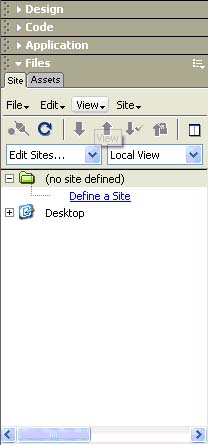
The Welcome window provides tips on setting up your workspace for various purposes, and information on new features for those who have used previous versions of Dreamweaver. The Insert bar contains buttons for inserting various types of “objects,” such as images, tables, and layers, into a document. Each object is a piece of HTML code that allows you to set various attributes as you insert it. For example, you can insert an image by clicking the Image icon in the Insert bar. If you prefer, you can insert objects using the Insert menu instead of the Insert bar. The Document toolbar contains buttons and pop-up menus that provide different views of the Document window (such as Design view and Code view), various viewing options, and some common operations such as previewing in a browser. The Standard toolbar (not displayed in the default workspace layout) contains buttons for common operations from the File and Edit menus: New, Open, Save, Save All, Cut, Copy, Paste, Undo, and Redo. To display the Standard toolbar, choose View > Toolbars > Standard. The Document window displays the current document as you create and edit it. The Property inspector lets you view and change a variety of properties for the selected object or text. Each kind of object has different properties. (Not expanded by default in Coder-style workspace layout.) The tag selector in the status bar at the bottom of the Document window shows the hierarchy of tags surrounding the current selection in Design view. Click any tag in the hierarchy to select that tag and all its contents. (Not visible in Code view, so not visible by default in Coder-style workspace layout.) Panel groups are sets of related panels grouped together under one heading. To expand a panel group, click the expander arrow at the left of the group's name; to undock a panel group, drag the gripper at the left edge of the group's title bar. The Site panel allows you to manage the files and folders that make up your site. It also provides a view of all the files on your local disk, much like Windows Explorer (Windows) or the Finder (Macintosh). The Launcher bar (not displayed in the default workspace layout) displays buttons in the status bar for opening and closing your most frequently used panels and inspectors. To display the Launcher bar and specify which icons appear in it. Dreamweaver provides many other panels, inspectors, and windows not shown here, such as the History panel and the Code inspector. Most panels can be docked together into panel groups. To open Dreamweaver panels, inspectors, and windows, use the Window menu. A check mark next to an item in the Window menu indicates that the named item is currently open (though it may be hidden behind other windows). To display an item that isn't currently open, choose the item name from the menu. If you can't find a panel, inspector, or window that's marked as open, choose Window > Arrange Panels to neatly lay out all open panels.
Working with the New Document dialog box
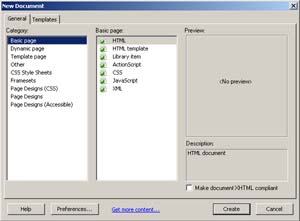
The New Document dialog box provides you with several choices for selecting a new document to work in. You can create a new document in the following ways:
To open the New Document dialog box:
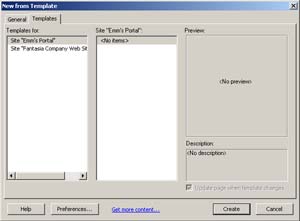
The New Document dialog box contains two tabs: General and Templates. The General tab contains various document types you can use to create a new blank page. You can select a new blank document from the Basic Page, Dynamic Page, and Frameset categories. Create a page based on a special file type such as CSS, JavaScript, VBScript or Text files by selecting a document in the Other category. The Templates category provides you with a choice of document types from which you can create a blank templates: HTML templates as well as templates in which you can insert server behaviors. The CSS Style Sheets, Page Designs, and Pages Designs (Accessible) categories, provide you with pre-built design files you can use to create your own pages. In the case of CSS style sheets, you can copy a pre-designed styles sheets then apply it to your document. Depending on the type of document you select, other options appear in the dialog box; for example, if you select HTML document you have the option of making the document XHTML compliant, and when you select a Page Designs file, you have the option of creating a document or creating a template. The Templates tab contains a list of your defined Dreamweaver sites. You can choose a template from any of the listed sites to create new documents based on that template. Select a category to see a list of available document types in the Document list to its right. Clicking a document in the list provides you with a description, and in the case of Page Designs, CSS Style Sheets, and Framesets categories document, a preview of the selected document. You can use the Preferences option located at the bottom of the New Document dialog box to set default document preferences, such as a document type, encoding, and a file extension. Additionally, you can set an option to automatically open a new document without using the New Document dialog box. Use the Get More Content link in the New Document dialog box to go to the Dreamweaver Exchange to download more page design content.
Saving a document When you save a document, avoid using spaces and special characters in file and folder names. In particular, do not use special characters (such as é, ç, or ¥) or punctuation (such as colons, slashes, or periods) in the names of files you intend to put on a remote server; many servers change these characters during upload, which will cause any links to the files to break. Also, do not begin a filename with a numeral.
Changing the document title
The title of an HTML page helps site visitors keep track of what they're viewing as they browse, and it identifies the page in the visitor's history and bookmark lists. If you don't title a page, the page will appear in the browser window, bookmark lists, and history lists as Untitled Document. Note that giving the document a filename (by saving it) is not the same as giving the page a title. The title appears in the title bar of the Document window (and in the toolbar, if it's showing). The filename of the page and the folder the file is saved and appears in parentheses next to the title in the title bar. An asterisk indicates the document contains changes that have not yet been saved.
Setting a background image or background page color
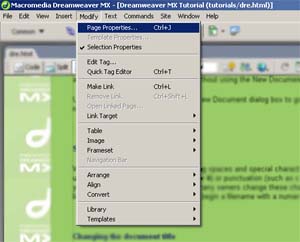
To define an image or color for the page background, use the Page Properties dialog box. If you use both a background image and a background color, the color appears while the image downloads, and then the image covers up the color. If the background image contains any transparent pixels, the background color shows through.
Presenting Content with Tables
Tables are a powerful tool for presenting tabular data and for laying out text and graphics on an HTML page. A table consists of one or more rows; each row consists of one or more cells. Although columns aren't usually explicitly specified in HTML code, Dreamweaver allows you to manipulate columns as well as rows and cells. Note: Many designers use tables to lay out web pages. Dreamweaver provides two ways to view and manipulate tables: Standard view, in which tables are presented as a grid of rows and columns, and Layout view, which allows you to draw, resize, and move boxes on the page while still using tables for the underlying structure
Resizing tables You can resize an entire table or individual rows and columns. When you resize an entire table, all of the cells in the table change size proportionately. Note: If a table's cells have explicit widths or heights specified, resizing the table changes the visual size of the cells in the Document window but does not change the specified widths and heights of the cells.
Changing column widths and row heights You can change the width of a column or the height of a row by using the Property inspector or by dragging the borders of the column or row. You can also change cell widths and heights directly in the HTML code using Code view. If you have trouble resizing, you can clear the column widths or row heights and start over. Tip: You can specify widths and heights as either pixels or percentages, and you can convert from pixels to percentages and back.
Adding and removing rows and columns To add and remove rows and columns, use the commands in the Modify > Table submenu. Tip: Pressing Tab in the last cell of a table automatically adds another row to the table.
Using Frames / Frameset
Frames provide a way to divide a browser window into multiple regions, each of which can display a different HTML document. In the most common use of frames, one frame displays a document containing navigation controls, while another frame displays a document with content. For example, your frame layout might consist of three frames: one narrow frame on the side that contains a navigation bar, one frame that runs along the top, containing the logo and title of the website, and one large frame that takes up the rest of the page and contains the main content. Each of these frames displays a separate HTML document. In this example, the document displayed in the top frame never changes as the visitor navigates the site. The side frame navigation bar contains links; clicking one of these links changes the content of the main content frame, but the contents of the side frame itself remain static. The main content frame on the right displays the appropriate document for whichever link the visitor clicks on the left. A detailed discussion of all the ways to design and use frames, and the code required for hand-coding them, is beyond the scope of this chapter. If you need detailed information about the code used in advanced frame layouts, see a book about frames and framesets.
Creating and editing a frameset Before creating a frameset or working with frames, make the frame borders visible in the Document window's Design view by choosing View >Visual Aids > Frame Borders.
Adding Content Use the visual tools in Dreamweaver to add a variety of content to your web pages. Add and format elements such as text, images, colors, movies, sound, and other forms of media. Be sure to make your pages accessible to visitors with disabilities.
Inserting and Formatting Text Macromedia Dreamweaver MX offers several ways for you to add and format text in a document. This chapter describes how to insert text, set font type, size, color, and alignment attributes, as well as how to create and apply your own custom styles using HTML styles and Cascading Style Sheet (CSS) styles.
Inserting and formatting HTML text
Formatting in Dreamweaver is similar to using a standard word processor. Use the Text > Paragraph Format submenu or the Format pop-up menu in the Property inspector to set the default formatting style (Paragraph, Preformatted, Heading 1, Heading 2, and so on) for a block of text. To change the font, size, color, and alignment of selected text, use the Text menu or the Property inspector. To apply text formatting such as bold, italic, code, underline, and so on, use the Text > Style submenu. You can also combine several standard HTML tags to form a single style, called an HTML style. For example, you can manually apply HTML formatting using a combination of tags and attributes, and save that formatting as an HTML style; it's stored in the HTML Styles panel. The next time you want to format text using that combination of HTML tags, you can simply select the saved style from the HTML Styles panel. HTML styles are supported by almost all web browsers and save time over manually formatting text. Another kind of style, called a CSS style (CSS stands for Cascading Style Sheets), lets you apply text and page formatting with the advantage of automatic updating. You can store CSS styles directly in the document or, for more power and flexibility, in an external style sheet. If you attach an external style sheet to several web pages, all the pages automatically reflect any changes you make to the style sheet. To access CSS styles, use the CSS Styles panel or the CSS mode of the text Property inspector. Manual HTML formatting and HTML styles apply formatting using standard HTML tags (such as b , i , font , and code ) that are supported by all popular web browsers. CSS styles define the formatting for all text in a particular class or redefine the formatting for a particular HTML tag (such as h1 , h2 , p , or li ). CSS styles are supported only by the web browsers Netscape Navigator 4.0 and later versions, and Microsoft Internet Explorer 4.0 and later versions. You can use CSS styles, HTML styles, and manual HTML formatting within the same page. Formatting is applied in a hierarchical manner, manual HTML formatting overrides formatting applied by an HTML style or CSS style, and CSS styles embedded in a document override external CSS styles.
Adding text to a document There are a number of ways to add text to a Dreamweaver document. You can type text directly in the Dreamweaver document window, or you can cut and paste or import text from other documents.
Adding paragraph spacing Dreamweaver works similarly to many word processing applications: you press Enter (Windows) or Return (Macintosh) to create a new paragraph. Web browsers automatically insert a blank line of space between paragraphs. You can add a single line of space between paragraphs by inserting a line break.
Setting and changing fonts and styles Use options in the Property inspector or the Text menu to set or change font characteristics for selected text. You can set the font type, style (such as bold or italic), and size. When you use the Property inspector to apply bold or italic style, Dreamweaver automatically applies the <strong> or <em> tag, respectively. If you are designing pages for viewers with 3.0 or older version browsers, you should change this preference in the General category of the Preferences dialog box (Edit > Preferences). HTML font sizes are relative, not specific, point sizes. Users set the point size of the default font for their browsers; this is the font size that they will see when you select Default or 3 in the Property inspector or Text > Size submenu. Sizes 1 and 2 will appear smaller than the default font size; sizes 4 through 7 will appear larger. Also, fonts generally look larger in Windows than on the Macintosh, though Macintosh Internet Explorer 5 uses the same default font size as Windows. Tip: One way to ensure consistency with font size is to use CSS styles with your font size set in pixels.
Aligning text You align text on the page using the Property inspector or the Text > Align submenu. You can center any element on a page using the Text > Align > Center command. Note: You can align and center complete blocks of text; you cannot align or center part of a heading or part of a paragraph.
Inserting an image
When you insert an image into a Dreamweaver document, Dreamweaver automatically generates a reference to the image file in the HTML source code. To ensure that this reference is correct, the image file must be in the current site. If it is not in the current site, Dreamweaver asks whether you want to copy the file into the site.
Resizing an image You can visually resize elements such as images, plug-ins, Macromedia Shockwave or Flash movies, applets, and ActiveX controls in the Design View of the Dreamweaver Document window. Visual resizing helps you determine how an element affects the layout at different dimensions. Resizing changes the width and height attributes of the element back to their original size. The W and H fields in the Property inspector display the current width and height of the element as you resize it. The element's file size does not change. Bitmap elements such as GIF, JPEG, and PNG images may become distorted if you increase or decrease their width and height attributes. To maintain the same aspect ratio, hold down the Shift key while you resize a bitmap. However, it is recommended that you visually resize bitmaps in Dreamweaver only to determine the layout. After you have determined the ideal size for your image, edit the file in an image-editing application. Editing the image may also reduce its file size and thus reduce download time. Elements can be visually resized to a minimum of 8 x 8 pixels. To adjust the width and height of an element to a smaller size (for example, 1 x 1 pixel), use the Property inspector to enter a numeric value. To return a resized element to its original dimensions, in the Property inspector, delete the values in the W and H fields, or click the Reset Size button.
Inserting and playing media objects You can insert a Flash movie or object, QuickTime or Shockwave movie, Java applet, ActiveX control, or other audio or video objects in a Dreamweaver document. You use the Media category of the Insert bar or the Insert menu to select the type of object you want to insert in a document. Flash movie and objects, Shockwave, Applets, and ActiveX have defined buttons. Use the Netscape Navigator plug-in button to insert other media files. In most cases, a dialog box appears letting you select a source file and specify certain parameters for the media object. Tip: To prevent such dialog boxes from appearing, choose Edit > Preferences > General or Dreamweaver > Preferences > General (Mac OS X) and deselect the Show Dialog When Inserting Objects option. To override whatever preference is set for showing dialog boxes, hold down the Control (Windows) or Option (Macintosh) key while inserting the object. (For example, to insert a placeholder for a Shockwave movie without specifying the file, hold down Control or Option and click the Shockwave button.) Dreamweaver automatically inserts the necessary HTML source code to make the object or placeholder appear on the page. To specify a source file, set dimensions and other parameters and attributes, use the Property inspector for each object.
Linking and Navigation Once you've set up a Dreamweaver site to store your website documents and have created HTML pages, you'll want to create connections from your documents to other documents. Macromedia Dreamweaver MX provides several ways to create hypertext links to documents, images, multimedia files, or downloadable software. You can establish links to any text or image anywhere within a document, including text or images located in a heading, list, table, layer, or frame. For a visual representation of how your files are linked together, use the site map. In the site map you can add new documents to your site, create and remove document links, and check links to dependent files. There are several different ways of creating and managing links. Some web designers prefer creating links to nonexistent pages or files as they work, while others prefer creating all the files and pages first, then adding the links. Another way to manage links is to create “placeholder” pages which stand in for the final file and let you add links quickly and check them before you have actually completed all the pages.
Creating links The HTML tag for creating a hypertext link is called an anchor tag or an a tag. Dreamweaver creates an anchor tag for objects, text, or images you create links from. You can create links to other documents and files, and links to specific places in a single document using the a href tag. For example, if you select the text Home Page in the Document window, then create a link to a file named home.htm, the HTML source code for the link looks like this: <a href="home.htm">Home Page</a> If you are creating a link to a specific place in a document, first create a named anchor (for example, a name="MainMenu" ). Then create a link within the page that refers to that named anchor (for example, a href="#MainMenu" ). Before creating links, make sure you understand how document-relative paths, site root-relative paths, and absolute paths work. Using Dreamweaver, there are several ways to create local links (links between documents in the same site):
Note: Typing URLs or paths to a file can lead to incorrect paths and links that don't work. To ensure that the path is correct, use the folder icon to browse to your link.
To create an external link (to a document on another site), you must type the absolute path (with proper protocol) in the Property inspector. Make sure that you enter the entire path (including http://) when creating external links.
Linking files and documents You can use the Property inspector and the Point-to-File icon to create links from an image, an object, or text to another document or file. A hypertext link with the name of the linked file is placed at the bottom of the selected HTML file. This method works well when you are building your site and you want to create links across the site quickly.
Linking files and documents You can use the Property inspector and the Point-to-File icon to create links from an image, an object, or text to another document or file. A hypertext link with the name of the linked file is placed at the bottom of the selected HTML file. This method works well when you are building your site and you want to create links across the site quickly.
Testing a Site Before uploading your site to a server and declaring it ready for viewing, it's a good idea to test it locally. (In fact, it's a good idea to test and troubleshoot your site frequently throughout its construction—you can catch problems early and avoid repeating them.) You should make sure that your pages look and work as expected in the browsers you're targeting, that there are no broken links, and that the pages don't take too long to download. You can also test and troubleshoot your entire site by running a site report.
Previewing pages in browsers It's a good idea to test your pages by previewing them in browsers often throughout the design and creation process. By using this strategy, you can catch errors early and not copy or repeat them. You can preview a document in your target browsers at any time; you don't have to save the document first. All browser-related functions work, including JavaScript behaviors, document-relative and absolute links, ActiveX controls, and Netscape Navigator plug-ins, provided that you have installed the required plug-ins or ActiveX controls in your browsers. Content linked with a root-relative path does not appear when you preview documents in a local browser (unless you select the Preview Using Temporary File option in Preferences). This is because browsers don't recognize site roots—servers do. To preview content linked with root-relative paths, put the file on a remote server, then choose File > Preview in Browser to view it. You can define up to 20 browsers for previewing. All the browsers you define appear on the Preview in Browser menu. It's a good idea to preview in the following browsers: Internet Explorer 4.0, Netscape Navigator 4.0, and at least one text-only browser, like Lynx.
Close this window to go back |