
Adding Images
The <img> tag is for more than spacer graphics. It allows you to put all sorts of graphics on your pages. The tag and some of its common parameters looks like this:
<img src="name-of-graphics-file" width="width-in-pixels" height="height-in-pixels" alt="description of picture" align="left, right" hspace="space-in-pixels" vspace="space-in-pixels">
Src stands for source. It's just the name of the graphics file you want to use, including the name of the folder it is in. You write that the same way you specified your background files, including their folder in the name. There isn't any difference in how you retrieve the file.
The width and height are the size of the graphic in pixels. You can get these values by putting your cursor on the image that you wish to copy and right click to get the pop-up menu that lets you copy it. On Netscape, click on View Image to see a screen which shows the image file with the size in pixels given on the Title line at the top of the browser. Click the Back button on the browser to return to the tutorial. On Internet Explorer, click Properties and look for the size beside Dimensions on the pop-up window that appears. Close that window to continue with the tutorial.
Alt is your description of the graphic in case the browser can't display it. It will display your message in the quotes instead. If you hold the cursor over the graphic, the alt message will appear in a little box briefly. This is one way to add a short help message on the use of your page if needed if you use fancy buttons or other graphics on it.
Align tells the browser whether to place the image on the left or right side of the screen. The text will flow around the image. When the text reaches the bottom of an image, you may need to use a <br clear="all"> code to reset the margin so that the text goes back to the left side under the image. This sometimes happens with an image aligned on the left side of the page. You may need some <br> codes to add enough blank lines to go past the bottom edge of the image as well if the text ends before you reach it and you need to start another heading or block of text below the image. To center an image, surround it with <center> </center> tags as you did to center the headings. Note: there are other values for align to use on pages and tables, but these are the simplest to use.
hspace and vspace add additional blank space around the image. Hspace adds space to the right and left sides. Vspace adds space to the top and bottom of the image. This is useful when an image doesn't have much space at its edges and the text looks too crowded next to it.
You can put a single copy of a background file on your page with the <img> tag. That's how I displayed a copy of the background files on my tutorial pages that you've copied into your backgrounds folder. The <body>, <table>, <tr>, and <td> tags have been repeating the files they retrieved from the folder to cover the whole area defined by their tag, a process called tiling because it is just like laying a patch of ceramic tiles one after the other to fill in an area.
Background graphics are simply files that tile smoothly to form a fairly uniform background like a marbled or textured surface. Other files, like a picture of a person or animal, can be tiled but aren't necessarily good backgrounds if you can't read text placed over them clearly. If you want to put one copy of the picture of a dog on your page, use the <img> tag at the point in the text where you want to see the picture.
However, you might want to repeat the picture of a dog in a left-side cell of a table to form a decorative strip on the left side. In that case, you would use background="name-of-dog-picture-file" in the <td> tag to form the background with a spacer graphic set to the appropriate width to hold the cell open to show one copy of the dog picture across the width of the cell with repeats down the length of it.
You should specify the correct size of the image to let the browser know how much space to set aside for the graphic when it sets up the page. The browser will try to display as much of the page as it can as soon as possible, even before it finishes downloading all of the graphic files. If you don't specify the width and height, your page may display more slowly as the computer waits for the graphics files, especially if you have a lot of graphics on it.
It is possible to display a smaller version of the file by using width and height values at a smaller multiple of the actual values, such as one quarter size. That's how I displayed the big border graphic file for you to copy in an earlier chapter. I needed to display it in such a way that you could still copy a full size version of it from the screen. If I had displayed a full size version, it would have stretched that table nearly three times as wide, and you would have had to scroll back and forth to read the page.
My border graphic files are 1600 pixels wide because they are meant to be used as a background. Most computer screens are about 600 pixels wide, but some high-resolution screens are even wider than that. A border graphic which isn't long enough to go all the way across the screen will tile to produce a second decorative strip near the other side of your screen. That is considered very unattractive and unprofessional and is something to consider when you choose a border graphic, especially as newer computers come along with higher resolution screens and graphics.
However, it is usually frowned upon to use incorrect width and height values if you can avoid it. When you have a number of large graphics to display, such as a group of pictures, you have to make some choices about how to handle them to keep the download time of the page to a reasonable length. It doesn't matter if you have the most beautiful pictures of any grandchildren ever taken if the page takes so long to download that most people give up and move on before the little darlings appear.
You can split the group of pictures up onto several pages with links to access them, or you can use thumbnails. Thumbnails are smaller versions of the pictures which can be linked to a page to show the full-size version. You simply use a graphics program to make a reduced version of your picture and save it as a separate file. Then you use the thumbnails on your page with the proper link to display the full-size version if the viewer wishes to see it.
Let's get back to the newsletter and add some pictures to it. We added some color to the newsletter by using bgcolor in the three right column cells' <td> tags, but it doesn't look very Christmas-like. Let's take that out and put bgcolor="white" in all of the cells. I'm going to give you some pictures to insert in the newsletter. See if you can figure out where to put each new line and test it by displaying the newsletter in your browser. You can scroll down to see the newsletter, but try to edit in each picture before you scroll down far enough to see the newsletter code.
Let's add a string of Christmas tree lights under the newsletter title using a file called holiday_xmas_008.gif and center it. The code to do this is
<center><img src="../graphics/holiday_xmas_008.gif" width=490 height=40 alt="Christmas tree lights"></center>
and here's the file to copy into your graphics folder just like you copied the background graphics files into the backgrounds folder.

First, put your cursor on the picture of the light string and right click to get the pop-up menu. Verify that the width and height values are the ones used in my <img> tag above. On Netscape, click on View Image to see a screen which shows the image file with the size in pixels given on the Title line at the top of the browser. On Internet Explorer, click Properties and look for the size beside Dimensions in the window that pops up. Return to the tutorial and right click to get the menu again, and save the file into your graphics folder. Then copy the <img> tag above into the newsletter file below the line with the newsletter title and save it. Display the file in the browser to see if the string appears where it should. Repeat this procedure for each picture, putting its tag in the file where you want the picture to appear.
Let's slip a picture of Fluffy into the tragic story of Ruthann's arrest at the start of the second paragraph. The code to do this is
<img src="../graphics/a-bask.gif" width=65 height=35 alt="kitty in basket" align="left">

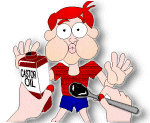
Let's not forget little Will, either. The code to do this is
<img src="../graphics/people_048.gif" width=150 height=123 alt="boy with castor oil" align="right">
Louella's Tattle and Tips |
|
Ruthann gets arrested!Ruthann got into big trouble this year! She was building up her usual head of Christmas cheer right on schedule for the feast, when her cheap husband Sam decided to save a few pennies by buying presents from unorthodox sources.
Whoever was responsible for it, the flaming fruitcake set off the kitchen fire alarm and brought the neighbors and the volunteer fire department on the run. The police naturally showed up to investigate the commotion. When a neighbor opened the broom closet to help clean up the mess, a police officer saw (continued on page 2)
|
Crafting TipGot a lot of green tomatoes snatched off the vine before frost hit? Cover them with a festive assortment of left-over house paint and heap them high in a pretty bowl like Christmas ornaments. Eat your heart out, Martha! |
Quote of the FeastThe biggest turkeys do their gobbling on Christmas. Said by Grandma Willa to Uncle Roy after he spilled giblet gravy on her best crocheted tablecloth. He's rightly ashamed of himself. |
|
Most Original Christmas Present
|
|
Here's the code for our newsletter so far. Study the changes I've described above.
<table width=100% border=1 cellpadding=10>
<tr>
<td colspan=2 bgcolor="white">
<font face="Arial" size=3>
<center><h3>Louella's Tattle and Tips</h3></center>
<center><img src="../graphics/holiday_xmas_008.gif" width=490 height=40 alt="Christmas
tree lights"></center>
</font>
</td>
</tr>
<tr>
<td rowspan=3 bgcolor="white">
<font face="Arial" size=3>
<center><h5>Ruthann gets arrested!</h5></center>
<p>
Ruthann got into big trouble this year! She was building up her usual
head of Christmas cheer right on schedule for the feast, when her cheap
husband Sam decided to save a few pennies by buying presents from
unorthodox sources.
<p>
<img src="../graphics/a-bask.gif" width=65 height=35 alt="kitty in basket"
align="left">
Ruthann started making her fancy fruitcakes for Christmas presents and
soaking them in extra rum as usual. The smell soon brought their cat
Fluffy to investigate. What happened next isn't clear. Sam claims
that the cat knocked a cake off the counter next to the floor heater.
Ruthann suspects it was Sam getting an early start on his cake.
<p>
Whoever was responsible for it, the flaming fruitcake set off the
kitchen fire alarm and brought the neighbors and the volunteer
fire department on the run. The police naturally showed up to
investigate the commotion. When a neighbor opened the broom closet
to help clean up the mess, a police officer saw (continued on page 2)
<p></font>
</td>
<td bgcolor="white">
<font face="Arial" size=3>
<center><h5>Crafting Tip</h5></center>
<p>
Got a lot of green tomatoes snatched off the vine before frost hit?
Cover them with a festive assortment of left-over house paint and heap
them high in a pretty bowl like Christmas ornaments. Eat your heart
out, Martha!</font>
</td>
</tr>
<tr>
<td bgcolor="white">
<font face="Arial" size=3>
<center><h5>Quote of the Feast</h5></center>
<p>
The biggest turkeys do their gobbling on Christmas.
<p>
Said by Grandma Willa to Uncle Roy after he spilled giblet gravy on
her best crocheted tablecloth. He's rightly ashamed of himself.</font>
</td>
</tr>
<tr>
<td bgcolor="white">
<font face="Arial" size=3>
<center><h5>Most Original Christmas Present</h5></center>
<p>
<img src="../graphics/people_048.gif" width=150 height=123 alt="boy
with castor oil" align="right">
Little Will's giant windchimes, made from recycled CD's which proved to
have some naughty pictures on them. His mother is discreetly
investigating the source of his creativity.</font>
</td>
</tr>
</table>
Another nice use for tables is to use nested tables, that is, tables within tables. We'll look at this in the next chapter, Nested Tables.
Last update: August 12, 2001