 |
| MAPS |
| Age of Empires |
| TEST PIT |
| Age of Empires |
| Age of Empires II |
| TUTORIALS |
| CREW |
| Sauron |
| Muad'Dib |
| Netroamer |
|

 |
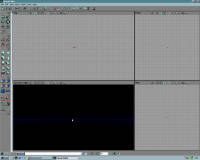
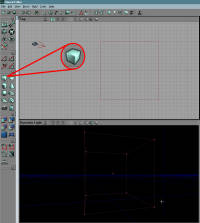
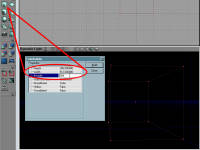
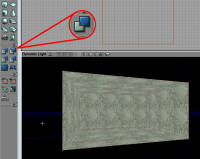
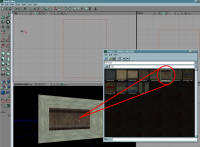
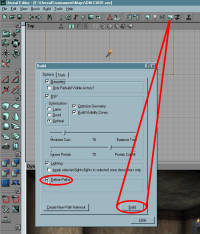
| UNREALED 2.0 BASICS A modern map looks cool huh special light effects,mirrors,... But it isn't that hard to make all that you know And at the end of this tutorial you will be able to create rooms, add lights,... FIRST: What do you need A good leveleditor offcourse. This tutorial is especcially designed for UNREALED 2.0 maybe also 3.0 It's a really powerfull tool for creating your own Unreal maps. You can find it in the system folder where you have installed UT. Now it all starts from here. Have you started the editor? Do so. Good, in the left you should see a menu with two collumns of buttons, you should also see 4 windows. THese a re the windows you will be working with. Above and below these windows you should also see some menu's. The lay out of unrealED 2.0 Now we are going to learn how to make a room. Leftclick on the cube button. Now you should see a cube appear in small red lines in the window to your left. The cube button Now right click on the cube button and this should bring up the cube builder window. Here you can change the length, width, height of the cube. This is the cube builder window Now just click on build and then on close. Then go to the menu of your left and left click on the button substract. Well I hope you like it because now you have just build your own room and your screen should look like this. CONGRATULATIONS The screen you are looking at SECOND: texturing the room All the textured used in Unreal, Unreal tournament are at your disposal in UnrealED 2.0. First you need to open the texture browser. You can do this by clicking op the button which looks like a holiday picture in the upper menu. But before you can use the textures you will need to load them into the memory. Go to file/open and just choose a texture folder. As an example we will choose UTtech2.utx. Then instead of choosing the base group go to the wall group and choose the texture rCLfW13x.Now select a wall of the room you created and click on the texture once more and you will see that the wall is painted with the texture you selected. To paint the other walls of the room you will need to turn the room. You should have something like this HOW TO MOVE IN UNREALED 2.0 2d window Left or right mouse click + dragging = dragging the view Both mouse buttons tapped + dragging = zooming in and out 3d window left mouse click and moving = turing around right mouse click and moving = looking up and down both mouse buttons tapped = moving up and down THIRD: expanding the map By giving the brush other sizes you will create different rooms, hallway's,... It isn't difficult It just takes lots of time. I suggest you practise a bit with this and you create different rooms in different themes.A hint you can move the brush by pressing Ctrl and selecting the brush and drag it where you want it. FOURTH: adding light You don't see it now but when you would play you map it would be to dark to see anything in it. In order to fix this you should add light. This is really easy in unrealED 2.0 just right click on the spot where you want your light and select Add light here. FIFTH: adding a player start point and test it In order to be able to play your level you must add a start point. First go to the button in the upper menu which looks like a pawn. Click on it and click then on navigationpoint.the click on Playerstart.Now just go to your map and right click on the spot where you want your Playerstart and select Add Playerstrat here.. You can place weapons and pick ups in the same manner.Place Playerstarts at different places so you don't always spawn at the same place.Now it's time to play you map but first you nwill need to compile the map. Go to the upper menu en choose build and then build all don't forget to save and then go back to build and then go to test level |
 |
 |
 |
 |
 |
 |
| FORUM |
