
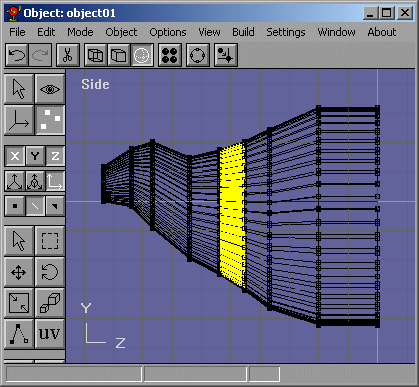
Maximize the side view. Now lets add a couple of segments to the row of edges shown under the selection box in Figure 11.
Figure 11
With those EDGES selected, click on the "Bevel" Modelling tool and bevel it so that it looks like Figure 12.
Figure 12
Cool huh? Beveling it smooths out the edges by adding two new rows of them and automatically smoothing them. This is a very usefull texhnique. Keep on beveling edge segments until you have something like Figure 13. That model is more high resolution and was not created with the "Subdivide Faces" tool. The slug now looks more round. Our front half of of the slug is shown in Figure 14.
Figure 13
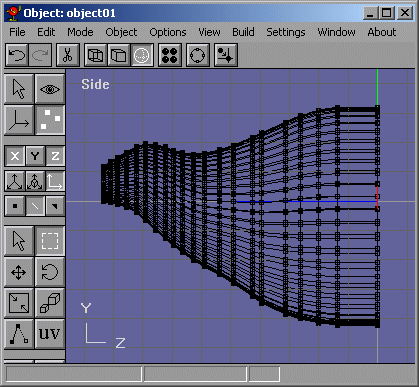
Figure 14
:-), looks like a Nurbs object doesnt it?
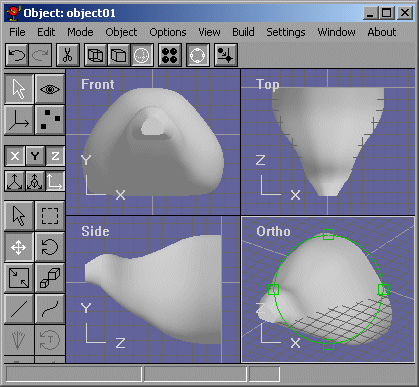
Now select the face to the right in the side view and extrude it out and scale it. This should make the rest of the slug. Figure 15.
Figure 15

Cool! Now you know how to use spline modelling in Anim8or! (Hopefully). Try using other techniques and dont start major projects. just make little things until you get the hang of it.