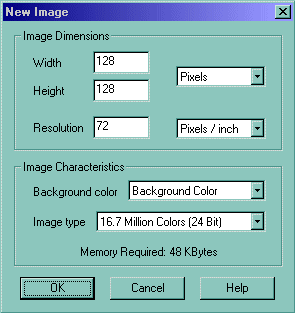
Now open up paint shop pro and make a new image like Figure 18
Figure 18
Now Zoom in so that its "4:1". Now go in Anim8or in the front view and do a print screen with the face moved to the right a little. (Or in PSP, goto Capture->Start. I have mine set to Area and F11 is the hotkey.) Take a shot of the face. Now with the eyedropper, sample the background color (which is purple or really dark blue as some like to say ;-) to the left mouse button. The right mouse button should be WHITE (255, 255, 255). Now with the Color replacer, click on the image with the right mouse button and the purple will turn white! Now do that for the face. Ok, the trick here is making the face not too big to make the whole texture crowded, so what you have to do is minimize Anim8or and do a trial and error on what zoom works on the texture. I did it 3 or 4 times to get it like Figure 19. Keep on playing with zooming in and out with anim8or, now with PSP though because it distorts the image.
Figure 19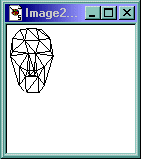
Now save the image as whatever, I named it "torn.gif" because we are tearing up the model. make a new texture in Anim8or and open up the image. I did the same to the neck as I did to the face and put the template right under the face. Now I select the side of the neck parts and apply the material to it and hit the UV button. No I scale it so that it fits snuggly onto the mesh. I did the same for the face. Figure 20, Figure 21 , Figure 22.
Figure 20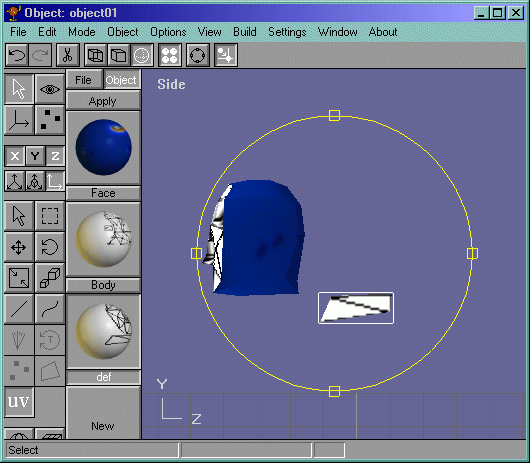
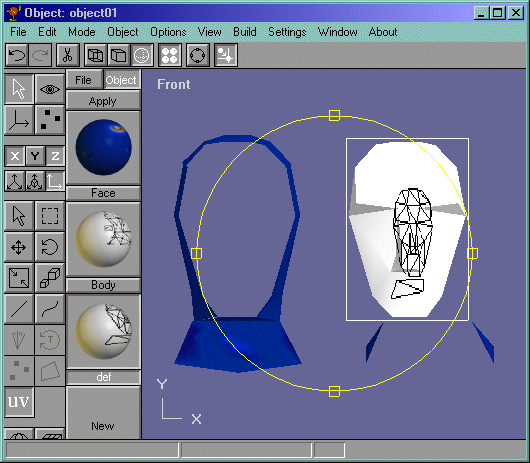
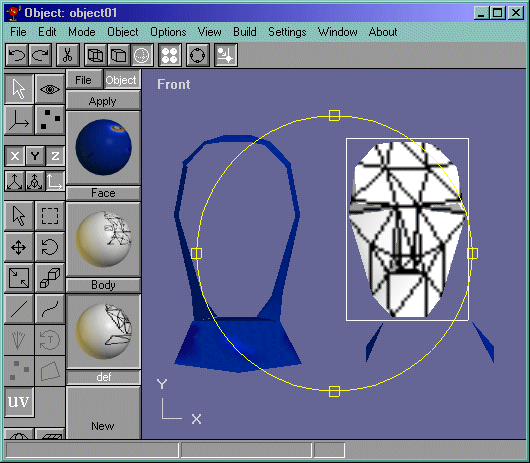
You may encournter some problems in fitting your faces onto the texture. Look at Figure 23. See how the back of the head part overlaps other parts of the texture? Lets say we dont want to scale it down because we want a lot of detail into that part of the mesh. What we do now is chop it up some more. So we go back into Anim8or and take the upper 2 faces (4 faces actually, that are shaped in a rectangle) and detach them. Now we take a screen capture of them and place it on the mesh.
Figure 23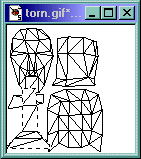
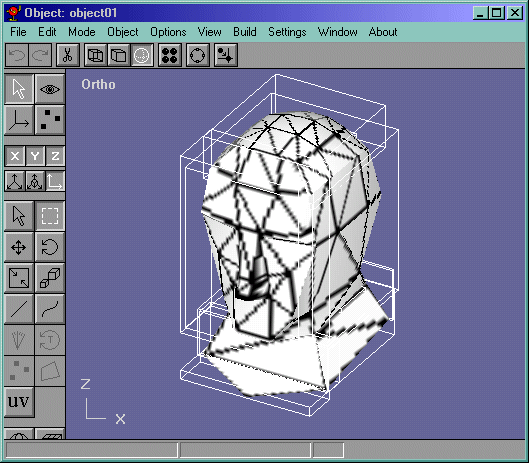
Now I finish the model up. I take all the parts of the face and map them onto the material. Now my material looks like Figure 24. Now what you do is move your whole model into place, which in our case is the head, select all the objects like in Figure 25, and we "Join Solids". Now select all the vertices and merge them with a Value of .5 and your model should be as good as it was before we tattered it, but with texture coords! (Notice I have blank space in the texture material. You can fill that space up by scaling one of the parts of the mesh and taking a screen sapture of that, pasting it, and then hitting undo in anim8or to return it to its original size.)
Figure 24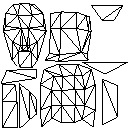
Hope you got something out of this tutorial! Have fun teturing!