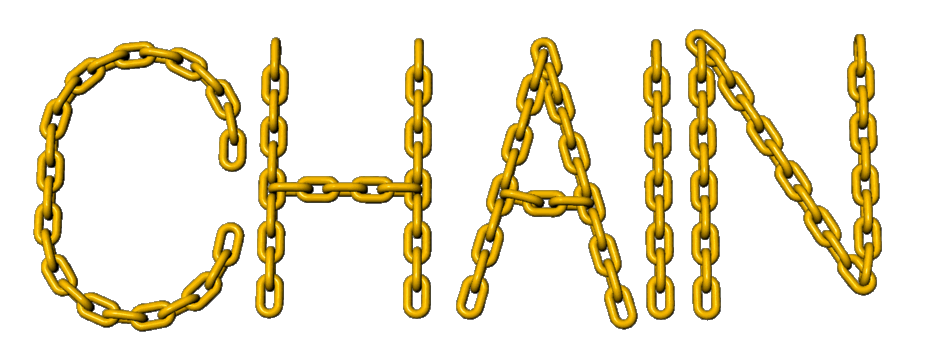
This tutorial shows some basic tricks for building and sizing arrays
and for getting objects to follow curves accurately.
First create the guide for a single link out of two arcs and two straight
sections. I used snap to get the ends to align with the grid and ortho
to create a 180° arc with a radius of 2. The straight sections were
4 units long. The reason for the even numbers will become clear shortly
but the units can be varied.
I selected the four curves and joined them into a single curve.
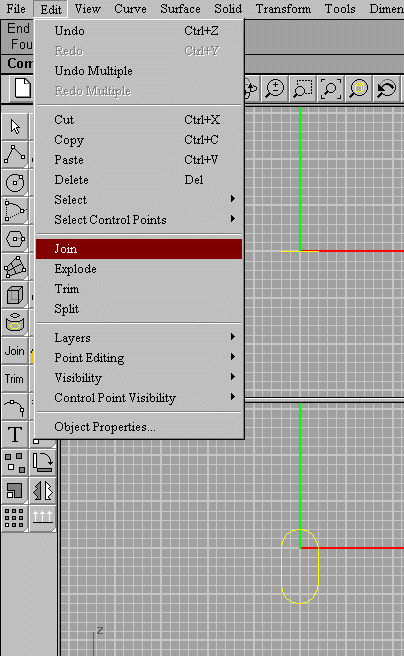
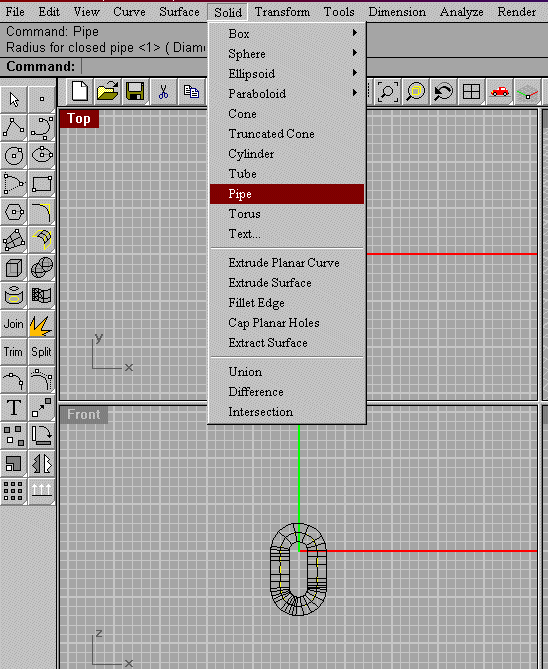
Next I created a pipe with a radius of one around the curve and deleted the curve. The ratio of 1/2/4 creates a link where the center hole is the same diameter as the pipe. A smaller pipe and the links would appear to hang in space off each other. A larger link and the links would merge into each other. An added atvantage is the even number spacing makes the center point of the link a snap point on the grid.
Copy and paste the link. Move the duplicate up about ten clicks to align
with the top hole of the original link.
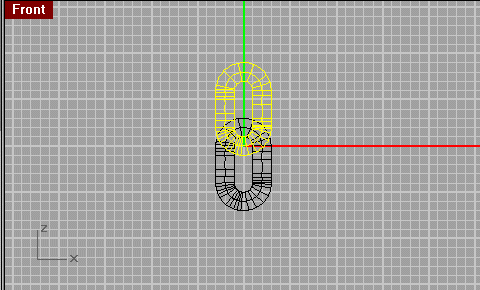
Click on the top view. Select rotate from the transform menu. Click
on the center of the link and rotate 90°.
Deselect the ortho snap from the bottom window.
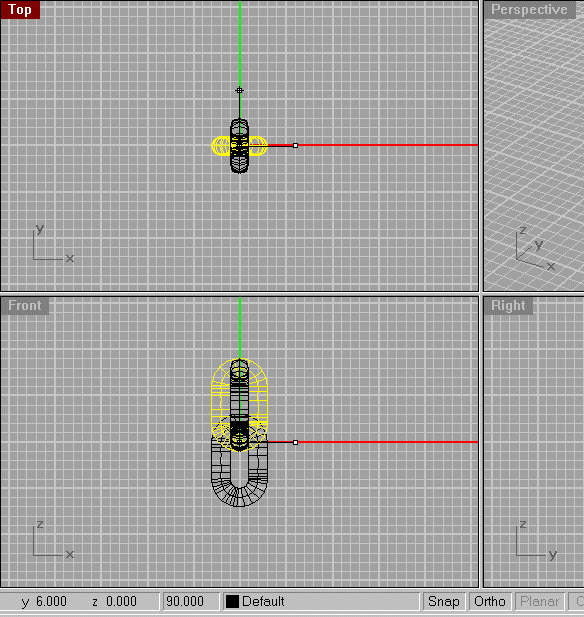
Note the chain dimensions. It takes 12 units
or one 10 unit long link plus the 2unit diameter of the link itself
for the pattern to repeat.

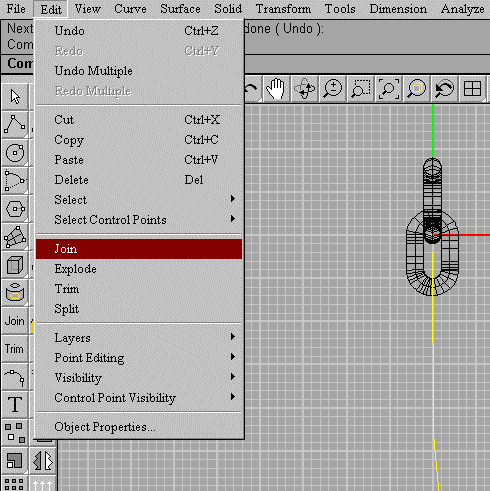
To just create a straight piece of chain select the links and select
rectangular array from the transform menu
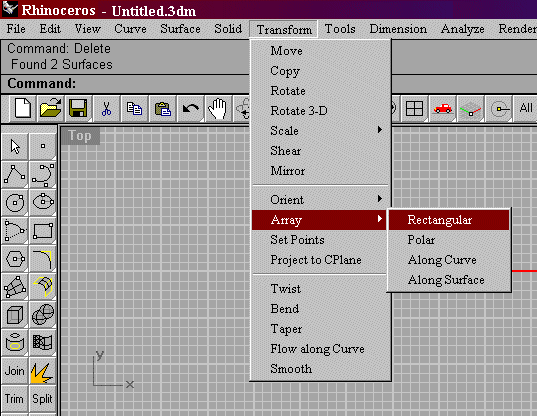
This section was created by making 1 copy X, 6 copies Y, and 1 copy Z with a Y spacing of 12. The disadvantage of this technique is that if the normal direction of the object is wrong the duplicates will be created in the opposite direction. Also the X, Y, Z axes seem to be window dependant , not absolute. To get things to go mostly where you want array along a curve and use a straight line as the curve.

Chains suspended from two points hang in a curve or parabola. The trick when drawing a swinging bridge, movie theater lobby, etc. is to get the chains to follow a curve rather than rotating each individual link by hand. Rhino has a command to create arrays along a curve. It does this by drawing a tangent line through the object parallel to the line segment at the beginning of the path curve. For an object such as a chain link to accurately follow a curve and stay parallel it must start out with the center of the link directly over the beginning of the path curve.The long axis of the link must line up on the curve axis. If the line is curved from the beginning or at an odd angle this can be a tricky proposition. With chains there are two links and two different centers. I tried joining the links, starting from the end of the curve, rotating the links to align parallel with the curve etc. I finally realised I had the computer to think and calculate the vectors. All I had to do was get a straight line through the link and connect it to the start of the path curve. The computer could calculate the rest.
First generate a parabola or other complex curve. I zoomed out to give
myself plenty of room.
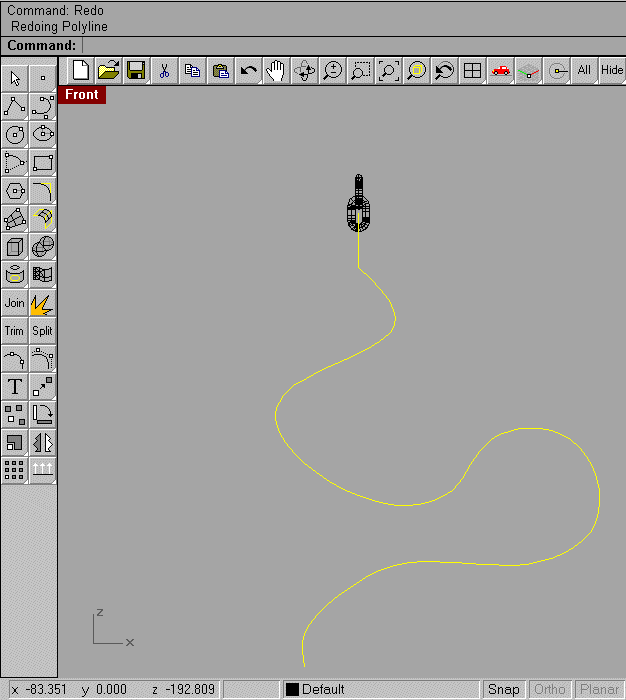
Zoom back down on the chain links. Grab the end of the curve and move
it with the snap on till it is close to aligning with the long axis of
the links. Copy the curve. With snap on draw a centerline down from the
point at the center of the link. Go down to the OSnap menu and activate
the end snap checkbox. draw a line from the end of the centerline close
to the start of the path curve. End snap will make the line jump to the
curve when the cursor gets close enough. Mouse click to set the point and
press enter to stop drawing line segments. Turn off the end snap.
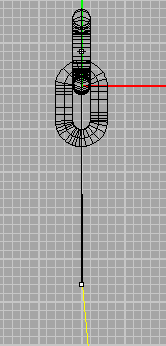
Select the short lines and the path curve and join them. You can select
multiple objects by holding the shift down while mouse clicking on individual
objects.
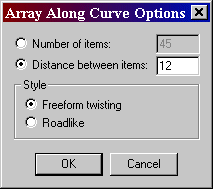
Select the chain link and use the array along curve command from the
transform menu. Select the joined curve as the path curve. The option box
will pop up choose distance between items and type 12 into the box (Why
12?). Select freeform if necessary and press ok.
The first links will array along the curve. When there is no longer
12 units of curve length left the duplicates will stop. Select the curve
and delete it.

Paste the copied curve back, it should appear in the same place. Using the end snap draw another line to the center of the second chain link. Join the curves and repeat the array commands to produce the cross links. Delete the second joined curve and also the links formed along the straight line to the start of the curve if they are not wanted.
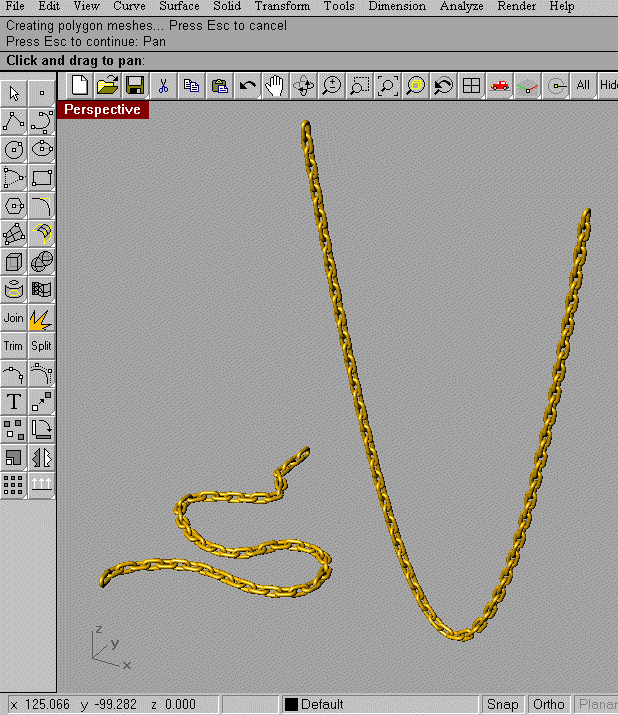
You now have a set of links following your complex curve. Using simple curves and the array command you can draw bridges, hoists, jewelry, etc. out of chain.
2001 John Henry [email protected]