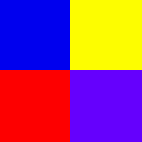
An imagemap, like the one shown above, is just an image which has been targetted so to speak with "hotspots" that, when clicked, will send you to another page or a link within the same page. This works just on the same basis as any other link that you may put into a webpage but with a few differences.
Making an imagemap out of any image isn't exactly a hard thing to do. If you have basic HTML skills, it will only take you around twenty minutes to figure out how to make an image map like the one above using rectangles. You would need the following in order to produce one: an image you want you turn into an imagemap, a program like Paint Shop Pro or Photoshop to tell you the co-ordinates (pixel locations) of the image, and your favourite HTML editor.
Listed below are the steps to make an imagemap...
- Construct a barebones HTML page with just the necessary information (HTML, HEAD, TITLE, BODY, et cetera) and save it.
- Open up the image that you want to turn into an image map and have a pen and paper (or Microsoft Notepad) on hand.
- Make a duplicate of your image by copying and pasting it in your graphics editor and name it something akin to "image_work.jpg". You will want to work on the copy instead of the original.
- Take the shape drawing tool and begin to draw white rectangles around the certain spots on the image you want to make "hot". Make sure that the pixel width on the rectangle tool is set to 1.
- When you have finished making the rectangles around all of the spots, move your pointer to the top-left of the first rectangle and record the co-ordinates shown. In Paint Shop Pro, these numbers are displayed in the bottom-left hand corner as x,y.
- After you record the numbers on your paper or notepad, move the pointer to the bottom-right hand corner of the first rectangle and record the co-ordinates shown there as well. Continue to all of the rectangles and repeat. You will have two sets of x,y for each rectangle.
- Now you're ready to put the imagemap into your HTML document. Start by placing your image in the document like you would any other.. but with a few extra syntaxes:

- Space down a line and add this (make sure that the name is the same one you specified above in the USEMAP syntax):

- Now you can plug in your co-ordinates for the parts of the image you want by doing this:

- When you are finished adding in all of the co-ordinates for all of the hotspots, you can close the imagemap by using
 . Now you have an imagemap. Woo woo. Good for you.