Animation Step Five Okay, you're
braving animation, good for you. From here out, I assume you are
competent at using your painting software, so I won't be putting in
every little picture like before. I'd also just like to point out
that I use Animation Shop from Jasc Software. I don't know how to
do this in any other program, at all. So if you don't have
Animation Shop, I'm afraid I can't help you with more than the basics
of animation, it'll be up to you to find out how your software does
this. Animation shop can make animations one of two ways, either
it can take a bunch of individual gifs and put them together, or you
can copy/paste frames directly. I'm going to tell you how to do
the copy/paste way, as it keeps you from cluttering things up with
uneeded files.
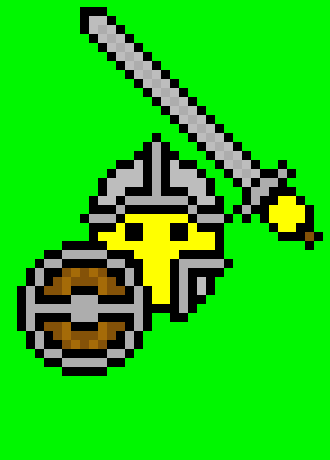
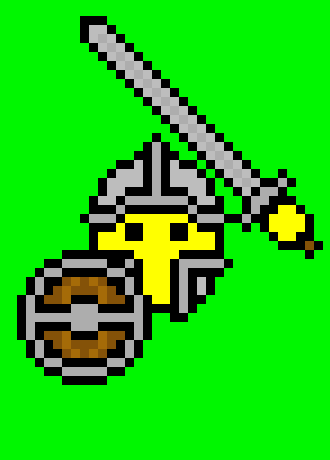
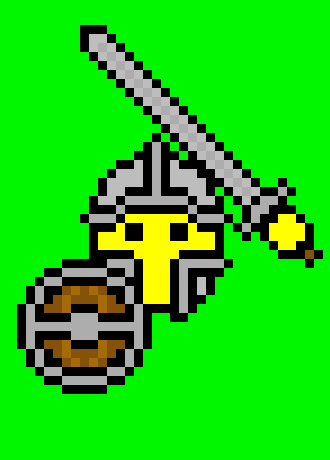
First thing you need to do is get the image down to two layers. One layer for the face, one layer for the weapons. Since we have 3 layers left over from the rest of the tutorial, I suggest you copy/paste the weapons as a new image for a little bit. Delete the weapon frame from your complete smiley, and merge layers like I showed you in Step Four. Now make a new layer, and copy/paste your weapons back into place. This is going to be your master file. Merge all the layers again, copy/paste your image into a new file, then hit the back button to undo the merge. This is how you'll get all your still frames from your master file. You need to do this once for every frame you make. For this smiley, we want the shield and sword to bob up and down, so what we'll do is just slide that frame up and down one pixel at a time, merge files, copy/paste, slide again, until we have all the frames we want. Since this is a simple animation, we only need 3 seperate unique frames. Below are the 3 frames I've chosen. All they are is where I have moved the sword/shield layer down one pixel every time.
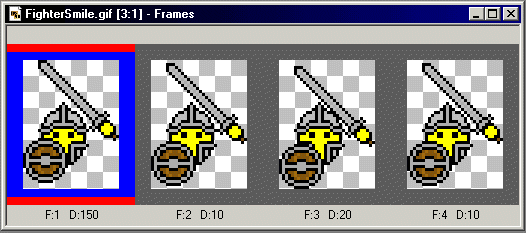
Now, Animation Shop doesn't deal well with doing it's own transparencies, so here's how to fix that. On your individual frames there, copy them, delete them (so its just a plain green field), make a new layer, and paste the smiley back down. Make sure that green is your background color, and it'll post just the smiley. Copy just that layer, and move over to Animation Shop (have both programs running at the same time). That will be the first frame of your animation. Do the same with the other frames, choosing to Paste After Current Frame in Animation Shop. You should now have 3 frames, which are basically just the fighter lowering his shield and sword. Take that middle frame, copy it, and past it after the last one, and you've got him starting to raise it again. As long as you are set on infinite loop (the default), it will blend in with the first frame, and it'll be bobbing when you preview it.
Only thing left to do now is slow the animation down a little bit by messing with frame properties to set frame speed. Right click the frame, select Frame Properties, and it'll bring up a window showing how long that frame is shown in 1/100ths of a second. Default time is 10. I set the first frame to 150 so he's holding the shield normally for a second and a half. The transition frames I set to 10, and the frame where everything is at the lowest it goes, I set that to 20 so he seems to hold it there for a split second longer than normal. Once you're happy with it, save the file and you're done! One thing to keep an eye open for though, is that Animation Shop sometimes tries to stretch or compress a copy/paste frame to match the one before it. You can avoid this by resizing the images you are copy/pasting from so that they are all the same size. If doing this leaves blank space on one side of the image, toss one pixel down on the edge to hold the place while you copy/paste. Once the image is over in animation shop, you can use the eraser to remove it. This step isn't as easy as the other ones, and really requires you to just play around with Animation Shop (or whatever you're using) and see what kind of little quirks it has. But the basic information should be the same across the board. Make up each individual frame, enter those frames into the animator program, and thats about it. |