Power Point Tutorial

| Open
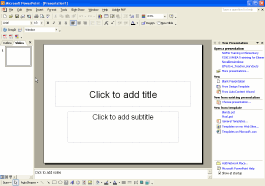
PowerPoint Observe the screen. Click in the title box. Type in the title of your slide. Click in the subtitle box. Type in your name, period and subject area. |
|
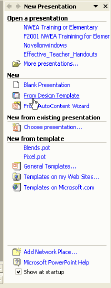
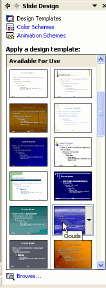
| Notice the task pane on your right hand side. In the task pane, click “From Design Template.” Click on another design to select another. Once a design has been selected, you are ready to insert the next slide. |
 |
| Go to
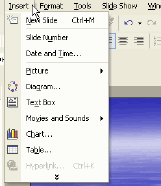
Insert on the menu bar. Click on “new slide.” Notice the slide layout pane that has appeared. Select a content layout that serves your purpose. Each slide shows an icon that represents text, graphics, charts or graphs. You can use your scroll bar to select other content layouts.
|
 |
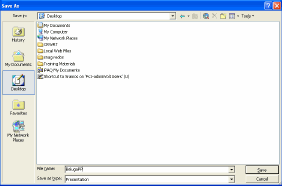
Remember to save your Power Point presentation as you are working on it. If you working in a lab, save it to a floppy disk or to your U: drive. Go to the “File” in the menu bar. Select “Save.” When the dialogue box appears, type in the name of your presentation. Remember to give it a unique name that you will remember. |
 |
Next, go to the Insert Menu. Go to New Slide
|
 |
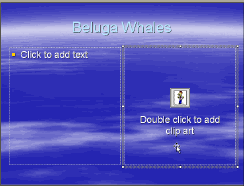
| To insert a graphic, select a slide layout that contains a graphic icon. | 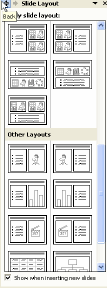 |
| Double click on the icon and type in the name of the graphic to search.
|
 |
If you do not find the graphic you are looking for you can import a graphic from the Microsoft Design gallery or from another source. You can search the PowerPoint clip gallery or import clip art. |
 |
Continue to add your slides until you have completed your presentation. Remember to save your work until you have completed your project. Make your slides interesting by changing font sizes or color. |
|
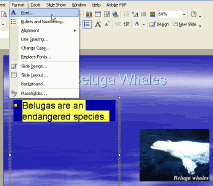
Change font size or color by highlighting text. Go to the Format menu, select Font. From this menu, you can change the color or size of the text.
|
 |
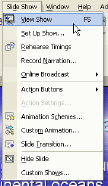
Now watch your presentation. Go to the menu bar and select Slide Show. Now View Show! Congratulations on completing your Power Point presentation! |
 |