

Quick and Easy Antique Text
Created June, 2007 ©D'zines by Grace
Any similarities to any other framing tutorials, is purely coincidental.
Contact me if you have any questions or comments.
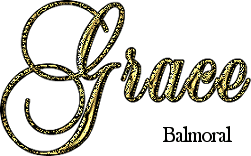

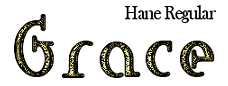


I've presented different fonts and the divider. The divider needs to be something like this... no swirls, no touching allowed! LOL
It just needs to be clear and sharp.
There are no outside filters... just what is within Paint Shop Pro. I've used version 8, but believe this can be
accomplished in any version.
I've included a zip of 4 fonts in case you want to use one of them or all of them or add something to your ever growing collection. :-)
Fonts here.
Let's get started!! How many times have you heard that one!? Just a reminder... the settings I have used are subject to change.
Feel free to change anything to suit your taste/preference. What will look good with one font, may not look good with another.
Skill Level : Advanced Beginner
What you need: Paint Shop Pro, a gradient, and any embellishments you would like to use.
Open the font you want to use. If you're using one I've provided, you can open and minimize without installing.
1. File/New - 500 X 300, Raster Background (transparent or color if you like) OK
Can resize later. :-)
2. Text Tool - Vector, font of choice, size depends on what you are wanting to use.
72 to 100 works nicely.
Foreground - black but nulled, Background - gradient
Gradient - Linear, Angle - 45, Repeats - 7, Invert - NOT checked, OK
Type in your text.
3. Objects/Align/Center in Canvas
4. Layers/Convert to Raster Layer
5. Click on bottom layer
Layer/New Raster Layer, OK
6. Activate text layer ( top)
Selections/Select All/Float/Defloat
Selections/Modify/Expand - 2 pixels, OK
7. Click on middle layer
Flood Fill Tool : Match Mode - None, Tolerance - 20, Blend Mode - Normal, Opacity - 100
With your Foreground set on black, fill the active layer... Leave selected!
Selections/Modify/Contract - 2 pixels, OK
8. Click on text (top) layer, Layers - Duplicate
9. Adjust/Blur/Gaussian Blur: Radius 4.00, OK
10. Layers/ Merge Down
11. Effects/Texture Effects/Mosaic Antique
Settings:
Number of Columns - 25, Number of Rows - 30, Symmetric NOT checked
Tile Diffusion - 3, Grout Width - 4, Grout Diffusion - 4, OK
12. Effects/ 3D Effects - Inner Bevel
Settings:
Bevel - #8, Width - 8, Smoothness - 15, Depth - 6,
Ambience - 0, Shininess - 14, Color - C0C0C0(light gray)
Angle - 100, Intensity - 50, Elevation - 35, OK
13. Layers/Merge/Merge Down
The next 2 steps are optional depending on taste and the color used.
14. Selections/Invert
15. Effects/3D Effects/Drop Shadow
Settings:
Vertical - 0, Horizontal - 0, Opacity - 100, Blur - 55 (five), OK
16. Selections/Select None
17. Adjust/Sharpness/Sharpen (may be done several times)
Add a background color, your favorite drop shadow, flowers, birds, or whatever you like... or nothing at all!!
We are finished! I do hope you find this tutorial to be useful and and have enjoyed it.
Here's what I made while going through this tutorial with you...




Tutorial written and created by Grace Williamson, ©D’Zines
by Grace. These Tutorials are copyrighted by law. You may LINK to them only. You
may not remove any of the graphics, or HTML within these pages to reproduce
these Tutorials, without the expressed permission of ©D’Zines by Grace. These
pages may not be removed from this website and sent via e-mail, nor saved,
stored or archived in files in YahooGroups or other mailing list sites, nor may
they be translated and placed on another site.
Creations made from these tutorials are your creations.
©D’Zines by Grace, holds the copyright to all original tubes and original images
that have been created and provided, by me, for use within my tutorials. Page
backgrounds and images are created exclusively for this website and may not be
downloaded or used without written permission.
©D'Zines by Grace 2007