Windows XP
Windows
Basic
Look
around
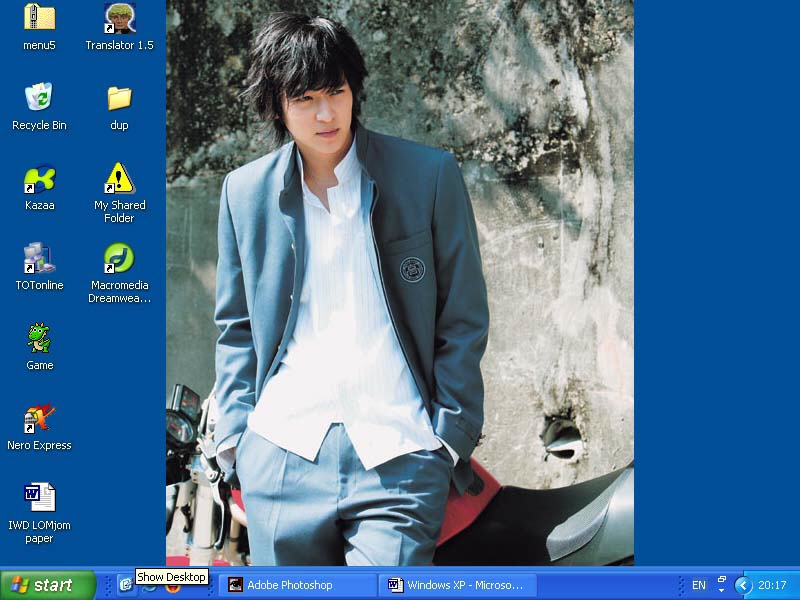
Ø When you click on start button, pop up will appear. The picture at the top of pop up with
its name to its right will show user account currently using. Pop up contains
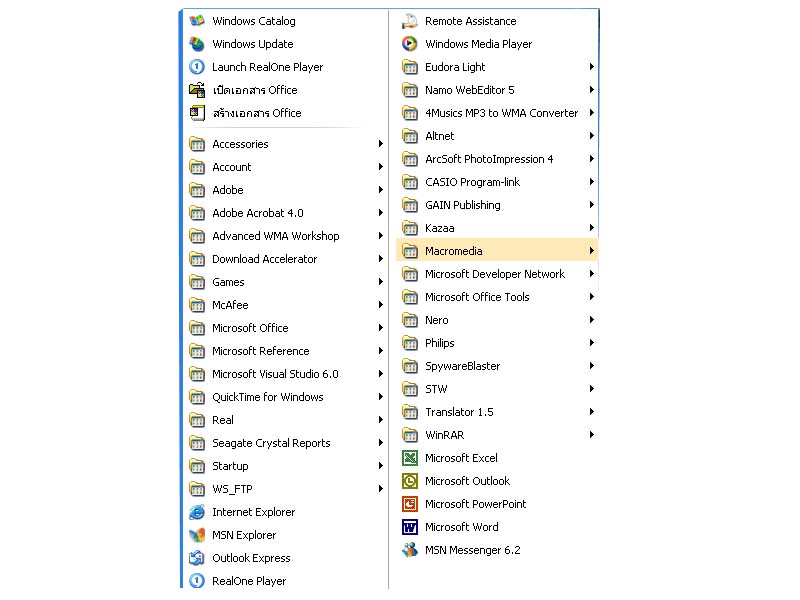
internet applications, my computer, all programs installed to the computer,
also log off (to sign out from current user), and turn off computer.
Ø Start button is within blue bar which is called
“taskbar”. It shows application’s
status (what application is opened, which is activated <currently used>),
language and time.
Using
Mouse and Keyboard
Ø Basic used of mouse: click
(to select item), double click (to launch applications), right click
(to show item’s pop up which contains commands of select file: open, print,
rename, properties, etc. depends on its type), drag (hold down left
button and move to destination.
This can be used to move, copy, files), wheel (to zoom in and out
in some applications, scroll up and down).
Ø Keyboard: Use to type. Enter (to go to next line), Backspace
(to remove backward <text before cursor>), Delete (Del) (to
remove text after cursor), Ctrl, Alt, Shift (support function, must be
used with other letter, except Shift which can be used alone to changed
the letter between lowercase and capital letters), Window button (the
button that contains windows’ logo – used to open start menu pop up).
Folder
Component
Ø Each folder window contains title bar which shows
current folder’s name, and to its right, there are 3 buttons: minimize,
maximize (restore down), close. Menu
bar (contains command pop up), tool bar (contains often used
command), address bar (contains location), status bar (show
status of select file).
Windows
XP Major Program

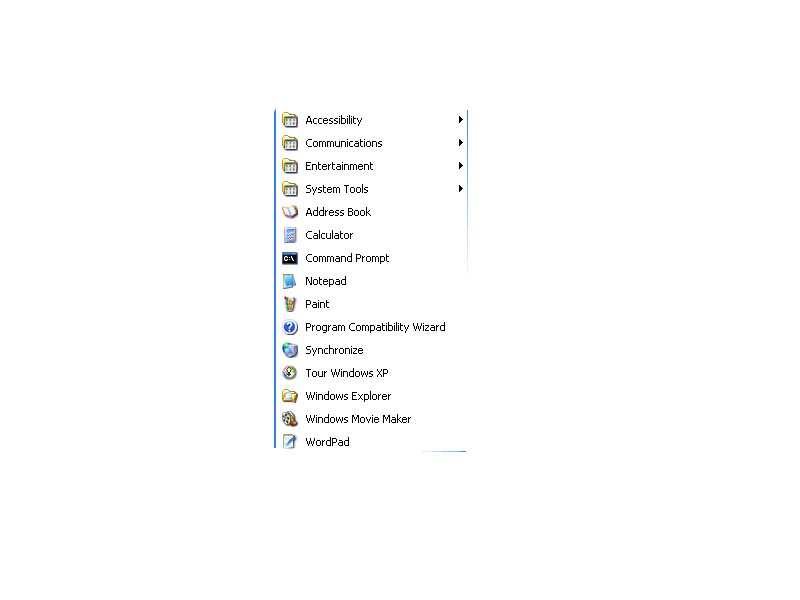
Ø In
you start pop up: communication (network), entertainment
(multimedia), system tools (organize window system), address book,
calculator, notepad, paint, windows movie maker, wordpad,
internet explorer, msn explorer, outlook express, windows
media player, msn messenger.
Select
Icons
Ø Click to select an item.
Ø If you want to select more than one, hold down CTRL key and
click items.
Ø Drag to select item.
Ø To rename a file: click on its name or press F2
key. To rename more than one file: select files, type in at one of the
name and the rest will change following by numbers.
Create
Shortcut
Ø To move – drag item to where
you want it to be.
Ø To copy – hold down CTRL key
and
drag to where you want it to be.
Ø To
create shortcut – right drag to
destination, it will appear pop up when you drop which contains command – copy,
move, create shortcut.
Ø Deleting
shortcut does not affect the original item.
Customize
Windows XP
Display
Properties
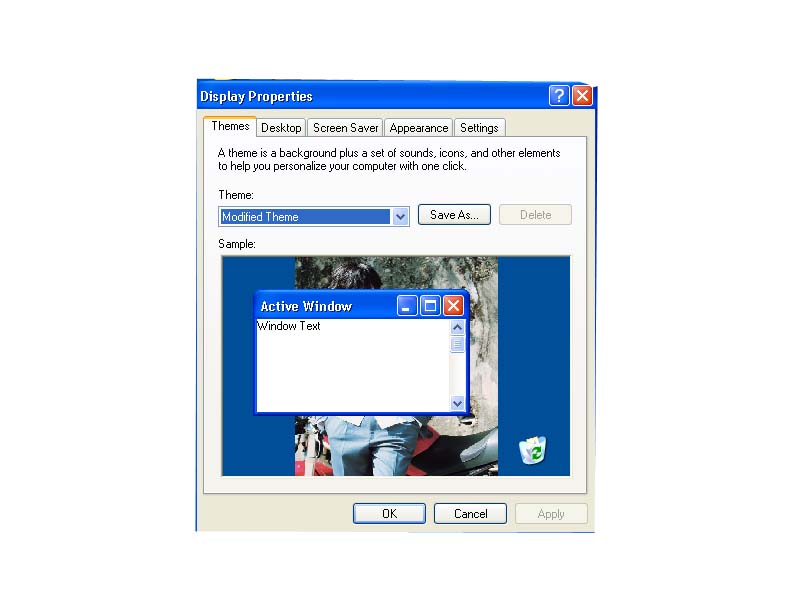
Ø To customize screen (right click on screen > display)
Ø You can change themes, wallpaper, customize desktop, screen
saver (screen while not using), appearance (color, fonts, similar to themes),
settings (color setting, screen resolution).
Task bar
Ø Customize taskbar and start menu (right click on taskbar
space or start menu > taskbar manager, or go to control panel > taskbar
and start menu.
Ø User can set taskbar option which can be: lock taskbar, auto
hide (hide when not in used). User
can also customize start menu to different view of its pop up. User can set anything that will appear
on the taskbar.
Start
Menu
Ø To customize program in start pop up
Ø User can create new list, move, or delete
Folder
Options
Ø To customize folder(s) (select tools on menu bar > folder
option or control panel > folder option)
Ø User can set its option, for example: to show hidden
folder(s), can select picture for folder (thumbnails view)
File Type
Ø User can edit command on each item pop up, change icon. User can also select default
application to open each file type.
Customize
Folder
Ø To customize icon on folder’s tool bar. User can select or remove command
icon(s).
Change
Logon Icon
Ø Click on the picture on start pop up to change. User can browse for more pictures.
Custom
Sound Events
Ø User can set sound using in windows. For example: when log on, log off,
windows start up, alert, etc.
Using
Windows XP
Common
Task
Ø This contains task shortcut. It is different, depends on a window that user opens such as
pictures’ folder, music will result different command of common task.
Folder
Command
Ø On menu bar, there are several commands: file (to
create new file, folder, etc.), edit (to cut, copy, paste, etc.), view
(to change to different views), etc.
Windows
Explorer
Ø Show directories (folders) on the left and contents on the
right.
Ø Click + / - in front of each folder icon to show / hide sub
items.
Ø Using drag and drop to move, copy files.
Search
Ø Put in destination, type of file you want to search
Ø To type in, if you are not sure in your file name, you can
use “*” or “?” to place what you do not remember. For example: “a*” to search file name started with “a”, or
“a??” to search file name started with a following by 2 other letters which can
be “alt” or something that you do not remember.
Ø User can also change search setting
Compression
Folder
Ø Compressed folder or zipped folder is to decrease folder’s
size. User can create compresses
folder by right click on space on a window, then select new > compressed
folder. Put files in.
Ø To unzip folder: select zipped folder, click extract all
files, it will launch extraction wizard.
User can set the destination.
Recycle
Bin
Ø Contains file you want to delete
Ø This bin does not permanently delete your files, you must
empty your bin.
Ø User can also set its properties.
Using
Scanner
Ø Connect your scanner, then scan icon will appear in my
computer.
Ø User can set scanning preference.
Ø When using scanner, user can preview page before scan onto
computer, and also select file type, destination.
Ø Scanner also can be launch from specific application such as
Paint.
Digital
Camera
Ø When it is connected, computer will automatically launch the
wizard. User can copy files from
camera onto their computer, take a picture through the command of window (does
not have to press shutter on camera).
Using
CD-Rom
Ø When CD is put into computer, system will pop up a
dialogue. Select the action
(actions are different, depend on type of CD). User can set default action.
Ø To copy music file using Windows Media Player. Select copy from CD, tick on song(s)
you’d like to copy, then press copy music button on top. If you have burner, you can create
audio CD. Select copy to CD or
device (left). Select album that
you already copied to. Then copy
music.
Ø CD-RW can be re-written, windows can erase or add files into
CD.
Accessories
Text
Editors
Ø Notepad: to note
something. Font can use only one
type for all file.
Ø WordPad: can import picture,
edit align of the page, fonts are set separately, can set margin, bullet, also
create bitmap image (will launch Paint to create).
Ø User can print with both applications.
Paint
Ø User can open JPG file, crop file, scale, capture screen
(press print screen button on keyboard > paste in paint).
Ø User can draw shapes, also can connect to scanner or camera
to get pictures.
Windows
Movie Maker
Ø To edit video: user can import video file, picture file, and
audio file to use in a video. User
can change view to picture frame or timeline, zoom in and out. To do transition between clip file,
just drag the file over the previous file. When you are done editing, save project, then save movie
(set quality, description). Then
program will render the video, its render speed depends on length, and speed of
your computer.
Ø Option view: user can create duration of still image.
Magnifier
Ø To zoom in working area, it will be a pop up window which
can be moved anywhere.
Ø User can set its settings such as if you want magnifier to
follow your cursor or not.
Narrator
Ø This
application is used to read your text, information, data (in English).
Ø Can
set what to read, voice, speed, volume.
On-Screen
Keyboard
Ø In
case you do not have keyboard or uncomfortable to use. This will show your keyboard on
screen. You can set its character,
anything just like your manual keyboard.
Ø This
can be used in any application.
Compatibility
Wizard
Ø To
set application’s condition: some application cannot work on Windows XP but can
use on Windows 98. You can use
this to set mode, display setting, etc.
System
Restore
Ø Sometimes
when user install an application and not complete, there will be a trash file,
and sometimes causing windows error.
Before this error occur, user can create restore point and when your
system starts to occur, you can go back to the restore point.
Schedule
Task
Ø To
set sort of alarm and launch application you set to open by those time.
Disk
Checking
Ø To
check disk space and remove unwanted files, components (disk cleanup), organize
files (disk defragmenter), checking error and fix problems (scan disk).
Character
map
Ø To
show type face, key stroke of alphabet (how to put those unique characters into
application by typing.
Ø Can
be copied and paste to any application.
Control
Panel
Simple
Tools
Ø Date
and time (set current date and time, time zone)
Ø Display
properties (themes, wallpaper,
, screen saver, appearance, settings, etc.)
Ø Folder
option (to customize folders)
Ø Fonts
(to view font face, install, uninstall font(s))
Ø Keyboard
(setting properties: speed, delay, etc.)
Ø Mouse
(to set pointers, cursor face, etc.)
Ø Power
option (to set time automatically shut down, sleep, stand by,
for hard disk, monitor, computer, etc.)
Printer
Ø To
show current printer install on computer, can be added or removed
Regional
Settings
Ø To
set multiple languages, install other language fonts such as Japanese, Chinese
(so users can view those languages especially from internet).
Ø To
set keyboard setting, how to switch language.
Add or
Remove Program
Ø Often
used to remove application rather than add.
Ø To
remove unused software or windows components
User
Accounts
Ø To
create, set an account in case you have more than one user in one computer.
Ø Administer
account will be normal, you can do anything. Limit will limit user, some applications cannot be used and
some files cannot be shared.
Sound and
Audio Devices
Ø To
control volume of device, speaker, microphone (for recording).
Ø Launch
mixer
Text to
Speech
Ø To
use this option to speak a type-in word, sentence. User can choose voice to speak, set speed.
System
Performance
Ø Use
when your window seems to run slow unusually.
Ø To
turn on and off some effects, to speed up your window.
Disk
Management
Ø To
create partition, to format each drive, to delete.
MS – Dos
Startup Disk
Ø When
your computer cannot boot up.
Ø To
create MS - Dos, format floppy disk, tick on “create an MS-DOS startup disk”.