Photo shop 69 Disc 2
Creating
a stone frame
- make a selection
- invert the selection by holding Ctrl+Shift+i
- create a new layer
- click on edit > fill and choose the custom
pattern (the stone) then OK
- put in a style > choose bavel and emboss
- make a style you want then click OK
Creating
a transparent frame
- Open the file you want to create
- make a rectangular selection
- invert the selection by holding Ctrl+Shift+i
- create a new layer
- choose color from foreground
- press Alt and delete
- click on add a layer style > bevel and
emboss > change the angle to be 90°
- click on contour then OK
- make a field to be 70% then deselect the
selection
Creating
a cartoon frame
1.
Make a selection by lasso tool
2.
press Ctrl+Shift+i for making a invert of
the selection
3.
createa a new layer
4.
choose the colour of the frame frome the foreground
5.
press Alt and delete
6.
click on add a layer style > bevel and emboss
> change the angle to be 90°
7.
click on contour then OK
8.
make a field to be 70% then deselect the selection
9.
open the file picture you want but you have to
delete the background before you use it.
10.
Put in a style then choose bevel and emboss.
You can make change as you want then OK
Creating
a feather frame
- open the file picture you want then press Ctrl
and A
- click on select > transform selection
- hold Shift+Alt and move mouse to the
inside
- specify the position you want then enter
- press Ctrl+Shift+i
- click on select > feather
- make a feather to be 10 pixels
- create a new layer
then choose the colour you want
- press Alt+delete. If you want it darker
you can press it again.
Creating
a Zig zag frame
- open the file picture you want then make a
selection
- click on edit in quick mask mode
- click on filter > distort > ripple
- make the amout to be 350% then choose the size
and click OK
- come to edit in standard mode then
click on select > inverse
- create a new layer and make the background to
be white
- press Ctrl+delete
- press Ctrl+d for deselecting the
selection
Creating
a porariod frame
1.
Create a new file
2.
make a foreground to be white
3.
bring the picture you want in the file
4.
create a new layer
5.
hold Ctrl and choose layer picture
6.
go to layer#2 then click select > transform
selection
7.
press Shift+Alt then move the mouse out
8.
move down the line below then enter
9.
put in the white color and bring this layer below
the layer picture
10.
deselect the selection
11.
then add a layer style > drop shadow
12.
specify the angle to be 135°, distance = 10, size = 15 and click on stroke.
Specify the size to be 1.
13.
change the position to be center > change the
color to be grey then ok
Create a
wood frame
- Open the file picture
- click on window > action
- choose the wood frame then click play
- click continue
- you can make it more beautiful by clicking
layer
- then click on image > adjustment >
hue/saturation > pick any color you want.
Creating
a texture frame
1.
open the file you want to create.
2.
create a new layer the press Ctrl+backspace
for coloring the layer
3.
click on filter > noise > add noise>
set the amount to be the highest the OK
4.
create the color from noise by setting the
foreground to be white then press d and x at the keyboard
5.
click on filter > texture > stained glass
then OK
6.
click on image > adjustment >
hue/saturation for setting color
7.
choose colorize to make 1 tone color then
pick any color you want
8.
drage mouse of this layer to the create a new
layer button for making a copy
9.
click on filter > stylize > emboss > OK
you will get the picture with depth
10.
go to blending mode and set it to be hard
light
11.
click ractangular marquee tool then press delete
for deleting the unwanted area.
12.
click the below layer and delete the picture out
13.
click the above layer and then add layer style
14.
go to drop shadow and bevel and emboss
then OK
Make a
selection on a picture that has fur
- Open file picture
- click on filter > extract > edge
highlighter tool
- setting the size of the brush you want
- drag mouse at the area you want to make a
selection
- go to fill tool > click and brush the
area > then OK
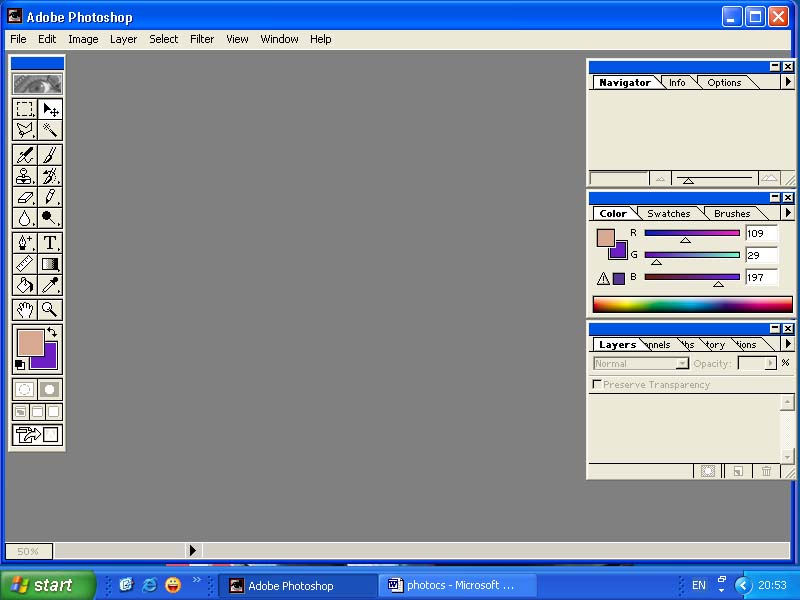
Make a
selection on a color picture
- open file picture
- click on select > color rage > eye
dropper tool and click the picture you want to make selection
- set the fuzziness then OK
- find another picture you want to replace the
picture you have made the selection
- click on select > all (Ctrl+A)
- press Ctrl+c (for copying)
- click on edit > paste into
Dye cut
picture by using pen tool
1. open file
picture you want. (you can zoom in for making the picture bigger for easily
doing the work)
2. choose pen
tool for making selection
3. mark the
first point you will see that there is a layer appeared.
4. create a
next point. If the picture has a curve you can make it curve by holding mouse
and set the shape you want. We can cut the line that comes out by pressing Alt
at the keyboard and click at the point. If the color of the picture block the
selection you can losen the opacity for allowing you to see the picture.
5. when you
finish making the selection then click on the right side > make selection
6. setting
the feather radius to be 2 if you want more feather, you can set more
pixels > OK. You will get the selection you want.
7. Click at
the layer background > Ctrl+c for making a copy
8. Ctrl+N for
creating a new file the click OK
9. Press Ctrl+v
for pasting it on the new file > and save it.