Microsoft PowerPoint
2003
Introduction to PowerPoint
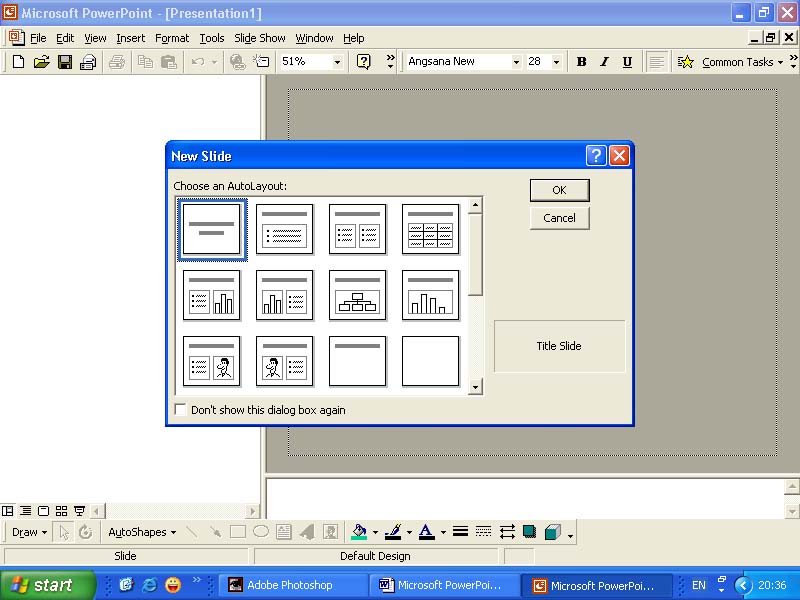
PowerPoint Components and Basic Used of Program
Ø
PowerPoint
is used for presentations. This
version will add more effects and technique. User can make new file, open exist file, and save new file.
Ø
PowerPoint
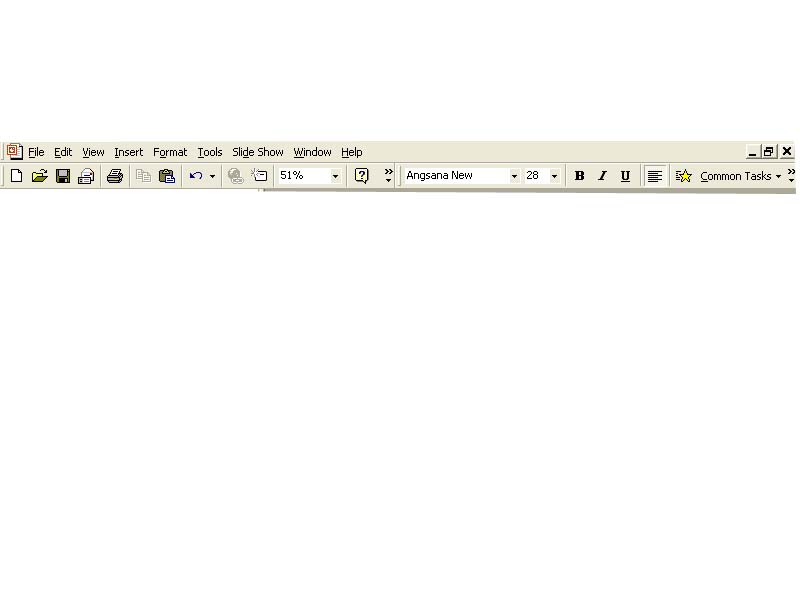
window contains title bar (contain file name), menu bar (contains
commands), tools bar (contains command icon that often used). User can also customize tools bar, what
to be on there and what not to be on there. View (to change to different view, stage (working
area), task pane, tools bar for text in slide.
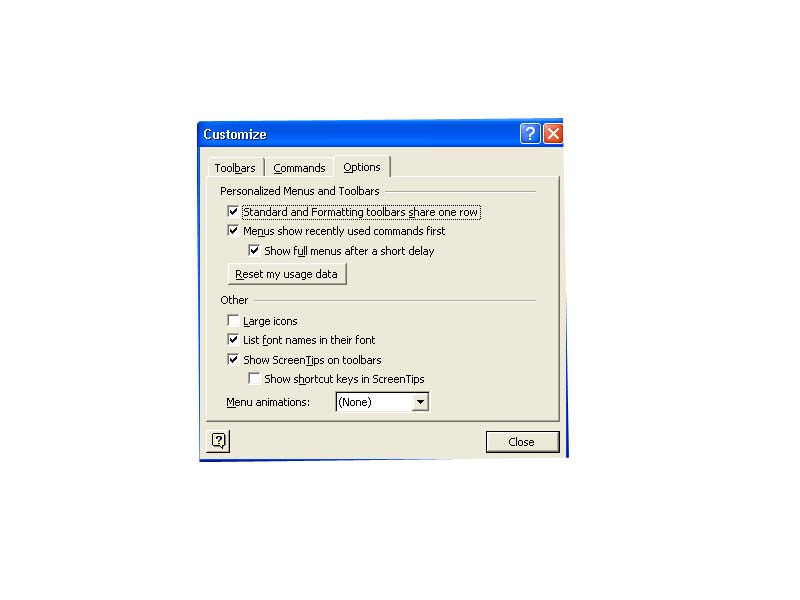
Customize Tools
Ø
Tools
bar option: user can select hidden commands to use. If you want those commands to be on tools bar, you can
add or remove command icon as you want.
Ø
Go
to menu bar on the very right (option), select add or remove buttons >
customize > select what you want.
To Create Presentation Outline
Ø
In
outline tab view, type in heading. Demote and promote are used to
decrease an increase importance on each heading (left side bar).
Ø
-
/ + to hide and show sub headings.
Ø
User
can change order by dragging slide up and down. User can summary slide by selecting slides then click on
summary slides. User can also
delete slide by just clicking on slide, then delete.
To Print
Ø
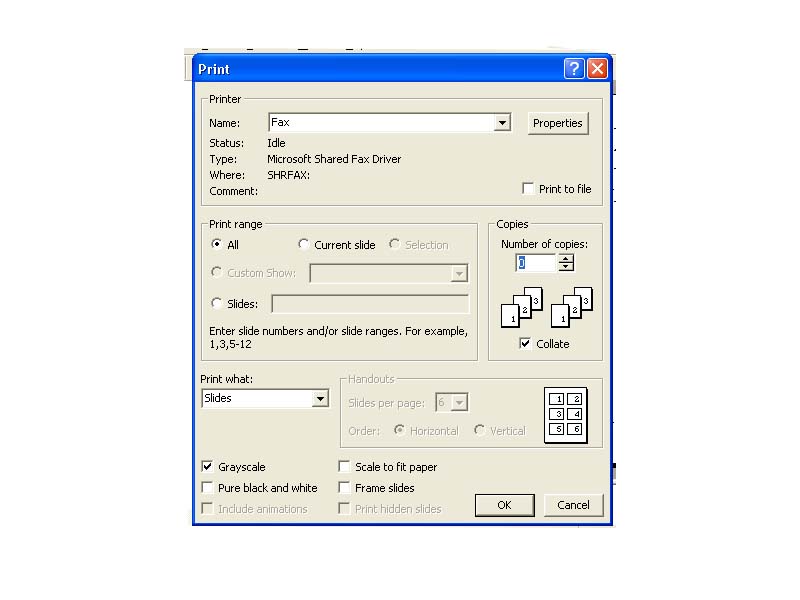
User
can select printer, pages, and how many copies as wanted. User can select how to print such as
slide, hand out (can select how many per page), note page, outline view (only
headings). User can also select
color or grayscale printing, preview before print.
Ø
If
user does not want background to show on print to save your ink, go to tool on
menu bar > option > tab print > unchecked background printing.
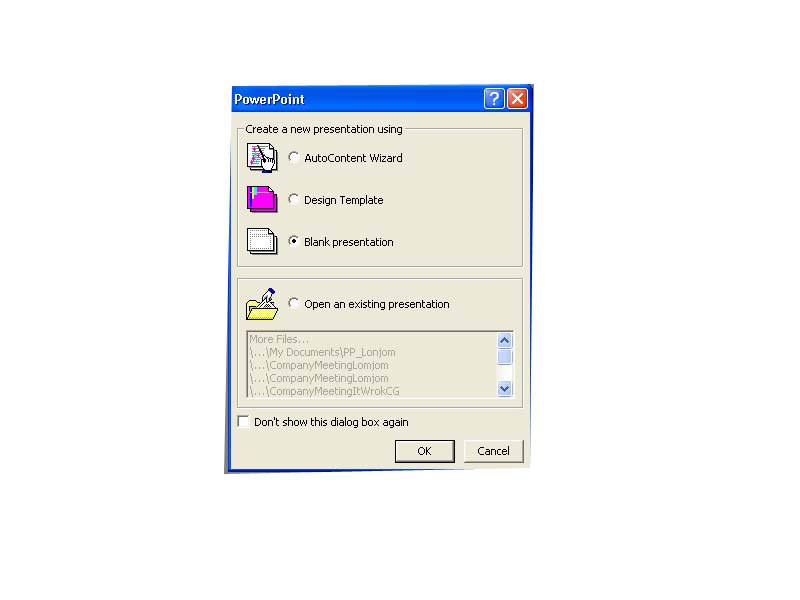
Adding From Template
Ø
On
task pane on your right, click on getting started > slide design. Then templates will show on task
pane. There will be 3 separate
groups: current templates (templates using in current document), recently used
templates (templates that were used before this documents), available templates
(templates that can be used).
Select the one you want and apply it, either to selected slide or all
slides, depends on what you want.
Ø
User
can insert and delete slide by right click on space in slide tab, or outline
tab, then select insert new slide.
Delete can be done by select the slide you want to delete then press Del
on keyboard or right click on the slide in slide tab or outline tab, then
delete slide.
Adding Effects and Pictures to Plain Background
Ø
Click
Format (on menu bar) > Background or right click on stage > Background.
Ø
In
pop up dialogue, click to select color and user can also preview to see how it
looks on screen.
Ø
User
can fill effect instead of plain background, user can fill by gradient (using
current foreground and background color), texture (from template), pattern
(user can select foreground and background color), or put your picture in
(browse from file).
Edit Color Schemes
Ø
Task
pane > getting started > slide design - color scheme. Then templates will appear on the
right, the color of background, text, shape, etc.
Ø
You
can edit color scheme by clicking link under template (edit color scheme). Standard - to add or remove
exist templates. Custom -
user can edit color of text, shape, background, etc. by click on color and
change color, user can also add your color scheme as standard scheme (add as
standard scheme, then apply).
Organize object in a slide
Adding and Editing Text
Ø
There
are two ways to add text. Place
holder: on a stage will provide text box which contains “click to add title
or sub title, or text”. Click in
that box and type in what you’d like.
Text box: at bottom tools bar, click on text box button then
click on stage and type in.
Ø
User
can move, resize, rotate text, also can set text align (such as left, center,
right)
Ø
User
can change fonts by select text then change font type and size on tools bar.
Ø
User
can create text frame or border by creating auto shape using bottom tools
bar. User can also set align of
object to be in front of or behind text by right click at shape > order >
sent to back (to put shape in the back, for example). User can also change shape properties such as line color,
line style, fill color by using bottom tool bar.
Adding and Editing Picture
Ø
To
add picture, on menu bar > insert > picture > then you can select
where you would get picture from.
It can be clip art, from file, from scanner or camera, auto shape, word
art, organization chart.
Ø
When
you have a picture, whether from clip art, file, scanner or camera, it will
appear with picture tool bar. User
can set color, contract, brightness of the picture. User can also crop and rotate picture, can add frame or
border to the picture. User can
compress picture and reset what you have done with the picture before.
Ø
User
can copy and delete picture also.
Ø
There
are two types of charts. One is
table, another one is graph.
Ø
To
insert table: insert > table.
Then you can set columns and rows as much as you want. Set its size to fit your screen. Another way is to click insert table
button on menu bar and drag your mouse selecting numbers of columns and
rows. There will be table and
borders tools bar appear with table.
User can set styles. User
can split or combine cells, distribute rows or columns evenly.
Ø
To
insert graph: insert > graph (or insert graph on tools bar). Graph will appear along with
information table. User can put in
own data in table. Then click at
the space on stage to update data.
To edit data, double click at graph. To edit graph components such as color can be done by double
click on which of the graph you want to change.
Adding Date and Time
Ø
To
insert date and time: insert > date and time. Tick to available date and time in date and time
dialogue. User can set time,
language, date and time format, style in slide(s).
Ø
User
can add page number and footer on slide(s).
Ø
User
can set its style such as font, color, size by select view on menu bar >
master > slide master or right click at date and time border. Then user will be able to change
styles.
Adding Hyperlink
Ø
Hyperlink
or link in this case can link to file or web site.
Ø
To
create hyperlink: select text that you want to link (or picture) then go to
insert on menu bar > hyperlink (or insert hyperlink on menu bar), choose
file or type in web site address in “address:”. On the other hand, if user type in web site address as text,
the program will automatically create hyperlink for you.
Ø
To
edit: right click > edit hyperlink, then edit file or address or remove
link.
Inserting movie and sound file into slide
Inserting Sound File
Ø
To
insert clip sound (sound provided in software): insert (on menu bar) >
movies and sounds > sound from clip organizer. Then sound files will appear in task pane. Drag into a stage. Select actions either automatically
play or when click mouse. Speaker
icon will appear. You can move
icon to wherever you want and set its properties by right click on icon. You can set loop, show or hide icon
(only automatically play), or delete (select cut).
Ø
To
insert sound from file: insert > movies and sounds > sound from
file. Select file, then user is
able to set the same thing as clip sound.
Ø
To
insert from CD audio track: insert > movies and sounds > play CD audio
track. User can set which track to
start, which track to end. Instead
of speaker icon (from clip and file) will be CD icon. The rest is the same.
Inserting Video or Movie File
Ø
To
insert: insert > movies and sounds > movie from clip organizer (movie
contains in software). File will
show on task pane. Drag into
stage. Set settings.
Ø
To
insert from file: insert > movies and sounds > movie from file. Select file. Select actions.
Ø
To
insert gif animate: insert > movies and sounds > movie from file. Then change file type from “movie
files” to “all files”.
Recording Sound into Slide
Ø
To
do this, user must have microphone connected to the computer. Set volume control (in control panel),
properties, and available microphone by check in the checkbox in a dialogue.
Ø
To
record: insert (on menu bar) > movies and sounds > record sound. Then name your sound. Click record button (red circle button)
to record sound. When you are
done, click on stop (blue square button) button. You can play to listen to your file.
Setting Effects for Objects and Slides
Creating Animation into Object
Ø
Animation
can be added to text, picture, and chart.
There are two ways of adding: from template and custom.
Ø
To
use from template: select object, at getting started (on task pane) > slide
design - animation schemes. Click
on the effect you want to preview the animation.
Ø
To
create animation: select object, right click > custom animation (or on task
pane, at getting started > custom animation). Add effect to appear when you want (entrance, emphasis,
exit). User can also set its
action such as appear on mouse click, etc., can set directions of object,
speed. User can also add sound to
effect.
Ø
To
remove, click on effect name, press remove button.
Changing Slides Using Transitions
Ø
To
create transition into a slide: right click on stage’s space (slide show on
menu bar > slide transition).
Then transitions will appear in task pane. User can set speed and sound. For sound user can set loop (to repeat over and over again)
if you want.
Ø
User
can set action for transition: on mouse click, set time length.
Setting Movement of Objects
Ø
Select
object, right click > custom animation (or on task pane, at getting started
> custom animation) > motion paths.
Its movement will follow the picture in front of the list you selected. User can set size, direction.
Ø
To
edit direction: right click at path > edit points > drag point and move
as you want.
Ø
To
create direction: select object > motion paths > draw custom path. Then select what kind of line you want
to draw. Cursor will change to
pencil. Then you can draw
movements you want. To edit:
double click at path, tab effect, user can select what you want to
animate. For example, text, user
can set to animate text as group, by letter, etc.
Setting Time Movements Using Timeline
Ø
Time
movements of each object can be set.
In effect, when you already have your object and effect, click at effect
name. Click to show advance
timeline. Then timeline will
appear at the bottom of all effects.
Timeline of each effect will appear. User can drag to move, change duration of animations.
Adding more interesting to chart (graph)
Ø
Right
click at your graph > custom animation > add effect. In effect tab, chart animation, user
can select appearance effect such as appear as one object, by series, by
element in category, etc.
Creating Diagram or Organization Chart in
PowerPoint 2003
Creating Organization Chart
Ø
Click
on insert diagram or organization chart button on tools bar at the bottom.
Ø
Then
a dialogue will appear, select chart as you want. Add your text.
Click on the object to change fonts and size.
Ø
User
can insert shape if ones that software provide are not enough, change layout,
delete some unused shapes, or use auto format button to make it look nicer.
Creating Diagram
Ø
Same
way to create organization chart.
Ø
User
can add text, insert shape, delete, change layout, or change diagram in a same
way.
Ø
Properties
or settings of each diagram or organization chart will be different, depends on
type of diagram.
Creating Flowchart
Ø
To
show a sequence of operations.
Ø
To
create Flowchart: use auto shapes on tools bar at the bottom > flow
chart. When your cursor is over
icon, it will show little information with each icon to tell you the meaning of
it such as process, etc. Select
what kind you want, draw and add text.
Ø
To
create connecting lines: use auto shapes > connectors > select line as
you want. Place cursor on the
object, then draw connecting lines.
If line is not straight, select object, then hold down Ctrl key and use
arrow key on keyboard to move.
Ø
User
can change background color, line color, styles, using tools on bottom tools
bar.
Presentation
Controlling Presentation
Ø
There
are 3 ways to do slide show: go to slide show on menu bar > view show, or
press F5 on keyboard, or press slide show button on bottom left.
Ø
When
you are on slide show, to go to previous or next slide can be done by right
click, or use buttons at bottom left, setting before do a slide show: right
click on stage > slide transition.
Under advance slide, tick automatically after then set time length. When you are on slide show, you can
also emphasize your text by click on pen button on your bottom left. You can change type of pen, its color,
etc.
Adding Additional Buttons to Control Slide
Ø
Use
auto shapes (on bottom tools bar) > action buttons. Select type of buttons you want, then
draw onto stage. Action setting
window will pop up. User can set
its link: to link to other pages, file, or internet.
Ø
To
edit setting, right click on button you have already created. Right click > action setting.
Creating Slides for Different Audience
Ø
Sometimes
you don’t need your entire slide, just some pages for group of audiences.
Ø
To
split slide into groups: slide show (menu bar) > custom shows > new.
Ø
Then
name group, select slide > add, or remove if you do not want, user can
switch slide order.
Ø
To
show group of slide: slide show > custom show > select group > select
show.
Ø
To
select slide page during slide show: right click > go to slide > select
slide page that you want. If you
select custom show when right click, that will choose slide group.
Outdoor Presentation
Ø
To
create presentation on CD: file (on menu bar) > package for CD, this will
launch a window. Name your
file. In option select embedded
true type fonts (in case the fonts you used dose not have in another computer
that you will present). Select
copy to CD (if you have CD burner) or copy to folder, name and locate your
file.
Ø
To
check your slide: go to destination folder, double click play file.
Present Through Internet
Ø
To
save file as web page: file (on menu bar) > save as web page. User should create new folder to
contain this file because it is not just saving internet file, also audio and
picture files. Select type as web
page > save.
Ø
To
view: double click on internet file, there will show slide. User can select full screen to view
slide.
PowerPoint 2003 Techniques
Creating Photo Album
Ø
To
create photo album: insert (on menu bar) > picture > new photo
album. Then setting window will
appear. Select file/disk to launch
pictures (to select multiple pictures can be done by using Ctrl or Shift key or
drag mouse).
Ø
When
pictures are added, select picture will show on the right, user can adjust
picture using tools under picture.
User can also re-order picture or remove.
Ø
User
can add from scanner or camera also.
Instead of file/disk, select scanner/camera.
Ø
User
can put text into picture by selecting picture then using new text book
button. User can set how many
pictures on one slide, can add title, can select frame styles.
Creating Password
Ø
File
(on menu bar) > save as > tools > security options.
Ø
Put
in password to open, and password to modify, then confirm your password.
Ø
When
you open that file, PowerPoint will ask password.
Ø
To
remove password: file > save as > tools > security options. Then delete password, and save over
your old file.
Auto Recovery
Ø
Sometimes
when working on a presentation, some error may occur.
Ø
To
set this application to automatically save project every period of time can be
done by: tools (on menu bar) > options > on save tab, tick save auto
recover info every (put number in) minutes.
Creating Macro
Ø
To
decrease usage of repeating commands, to record actions that might be done over
and over again.
Ø
Select
object that you want to do the action.
Then select tools (menu bar) > macro > record new macro. A window will pop up. Name your macro, save by doing the
action. Then stop recording by
click at stop recording button in a window.
Ø
To
use: select object > press alt + F8 key to launch a window. Select macro you want to use >
run. (Note: macro cannot be used
with animation).
Ø
To
create macro icon on tools bar: right click on menu bar space > customize
> at command tab, select macro, then name of the macro that you put in will
appear on the right. Drag into
tools bar.
Ø
To
delete macro: press Alt + F8 to launch macro window. Select macro > delete, and then confirm to delete.
Ø
To
delete macro on tools bar: right click at menu bar space > customize >
commands tab > rearrange commands > tool bar > select formatting. Find your macro name under controls
> delete (press Del).