Macromedia Flash MX
Tutorial: Part 1
This part of the tutorial will help you
get started with some basic animation techniques in Macromedia Flash MX.
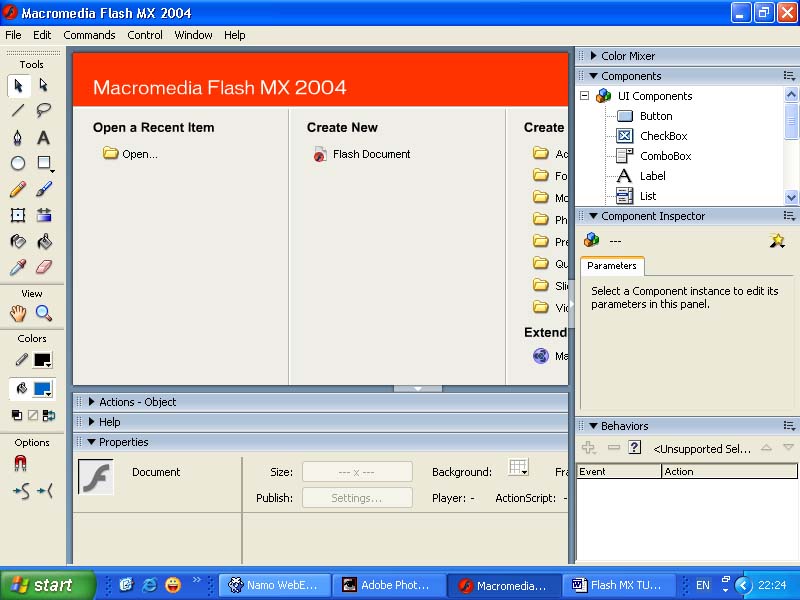
Setting Movie Properties
Open Macromedia Flash MX. Go to the Window menu and make
sure Properties is checked. The Properties window will be
near the bottom of your screen.
The Frame Rate will determine the speed of your animation in frames per second (12 fps is recommended). Set the Size of the animation and choose a Background Color.
Creating an Image
From the toolbar on the left, select the Rectangle
tool (or other tools if you wish). To manipulate the colors, use the Colors
boxes. The top color will be the outline, and the bottom color will be the
fill. Make a rectangle in the work space, or create your own design.
If you want some text inside your image, select the icon from the tools (the Text tool). Click inside of the rectangle, and a text box appears. Type in some text. To manipulate the text, highlight it and select the font options you want from the Properties window.

Click and drag the text box to move and resize it. When the text looks how you want it, click outside your image so the white box around the text disappears.
Turning the Image into a
Symbol
Each image you use in Flash should
be saved as a symbol. Select the black Arrow tool and make a box around
your image (like the picture below).
When you let go of the mouse, your image will be selected (like the picture below).
From the Insert menu, select Convert to Symbol and the Convert to Symbol box appears. Give your symbol a name, and for Behavior, check Graphic. Click OK.

Inserting Frames
Next you will need to insert more frames into your animation. Click on 40 (this
will be the number of frames in the animation). From the Insert menu
select Frame. Your Timeline should look like the picture below.
Each segment of the timeline represents one frame of your animation.
Creating a Motion Tween
The easiest way to animate with Flash is
to create a Motion Tween. With a Motion Tween, your
image will move from one position to the next in the number of frames you
specify.
Select the black Arrow tool, and click on your image. A blue square should appear around it. With the image selected, go to the Insert menu and select Create Motion Tween. Now click on the segment under frame 10. It should be selected like the picture below.
Click on the image you created and drag it to another part of the screen. (The blue square should still be around the image). Notice that there is now an arrow in the timeframe. The arrow is used to show motion.
Inserting a Keyframe
Inserting a Keyframe will allow you to change the image you have
created. Click on Frame 40 (in Layer 1), and from the Insert menu,
select Keyframe. Right-click on the image and select Scale
(Macintosh users hold the Control key and click). Resize the image to
make it very small (or very large). You may move it on the page as well.
Since you have already inserted a Motion Tween, when you run the animation your image will gradually reduce to this size from Frame 10 to Frame 40.
Saving the Animation
From the File menu, select Save.
Name your movie and save it in the appropriate folder.
Running the Animation
Click on Frame 1. Press the Enter
or Return key. You will see a preview of your animation (it should
look something like the one below).

Macromedia Flash MX
Tutorial: Part 2
This part of the tutorial will show you
how to use layers, insert image files, and create zoom-in or fade-in effects in
Macromedia Flash MX.
Inserting a Layer
Each new element in your animation
should be on a different layer. Layers allow you to more easily manipulate one
object at a time.
In Macromedia Flash MX, open up the animation you created in Part 1 of this tutorial. From the Insert menu, select Layer. Layer 2 will appear above Layer 1. Click and drag Layer 2 below Layer 1 to make Layer 2 the background.
Inserting an Image File
First, find an image you would like to
use. If you don't have an image in mind, use our mountain.jpg.
Copy and save it to the same folder that contains your Flash movie. Next, click
where it says "Layer 2" and make sure all frames in Layer 2 are
selected in black (as shown above). From the File menu select Import...
and the Import dialog box appears. Browse to the image file you wish
to insert and select Open. The image will appear on the page.

From the Insert menu, select Convert to Symbol. Give it a name, and select Graphic.
Creating a Zoom-in Effect
From the Insert menu select Create Motion Tween. Click on Frame
40 (in Layer 2) and from the Insert menu select Keyframe. Resize
the image so it takes up the entire screen (Right-click and select Scale.
Macintosh users hold the Control key and click, then select Scale).
Save your animation.
Testing the Animation
Testing the animation will allow you to see
your image in motion. In Part 1 of the tutorial, you used the Play
option to preview your animation. Try out the Test Movie option
in this part of the tutorial so you can get a preview of the movie, a bandwidth
profile, and automatically create a .swf file. First, click on Frame 1.
From the Control menu, select Test Movie. Your animation should
work like the one below.
Viewing Instructions:
PC: Right-click on the image below and select Play.
Mac: Hold the Control key and click on the image below. Select Play.
Creating a Fade-in Effect
Slowly fading in an image is a popular
effect used with Flash. To slowly fade-in the image, first replace the small
image in Frame 1. Click on Frame 1 in Layer 2 and re-scale the image to the
size you want it to be throughout your movie. From the Edit
menu, select Copy. Click on Frame 40 in Layer to a press the
delete key. From the Edit menu, select Paste in Place
(the image in Frame 40 will now be identical to the image in Frame 1,
eliminating the zoom-in effect).
Select Frame 1 of Layer 2. With the Arrow tool selected, click on your image. In the Properties window, change the Color to Alpha, then select 0%, as shown below.
If you look at Frame 40, the Alpha level will be 100%. Since you have already created a Motion Tween, the image will now slowly fade in from 0% to 100%.
Run the animation again. If you like the fade-in effect better, save your work. The animation should look similar to the one below.
Macromedia Flash MX
Tutorial: Part 3
This third part of the Flash tutorial
will show you how to insert navigation buttons into your Flash animations.
Navigation buttons are an important feature that enhance interactivity by
allowing Web users more viewing options.
Inserting Navigation
Buttons
In this part of the tutorial, you will
be inserting play and stop navigation buttons. For an
introduction to buttons, refer back to Creating Buttons under the Help
menu in Macromedia Flash MX.
In Macromedia Flash MX, open up the animation you created in Part 2 of this tutorial. From the Insert menu, select Layer to insert a new layer for the navigation buttons. Drag and drop the new layer above the other layers. Make sure the new layer is selected in black.
Click on the play button you chose, then go to the Window menu and select Actions.
Run the Movie
Click on Frame 1. From the Control
window, select Test Movie. You will see a preview of your animation with
navigation buttons.
The animation should look something like the one below. Flash MX is capable of much more than this simple practice example. Macromedia's Flash page has some excellent tutorials and movies to improve your Flash animation skills.