1) Place the cursor on the page.
2) Click Insert on the Menu bar and select Picture, then Clip Art. The Clip Art Gallery dialog box appears.
3) Click the Pictures tab. A group of picture categories appears.
4) Click the category of your choice. A group of pictures appears.
5) Click the picture you want to add. A drop-down list of buttons appears.
6) Click the Insert Clip button.
TIP: Some people shut off their image display when they visit Web sites - which mean they see only text and no pictures. Not everyone wants to see pictures because it takes longer to download a page that contains them. For these visitors, you can provide alternative text in place of the images - like a title that tells them what the picture is.
NOTE: Alternative text also makes your Web site accessible to the blind or visually impaired. These visitors use screen readers that will look for the alternative text and describe the images to them.
To add alternative text to an image:
1) Place the pointer on the image and right-click your mouse button. A pop-up menu appears.
2) Click on Picture Properties. The Picture Properties dialog box appears.
3) Click the General tab.
4) Type the alternative text into the Alternative Representations text box.
5) Click OK in the Picture Properties dialog box.
Here are a few types of digital images you can add to your Web page:
A picture from the Internet saved on your hard drive
a scanned photo or drawing
a picture taken with a digital camera
an image from a CD-ROM.
To add your own image to your Web page:
1) Place the cursor on the page.
2) Click the Insert Picture from File button on the Standard toolbar. The Picture dialog box appears.
2) Click the Select a file on your computer button. The Select Files dialog box appears.
4) Locate the image file on your computer, and then select it. The file name appears in the File name text box.
5) Click OK in the Select File dialog box.
6) Click OK in the Picture dialog box.
To move an image from one location to another:
1) Click the image to select it.
3) Click the Cut button on the Standard toolbar. The image disappears.
3) Place the cursor where you want the image to go. Note: You can place the image on the same page you cut it from or on a different one.
4) Click the Paste button on the Standard toolbar. The image reappears in its new location.
TIP: You can also use the 'drag and drop' method to move an image to a different spot on the same Web page. Just click on the image and hold down your mouse button. Drag the image to a different spot, and then release your mouse button to drop the image into place.
How does the text line up with the images on the Web page? There are many ways you can position text and image objects in relation to one another. You can also wrap text around an image.
You can:
Position one object relative to another
position an object in an "absolute" spot (at an exact location)
uses no positioning.
To position text and pictures.
1) Select the image or body of text you want to position.
2) Click Format on the Menu bar and choose Position. The Position dialog box appears. Note: If the Position option isn't available in the Format menu, you will need to change your Compatibility settings. Refer to Browser compatibility.
3) Choose a position for the object under positioning style.
4) Choose how you want text and other page elements to wrap around the object.
5) Click OK.
You can take out the background of an image saved in .GIF format. This is a good option when you want to blend an object into your Web page background - but it only works with .GIF pictures.
To give an image a transparent background:
1) Select the .GIF picture by clicking on it. Note: You cannot make JPEG quality pictures into transparent images.
2) Click the Set Transparent Color button on the Image toolbar. The cursor will turn into a pencil icon.
3) Position the pencil icon over the color you want to make transparent (invisible). Click the color. The color becomes transparent.
You can "interlace" your GIF images to create a special visual effect. With an interlaced image, your Web site visitors will see pictures fade into view. The image looks blurry at first, and then it comes gradually into focus while the download is completed. Without interlacing, the picture slowly fills in line-by-line from the top to the bottom.
To interlace an image:
1) Place the pointer on the image and right-click your mouse button. A pop-up menu appears.
2) Click on Picture Properties. The Picture Properties dialog box appears.
3) Click the General tab.
4) Click the Interlaced check box.
5) Click OK in the Picture Properties dialog box.
Animation effects can make a Web page livelier. You can animate text or images using Dynamic HTML (DHTML) - which creates a special effect that looks like the words or images are bouncing, slipping, or spiraling onto your Web page. Your Web site visitors will only see this effect if they are using Internet Explorer 4.0 or later, or Netscape 4.0 or later.
To animate text or images using DHTML:
1) Select the text or image you want to animate.
2) Click Format on the Menu bar, and then click Dynamic HTML Effects. The DHTML Effects toolbar appears.
3) Select Page Load in the on box. This means the object will be animated when your Web site visitors load the page onto their computers.
4) Select Elastic in the Apply box. This means the object will have a special elastic effect.
5) Click the X button to close the DHTML Effects toolbar.
TIP: A little animation goes a long way! It's best to animate only one object per page - so your Web site visitors aren't too distracted.
To "crop" an image means to cut off part of it.
To crop an image:
1) Select the image by clicking on it.
2) Click the Crop button on the Image toolbar. A crop box with eight small dots appears on top of the image.
3) Position your cursor over one of the dots. The cursor turns into a two-way arrow.
4) Hold down your mouse button and drag the arrow to resize the crop box.
5) Press the Enter key on your keyboard.
If an image is too large, you can resize it. Resizing an image is different from cropping because you will not be cutting off a part of it.
1) Select the image by clicking on it. Eight small dots appear at the sides and corners of the image.
2) Position your cursor over one of the dots. The cursor turns into a two-way arrow.
3) Hold down your mouse button and drag the arrow to change the size of the image.
4) Let go of the mouse button when the image is the size you want it to be.
Hyperlinks are like springboards that send you:
To another location on the same Web page (great for really long scrolling pages!)
to a different page in your site
to a different Web site.
To make text into a hyperlink:
1) Select the text.
2) Click the Hyperlink button on the Standard toolbar. The Create Hyperlink dialog box appears.
3) Find and click the file name of the page you want to link to. The file name appears in the URL text box. If you are linking to another Web site, type the URL (Web address) into the URL text box.
4) Click OK in the Create Hyperlink dialog box.
To make an image into a hyperlink:
1) Select the picture by clicking on it.
2) Click the Hyperlink button on the Standard toolbar. The Create Hyperlink dialog box appears.
3) Find and click the file name of the page you want to link to. The file name appears in the URL box.
4) Click OK in the Create Hyperlink dialog box.
You can create hyperlinks by using different parts of a large picture. Each separate hyperlink within a drawing is called a "hot spot." For example, imagine you are making a Web site for your school and you want to devote one page to each grade. You can use a drawing of a school with many rooms - and each room can be assigned as a hot spot that links to a page for each grade.
To add a hot spot link to an image:
1) Select the image by clicking on it.
2) Click the Polygon button on the Image toolbar.
3) Move the cursor over the image. The cursor turns into a cutting tool.
4) Trace a shape onto the image by clicking and dragging your mouse. The Create Hyperlink dialog box appears when you complete the shape.
5) Find and click the file name of the page you want to link to. The file name appears in the URL box.
6) Click OK in the Create Hyperlink dialog box.
TIP: Remember the Undo button. This gives you lots of chances to re-trace your hot spots if you don't get them perfectly the first time.
You can use a hyperlink to invite your Web site visitors to send you e-mail. When your visitors click this special hyperlink, their computer will open an e-mail window where they can compose their message to you.
To create an e-mail hyperlink:
1) Select the text or image.
2) Click the Hyperlink button on the Standard toolbar. The Create Hyperlink dialog box appears.
3) Click the Make a Hyperlink that Sends E-mail button.
4) Type your e-mail address into the Type an E-mail Address text box, and then click OK.
5) Click OK in the Create Hyperlink dialog box.
Tables are handy when you need to display information in columns and rows.
To create a table:
1) Place the cursor on the page.
2) Click the Insert Table button on the Standard toolbar. A drop-down grid appears.
3) Move the pointer to select the number of columns and rows you want, and then click once to accept the setting. The new table appears on the page.
To adjust the width, color, and alignment of your table's borders:
1) Place the cursor in the table.
2) Click Table on the Menu bar and select Properties, then Table. The Table Properties dialog box appears.
3) Adjust border width by clicking the spin controls on the Border Size box. Note: To make the Borders invisible, set the spin control to zero.
4) Adjust border color by clicking Border Color and choosing your color from the drop-down color box.
5) Align table on your Web page by selecting an option from the Alignment drop-down box.
6) Click OK on the Table Properties dialog box.
To add text to a table:
1) Place the cursor into the cell you where you want the text.
2) Type your text.
TIP: A "cell" is one block in a table.
To add images to a table:
1) Place the cursor inside the cell where you want the image.
2) Click the Insert Picture from File button on the Image toolbar. The Picture dialog box appears.
3) Find and click the name of the image file. The file name will appear in the URL text box.
4) Click OK on the Picture dialog box.
You can add additional columns or rows to a table - just in case you need to make a last-minute addition.
To insert additional columns or rows into a table:
1) Place the cursor in the table in a cell that is next to where you want to insert the column or row.
2) Click Table on the Menu bar and select Insert, then Row or Columns. The Insert Rows or Columns dialog box appears.
3) To add a row, click Rows, and then click above selection or below selection. To add a column, click Column, and then click Left of Selection or Right of Selection.
4) Click the Number of rows / columns spin controls to enter the number of rows or columns you want to add.
5) Click OK on the Insert Rows or Columns dialog box.
Once you've started a Web site in FrontPage, it's a good idea to see how it looks in an Internet browser.
To preview your Web site in your browser:
1) Click the Preview in Browser button on the Standard toolbar. Your computer opens a browser with your web page in it.
Not everyone uses the same Internet browser. Some people use Microsoft Internet Explorer, while others use Netscape Navigator. Some people have the latest versions of the browser programs, while others have older versions.
FrontPage 2000 can add a lot of cool features to a Web page - but they don't work on all browsers. Sometimes, Web pages that include certain features will not even appear in some browser versions. It's a good idea to decide - right from the start - which version of which browser you are developing your Web site for. Once you make your decision, FrontPage 2000 will only include features that work with the browser you have chosen.
To choose which browser version to design your Web page for:
1) Click Tools on the Menu bar and select Page Options. The Page Options dialog box appears.
2) Click the Compatibility tab.
3) Click the Browsers drop-down box and select a browser name.
4) Click the Browser Versions drop-down box and select a version. You can see that certain features become disabled when you choose different versions.
5) Click OK on the Page Options dialog box.
TIP: It's easy to check which version browser you are using. Simply open your browser, then select about from the Help menu.
Background Spell Checking keeps the spell checker running in the background at all times. When you make a spelling error, FrontPage 2000 places a squiggly red line under the misspelled word. You may have seen this same feature in Word.
To correct a word that is spelled incorrectly:
1) Right-click on the word that is underlined by the red, squiggly line. A drop-down box appears; containing correctly spelled words similar to the misspe.
2) Click on the correct spelling of the word.
To turn off the Check Spelling as You Type feature:
1) Click Tools on the Menu bar, and then choose Page Options.
2) Click the Spelling tab.
3) Remove the checkmark in the check-box next to Check spelling as you type.
Lled one.
4) Click OK on the Page Options dialog box.
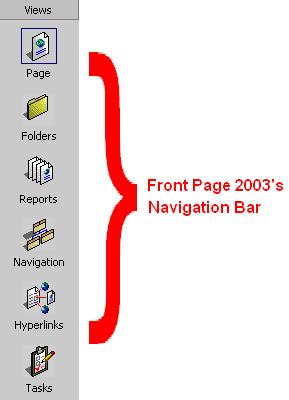
There are six different ways to look at your Web site in FrontPage 2000. You can change views by using the View bar.
The six different Views are:
1) Page view - where you create and edit individual pages.
2) Folders view - where you see all the pages that make up your Web site. You also see the names of all the graphics and files on each page.
3) Reports view - where you test the links between all the pages, graphics, and files in your Web. You can see reports that list slow or unlinked pages, recently added files, broken hyperlinks, and more.
4) Navigation view - where you look at how visitors will navigate your Web site. You can create navigation bars and zoom in to work on particular parts of the site.
5) Hyperlinks view - where you see all the items that link together in your Web site. In this view, you can see if any links are broken.
6) Tasks view - where you list tasks that need doing, prioritize them, and keep track of who is going to do them.
Navigation View shows how the pages of your Web site are linked together. The Navigation View window is divided into two sections. On the left is the Folders List, which lists all folders and files. On the right are boxes that represent the pages of your Web site and how they are linked together. A private folder is used to hide certain documents from your Web site visitor. This is where you keep information on your Web site that you don't want anyone else to see - like private database information. Whenever you create a new Web, FrontPage 2000 automatically includes a private folder. FrontPage 2000 also includes an image folder with every new Web. It's a good idea to save all your images in this file to help you stay organized. This way, you will always know where your images are.
To add a new page to the site in Navigation View:
1) Click the New Page button on the Standard toolbar. The file name new_page_1.htm appears on the Folders List and a New Page 1 box appears in the right window.
To rename the new file:
1) Right-click the new_page_1.htm text in the Folder list. A pop-up menu appears.
2) Click Rename in the pop-up menu.
3) Type in a new name, leaving the .htm extension on the end of the file. For example: new_name.htm.
4) Press the Enter key.
TIP: When you're in Navigation View, you can double-click on a page box to open it in Page View - where you create and edit individual pages.
You can change the features of a FrontPage web-theme after you have applied it to your Web site. If you want to choose different colors, graphics, and styles - it's easy to do it.
To change your web-theme's background color:
1) Click Format on the Menu bar, and then choose Themes. The Themes dialog box appears.
2) Click the Modify button. The "What would you like to modify?" bar appears.
3) Click the Colors button. The Colors dialog box appears.
4) Select the Custom tab.
5) Select Background in the Item drop-down list. Then choose a color.
6) Click OK on the Colors dialog box.
7) Click OK on the Themes dialog box.
A Shared Border is a part of the page that is the same on every page. For example, you can use a Shared Border if you want to have the same line of text at the bottom of every page - the name of your school, perhaps. When you want to edit the text of a Shared Border, you only need to make a change on one page. FrontPage automatically applies this change to all the other pages.
To add a Shared Border:
1) Click Shared Borders on the Format menu. The Shared Borders dialog box appears.
2) Click the All Pages radio button.
3) Click the Bottom check-box.
4) Click OK on the Shared Borders dialog box. A border appears at the bottom of your page.
5) Place the cursor inside the border box, and then type your text. The text will now appear at the bottom of every page.
You can collect information from your Web site visitors by using "forms." These special tools allow you to conduct surveys and tests, collect names and addresses, and even sell products over the Internet.
Radio buttons are useful when you want your visitor to choose only one option from a list. For example, you can use radio buttons to create multiple-choice tests where examinees are expected to choose only one answer from a list of four options.
To add radio buttons:
1) Type a question. For example: Which word means "a period of 1,000 years"? Then press the Enter key.
2) Click Insert on the Menu bar and choose Form, then Radio Button. A radio button appears on your page along with two larger buttons that say "Submit" and "Reset." Your cursor is between the radio button and the Submit button.
3) Type your text for Option 1. For example: century. Then press the Enter key.
4) Click Insert on the Menu bar and choose Form, then Radio Button. A second radio button appears.
5) Type your text for Option 2. For example: millennium. Then press the Enter key.
6) Repeat Step 4 with the text for Option 3. Then press the Enter key.
TIP: Your form will only work after your Web site is on the Internet. It does not work when your Web site documents are on your own computer only.
You can use check boxes when you want someone to select more than one option from a list. For example:
To add a check box:
1) Click Insert on the Menu bar and choose Form, then Check Box. A check box appears on the page.
2) Type your text. For example: basketball.
3) Press the Enter key.
TIP: When you add other form elements - like text boxes and check boxes - make sure the "Submit" and "Reset" buttons are at the end of the form. All other questions and form buttons must go above the "Submit" and "Reset" buttons. Your Web site visitors use these buttons to send their information to you over the Internet.
To add a one-line text box:
1) Type a label for the text box. For example: E-mail address. Then press the Enter key.
2) Click Insert on the Menu bar and choose Form, then One-Line Text Box. A one-line text box appears on the page.
A scrolling text box provides a place for your visitors to enter a comment or message.
To add a scrolling text box:
1) Type a label for the text box. For example: Comments.
2) Click Insert on the Menu bar and choose Form, then Scrolling Text Box. A scrolling text box appears on the page.
TIP: To resize a one-line text box or scrolling text box, click on the box. Resizing dots appear on the corners and edges of the box. Position the cursor over one of the resizing dots until it turns into a two-way arrow. Then click and drag your mouse to resize the text box.
After your visitors fill out your online form, they send it to you over the Internet. You can choose how to have it delivered. One option is to have it sent to you by e-mail. Every time a visitor completes a form, the information in the form is delivered to you in an e-mail message.
To have visitors' data sent to your e-mail:
1) Right-click over the form in your Web page. A pop-up menu appears.
2) Click Form Properties. The Form Properties dialog box appears.
3) Click the Send To radio button.
4) Type your e-mail address into the E-mail address text box.
5) Click OK on the Form Properties dialog box.
You can also create a simple database that gathers and publishes visitors' data on a Web page.
To create a simple database:
1) Right-click over the form. A short-cut box appears.
2) Click Form Properties. The Form Properties dialog box appears.
3) Click the Send to Database radio button.
4) Click the Options button. The Options for Saving Results to Database dialog box appears.
5) Click the Create Database button. FrontPage creates a mini database for you. A message appears, telling you where you will find the database when you want to look at results from your form.
6) Click OK on the Options for Saving Results to Database dialog box.
7) Click OK on the Form Properties dialog box.
TIP: When you finish creating your database, FrontPage may ask that you save your form page with an .asp (Active Server Page) extension. To do this, select Save As from the File menu. In the Save As dialog box, click the Save as Type box. Then select Active Server Pages from the drop-down list. Click the Save button to accept the changes and close the Save As properties box.
After your visitors have submitted data to your database, you will probably want some way to view the data. There are two ways you can do this. You can view the data directly by opening the database in Microsoft Access 2000. Or, you can set-up FrontPage to present the database in a Web page.
To view data using Access 2000:
1) Click the Folders button on the View bar.
2) In the Folder list, click the folder marked: fpdb. A list of database files appears.
3) Double-click your database file in the Contents window. The file should have an .mdb extension. If Access 2000 is already installed on your computer, Access opens the specified database.
To present the database in a Web page:
1) Click Insert on the Menu bar, and choose Database, then Results. The Database Results Wizard dialog box appears.
2) Click Use An Existing Database Connection. The name of your database (created in the previous section of the tutorial) appears in the text box under Use an Existing Database Connection.
3) Click Next.
4) Click the Record Source radio button, and select Results from the drop-down list.
5) Click Next. A list of fields displayed from each returned record appears. (Each of these fields represents the questions you asked on your form.)
6) Click Next.
7) Select "Table - one record per row" from the drop-down list, and click on all three check boxes below.
8) Click Next.
9) Click Display all Records together, then click Finish.
TIP: There must be data in your database for this table to display properly. (I.e. People have submitted data to the database using an online form.)
You'll need to make sure all your hyperlinks work before your Web site goes live on the Internet.
To check and fix broken links:
1) Click the Reports button on the View Toolbar. The Site Summary page appears.
2) On the Reports toolbar, click the Verify Hyperlinks button. FrontPage checks hyperlinks that you have made to other Web sites. (Note: FrontPage may prompt you to connect to the Internet so it can verify outside links.)
3) In the Name column of the Site Summary table, locate the broken hyperlinks row. If you have broken links, a number appears in the Count column. If you don't have any broken links, the number "0" appears in the Count column.
4) Double-click the Broken hyperlink row. The Broken Hyperlinks page appears.
5) To fix a broken link, double-click the broken hyperlink. The Edit Hyperlink dialog box appears.
6) Type the correct hyperlink into the Replace Hyperlink With box. You can also click the Browse box and select a file.
7) Click the Change in All Pages radio button.
8) Click the Replace button.
When a Web page contains a lot of pictures and effects, it may take a long time for it to download onto your visitor's computer. If you have a slow page, you may want to take out some of the graphics - because, otherwise, your visitors may not want to wait.
To check for slow pages:
1) Click the Reports button on the View Toolbar. The Site Summary page appears.
2) In the Name column of the Site Summary table, locate the slow pages row. If you have slow pages, a number appears in the Count column. If you don't have any slow pages, the number "0" appears in the Count column.
3) To identify which page is slow, double-click the slow pages row. The Slow Pages table appears.
TIP: In general, any page that takes longer than 30 seconds to download (with a 28.8 modem) is considered a slow page. If you want to change these criteria, say to 20 seconds, select a new time-setting from the Reports toolbar.
It's a good idea to make sure your most recently added files are included in your site.
To check for recently added files:
1) Click View on the Menu bar and choose Reports, then Recently Added files. A list of recently added files appears in Reports View.
TIP: FrontPage automatically defines "a recently added file" as one that was added to your site within the last 30 days. You can change this number of days. You can also change FrontPage's definition of an older page, a slow page, and the modem connection speed you assume your visitors will have.
To change the definition of recently added Files:
1) Click Tools on the Menu bar and choose Options. The Options dialog box appears.
2) Click the Reports View tab.
3) Type a number in the Recent Files Are Less Than box.
4) Click OK on the Options dialog box.
You need to "publish" your Web site before other people can see it on the Internet.
While you were creating your site, you saved your Web documents on your own computer. To "publish" your site means to transfer these same documents onto a Web server. A Web server is a high-powered computer that places Web site files onto the Internet. Once your files are on the Web server, other computers can 'connect' to the Web server and retrieve your files for viewing.
Publishing your Web site not only allows you to share it with the public, but it also lets you check out how your forms and databases work.
Your school may have its own Web server. If not, you'll have to find an Internet Service Provider (ISP) that will publish your Web site on its server. An ISP is a company that provides Internet access and rents space for people's Web site files.
Ask your ISP or your school's network administrator if your Web server has FrontPage Server Extensions. Server extensions are like special mini-programs. You can publish your Web site even if your server does not have these extensions - but you just need to do it a little differently.
To publish your Web site to a server with FrontPage Server Extensions:
1) Click File and choose Publish Web. The Publish Web dialog box appears.
2) Type in the location you want to publish your Web to. The location will look something like this: http://ISPname.com/~yourfolder/. You�re ISP or your school's network administrator will give you this location information.
3) Click Publish. FrontPage prepares to publish your Web site to the server.
To publish your Web site to a server without FrontPage Server Extensions:
1) Click File and choose Publish Web. The Publish Web dialog box appears.
2) Type the FTP server location. The location will look something like this: ftp.ISPname.com/~yourfolder/. You�re ISP or your school's network administrator will give you this location information.
3) Click Publish. FrontPage prepares to publish your Web site to the server.
To publish your Web site to a server without FrontPage Server Extensions:
1) Click File and choose Publish Web. The Publish Web dialog box appears.
2) Type the FTP server location. The location will look something like this: ftp.ISPname.com/~yourfolder/. You�re ISP or your school's network administrator will give you this location information.
3) Click Publish. FrontPage prepares to transfer your files to the Web server.