**Save 16.pal & win.pal to a folder easily accessible to such as c:\boot**
2.Install Jasc Paint Shop Pro, this is needed to edit the boot screen.
3.Install Resource Hacker
4.Go to "c:\windows\systeme32\" and find the file called ntoskrnl.exe. Copy this to file c:\boot and a back up file to c:\backup so if anything goes wrong, you have a back up.
5.Then open Resource Hacker, Go to File > Open and the file c:\boot\ntoskrnl.exe.
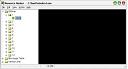
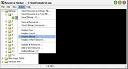
6.Open the "Bitmap" section in Windows, a tree showing all the images that make up the themes are listed, then click the + sign by the bitmap name to see the image. See the Example
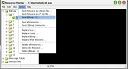
7.Now go to the bitmap folder, and click the "+" next to 1. Click on 1033 and a black screen should appear on the right. To save the image go to "Action" on the title bar and selecting "Save Bitmap", then a window will come up asking you where you want to save to. Save it to c:\boot
8.Launch Jasc Paint Shop Pro. Then go to File > Open and choose the bitmap that you have extracted it to c:\boot
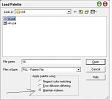
9.Go to colors > Load Palette. In the open dialog box, make sure "Apply Palette using" has Maintain indexes chosen. Choose 16.pal from c:\boot.
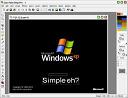
Now you should see the Windows boot screen, edit all you want.
10.Once you have completed editing the boot screen, go to Colors > load palette. In the open dialog box, make sure "Apply Palette using" has Maintain Indexes chosen. Choose win.pal from c:\boot. The image should turn black now.
11.Now go back to Resource Hacker, go to "Action" on the title bar and select "Replace Bitmap>".
When the "Replace Bitmap" screen comes up select "Open File with New Bitmap", then browse to where you stored the edited boot screen (c:\boot). Then from the list on the right, choose the image that corresponds to the edited iamge, and click OK.
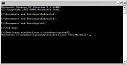
12.Save ntoskrnl.exe and boot into safe mode command prompt by pressing "F8" during boot. Once in Safe mode, you will see a command prompt emerge. Go into c:\boot in the command, use "cd.." to go back a directory. Use "cd dir" to get into a directory. Ex "c:\>cd boot".
Once in c:\boot type "copy ntoskrnl.exe c:\windows\system32" If it asks you to overwrite, type in "yes" Look in the next image for assistance
13.Reboot your computer by pressing "ctrl + alt + delete" and the new boot logo should appear.