In this page, we will see how to put banners, pictures and animations on your site.
First, the banner upstairs was made with Paint Shop Pro following the steps in this banner design tutorial. With the Animation Shop that you can have free for 30 days, you can make it animated (see part II of the tutorial). Depending on your version of Paint Shop Pro, you click on A or on T to put text on the banner. You need to save the image in the GIF format interlaced and in the options, select "Maintain original file's transparency info". You can have ready-made banners and buttons at Animation Online.
The title above was made with Word Art, then copied and pasted in Paint Shop Pro and saved setting the transparency to the background color.
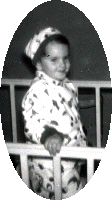
With Paint Shop Pro, you can cut images. To remove the white around an elliptic picture, you have to save it in GIF format setting the transparency value to the background color. This also makes the white in the picture become transparent as you can see in the picture of me below.
You can modify an image (resize it, make it transparent, etc.) on the internet with GIF Works.
|