Dennis Kennedy
Cleveland, OH 44125
Dutch, French, German, Italian, Portugese, Russian, Spanish.
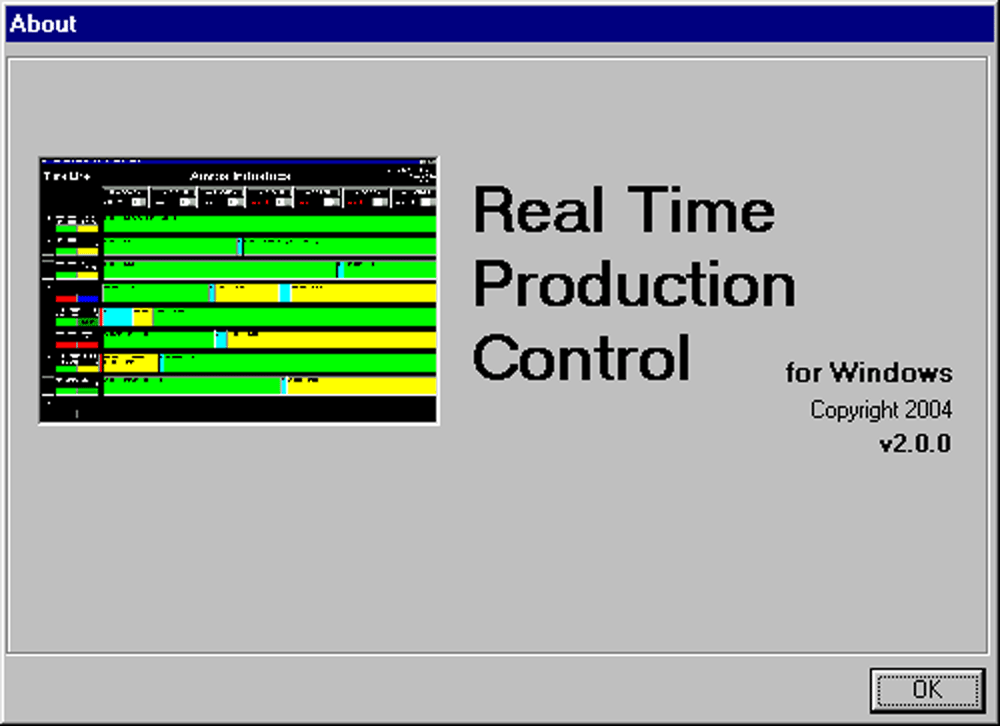
Real Time Production Control (Preview)
An extremely complex, yet even more simple-to-use programwhich utilizes PLC's to Manage, Control and Count Productivity.
(Click on any image to view in
greater detail.)
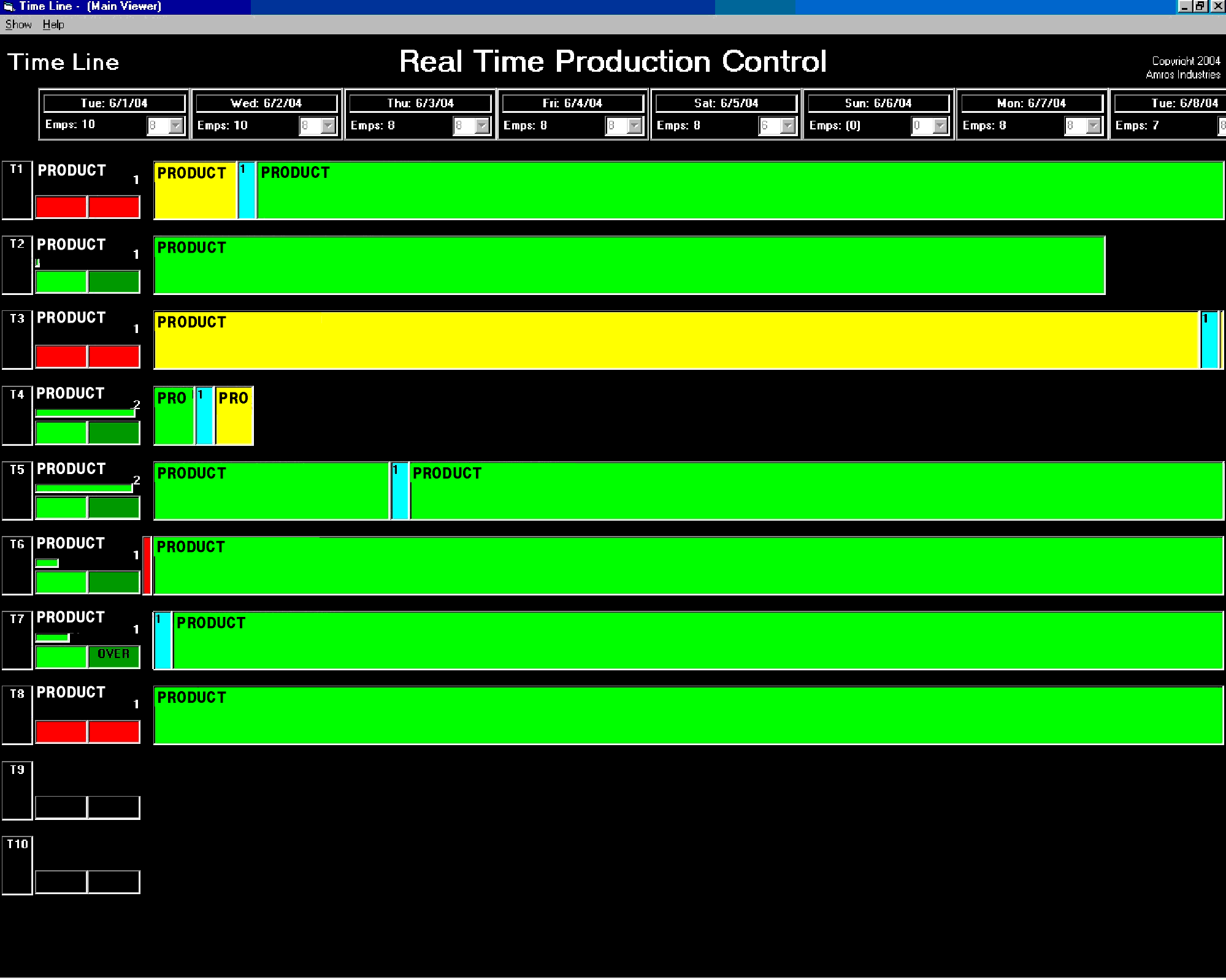
The 'ViewMaster' Main Screen
displaying Ten (10) Machines (Production Operations) with their Time
Line Assignments
along with their Assigned Setups, Starts and Finishes (Dates
and Times),
Production Status and Speed, Employee Requirements, etc.
provides 'At-A-Glance' information in Real Time on Productivity!
(The
ViewMaster handles all calculations on this Multi-User, Distributed Network
Application.)
Real Time Production Control also uses the 'Green-Yellow-Red' principle.
(see color
codes below).
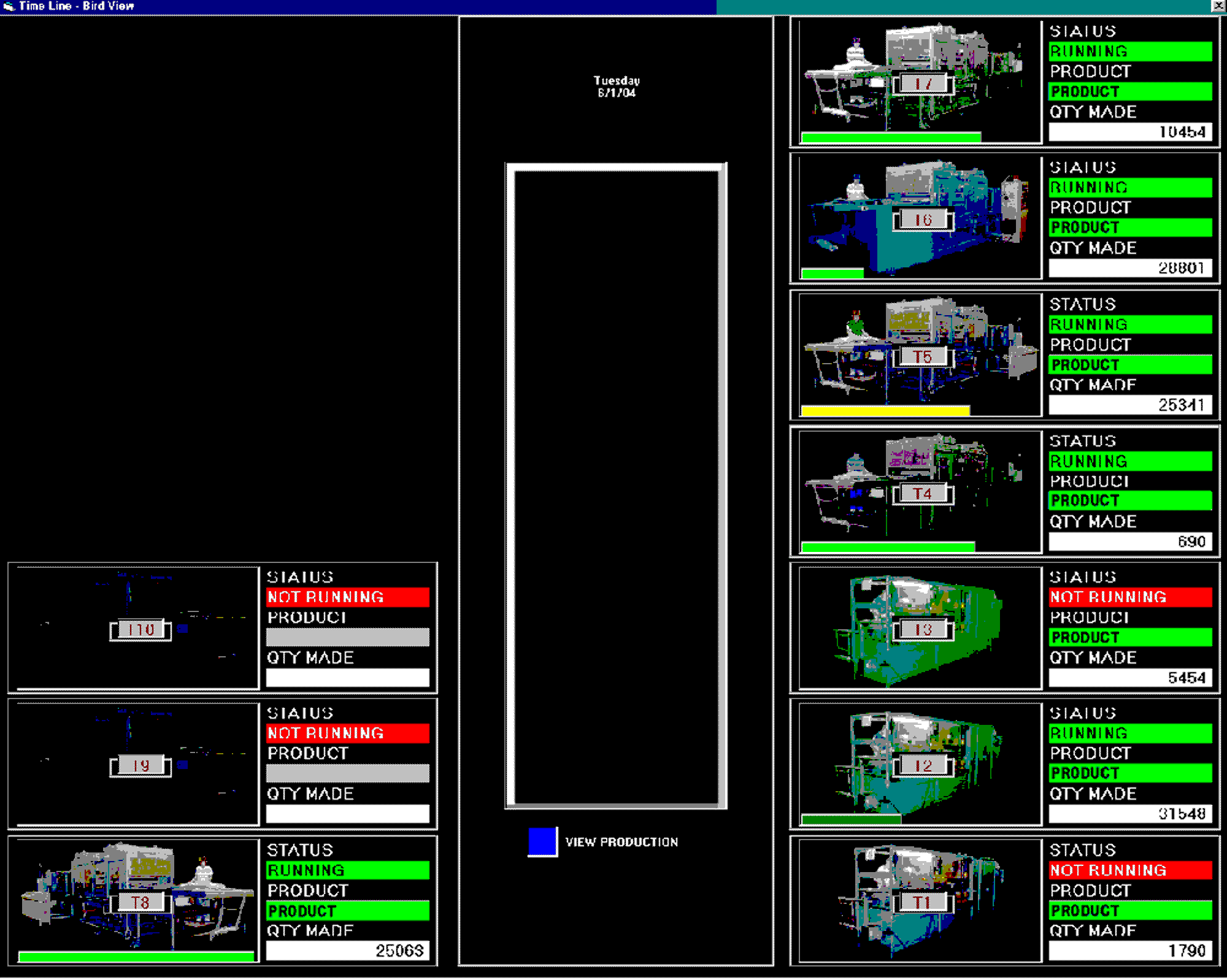
A ViewMaster 'Bird View' of the currently running Assignments (with their
counts)
and also with a Sliding Status Bar showing the Currently Running
Speed.
Note that with the ViewMaster - and although it is difficult to error
within the entire program,
you can literally 'pound-on-the-keyboard' and it
still runs and updates '
24-7'
('24-hours-per-day','-seven-(7)-days-per-week').
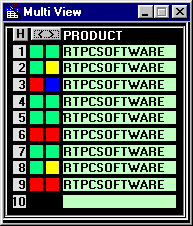
| For Multi-Management, HelpDesk, Monitoring, etc., there is also a Multi View (contracted and expanded, clickable info)... |
| |||||||||||||||||||||||||||||||||||||||||||||||||
 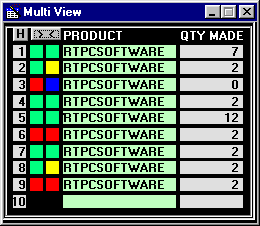 | ||||||||||||||||||||||||||||||||||||||||||||||||||
| ...a Real Time Live View for Web Browsing Anywhere, (including for Viewing or Browsing Multiple Areas or Facilities)... | ||||||||||||||||||||||||||||||||||||||||||||||||||


...and a Real Time Live Full View for Web Browsing Anywhere, too - Simply Fast, Intranet or Internet.
| ||||||||||||||||||||||||||||||||||||||||||||||||||||||||||||


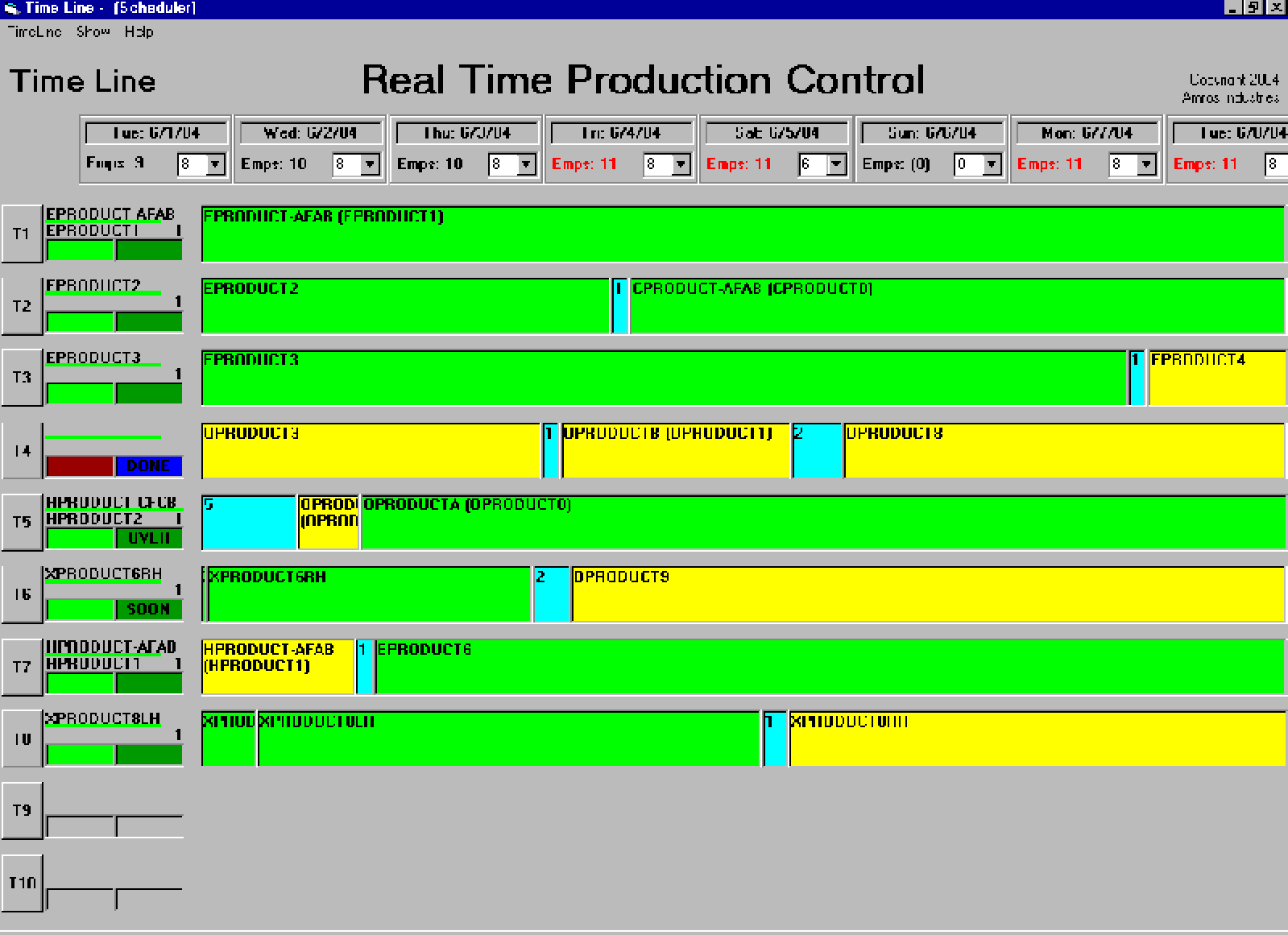
The Scheduler (different computer), with full permissions to create
Assignments
(it takes about three (3) seconds to create an Assignment),
Manage Workloads, etc.
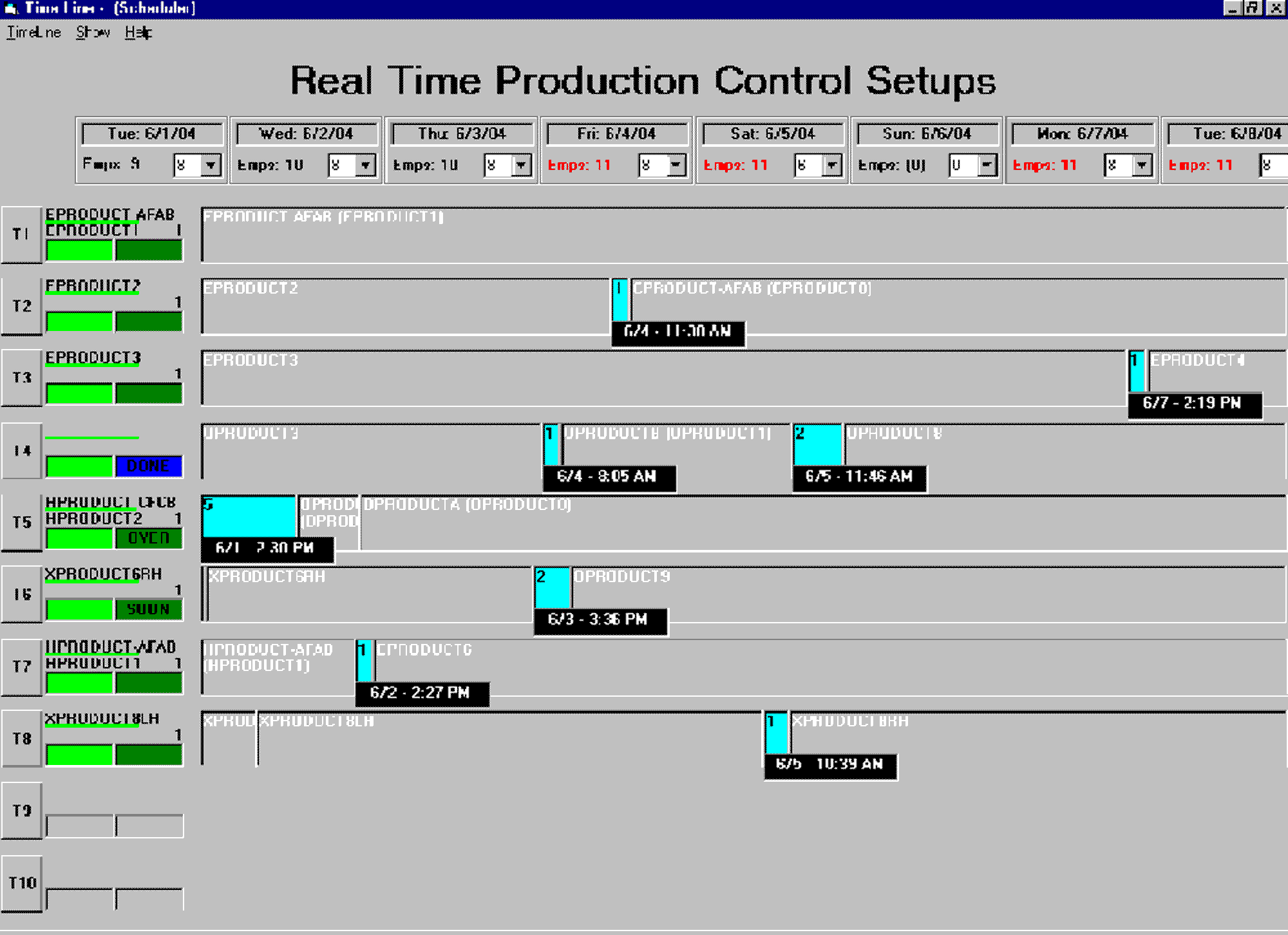
A simple menu selection (F8) emphasizes 'only' the Setups for your setup
people.
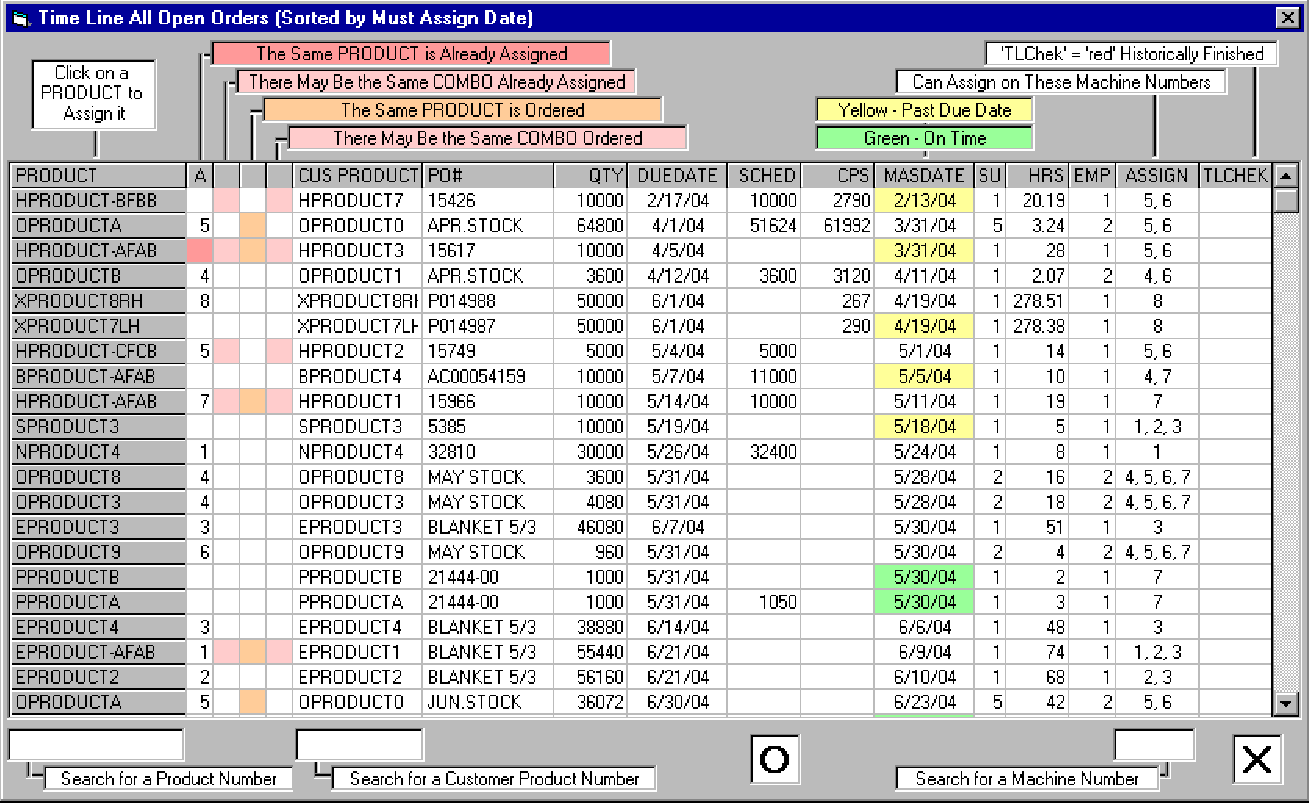
You select from the Open Orders to create an Assignment,
with Reporting
for Duplicate Orders (including 'Combo'), Duplicate Assigned, etc.
(The 'Must
Assign Date' shows when an Open Order must be Assigned for On-Time
Delivery.)
And an actual Assignment takes only about three (3) seconds!
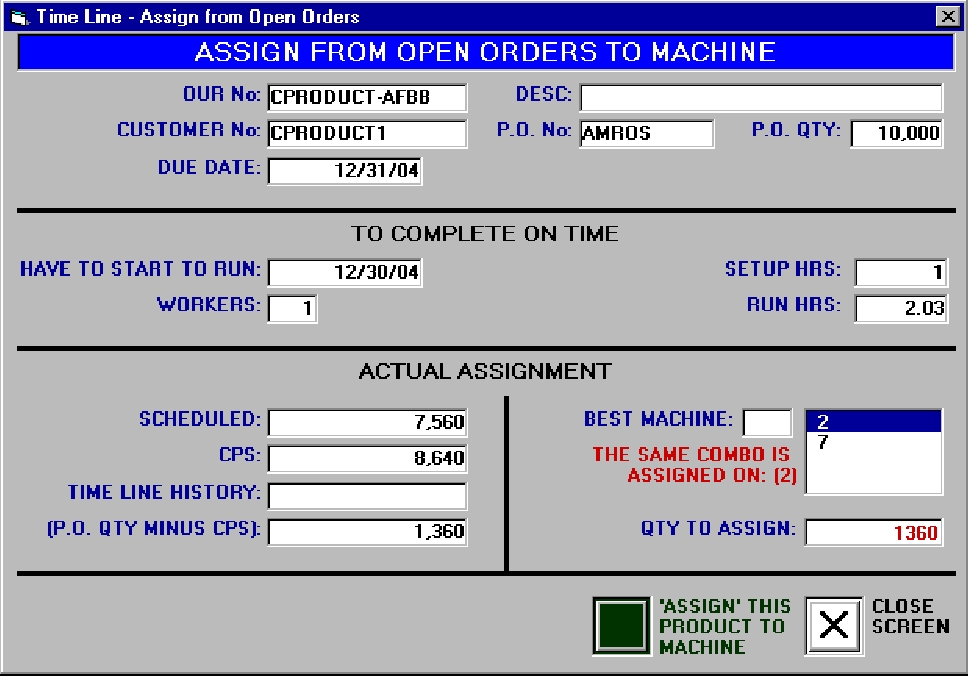
The actual Assignment (when selected) shows the details of the Open
Order
and allows you to select a 'Machine' (Production Operation) and change the default Assigned
Quantity.
Then, merely click 'Assign' and the Open Order is then tracked
through production.
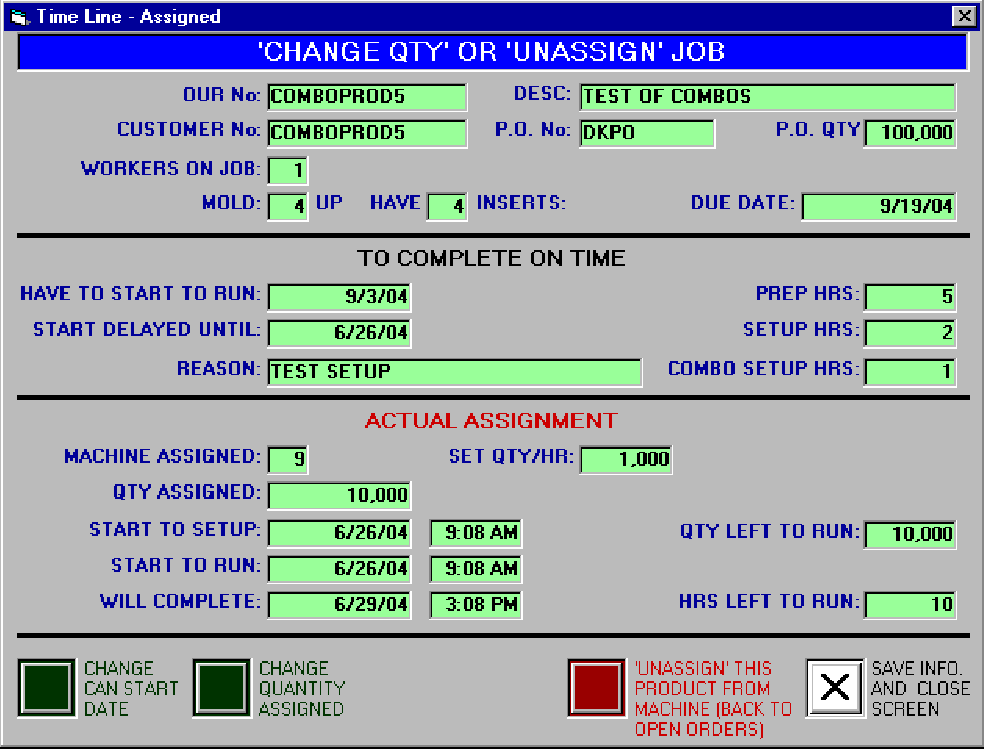
Once Assigned, merely clicking on any Product shows the Assignment
Screen,
allowing additional changes to be made in the Assigned Quantity and
the 'Can-Start Date (waiting on material?)'.
The Date and Time that this
Order will start, when the setup is (or has been) started and finished,
the
current status of this Assignment as well as when the Assignment will
finish, etc.
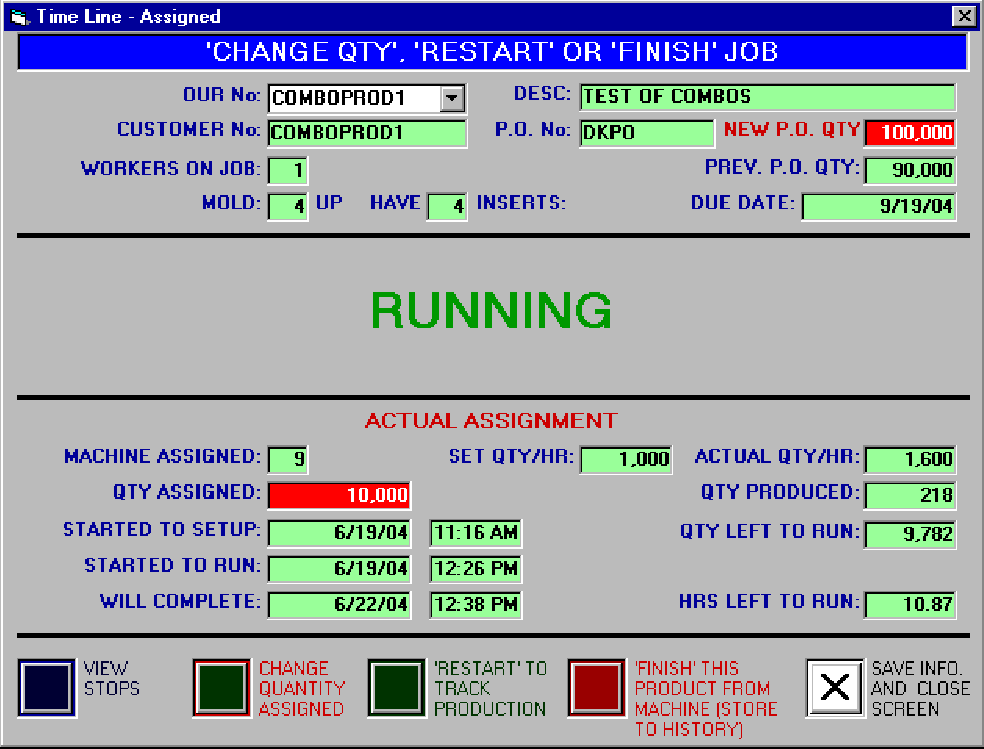
Once the Assignment is Started, additional information is provided
(such as the Actual Production Speed, for example)
even viewing both Product / Machine (Production) Stoppages and Historical
Reporting.
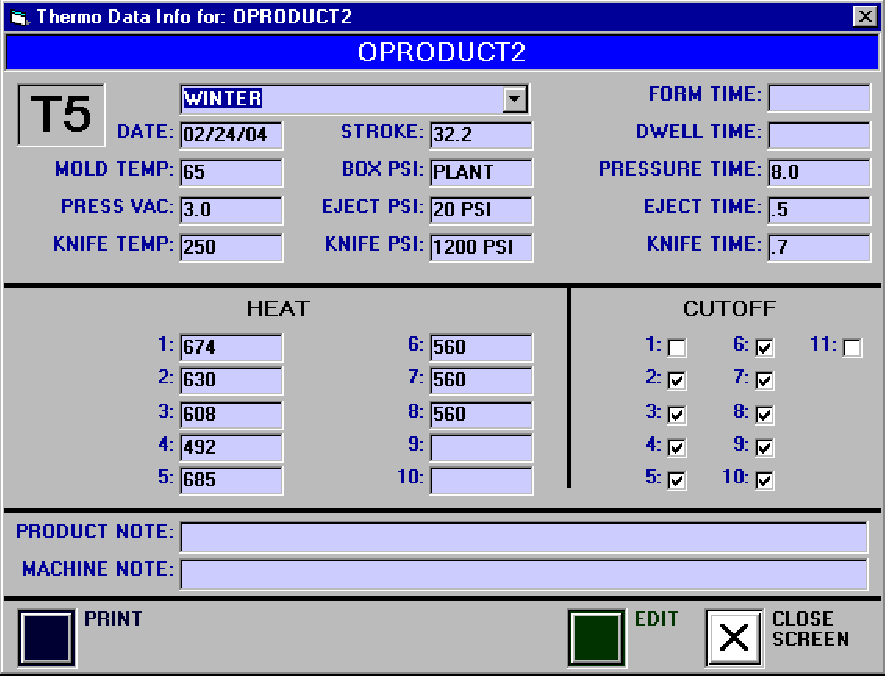
Clicking on any light blue setup for the Assignment brings up the Setup
details.
These easy-to-view Setup details show the information required to
create this setup...
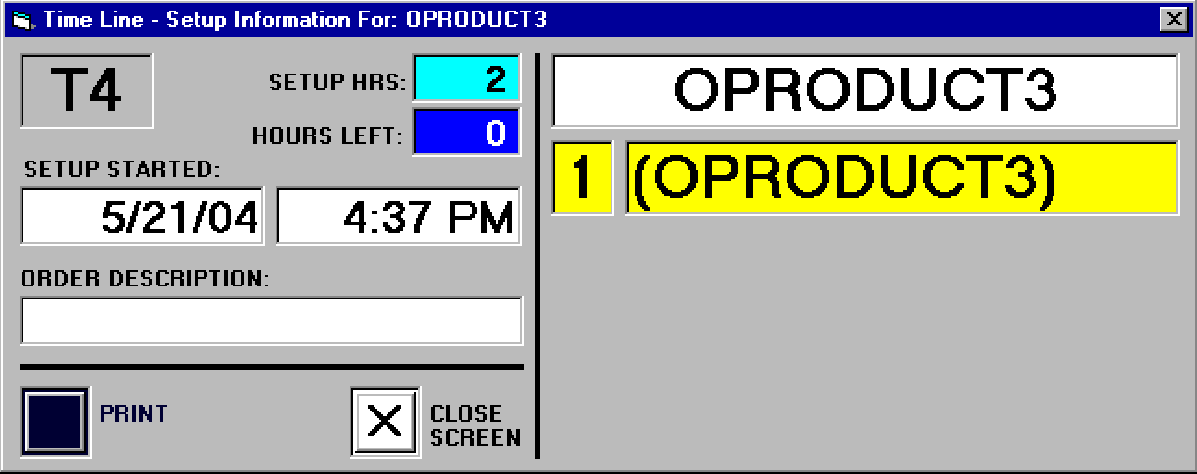
...as well as (specific to Thermoforming) this Preparation. (View More.)
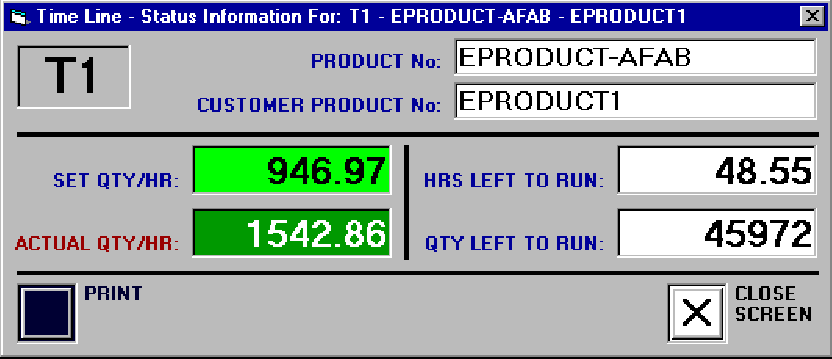
Clicking on any Machine (Production Operation) Speed brings up only these easy-to-view details of
the currently running Assignment.
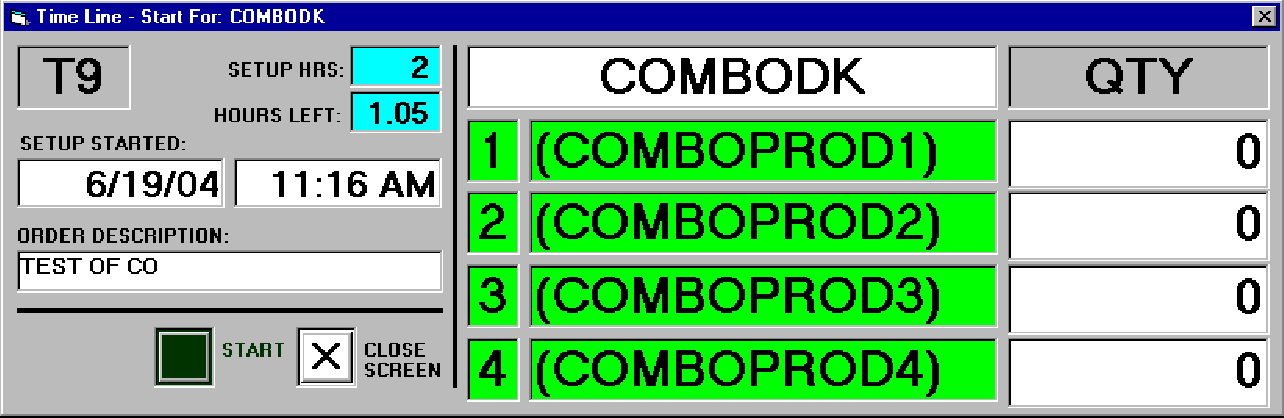
Starting (or Restarting) any Assignment (this example shows a Combo) allows for the entry of startup quantities.
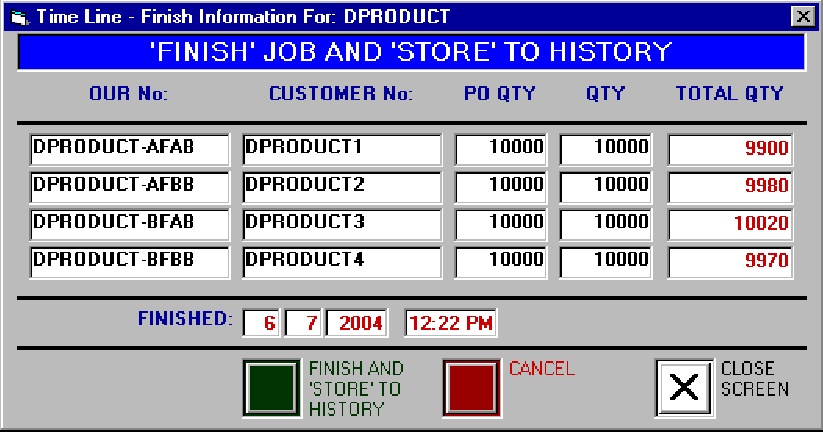
Finishing any Assignment (this example shows a Combo) stores all information
to history.
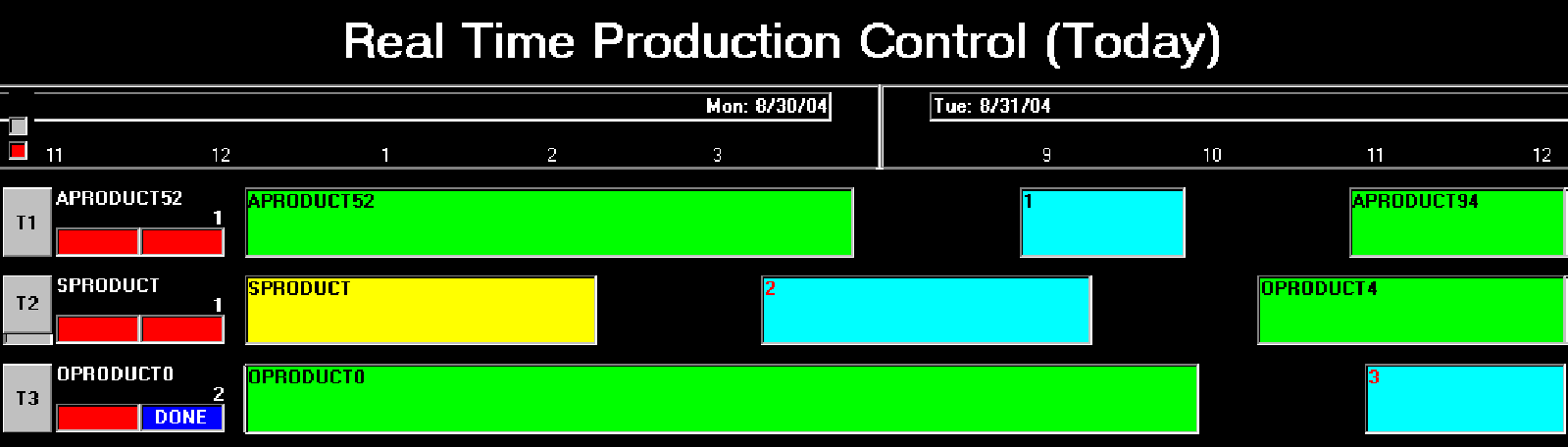
Although the Time Line Program initially graphically shows the current week of
productivity,
you can not only also graphically view Today (One Full Day)...
...by the Month (4 Weeks) or by the Quarter (13 Weeks) into the future...
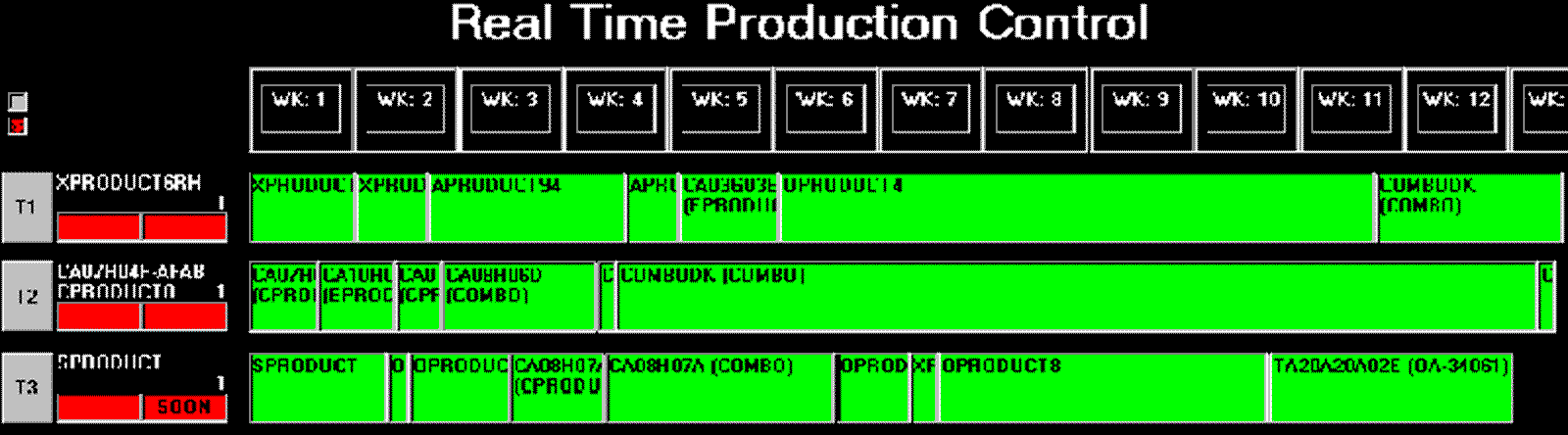
...but the Assignments are actually virtually unlimited.
Clicking
on any Machine (Production Operation) brings forward all Assignments for that Machine (Production Operation), no matter how
distant in the future,
with their calculated Start and Finish Date and Times
(to the minute, yellow if past Due-Date).
(As part of Web-Enabling, you can
also view the Generated Web Page Report.)
Notice the Up-Arrow allows you
to move Assignments 'Up' in Priority.

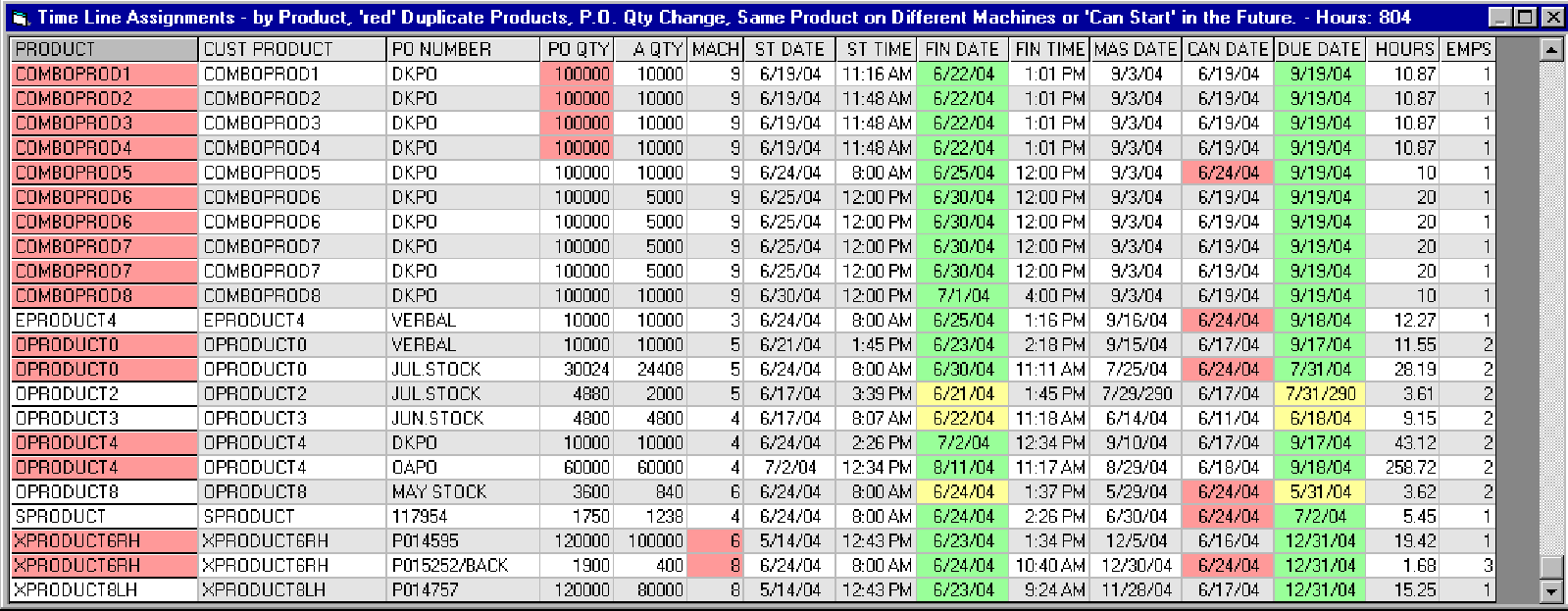
You can also view All Assignments for All Machines (Production Operations), sorted by
Product......
(As part of Web-Enabling, you can also view the Generated Web Page Report.)
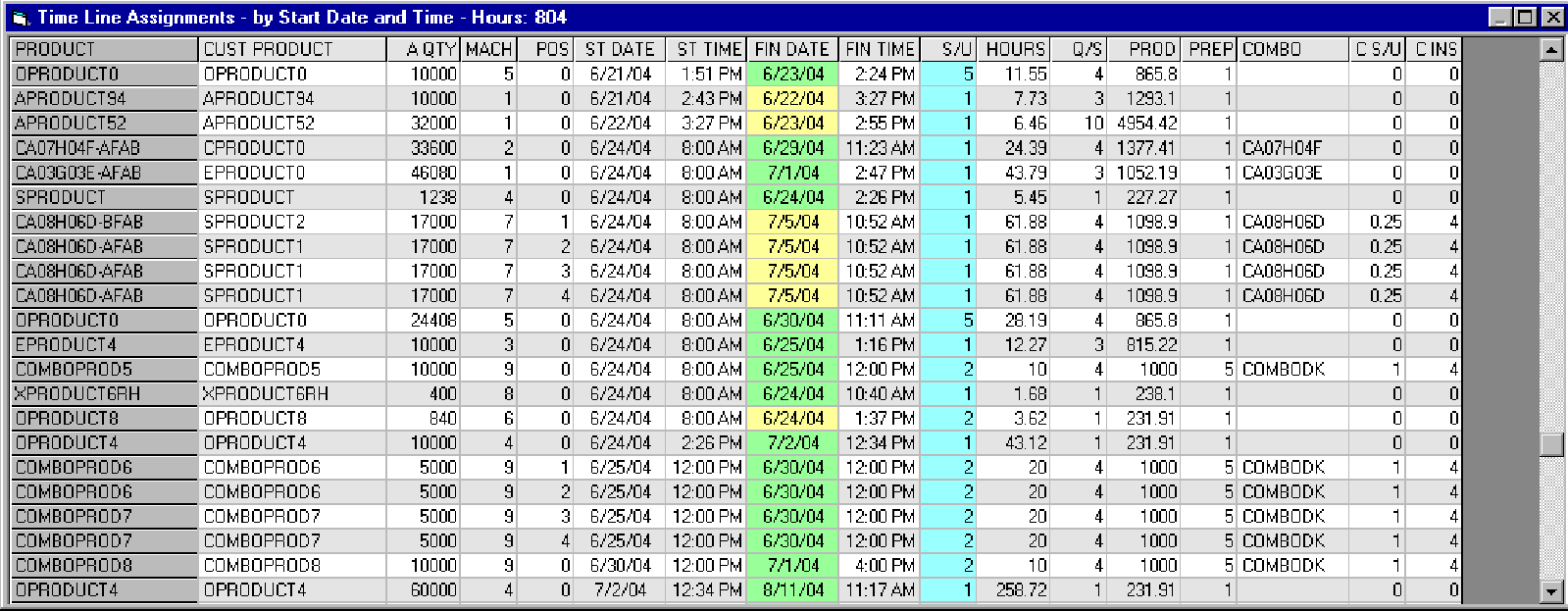
......or sorted by the Assigned (Scheduled) Start Date and Time.
(As part
of Web-Enabling, you can also view the Generated Web Page Report.)
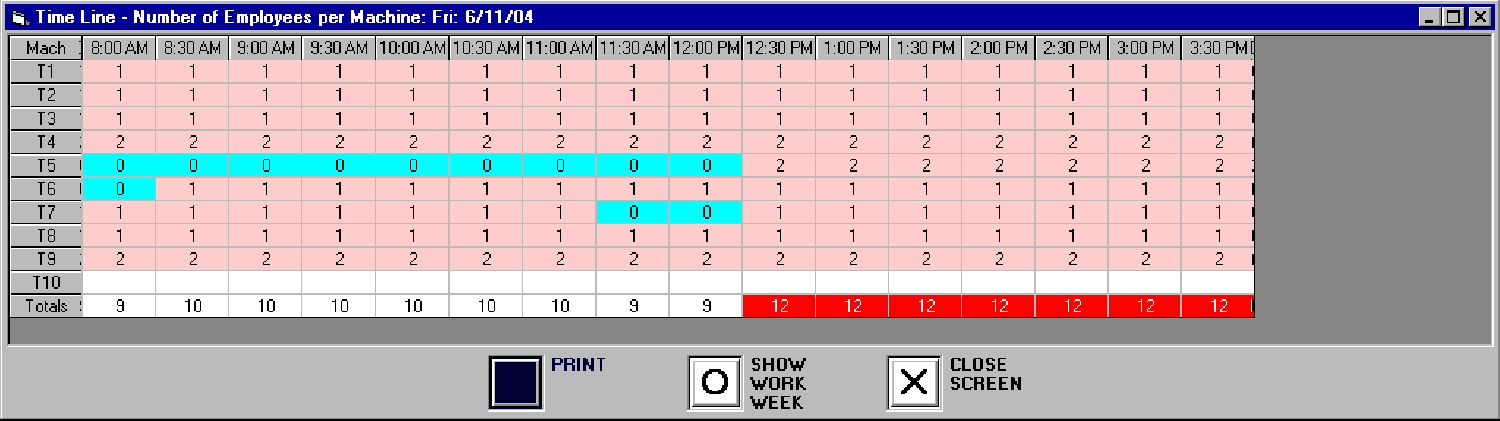
And you can view the Number of Employees required for each Assignment (daily
or weekly).
(As part of Web-Enabling, you can also view the Generated
Web Page Report.)
| Machine (Production Operation) Status (next to Machine (Production Operation) Number): |
Machine (Production Operation) Speed (next to Machine (Production Operation) Status): |
Assignments (multiple) |
|
|
|
(As part of Web-Enabling, you can also view the Generated Web Page Report.)
With Real Time Production Control, you no longer have to wait perhaps weeks or longer AFTER any problem to discover it.
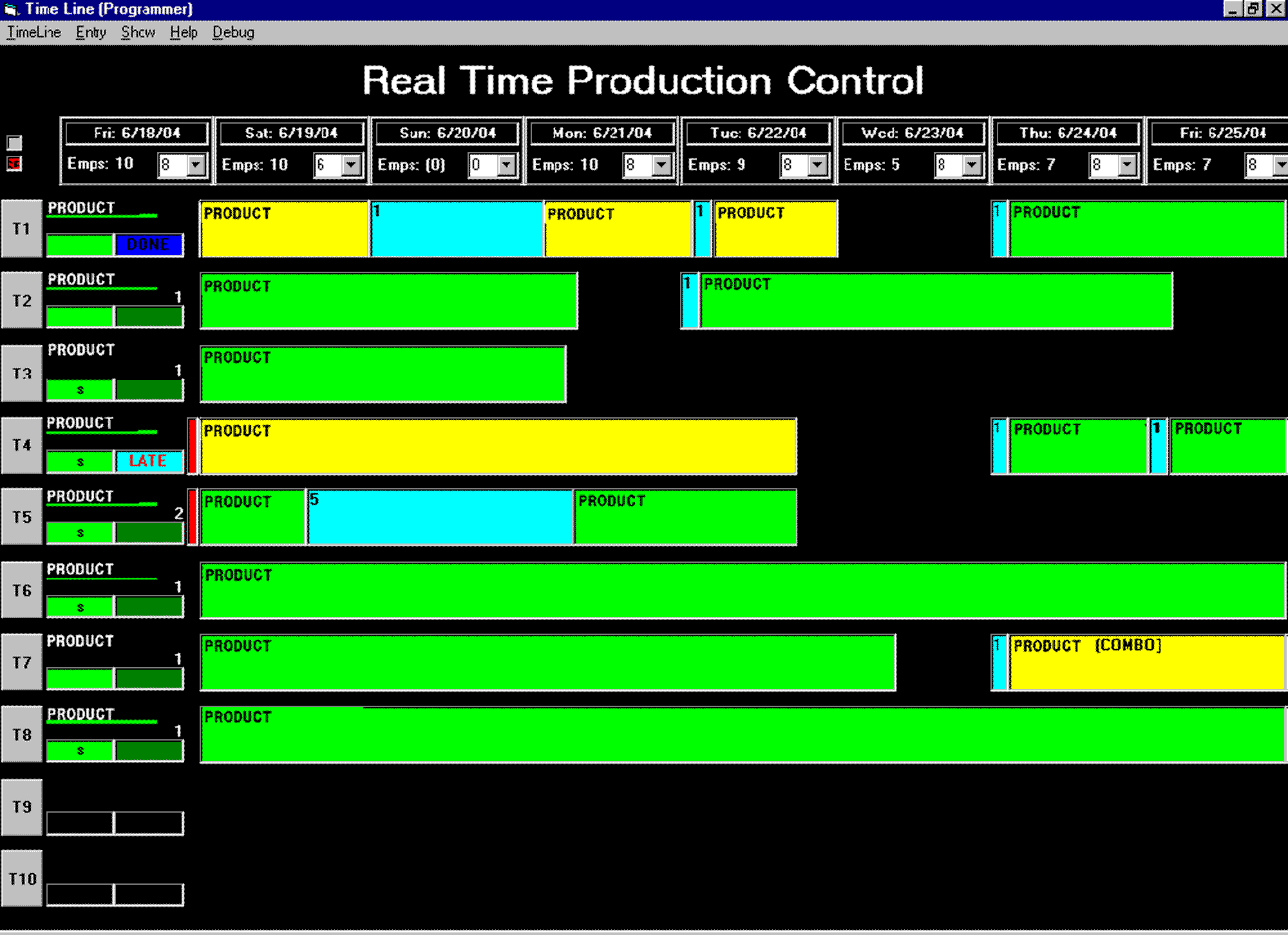
For example, if the Machine (Production Operation) Speed is running in the 'Yellow' (below production speed), you know immediately - right away,
before production continues, so that any corrections can be made in advance in order to insure that successfull production,
and without having to wait for 'the usual' mounds of spreadsheets to wade through to even discover any problem(s).
With only this one feature and on only one corrected production run, this program could literally pay for itself.
(Also note in the following example screen the 'gaps' for the 'Can Start' Date.)
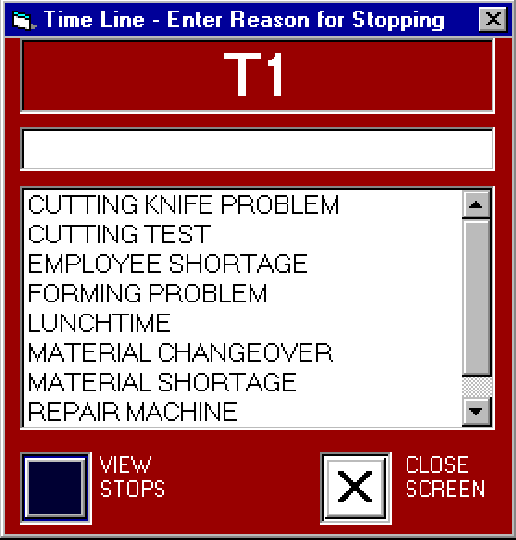
(Note that if the Machine (Production Operation) is Stopped, we need to know 'Why', which is then
stored to history.)
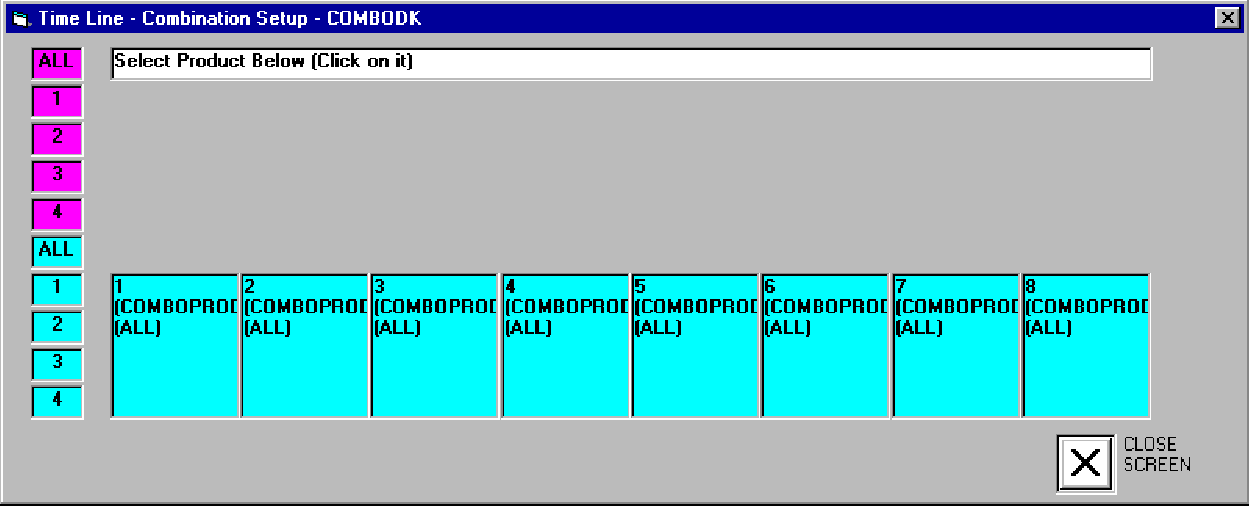
Combos allow more than one Product to be run concurrently on the same
Machine (Production Operation).
Initially, the Products are individually Assigned.
(Note the
order of the Products, with their Start and Finish Dates and Times.)


In the Combo Setup Screen, the Products are displayed below (in Light
Blue),
and then Placed into their Positions above (in Light Purple).
(In
this example, four (4) can be run concurrently.)
When you Click on the Product below, you then click on the Position Number
(or All),
where you can change the Quantity or Split (up to four, in this
case).
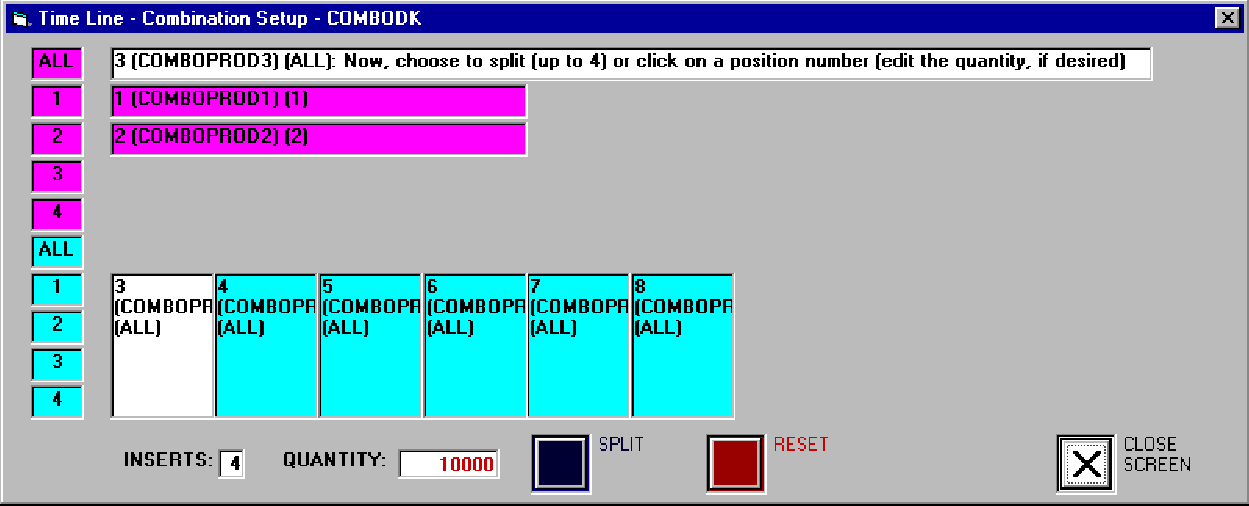
Once satisfied, you merely Save your changes.
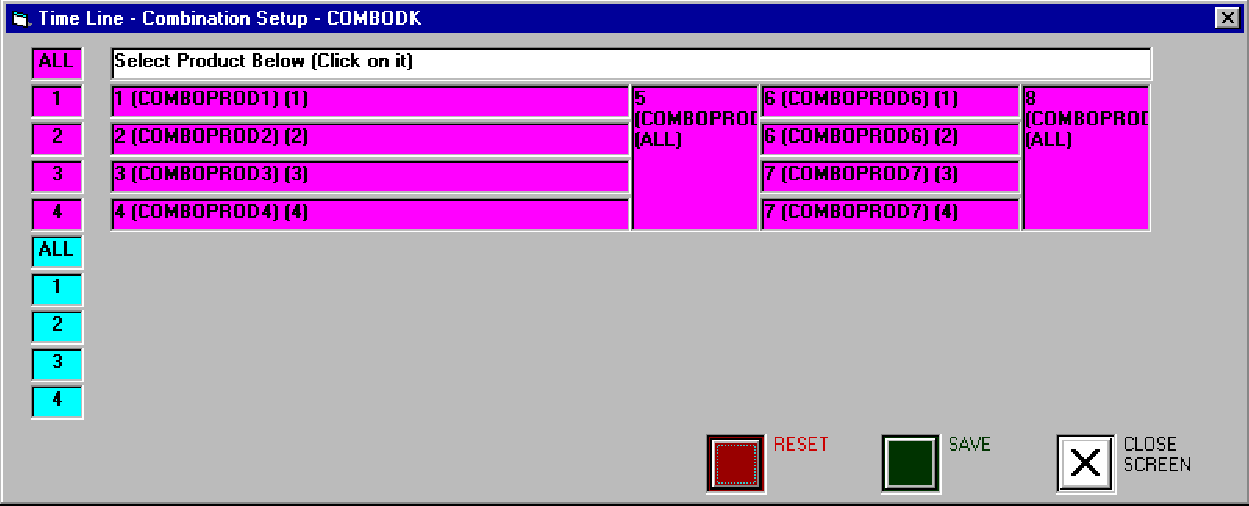
Now, four (4) different Products are running together on one
Machine (Production Operation).
Note the changes in the Positions and their Start and Finish Dates
and Times...

...as well as the fact that now the Combo, treated as 'One'
Assignment,
yet counted individually, is moved Up or Down in Priority,
together.
Also note that as Combo's are treated as 'One', the 'Total Hours' of '80' remains the same.

Data Entry, Viewing History and Lists, etc. are also obviously available
(and can even be made to be obtainable from your existing database application).
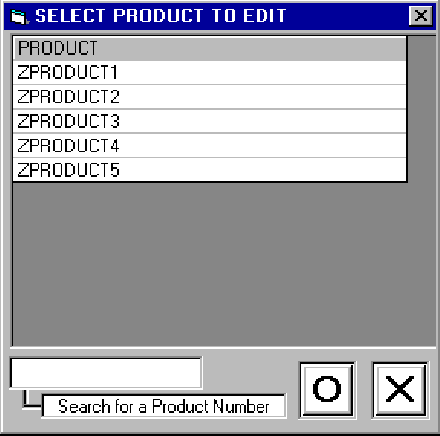
While the Product gathers and permanently stores all of the more complex
information...
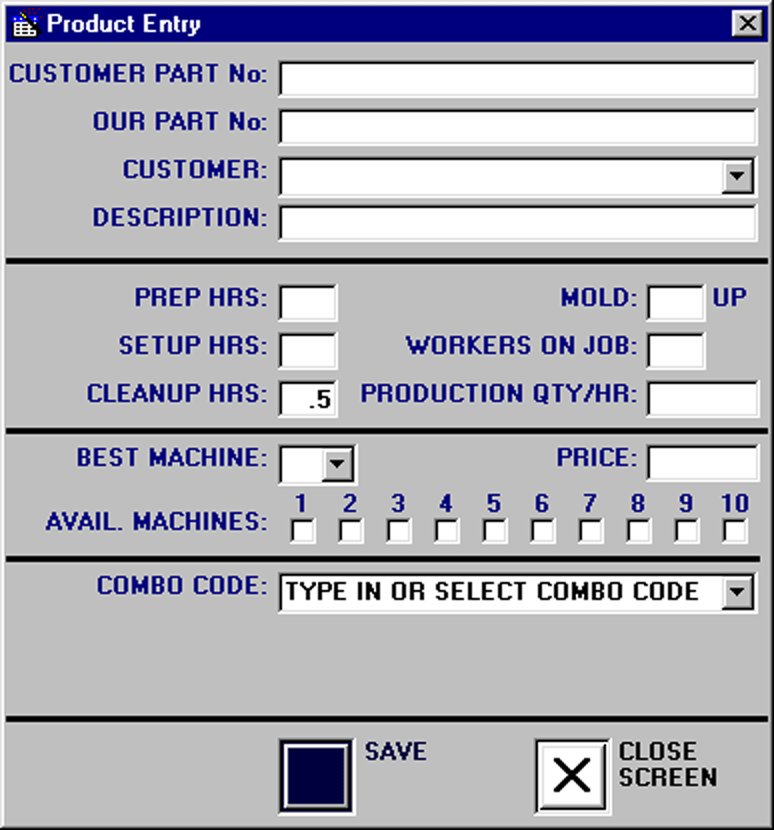
...the Order and Company entries are then just Quick.
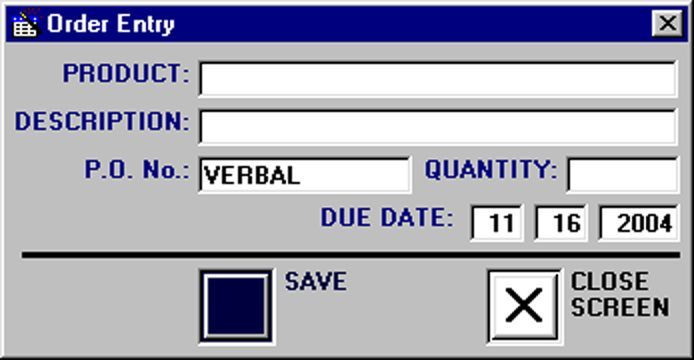
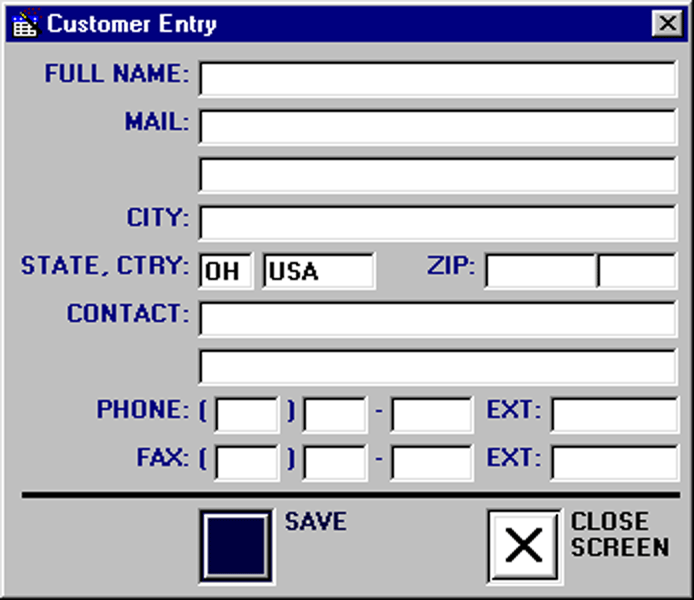
Even with a Quick Mini Data-Entry 'Tool Box'.
(Customer, Product, Order with Delete, Edit and New.)
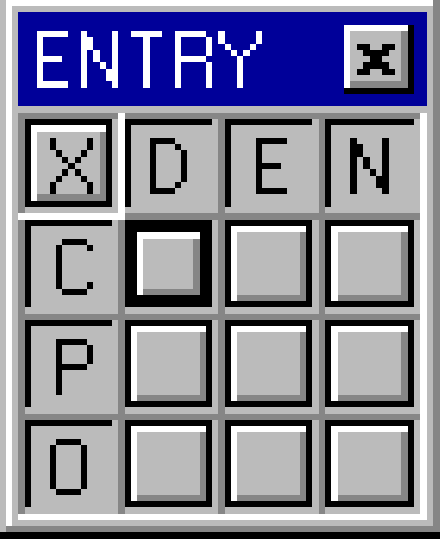
As a Complete 'Out-Of-The-Box' Solution (you almost just 'plug it in'),
and whether you need to coordinate One (1) Machine (Production Operation) or Thousands (1000's),
although extremely powerful in doing almost 'all-of-the-work',
and with almost no Admisitrative Responsibilities or Technical Support Requirements,
it is still all just as simple-to-use as...
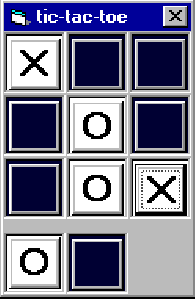
...you guessed it!
(Note that Real Time Production Control, although designed to work with PIC-II
also works as
either a stand-alone program or can be made to work with 'your' database
application.)
PIC-II TL-RTPC - Copyright © 2004, Private Name to be
Reserved.
Technical Note:Completely Designed and Written from scratch in just over two months,
this program contains approx 750,000 characters of source code, with over two million total in forms,
as well as multiple custom designed pictures and multiple other computer languages,
with additional web-enabling enhancements (preliminary examples) and features being added
(somewhat similar to the M.R.P. Example that I designed and presented to N.A.S.A. in 1998).
Note that Preliminary Examples of Web Enabling can be viewed in
English, Dutch, French, German, Italian, Portugese, Russian and Spanish.