Dennis Kennedy
Cleveland, OH 44125
[email protected]
Hewlett Packard System Administration Manager
(HP-UX 9000 - SAM)
You obviously have to run SAM in character mode on Character-based Terminals.
You then use the Arrow Keys to move up and down through the list,
pressing Enter to Select another menu (->) or pressing the Spacebar to Select the item.
You then press the Tab Key to move to the Menu and Enter to Select the Menu Item.
+ === System Administration Manager (hpux) (1) + |File View Options Actions Help | | Press CTRL-K for keyboard help. | |SAM Areas | |------------------------------------------------------------------------------| | Source Area | |+---------------------------------------------------------------------------+ | || SAM Accounts for Users and Groups -> ^ | || SAM Auditing and Security -> | || SAM Backup and Recovery -> | || SAM Clusters -> | || SAM Disks and File Systems -> | || SAM Display -> | || SAM Kernel Configuration -> | || SAM Networking and Communications -> | || SAM Performance Monitors -> | || SAM Peripheral Devices -> | || SAM Printers and Plotters -> | || SAM Process Management -> | || SAM Routine Tasks -> | || SAM Run SAM on Remote Systems | || SD-UX Software Management -> | || SAM Time -> v | |+---------------------------------------------------------------------------+ | | | +------------------------------------------------------------------------------+ |
However, if you are running an X-Window Manager, you can choose to run the SAM GUI, instead.
(Note that you can force SAM to start in GUI mode by starting 'samx' rather then just 'sam'.)
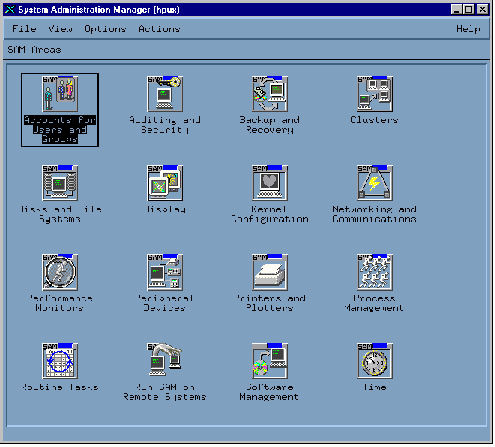
Either way, the functionality between the two is identical, so we will demonstrate using GUI.
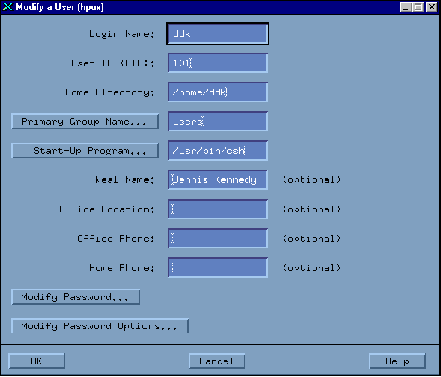
The User Screen allows you to Add or Modify Users.
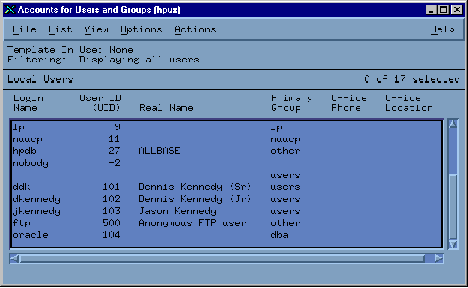
Choose 'Actions (Menu), Modify' and you will be brought to the User Modify Screen:
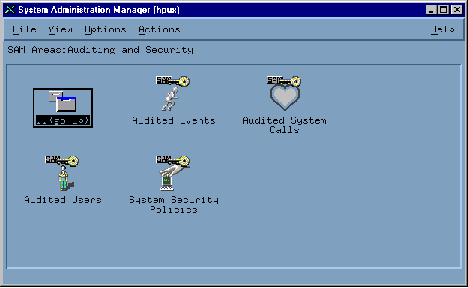
The Audit Screen allows you to Add or Modify System Auditing.
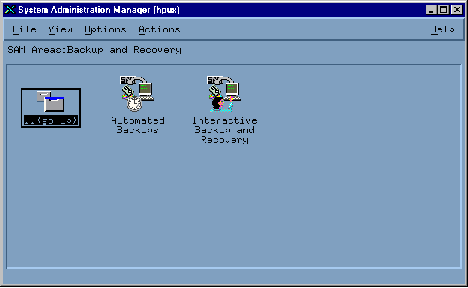
The Backup Screen allows you to Add or Modify System Backups.
The Disk Drive Screen allows you to Add or Modify System Drives.
(Note that this is easier done by pressing the space bar at bootup and using the system menu.)
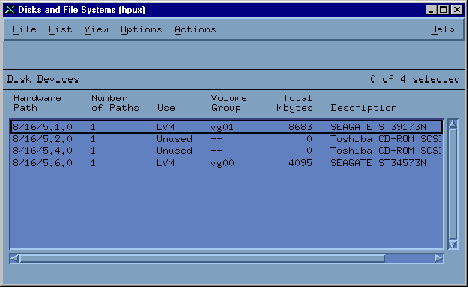
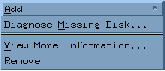
Choose 'Actions (Menu)' and you can Add a new Hard Drive:
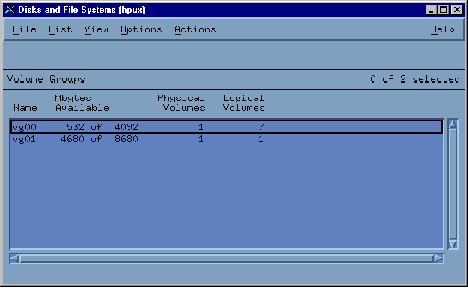
The Volume Group Screen allows you to Add or Modify Disk Volume Groups.
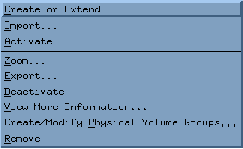
Choose 'Actions (Menu)' and you can find your Volume Group Choices:
The Logical Volume Screen allows you to Add or Modify Disk Volumes.
(Note that no processes may be running from any volume to be modified.)
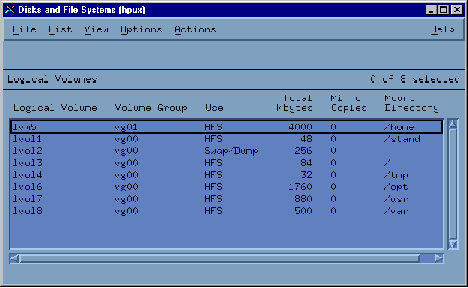
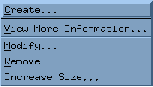
Choose 'Actions (Menu), Modify' and you can Add or Modify a Volume:
(Note that increasing a volume size is quite simple, requiring no reformatting, etc.)
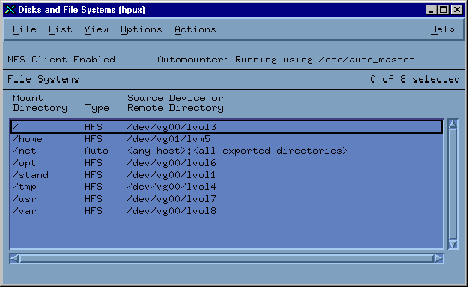
The File Systems Screen allows you to Add or Modify File Systems.
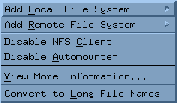
Choose 'Actions (Menu)' and you can Add a new File System:
The Kernel Screen allows you to Modify System Parameters.
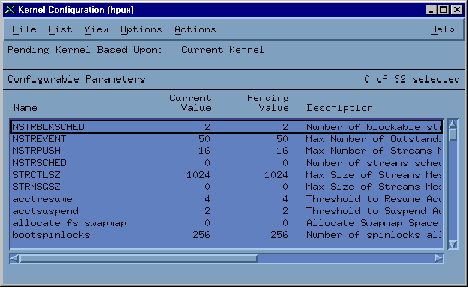
Choose 'Actions (Menu), Modify' ...
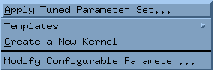
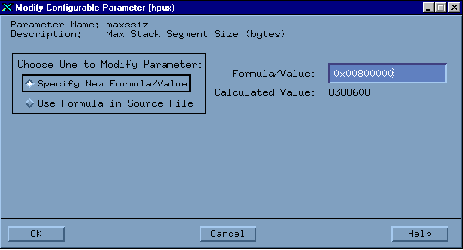
... and you can Modify the Parameter(s):
(Then, reboot - of course.)
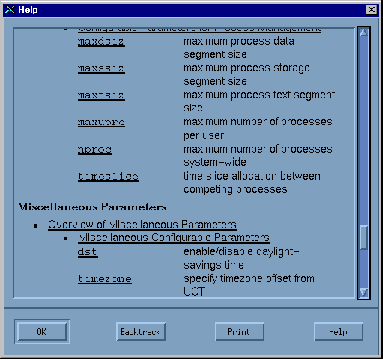
Make sure that you Always bring up the 'Help' before making or accepting any changes:
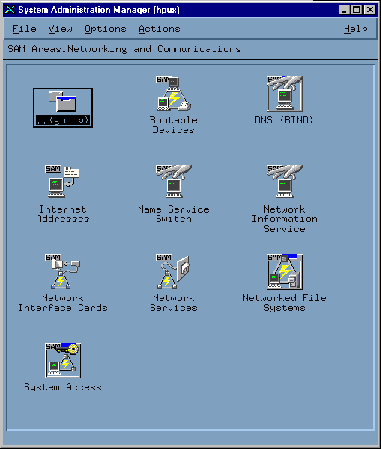
The Network Screen allows you to Modify your Network.
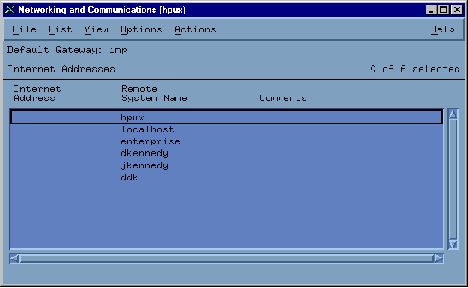
The Internet Address Screen allows you to Modify System TCP/IP Addresses.
(Note that I purposely removed the Addresses from these screen pictures.)
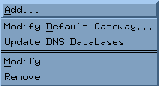
Choose 'Actions (Menu)' and you can make your changes:
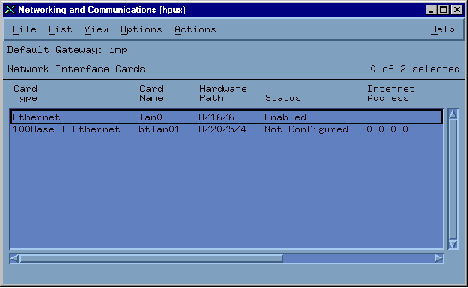
The Ethernet Card Screen allows you to Modify Ethernet Cards.
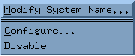
Choose 'Actions (Menu)' and you can make your changes:
The Network File System Screen allows you to Modify NFS.
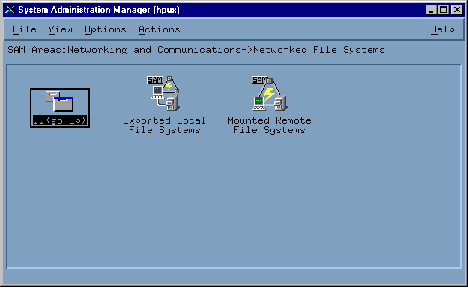
The Export File System Screen allows you to Share your Directories.
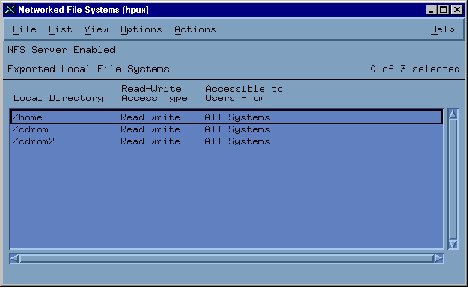
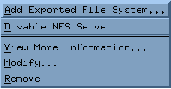
Choose 'Actions (Menu), Modify' to create your changes:
The Network Services Screen allows you to Control Available Services.
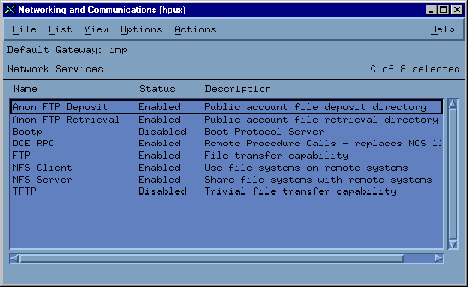
Choose 'Actions (Menu)' and you can make your changes:
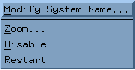
The Performance Monitor Screen allows you to View the System Performance.
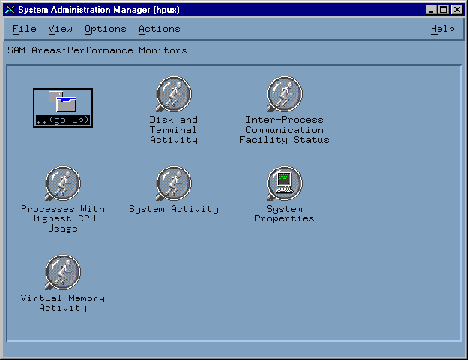
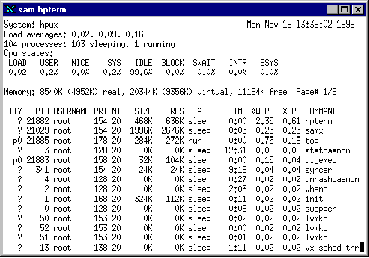
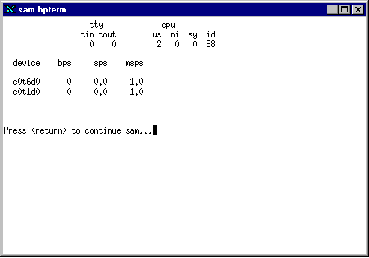
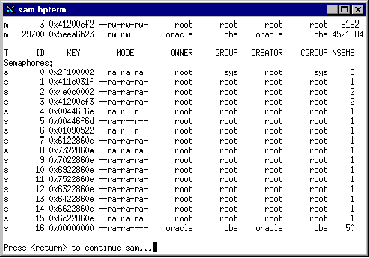
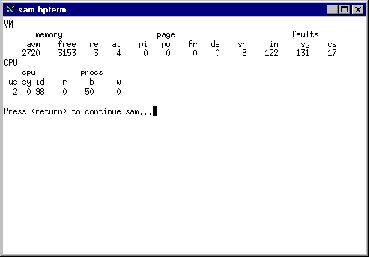
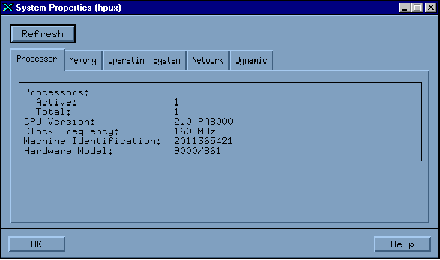
The System Property Screen allows you to View your System.
The Process Management Screen allows you to Control System and User Processes.
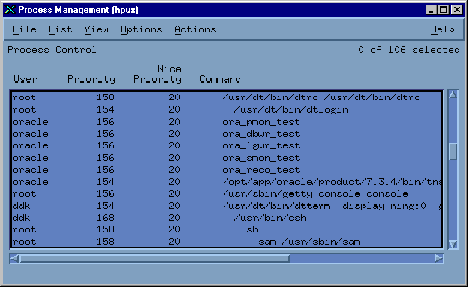
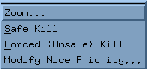
Choose 'Actions (Menu)' and Kill Processes, etc.
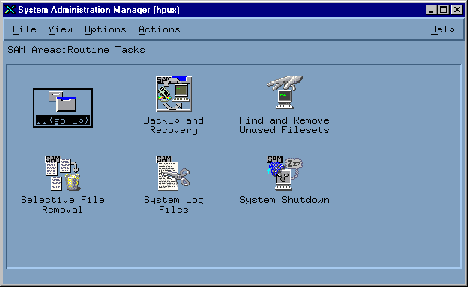
The Routine Task Screen allows you to Control Normal Processes.
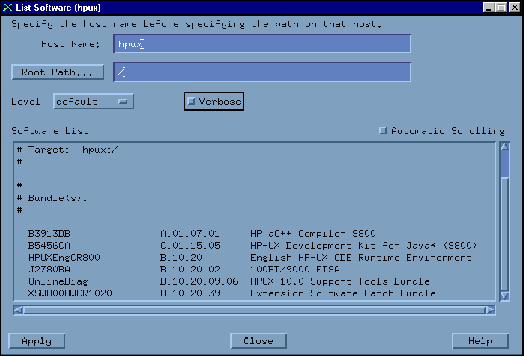
The Software Management Screen allows you View, Add, etc Software to the 'Depot'.