
ADSM backs up the each of the drives on the above computers ONLY if the drive has a LABEL.
Certain files CANNOT be backed up.
The System Files (Registry) stored in the %SYSTEMROOT%\CONFIG directory and the Open SQL Database '.DAT' are most of the files that cannot be backed up.
ADSM makes copies of the System Files in the directory 'c:\adsm.sys\REGISTRY\%COMPUTERNAME%\Machine'. If necessary, these files may be copied while in DOS mode, only.
The SQL Databases all are Dumped just before ADSM begins. So, the Dumps are correctly backed up instead of the Live SQL Databases.
In order to eliminate erroneous error messages, the file 'dsm.opt' located in the '\win32app\ibm\adsm\baclient' directory include 'exclude' statements instructing ADSM to skip these files.
Because the Log File ('dsmsched.log') becomes too large to edit on most of these computers (over 20 meg for just three to four days), RSCTESTSERVER2 contains a program called 'LogSplit'.
This program reads all of the TriCord Server Log Files (configurable) and pull out specific messages, such as 'incremental backup', 'finished', 'success', 'elapsed proc', 'offline', 'continue', etc and stores these lines into an Access Database for Review.
The ADSM Installation Program is on the RSCITSERVER1, 'E' drive in the directory '\Admin\ADSM\INSTALL', with Instructions in '\Admin\ADSM'.
Using the ADSM Backup Client GUI interface is fine for doing massive restores, but is very encombersome and time consuming to do simple file restores, especially since it has to find directory listings for each viewing level.
A better alternative is to use the Command Line interface.
The ADSM Procedure for quickly restoring files is to first start the 'ADSM Command Line' Program found in the ADSM Group.
Then at the 'DSMC>' Prompt, type 'restore -latest -replace=yes %PATH%%FILENAME.EXT%' where %PATH% equals the full path of the file to be restored and %FILENAME.EXT% represents the actual name and extension of the file, itself.
There are basically four (4) types of Backup Rules:
General:All of these computers normal hard drives fit this Rule. ADSM will keep up to seven (7) copies of a changed file. When the file is 'Expired', ADSM will keep these copies for the longest possible time (to be determined by Dave), but not less than 30 days.
MedStar Tif:
ADSM will keep up to seven (7) copies of a changed file. However, if everything works correctly, there should never be more than just the one original copy. If there is more than one copy, this should alert us that there has been an error (perhaps we could get a report of this?). When the file is 'Expired', ADSM will keep this copy for 30 days. (This will affect Tif Drives only.)
HUDE Tif:
ADSM will keep up to seven (7) copies of a changed file. (Like the MedStar Tifs, there should never be more than just the one original copy of the Tif image.) When the file is 'Expired', because of the extreme volatility of the server, ADSM will keep this copy for only seven (7) days. (This will affect Tif Drives only.)
File Server:
ADSM will keep up to 30 copies or up to 60 days (whichever is longer), allowing the Users to retrieve previous copies of their work. When the file is 'Expired', ADSM will keep these copies for the longest possible time (to be determined by Dave), but not less than 30 days. Additionally, it will be up to each User or User Group to determine if they would like additional saves. They can do this by Archiving (PKZIP -P -r) their directory structure into one dated file (such as 19971201.ZIP). This would then become a unique file to ADSM and would be kept as long as the file exists on the server. (This will affect Server Drives only.)
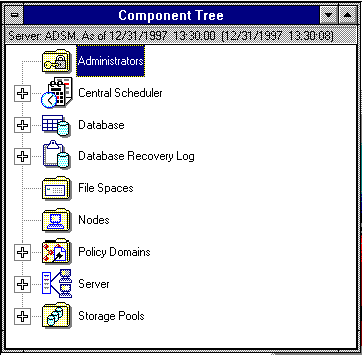
The ADSM System Administrator.
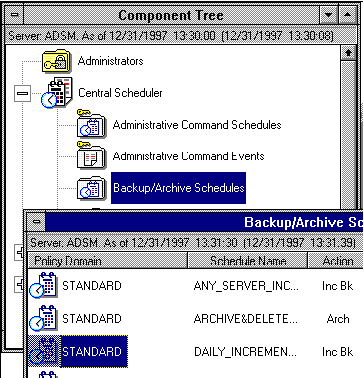
The ADSM System Administrator Scheduler.
We Utilize Primarily the DAILY_INCREMENTAL Backup Scheme.
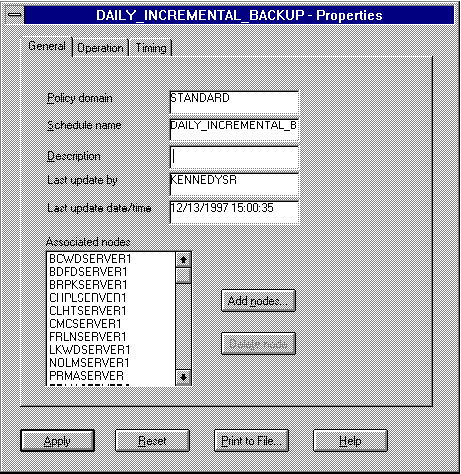
The ADSM System Administrator Incremental Scheduler
for Modifying the DAILY_INCREMENTAL Backups.
You would choose to 'Add nodes' to add any addition computers.
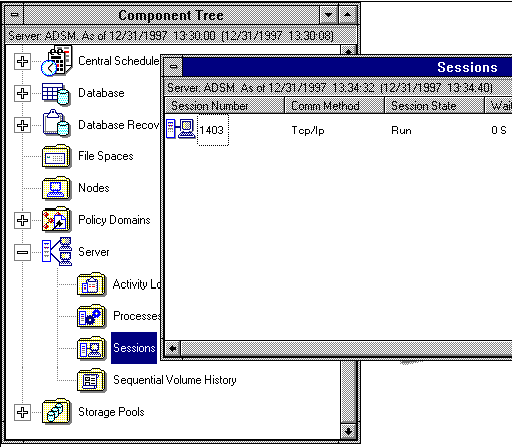
The ADSM System Administrator Session.
We may View any Current Sessions
between the Mainframe and the PC's,
viewing their current Session State as well as their Total Session Time,
as well as Cancel any Session by choosing
'Edit-Cancel Session'
from the Main Menu (not visible).
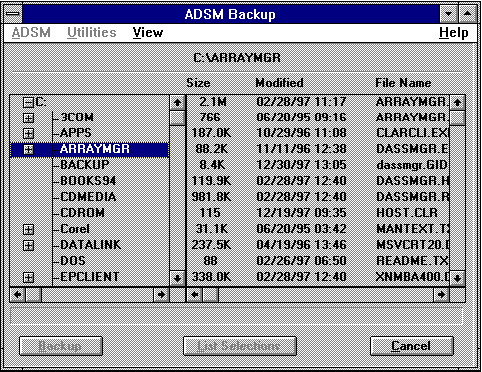
The ADSM Client Backup (Restore quite similar).
From here, we can Backup / Restore a Group of Files.
(Remember that the 'ADSM Command Line' Program is an Alternative.)
ADSM - Skipping Drives
In order to speed up the ADSM Backup, we could skip the following drives:
- CLHTSERVER1(e_drive)- MedStar Tifs
- PRMASERVER(e_drive)- MedStar Tifs
- WLBYSERVER1(e_drive)- MedStar Tifs
How will that help us?
Each of these drives include approx. 1,700,000 files totalling approx. 30 Gig of disk space.
Skipping these three drives means that ADSM not only does not have to back up 90 Gig of files,
but also does not have to do Mainframe Database comparisons for 5,000,000 Directory entries.
(The Database-Directory comparisons use a tremendous amount of resources - totalling hours.)
What is the best way to 'Skip' a drive?
ADSM will skip all drives that do not have a Disk Label.
The simplest solution is to merely turn off the label for the three drives listed above.
Although this cannot be automated, it can still be done quite simply.
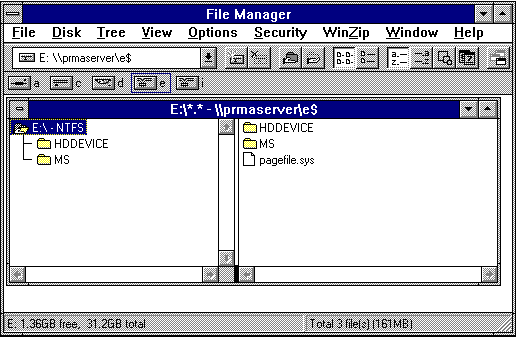
Using the File Manager, connect to the Servers 'E:' Drive.
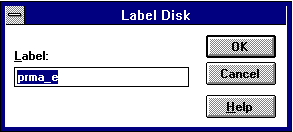
Choose 'Disk', 'Label Disk' and delete the disks label.
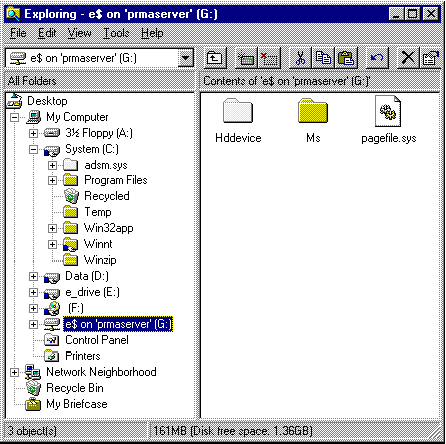
Using Explorer, connect to the Servers 'E:' Drive.
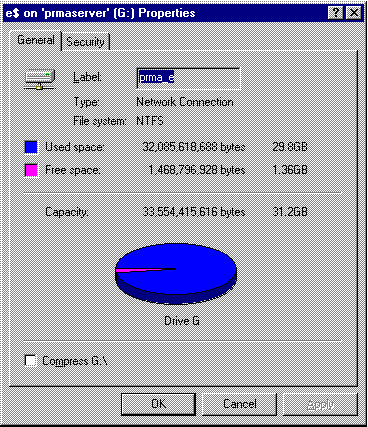
Right-Mouse click on the drive and choose 'Properties', then delete the disks label.
ADSM will now completely skip this 'E:' Drive completely.
How do we know that it will work?
Originally, \\rscserver2 was set up (by previous Network Analysts) as a Windows NT 4.0 Server with ADSM installed.
In order to more seamlessly connect it to \\rscserver, it was reset to Windows NT 3.51 back in June, 1997.
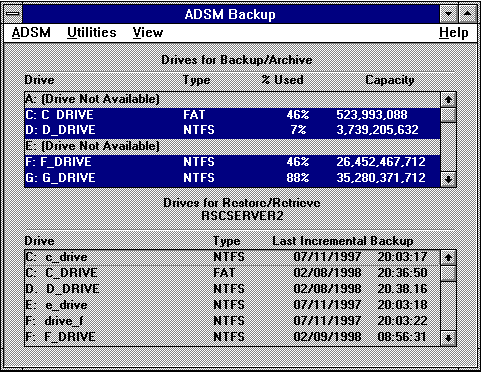
Today (eight months later), the Mainframe Backup for \\rscserver2
still contains the original files from the original Windows NT 4.0 configuration.
This error shows us that, by merely turning off a Disk Label,
ADSM will keep the last contents of that backup indefinitely.