
| Main | Manual | Download | FAQ | Contact |
This macro is designed to convert between Word and Palm files. Primarily between Word and the Palm doc format, but also to iSilo , RichReader and WordSmith formats. It also converts between other database formats, will display file types and merges documents. If you have any suggestions, queries or problems, please contact me at [email protected].
When installed, a new toolbar will appear in Word with four buttons.
The button with an T on it will convert files from Word to Doc, iSilo, RichReader, WordSmith or JFile format.
The button with an L on it will show the file types of palm files in a directory and let you convert back from Doc or WordSmith format to Word.
The button with an P on it will also convert back, but will not show which files are convertable by default.
The button without a letter will open the Palm desktop.
For a more detailed description of functions, refer to Converting Files.
| File Type/Action | Convert | |
| � | To* | From |
| Convert to Doc format | T | P,L |
| Convert to iSilo format | T� | � |
| Convert to RichReader format | T | � |
| Convert to WordSmith format | T | P,L |
| Convert TealDoc format (protection only) | T | |
| Convert to JFile format | T | P,L |
| Convert�to MobileDB format | � | P,L |
| Merge Docs into one Word file | � | L |
| Install single�or multiple Palm .prc/.pdb files | � | L |
| Palm file (.prc/.pdb) information - type/ size/ name | � | L |
| Open Palm Desktop | � | (Blank) |
* with optional
Install
� option to process html or�html tags
This is shareware and if you find it useful, please register for $5US at www.palmgear.com or at www.handango.com. Enter you registration key by pressing the key button on the Text to Doc box (the T button box)
Limitations: This program works only on Word97 or Word2000 running under Windows95/98/ME/NT/2000.
New in this V2.2:
Added support for WordSmith
Significant speed improvement on doc file conversions to and from Word
Tealdoc security added
Major update to Palm File Description:
- Added filter to Palm File Description window for major file types
- Improved Merge feature to support all convertible formats to Word
- Improved "show code" checkbox to include all files (good for seeing what database goes with which application)
- Columns now sizable and improved file sorting
Word files now retain information about which format it was last converted from.
Fixed Word2000 opening documents with html tags
Added category support for miniWrite
General code improvements/bug fixes
New pretty buttons
New in this V2.11 (only released in beta):
German language added
iSilo Conversion using web improved
Run install.exe from the directory where you installed Word2Doc (normally C:\Docs) and press the Uninstall button. You can then delete the directory C:\Docs.
When the Docs To Text (P) button is pressed you are presented with the standard Word Open box looking for .prc or .pdb files. Selecting a file will convert the doc to a temporary text file, which will then be opened. To set a default directory, see Text to Doc - Setup below.
If the text file is subsequently saved as a Word document (rename the file and change the file type to Word Document), the original prc/pdb Title and the location (where the prc/pdb file was when converted) are saved and used as defaults if the document is reconverted back to a prc/pdb file.
The file is checked that it is a doc file before conversion begins and if not, then a message is displayed stating this.
If the file selected is a JFilePro or MobileDB database, a message stating this is shown, and asks if you still want it converted. If Ok is clicked the database is converted and opened.
When the Text To Docs (T) button is pressed you are presented with the upper part of the following box.
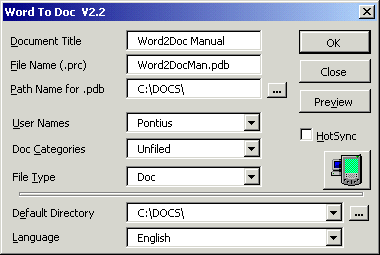
Document Title
This is the name of the database that appears in the Doc program on
the Palm unit. This will default from the first line of the document
being converted if that line is 30 characters or less. Any non
alpha-numeric characters will be removed.
File Name (.pdb)
This is the name of the file that will be created by the conversion.
An extension of .pdb will be added to this name. The name of the document
being converted is the default.
Path Name for .pdb
This is where the converted file will be placed. The button next to this
field can be used to browse a path. The 'default path' will be entered
initially (this default can be changed by clicking on the picture button
- see Setup below).
User Names
User names are shown here for use with the Hotsync feature.
The most recently used username will default.
Doc Categories
The different categories are shown in a drop down box. By choosing one,
the doc file created will show up in that category when HotSynced.
Unfiled is the default.
Only some doc readers have categories. The doc readers I know about that use categories are searched for in the order of Aportis Doc, TealDoc, SmartDoc, QED, QVADIS, LinkDoc, DocVis, miniWrite, and iambicReader, and the categories are shown for the first reader found. That is, if you have AportisDoc and SmartDoc loaded as readers, only the categories for AportisDoc will be shown. If AportisDoc is deleted, then the SmartDoc categories will be shown. iSilo or RichReader categories are not shown because Neither iSilo or RichReader converters support category entry on conversion.
File Type
Doc always appears in this list. Other options are iSilo, RichReader,
Wordsmith and Tealdoc. For these options to appear, the respective
converters for these Palm apps must be available in the same directory
as the macro template, e.g. if the macro is in directory C:\Docs, then
the converter must be in C:\Docs.
For iSilo, iSiloC32.exe must be in the same directory as the macro template.
For RichReader, the RichReader conversion files, you will prompted for the directory where RichReader was installed.
For WordSmith, WSConv.exe must be in the same directory as the macro template.
For TealDoc, MKTLDOC.EXE must be in the same directory as the macro template.
For JFile, jconv4.exe must be in the same directory as the macro template.
HotSync
If this box is checked, then the file will install on the Palm unit
next HotSync.
Preview
Clicking this button will show an approximation of how the document will
appear on the Palm unit.
Key button
Clicking this button allows you to register this product. Enter the
registration key and press Ok.
Clicking on the picture will display the setup part of the box (the lower part) where the default directory and language can be set. By placing the mouse over the picture, the tooltip shows the current default directory. The current default is C:\Doc.
Default Directory
The Default Directory field is displayed by clicking on the picture
(see above). This default directory path is used by the "Path Name for
.pdb" above and for the Doc to Text default directory. This field can be
entered by either choosing a pre-assigned directory, using the browse
button to locate a directory, or manually typing a directory.
The pre-assigned directories are:
Language
Choosing the language from this drop down box will change the view of the
Text to Docs box. Currently supported languages are English, Deutsch,
Fran�ais, Espa�ol, Swedish and Turkish. If you would like
your language supported, please drop me an email.
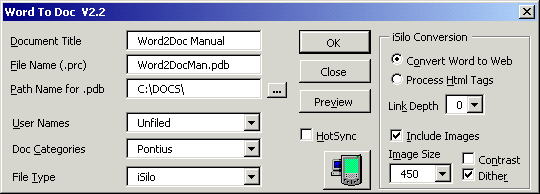
Convert Word to Web
Will convert the current document as a web page. Formatting and pictures
will be retained (to a reasonable extent, but not completely)
Process Html Tags
If any Html tags are manual placed in the document, they will be processed
as html, not included as text. Only use this if you understand HTML format.
When Word converts a file to web format, it can be somewhat verbose.
To allow concise html to be used, chose this option.
Link Depth
If you have links in the document to another document, that also has
links to another document, ... This states how many links will be
followed and converted.
Image Size
How large the image will be converted to. The larger the image, the
clearer it will be, and the bigger the document size.
Contrast / Dither
Could improve the image clarity. If the image is needs improvement,
try a combination of these until the best picture clarity is achived.
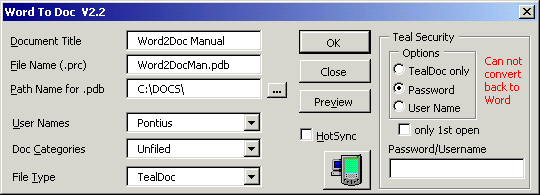
Options
TealDoc only
Converted file will only open in Tealdoc. (some doc readers will now also
see these files)
Password
Enter a password in Password/Username and the document
will only open in Tealdoc once the password has been entered. If
only 1st open is checked, then the password is only
required on first open of the document. The text is encoded and
meaningless if opened in other doc readers.
UserName
Only a Palm unit with the entered username in Password/Username
will be able to open this document in Tealdoc. The text is
encoded and meaningless if opened in other doc readers.
When the Palm File Desc (L) button is pressed you are presented with the following box.
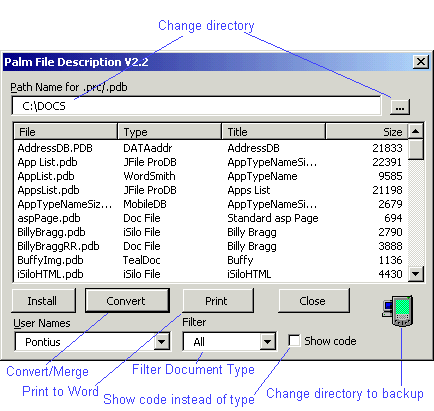
Path Name for .prc/.pdb
The files for the directory selected here will be displayed below.
The default path is shown initially (clicking on the picture will
reselect the default path if the path has been changed).
Main Window
This shows the file name, the file type, either from a descriptive list,
or the eight character name from the file, the description from the file
and the file size. The titles at the top of each column can be used to
sort these files in ascending/decending order. When clicking on a file,
the Install button will activate, and any number of files can be installed.
Use Shift or Ctrl to select multiple file. When only one file is selected,
if the file is a Doc, WordSmith, JfilePro or MobileDB file, the button
will change to Convert, and the file will be converted and opened.
Install
Select any prc or pdb file (use Shift or Ctrl to select multiple files)
and press Install. All selected files will install next hotsync.
Convert
If a prc or pdb file is a doc, jfile or mobiledb format, the Convert/Merge
button will change to Convert. The selected file will be converted in the
same way as if the P button was used.
Merging Docs
If more than one Doc, WordSmith, JfilePro or MobileDB file is selected, and
they are of the same type (e.g. 3 Doc files), the Convert/Merge button
will change to Merge. The files will append one after another into one
unsaved Word document in the order shown on the list.
Print
This will printout the list of files to the current cursor position in
the active Word document. Good to get a quick list of what you have
installed if your backup directory is selected.
Filter
Select a type of file from the list, and only files of that type will be shown.
Show code
Instead of interpreting the file type, the file
code will show. This is useful for seeing which files are attached to an
applications.
User Names
User names are shown here for use with the Install button.
The most recently used username will default.
Picture
Will toggle between the backup directory and the default directory.
Can't see the converted file on the Palm
How do I change the directory from c:\docs
When installed, a message appears "A required DLL file,
MSVBVM60.DLL, was not found."
Can't see the converted file on the Palm:
You need a Doc reader to read the doc on the Palm unit.
There is a wide range of choices now.
The main differences are price and whether you want to be able to edit the text on the Palm.
This manual mentions a few readers that it supports with categories,
but readers like CSpotRun (a popular freeware reader) don't have categories
so aren't specifically mentioned.
Other
formats such as WordSmith and RichReader, which supports rtf formatting, and
iSilo, which supports better compression the doc format and html type
formatting, are also supported by this macro. If you search
http://www.handango.com/home.shtml
or www.pilotgear.com
you should get a few examples to download.
How do I change the directory from c:\docs:
To change the directory from c:\docs, to another:
When installed, a message appears "A required
DLL file, MSVBVM60.DLL, was not found.":
This file is used by the installer. It is on most machines now and is
large, so was not included (updating Microsoft files that normal exist
is not recommended by Microsoft). To fix this:
This macro is provided as shareware and may be distributed freely as long as all files are keep together. This software is provided on the basis that it works for me. No other guarantee is given. This product is provided without warranty and the user accepts full responsibility for any damages, consequential or otherwise, resulting from its use.
If you have any suggestion or queries, please contact me at [email protected]. Cheers.