|
For example, this icon represents the program Microsoft Money. This program tracks personal finances and is provided with many new Windows sytems. By clicking or double clicking on this icon the Microsoft Money program is started (loaded). |
A program is a set of computer instructions which performs a specific task such as writing a document, or tabulating and calculating numbers, or drawing pictures, or publishing web pages, or one of many other functions available on computers today. A program is started by clicking the mouse on the program's icon, which is usually found on the desktop or through the START button or in a folder or on a disk.
|
For example, this icon represents the program Microsoft Money. This program tracks personal finances and is provided with many new Windows sytems. By clicking or double clicking on this icon the Microsoft Money program is started (loaded). |
Once a program is loaded we are ready to take on all the wonderful tasks we have been waiting years to do - writing our letters with our word processor, making our greeting cards with our card writing program, updating our personal finances, keeping track of our investments, sending email and shopping on line, etc, etc.
ok, ready to start?
Good:
Now, let's say we want to write a letter so we click (often we have to double click) on the icon representing our word processor; it could be Microsoft Word, or Works or Claris or Corel Word Perfect, or a host of other widely used word processors:
here's mine it's Corel Word Perfect 8
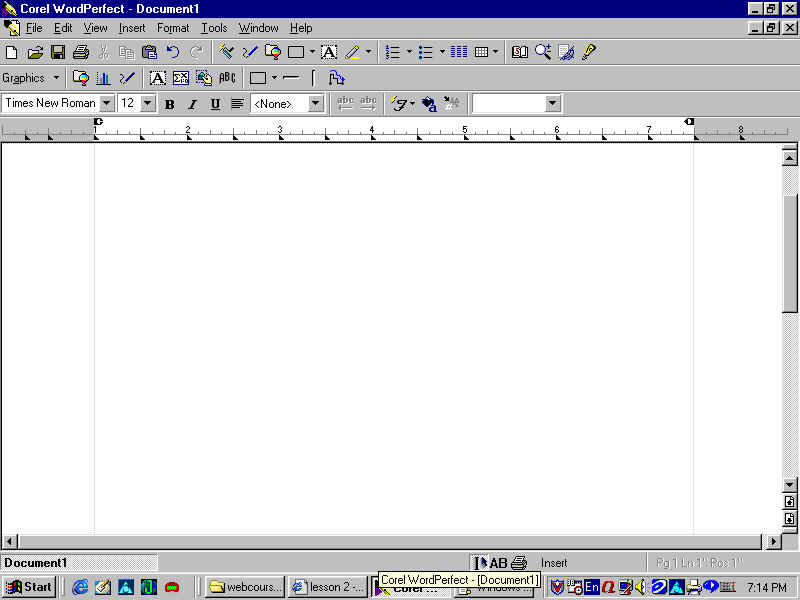
Once we have the program is loaded we are typically faced with a screen that looks something like this:
This is the Corel Word Perfect 8 open document screen.
Its features (starting at the top of the screen and moving down) include the following:
1. A title bar
2. A set of menus including file, view, edit, etc. - these menus contain lists of commands to perform the many functions of the program
3. Toolbars - these are groups of buttons - most buttons are duplicates of the commands found in the menus - they are useful bcause the operator can perform the function merely by clicking on an individual button, a time saving device.
4. The general document area where the operator will type and compose his/her document.
5. The taskbar - the grey area generally found underneath the general document area (it can be moved to any edge of the screen) - this very useful feature allows the operator to switch between documents or between programs, simply by clicking on the appropriate taskbar entry, a process known as multitasking.
So, go ahead - find your word processor, click (or double click) to open it - is it Microsoft Word or Microsoft Works, or Corel Word Perfect or ClarisWorks? - whatever it is, see if you can identify the different parts of the screen - point to the toolbars - does a message pop up telling you what that button does? - click on the menus to see what commands they contain - explore! - it is one of the best ways to learn.
Managing your files
When the operator is ready to save his/her document it is saved as a file:
"A file is a document is a file"
you can quote me on that.
A file can also be called a spreadsheet, a picture, a newsletter, any type of document you can think of depending on the program that created it. A program such as Lotus or Excel will create a spreadsheet. PowerPoint or Corel Presentations will create a file known as a presentation.
Once a file is saved, it is a digital image on a stored medium such as a floppy disk or a hard disk (or hard drive) and it becomes what can be generically called a file.
Are we having fun yet? Managing files on your computer is one of the most perplexing tasks even to intermediate computer users. Beginners find it a difficult concept to grasp inititially. It takes practice, as in any other discipline, to understand proper file management. The way you organize your files to a large extent will determine how efficient a user of the computer you are. Here are some basic guidelines to work with:
A file is a document of one kind or another
A folder is a device for storing files. It may contain documents and/or other folders
Folders can be created from the desktop, from dialogue boxes and in the program Windows Explorer
Folders may be nested inside other folders to many sub-levels
Whenever opening or saving files it is your task to determine from/in which folder to retrieve/save your file
Use the program Windows Explorer to see a map of the folders on your hard drive (the C: drive) or on any other drives
Use Windows Explorer to move files from one folder to another
Good file management includes, organizing your files into groups within folders in a logical and orderly manner, using names that are succinct but sufficient to indicate clearly to the user the nature of the file saved and the nature of the folder in which it is saved.
For example: if I were writing my first letter to my travel agent regarding my upcoming summer vacation I might call the file travagent1 and save it in a folder called 2001vacation. Make sense?
In the open and close dialogue boxes for most current software programs, there is a box in which to choose the location of the folder from/in which to open/save your file.
For detailed instructions consult your help menu for the individual program or purchase one of the many good books which explain the basics. Good Luck!
| Well done. You've completed the second lesson. |  |
Don't stop just yet. Try Test 2 to see how you've progressed... |