Let's look at the |
 |
Let's look at the |
|
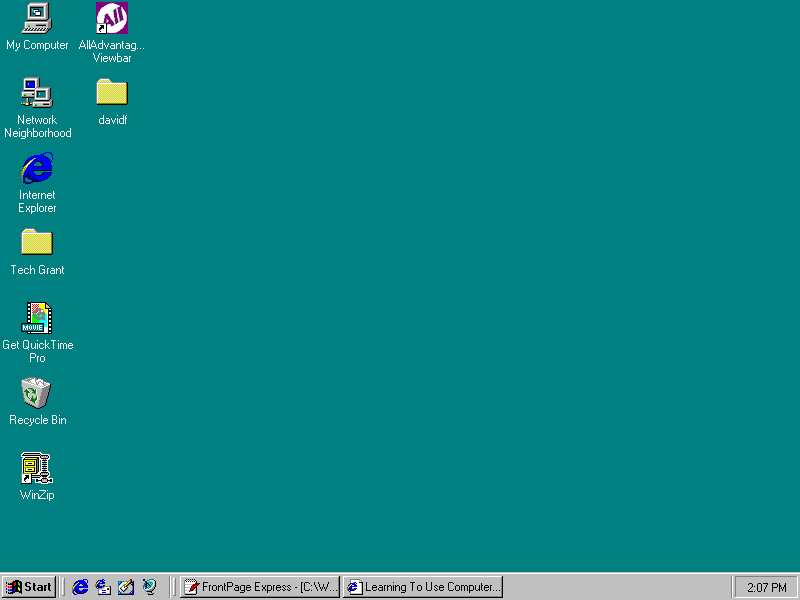
The desktop is the starting point for most computer users (advanced users know how to go straight to their specific workplace). Normally, your Windows system will start here automatically.
In the desktop we see how our computer software (programs, files, and other computer utilities) is organised. From our desktop we can go anywhere we want - for example
- we can start surfing the Internet
- we can start writing a document in our word processor
- we can paint a picture
- and we can do just about anything else we want that is available on our
...computer.
What's on the Desktop?
Several icons (pictures) appear in the main desktop area which is everything above the grey horizontal area at the bottom of the screen which is known as the taskbar. Each icon has a name associated with it. Here are some of the desktop icons comon to users of the Windows system, and their functions.
- My computer
A utility which shows you a map of your computer; all the hardware and all the software contained in your system. You can open the my computer window (see below) by double-clicking on the icon with the left side of the mouse.
You can use the My Computer window to manage your files (documents you create or are already in your computer) such as moving, copying and deleting files. You will learn how to navigate from one place in your computer to another from this window.
- Recycle bin
This is where deleted files end up. In order to remove the file from the computer completely you have to empty the recycle bin.
- Briefcase
A place to store commonly used files.
Other icons that appear on the Desktop are shortcuts to software installed on the computer you are using such as an Internet server (commons ones are Internet Explorer, America Online, Netscape, etc.), a word processing program such as WordPerfect or Microsoft Word, an accounting program such as Quicken or Quick Books Pro, etc., etc.
You get the idea.
| Now let's get to work |  |
The taskbar is so-called because that's where we go to do most of our work. You will see a button there called the START button. When we rest our mouse pointer there it opens up into a menu of options. Some of the names of theses options are programs, documents, settings, help, find and shut down.
- Programs
Most of our software can be found here. When we load programs into our computers the installation procedures usually include setting up an entry to the program through the start menu.
- Documents
This area contains several of the documents (files) we worked on recently.
- Settings
Contains software which allow us to customize the operation of our computer including how our mouse, monitor and printer work.
- Help
A very useful resource which we can use to get answers to specific questions. Most software today comes with extensive written help.
- Find
Forgot where you saved a file or folder? Come here to find it.
- Shut Down
The computer should be shut down from here. It is important to remember to shut down properly. Failure to do so may result in problems with your hard drive and the operation of your software later on.
 |
What is Navigating? | ||
You're going to hear a lot about navigating as you learn to master the computer. Navigating is the process of getting from one place to another within your computer such as getting from a folder on your floppy disk to a file on your hard drive. The term is also commonly used in surfing the Internet to describe the process of getting around an individual website or getting from one website to another.
What are Windows?
Windows is the name of the operating system which runs your PC because the computer communicates with the user thru windows. These rectangular shaped boxes both inform the user, and request information from the user. The desktop itself is a window. Often you will hear a window referred to as a dialog box. We can perform various tasks in windows and we can move them, size them and reshape them. The more advanced users even know how to create them!!!
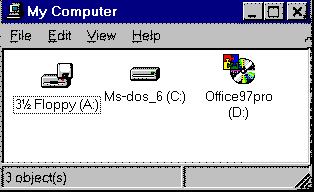 |
To the left is an example of a window. See that the title of the window, My Computer, appears at the top left in the area known as the title bar. Remember the My Computer icon sits on the desktop and when we double click on it with the left side of the mouse this window opens up. |
There are three buttons at the top right of most windows. We use our mouse to point and click on these buttons when we need to.
The "x" is the close button. It closes the window.
The button with the square box in it is the maximize button. When we maximize the window it fills the entire available screen area.
The third button with the "_" sign in it is the minimize button. When we minimize a window we shrink it down to a small rectangular button (an entry) on the taskbar which is the horizontal bar usually situated at the bottom of the screen. When we click that button on the taskbar the window is restored to its former size.
| Well done. You've completed the first lesson. |  |
Don't stop just yet. Try Test 1 to see how you've progressed... |