Motion Mixer Tips
Current Questions:
- How do I delete items from the Motion Mixer Timeline?
- What do the plus (+)and minus (-) buttons do? or How do you delele a track?
Q: How do I delete items from the Motion Mixer Timeline?
This is a tip for those who have tried to use Motion Mixer but were frustrated because they couldn't figure out how to delete items from the timeline.
A: How to delete items from the Motion Mixer timeline:
Surprisingly enough the sparse Motion Mixer "reference guide"
that comes with Lightwave 7 correctly states that you simply select the item
in the track area and hit the "delete" key on your keyboard.
That's right, it works EXACTLY as they say it does.
What it does not tell you is that this will NOT work with LW7's default key mapping.
Lightwave maps the "delete" key from the keyboard to the "Delete Key" command. This is fine since it is what we expect it to do when we are in Lightwave. If you hit the delete key on the keyboard it should delete the key on the current frame.
Problem:
LIGHTWAVE DOES NOT PASS THIS KEYPRESS TO THE PLUGIN!!!
As anyone who has tried to work with Motion Mixer has noticed, if you select an item from the Motion Mixer timeline and hit the delete key, it does not delete the item but instead it ask if you want to delete the current key. You can add things, but not remove them?! Frustrating!
Solution:
Unassign the "delete" key and Motion Mixer will now receive
the keypress and delete the motion or transition from the timeline.
How to do it:
Unassign the Delete key
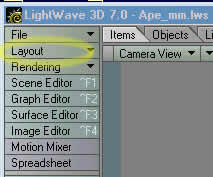
1) In Lightwave 7 Layout, click on the "Layout" menu item. A new flyout menu appears. Move the mouse over "Interface" and another flyout menu appears. Move the mouse to the right and down the new menu to left click on "Edit Keyboard Shortcuts...".
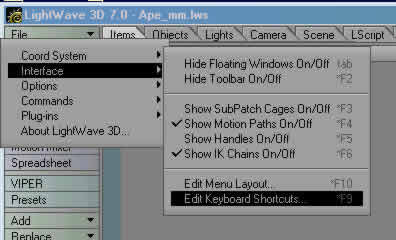
2) The "Configure Keys" window will pop up.
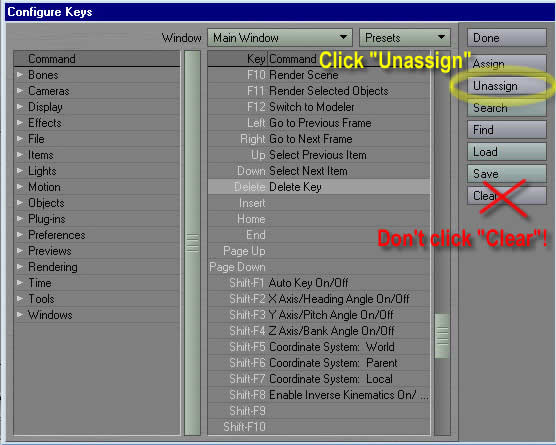
3) In the center window that says "Key | Command", scroll
the slider about ¾ of the way to the bottom, until you see "Delete
Delete Key"
4) Click on "Delete" to select it then click on the "Unassign" button.
NOTE: Be very careful! DO NOT click on the "clear" button
as this will clear ALL of you keyboard mappings. If you do this, you can restore
the Presets to the default by clicking on the "Presets" button and
selecting "default", but you will lose any custom mapping you may
have done previously.
Assign the "Delete Key" command to something else
1) Scroll back up to the top of the key list and select "(BS) Ctrl-H".
This is the "<- Backspace" key. Pretty close to the "delete"
key both physically and in context, so we'll map the "Delete Key"
command to it.
2) With "(BS) Ctrl-H" still highlighted, move the mouse over
to the "Command" list on the left and click on "Motion".
The items below the "Motion" category become visible.
3) Click on the "Delete Key" command
4) On the upper right side of the window, click on the "Assign"
button.
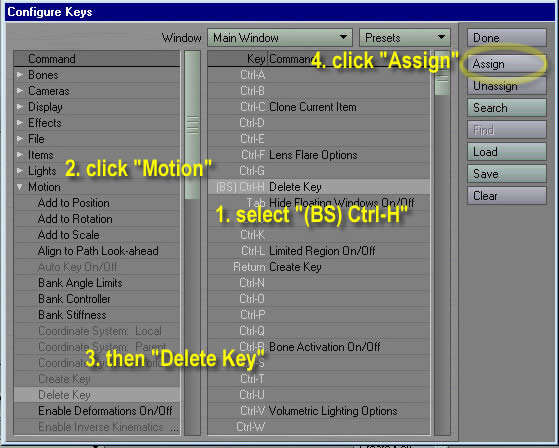
5) Click "Done" to close the "Configure Keys" window.
That's it!
Now when you go back into Motion Mixer, you will be able to delete transitions and motions from the timeline exactly as you would expect, by selecting the item and hitting the "delete" key.
Remember: you now have to hit the "<- Backspace" key to delete keyframes. It takes a little getting used to, but if you want to use Motion Mixer, it's worth the trouble. And yes, Motion Mixer is definitely worth the trouble!
Another Motion Mixer Tip:
Q: What do the plus (+)and minus (-) buttons do? or How do you delele a track?
A: Again, they do exactly what the little manual says, plus (+) adds a new track to the timeline, while minus (-) removes the SELECTED track from the timeline. As you may have guessed, the trick is...
Q: How do you select a track?
Well, let's see, do you Left click anywhere on the track in the timeline...uhm,
nope.
Oh, I know, click on the eye...nope, that just turns that channel off...good
to know, but not what we want to do.
How about Right Clicking on the track, nope, still nothing...but wait a minute,
what if we....
A: Right Click on the left most part of the track where the "eye"
icon is.
The track will be highlighted. That was pretty obvious wasn't it!?
Click on the minus "-" button the selected track will be removed from
the timeline.
----------------------------------------------
I hope you found this useful. Next week I plan to put up a tutorial on using Motion Mixer to transition from a walk cycle to a run cycle and back again. Until then, you can download this zip to get an idea of how powerful this tool really is.
MM_exp.zip - (1,076kb)
A simple example scene using Motion Mixer to go from a walk cycle to a run cycle
and back.
[Note: The Apebot character, his textures and original walk and run cycles
were taken directly from the content provided with Ligthwave 7.]
Comments, suggestions or spelling corrections, email me at [email protected]