What IS 'Iteme.fsh'?
'Iteme.fsh' is just another type of patch file. It is like any other
you may have seen before, such as the 'Item.fsh' or 'Item2.fsh' files.
The difference between those files and the 'Iteme.fsh' file is that
the 'Iteme.fsh' file only contains the patched items, and none of the unedited
default items.
Why should I use 'Iteme.fsh'?
Several of the advantages of using 'Iteme.fsh' are,
1) It is smaller than using an 'Item.fsh' or 'Item2.fsh' file. Although they are compressed when loading within a dream on Furcadia, if you were using the 'Iteme.fsh' file, it would be significantly smaller. This means it takes less time for you to upload your dream and then less time for you to download it and land inside!
2) It's quicker and easier! You have to admit that sometimes when you
are dreamweaving, it is frustrating having to search through all those
other items for those special patched ones you really want. This way all
the patched items are together in one area at the bottom of the third page
of items in DreamEd, then continue onto a fourth.
(If you press the B key on your keyboard when you have DreamEd open
and then the + key on the far right hand side of your keyboard several
times, it will scroll through several pages of Furcadia's default items
and then show the 'Iteme.fsh' items if you have one attached to the dream
open. If you press the 2 or 3 numbers above where you type, you can view
floor and walls. Pressing 1 will take you back to items.)
3) Some people have a slow connection to the Internet or a limited amount that they can download and for some others their dream cache doesn't work. This means it may take up to or over 5 minutes to load into a dream and then if they are disconnected or lag out, they can't just come back to Furcadia and load straight into the dream. No, they have to re-download the entire thing, over and over again, every time they come back! Using the 'Iteme.fsh' file makes the download smaller and it is quicker to get into a dream that uses it.
4) Come on and admit it! Not everyone is as good a dreamweaver as they
could be with some practice. For people who have to wait a very long time
to load into a dream with a big download, to load in and discover that
although the patch is great, the use of it in the weaving just isn't so
fabulous, can be a big let down. If more people were encouraged and taught
the advantages of using the 'Iteme.fsh' file and how to go about using
it, we could make a lot of people much happier and save a lot of time and
downloading.
How do I go about making an 'Iteme.fsh' file?
When the first tab of your Furcadia Menu is selected, the first button on it says Furcadia, and then Patch Editor. (See the image below)
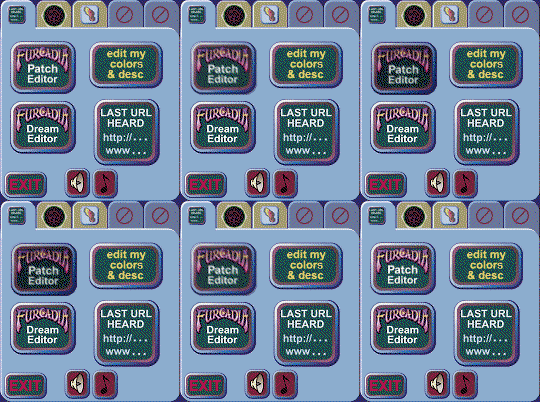
That button opens the Patch Editor program that comes with Furcadia.
It is called 'Furcadia FSH Editor' or 'FshEd' for short. When you open
FshEd, it opens with a default new file. This file contains 19 empty shapes.
This is step one to creating your 'Iteme.fsh' file.
On the program menu, click on File, Save As, then open the folder that
says 'patches' by double clicking on it. In the top right hand corner of
that window, the second icon is a folder with a shining dot in the corner
of it. When you move your mouse over it, it says 'Create New Folder'. Click
on that and when a new folder appears, you will have to type in a name
for it. Let's call it: iteme1
When you have typed in iteme1, just press enter or click away from
the folder and it will save the new name. Now double click on your new
folder and in the 'File name:' section of the window, select 'nameless'
and delete it by pressing the delete key or backspace. Now type in: Iteme
and click on the Save.
Congratulations! You have now created your new Iteme.fsh file. But,
it's still blank and not of any use in this form!
How do I go about converting my old Item.fsh and/or Item2.fsh files into my new Iteme.fsh file?
If you remember the first step we took in making the Iteme.fsh file,
it was opening FshEd. To change your old FSH files into the new Iteme,
you'll need two copies of FshEd open. Your new blank Iteme.fsh file and
the Item.fsh or Item2.fsh file that you want to take images from.
Open another copy of FshEd by pressing the 'Patch Editor' button on
the first tab of your Furcadia menu again. In this copy, click on File,
Open and then browse until you've found your old Item.fsh or Item2.fsh
file that you want to take items from to put into the new Iteme.fsh file.
Once you've found that file, double click of it and it will open.
By pressing the + key on the far right hand side of your keyboard, you
can now slowly scroll through all the items in the old patch file, until
you find one that you want to put into your Iteme.fsh file. Once you have
found the item that you want to put in the Iteme.fsh file, click on the
button that looks like a square: 
Click down below the item, not too far, just enough that when you drag your mouse upwards, still holding the button down, a square will start to grow and then if you move your mouse towards the upper left hand corner, a white square will appear around the image. When that appears, let go of the mouse button and then press Ctrl+C to copy the image. Now go to the other copy of FshEd and press Ctrl+V to paste the image.
The next step is changing the shape properties in your new Iteme.fsh
file to match those of the shape in the old Item.fsh or Item2.fsh file.
How do I change Shape properties?
Click on the first copy of FshEd that you have open. That should contain the old patch that we are taking images from. Now, click on View, Shape Properties. Do the same in the other window of FshEd that contains your new Iteme.fsh file and then go back to the first copy of FshEd.
The first section of Shape Properties is 'Basic properties'. This is where you set the X and Y position of your shape, which is where on a particular square on Furcadia (see the image below) the item sits.

Since we are working of an existing patch, if you copy the existing X and Y positions, it should work out fine. In this case you could select the numbers and press Ctrl+C, then Ctrl+V in the other window when you have the particular square selected, but it's probably quicker to just erase the 0 and type in the new numbers. Once you've entered the numbers, if you press x they will still remain there, as long as you save the file before closing FshEd.
Another way of setting the Shape Position is to click on View, Shape
Position. This will show a square like the above, and your item. If you
click on your item you can move it about until you are happy with its position.
The X-Y co-ordinates will automatically be entered in to the Basic Properties.
How do I set whether a furre can sit, get or walk on an object?
These settings are under the FBJ properties. If you click on View, Shape Properties, you will see that FBJ Properties is the third section of Shape Properties. If you want a furre to automatically sit down when they walk on this particular object, select the box next to 'Sittable' and the box next to 'Walkable'. If the furre can't walk onto the object, they won't be able to sit on it! If you want the furre to be able to walk over it, but not sit or get, just select the 'Walkable' box and leave the others blank. So on and so forth. :)
The last part of the FBJ Properties is Furre Position. Close the Shape
Properties and then click on View, Furre Position (FBJ). You will a canine
standing on your item. If you'd like the furre to stand higher on it, or
to the left or right, just click and drag it around until you're happy
with it's position. The co-ordinates will, like the shape position, automatically
be entered under Shape Properties.
REMEMBER TO SAVE!!!!!
Click on File, Save, or press Ctrl+S to save. I would recommend doing
so fairly regularly, just in case your computer crashes or you accidentally
close the program. It's not nice to loose all your hard work! Save, Save,
Save! :)
Changing the objects in your dream
Once you've repeated the above process as many times as you need to,
to add all the items you want in your Iteme.fsh patch, and you've saved
all your work, it's time to look at the changes in your dream. Open your
Dream by pressing the Dream Editor button on the first tab of your Furcadia
Menu, or pressing Ctrl+E. If you click on Patches, Dream Settings (or press
Ctrl+L) in DreamEd, it will open up Dream Settings. You will need to click
on the Choose button to browse for your new patch folder. Once you have
found it, press Ok, then Ok again and Save.
To refresh the patch items showing up in your dream, you should now
close DreamEd and open it up again. If you want to view the items to add
them to the dream, press B, then - once or twice (depending on how many
items you've added and which ones you want to view), or B and + twice.
The Items will begin showing up at the bottom of the third screen of items.
Click on the item you want to begin placing, and proceed as you would when
normally dreamweaving.
One big problem with converting Item.fsh and Item2.fsh files to Iteme.fsh,
is that DreamEd doesn't know how to automatically convert all your old
items to the new patch ones. So although to you, you can see what ones
are patched or not, DreamEd can not. Thus all your items that were patched
before are now the default ones, and may look a little odd!
There are two ways around this.
One) You can go through your dream in DreamEd, manually replacing all
the items. It may be time consuming, but worth it in the end. This may
also depend on exactly HOW much time it will take and is completely up
to you.
Two) DS. In comparison to the first, this is often the best option.
That is changing some of default plants that look somewhat like pineapples
(but were flowers in the Sanctuary patch), back to the Sanctuary flowers
in an Iteme.fsh file that I made for that particular dream.
How do I find out what number one of the Iteme.fsh Items is?
If you press B and + two times, you'll see the beginning of your Iteme.fsh
items at the bottom of that page. If you click on one of the extra items
and look over to the middle of the left-hand side of your Dreamed screen
where the item will now be showing, it should say 'Current object' and
then a number. That is the number you will need to enter in the DS to have
the previous object changed from, once you work out exactly what that object
is.
Adding more blank items
If you have more than 19 items that you want in your Iteme.fsh file,
click on Edit, Add Shapes and enter how many shapes you want added then
select where you want them added. I would recommend selecting 'To the end',
as they will be added on to the end of all your existing Items.
Removing blank items
If you only have a small patch for your dream, and don't want all those
blank items on the end of your Iteme.fsh file, when you could have a smaller
file (thus less downloading time!), just go the first blank item and click
on Edit, Remove Shape, Yes to remove that shape permanently. A quick keyboard
shortcut for doing this, would be to hold down the Alt key, click on E,
R, R and then enter to remove the shape. Do this as many times as necessary,
but be careful not to remove one of the shapes you might want to keep.
Can I use this ----e.fsh method with any other types of FSH files?
The only other type of extra file that Furcadia allows for at the moment,
is Floore.fsh. To create a Floore.fsh file, simply follow the same method
as you used to create an Iteme.fsh file, but call it Floore.fsh, instead.
It is for images to be used as floors only.
For Example (DS):
Starting Up (Patch)
(0:9) When a furre arrives in the dream,
(3:1) everywhere on the whole map,
(5:5) change object type 81 to type 2400.
(3:1) everywhere on the whole map,
(5:5) change object type 82 to type 2401.
(3:1) everywhere on the whole map,
(5:5) change object type 83 to type 2402.
(3:1) everywhere on the whole map,
(5:5) change object type 84 to type 2403.
(3:1) everywhere on the whole map,
(5:5) change object type 85 to type 2404.
(3:1) everywhere on the whole map,
(5:5) change object type 86 to type 2405.
(3:1) everywhere on the whole map,
(5:5) change object type 87 to type 2406.