|
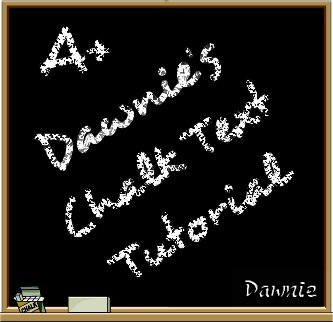
This tutorial was totally created by me and any resemblance to other tutorials is completely coincidental. Please do not send this tutorial through e-mail. DO NOT COPY IT IN ANY MANNER WITHOUT MY PERMISSION. Lists or groups may send the URL through only. This tutorial may not be placed on any site without my written permission. This tutorial assumes you have a working knowledge of PSP.
MATERIALS REQUIRED FOR THIS TUTORIAL
Jasc Paint Shop ProThis tutorial works in both version 7 and version 8.
Eye Candy 3.1 (or 4000! I used 3.1, but 4000 worked, too.)
Let's get started! You aren't going to believe how easy this is!
1. Open a new image 300 x 300, black background.
2. Click on the Text tool. (Choose a font that isn't too thin. I used Desyrel. Not only is it the perfect width, but it looks more like natural printing rather than a computer generated font!) Click on your black background. Set your font and size to your preference. I used Desyrel at size 48. Make your stroke and fill both white. Type in your text. Make sure Floating and Antialias are both checked. Hit OK. You should now have your white text with the little "marching ants" around it.
3. Position your text where you would like it. You can move it by placing your mouse over the text and holding down the left click button. Drag it to where you want it and let go of the button. You can also rotate it if you would like to! Do not deselect!
4. Now that your text is where you want it, it's time to make it look like chalk! With your text still selected, go to Effects, then find Eye Candy in your plugins. Choose jiggle and use the following settings: 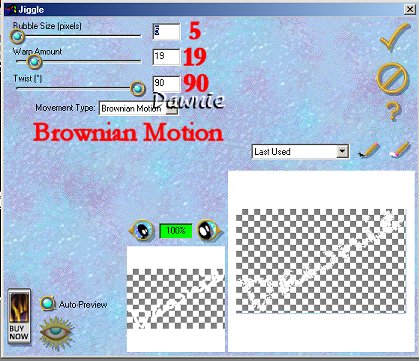
***PLEASE NOTE: Depending on the font you use, you may need to adjust the twist so that your text doesn't look warped. Just play with the settings until you have something you are pleased with!***
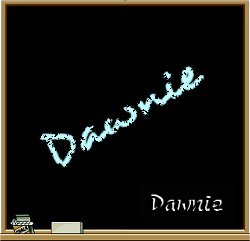
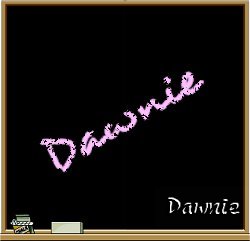
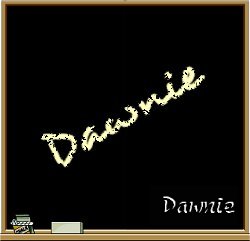
5. Hit OK (the checkmark) and deselect. You are done! Now you can crop, add borders, whatever your creative side is screaming at you to do! Don't forget to add your watermark! Here are some examples of what different colored chalk text looks like!
Terms of Use
Tutorial Index
Home
Thank you for trying my tutorial. I hope you enjoyed it! If you have any questions, feel free to email me!
Special thanks go to my guinea pigs, Dana and Ginny! Thank you for being my testers!
|