 |
|
|
|
|
|
|
|
|
|
|
|
|
|
|
|
|
|
|
|
|
|
|
|
|
|
|
|
|
|
|
|
How Can I Play MP3's in a chatroom on IRC??? |
|
|
|
So you want to play MP3's on IRC like the others huh? Thats kewl, we all do it! Most of us use a mIRC script called TxPlay 6.0 (others use Shift-Split-7 and even ones we havent heard of but for simplicitys sake, we'll put TxPlay 6.0 here!) we reccomend this particular one because its easy, quick and unlike others which are full of Advertising, colors and pops that are just horrendous it doesnt violate the rooms 3 line popup rule.
NOTE: A quick overview of TxPlay is necessary! TxPlay plays MP3 in a Local MP3 player on your machine. You MUST have one installed first. We suggest WinAMP or Sonique, these seem to work best! You can download WinAMP at http://www.winamp.com or Sonique at http://www.sonique.lycos.com DOWNLOAD and INSTALL one of these first! (If you already have one, bypass this step!)
Also, in order for others to hear the music you are playing they must have the SAME file (same filename and extenstion on Their computer! All the script does is to automatically tell their mIRC to play the same file! |
|
|
|
 |
|
|
|
Ok, once you have the WinAMP or Sonique installed you need the TxPlay 6.0 script! Well it just so happens I have provided you a copy here! Just click on the TxPlay60 button below to download the file. I reccomend you save it to your My Files folder (or anywhere you will remember to find it later)
NOTE: The file is in .ZIP format! You will need an UnArchive utility installed to extract the script. If you dont have WinZip you can get it here at http://www.tucows.com Select the version for you operating system (windows version) and download then install it! Do this Next! |
|
|
|
|
|
|
Ok, lets move on...Next you need to download the TxPlay60.zip file. Click on the button below and save it! |
|
|
|
 |
|
|
|
Click here to get TxPlay 6.0 for mIRC |
|
|
|
|
|
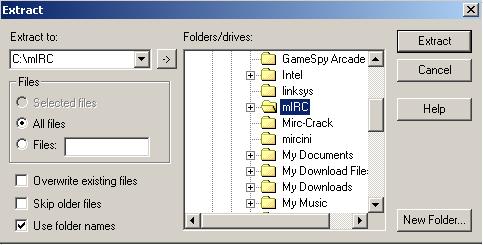
Once you've saved the file, go to your My Files folder (or whereever you saved it and Double Click) This will bring you into the WinZip File Manager, you'll see the file Txplay.mrc in the white area of the screen. Now you want to EXTRACT this file into your mIRC folder, so click the Extract button and a new menu will popup! which should look like this! |
|
|
|
 |
|
|
|
Set the Extract To line to your mIRC Folder (default is usually c:\mirc) if not, search for it using the Folder/Drives window. Once that is set to your mIRC Folder click the EXTRACT button. This will put the Script file Txplay60.mrc into your folder. Now we're ready to load!
Close out Winzip and go back into mIRC. In any window of mIRC type the folowing command EXACTLY (or you can cut and paste from here!)
/load -rs txplay60.mrc
Now you may get an error that says the file isnt found. MAKE SURE its in your mIRC folder. If it is, then the Windows File Path is interfering you need to specify the path where the file is. (if other than c:\mirc you may have a problem and will have to use the Last Ditch Effort install found below.
/load -rs c:\mirc\txplay60.mrc
Ok, if it loaded properly the script will link to your MP3 player and will scan for your MP3's. You'll see a Notice in your mIRC status window stating X mp3's, X Wavs, X midi's found! X = the number of files found. And your all set! To access the menu, put your mouse pointer in the center of the room screen and right click on your mouse! Play with it! If you have any questions, ask in the room! (Cant teach you everything here now can I? |
|
|
|
|
|
|
LAST DITCH EFFORT:
If the LOAD commands above dont work, open the Txplay60.mrc file in your NOTEPAD program. Go to EDIT/SELECT ALL and then EDIT/COPY. This will put the contents into memory. Close NOTEPAD!
Go back to mIRC and up top you will see a series of Icons. The 5th Icon from the left...(which looks like this) |
|
|
|
 |
|
|
|
Click on that and a NEW window will open. In the top of that you will see a series of Tabs. Select the |
|
|
|
|
|
one marked REMOTE (it should be empty) click in the white area and go to EDIT/PASTE (or press the CTRL+V keys to paste) and all the information you copied from NOTEPAD should appear in the white area.
Now, go to FILE/SAVE&EXIT And its now loaded. ReStart your mIRC program and it should link to the MP3 player and find your music files! |
|
|
|
|
|
|
|
Disclaimer: This information is provided as a free service. #iWebradio, its operators and owners are not responsible for any loss or damage of data or programs by the use of this information. It has been shown to work under normal conditions when performed by a qualified technical personnel. Use of this information is soley up to the discretion of the user. Implementation of this information consitutes acceptance of the Terms of Use Policy. The Terms of Use Policy simply states, if you use it, you're responsible!!! |
|
|
|
 |
|
|
|
Back to MAD's Tech Stuff! |
|
|
|