 |
|
|
|
|
|
|
|
|
|
|
|
|
|
|
|
|
|
|
|
|
How do I get 2 different rooms on 2 different Networks up on my one mIRC screen? (MultiTasking) |
|
|
|
 |
|
|
|
Ok...Now this will require a bit of multitasking! If your not already versed, this is a good way to learn! First you need an up-to-date version of mIRC (6.03 or above should do) if you dont know what version your running, go to Help/About mIRC in the mIRC program screen. If its pre 6.03 then I recomend you update it! You can download the newest 6.xx version at www.mirc.co.uk or email me! (Again, sorry to all you Pirch Users but I just dont know where or how to do this in Pirch!)
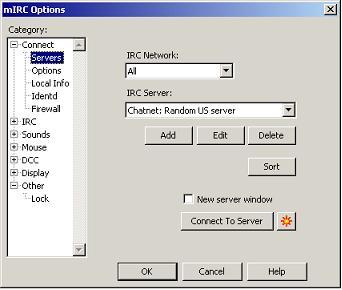
Now, click on the second Icon from the left in the mIRC main screen (or go to View/Options and click on the box next with the + in it just to the right of the word CONNECT...a list will expand down and you will see the word SERVERS (See figure below) Select that and the screen will change... |
|
|
|
|
|
|
|
Be sure the IRC Networks setting is set to ALL (just makes it easier) Look over the diagram to the left, in the low center portion is a small box marked NEW SERVER WINDOW (This is, of course, assuming you already have a connection established to say Starchat. This process also works in reverse if your on Chatnet already!) Click on this and put a check in it! Now, go back up to the IRC SERVER line and click the black down arrow on the right. A list will pop down. Press the letter "C" or scroll down and find "Chatnet" or "S" to find Starchat.Select one of the servers. I have had best results with the Random Servers in the list
(IE: IRC.STARCHAT.NET) Once you have made your selection, press the Connect to Server button. This will begin a new session on the new network! |
|
|
 |
|
|
|
|
|
|
Once you have established the connection to the second network, it will minimize your existing Server Status and Room screen and open a New Server Status, click on the Room Icon (3rd icon from left, the Yellow Folder with the #+ in it) or type /join #Channel Name (IE: /Join #Chatzone) and your in!
Now comes the Fun Part!
Once you have connected to the second network and joined the second room...look for the Tile Icons up top... |
|
|
|
 |
|
|
|
that look like these...Click on the first one. You will see all 4 screens tiled (2 rooms 2 Status screen) |
|
|
|
|
|
Click on the [-] on each Status Screen (upper right corner just like in Windows) to minimize them. Now press the first Tile Icon again and the two rooms will expand and tile! Now you can read alot easier! mIRC will still keep the Status screens and any P.M.'s you may get below in expandable Icons that should blink or ding when they type! (if thats how they are setup of course) To type in a particular room, just click your mouse once on that room screen and you will see its top-bar go blue (again, just like in windows) and your cursor will be blinking on the Input Line!
NOTE* This is a single session only way of multitasking in mIRC, once you disconnect, you have to repeat the procedure in order to access both rooms simultaneously again!
And your all set! Of course when the rooms are full and things are moving fast, you'll have a heck of a time keeping up because the room screens are half the size. Things will fly by! If this is too much, but you still want to multitask between rooms, there is always the option of opening two seperate instances of mIRC... you will Just keep track of which one is which!
MAD |
|
|
|
|
|
|
|
 |
|