PLEASE NOTE!
These settings are based on prior working conditions.
if you do NOT have an already working
and stable wingate system, please work on that problem first.
Yes i would be willing to help you with that as well.
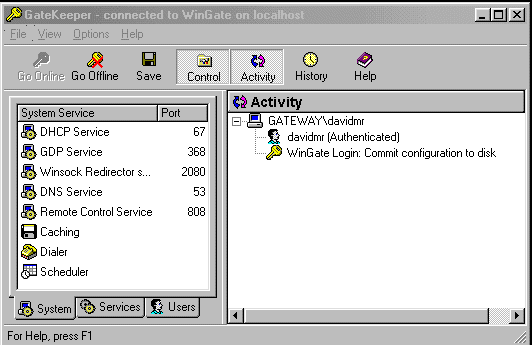
 In the system exampled, I was using a DSL Modem, constantly
online and connected on the server.
In the system exampled, I was using a DSL Modem, constantly
online and connected on the server.
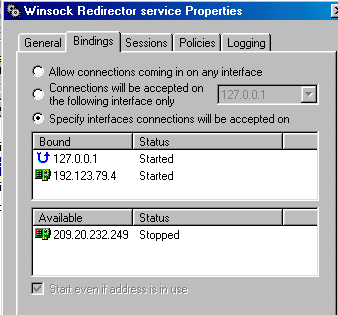
Therefore, I have two NIC cards.
A) 192.123.79.04 is the internal network card
B) 209.20.232.249 is the card to the modem
Make sure that you apply your local settings in place of where ever these may occur in the tutorial.
Downloads you may Need:
Wingate 3 Manual (approx. 3.6 Megs)
Winsock2 Program (approx. 960 Kb)
The Manual is just something you may want for future refference.
The Winsock 2 Program is something neccessary for client machine's trying to run with Win95 as an OS. **Win98 Users need not worry about this program, as Winsock2 comes with the package**
Both of these can be found off of the Wingate Homepage
 First thing:
You need to check and see if you have installed
the Winsock2 protocol that was offered from the Wingate Homepage.
If so, go to the next step. If not, then you can download it from here
or from the
Wingate Homepage After installing this, reboot and move to
step two.
Step Two:
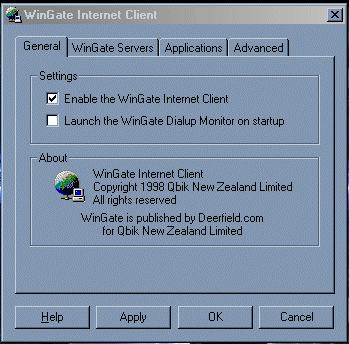
Install Wingate Internet Client on your
Client machine.
If you do not know what this is, simply act as if you are
installing wingate server but on your client machine, it
will give you the option of having Server or Client
installations. Choose client.
Step Three:
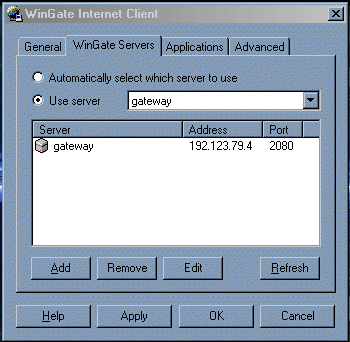
IF you choose to define your server(s)
you need to know it's network Name, IP Address. The
port number 2080 should be the default and should be kept.
If you go to the Wingate Servers tab,
within the Wingate Internet Client Window, you should see
where to define your server, or let it be automaticaly found.
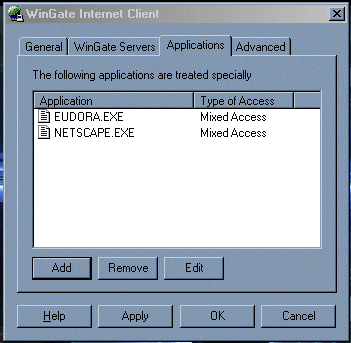
Go to the Applications Tab, and you see that you
can add applications to the list of WRP sessions. (Winsock ReDirector Service)
Usually I find that Mixed Access will do fine for internal and
external surfing or mail gathering. This is where you will
add in ICQ.exe, with the correct path to it.
 Step Four:
Now, all you have to do is install Icq99a.
Once you get to the parts where it asks if you are a lan or modem user, select the Lan User. Next, are you behind a proxy or
firewall. Select NO FIREWALL. I don't know why this is, it's just what deerfield.com said to do.
Go back to Step 3 and add in icq.exe before you try and register.