|
|
|
|
|
|
|
|
|
|
|
|
|
|
|
|
|
|
|
|
|
|
|
|
|
|
|
|
|
|
|
|
|
|
|
|
|
|
|
|
|
|
|
|
|
|
|
|
|
|
|
|
|
|
|
|
|
|
|
|
|
|
|
|
|
|
|
|
|
| Access compact/backup on close utility | ||||||||||||||||||||||||||||||||||||||||||||||||||||||||||||||||||||
| Try the Access Reports Automatic Mailer | ||||||||||||||||||||||||||||||||||||||||||||||||||||||||||||||||||||
| All Access users know that mdb files are constantly growing up in time. | ||||||||||||||||||||||||||||||||||||||||||||||||||||||||||||||||||||
| To decrease the database size, one needs to compact the file on a regular basis, but a database can be compacted ONLY if it is closed. | ||||||||||||||||||||||||||||||||||||||||||||||||||||||||||||||||||||
| This can be a pain in a multi-user environment, where nobody knows for sure when a database is going to be totally closed. Moreover, if the application uses one front-end and multiple back-end databases, the problem is multiplied, because ALL databases need almost the same amount of maintenance. | ||||||||||||||||||||||||||||||||||||||||||||||||||||||||||||||||||||
| The Access Compactor does this job seamlessly. The utility is designed to compact the current database as well as all linked mdb files either each time the front end application is closed or at certain intervals. | ||||||||||||||||||||||||||||||||||||||||||||||||||||||||||||||||||||
| Download from: | ||||||||||||||||||||||||||||||||||||||||||||||||||||||||||||||||||||
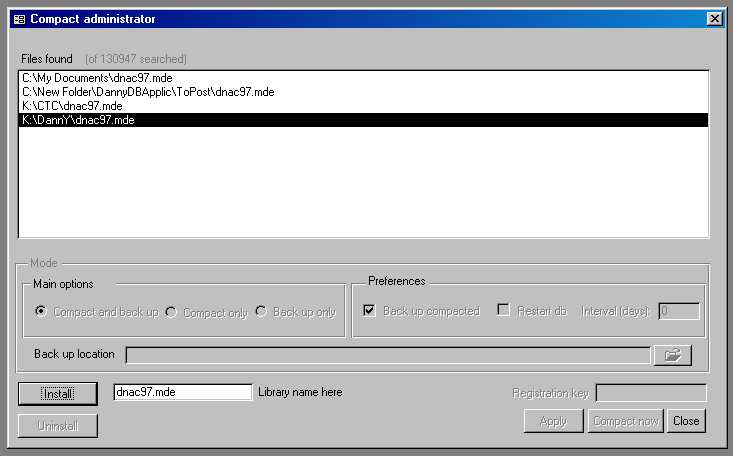
| Installation screenshot: | ||||||||||||||||||||||||||||||||||||||||||||||||||||||||||||||||||||
| ftp://ftp.artrom.ro/CompactIt.zip | ||||||||||||||||||||||||||||||||||||||||||||||||||||||||||||||||||||
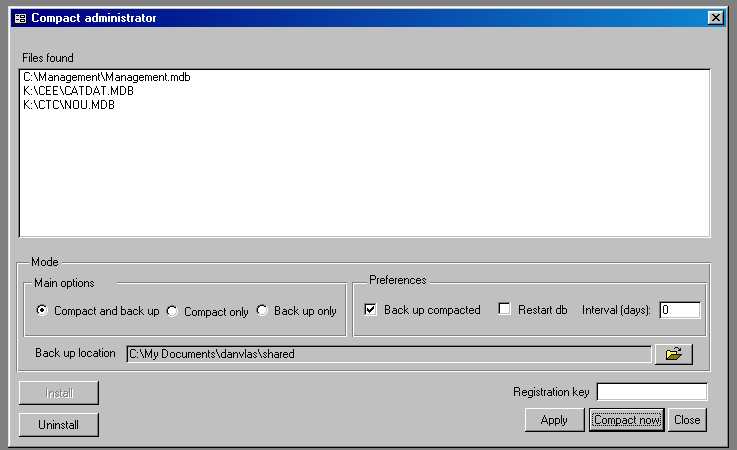
| Screenshot after installation: | ||||||||||||||||||||||||||||||||||||||||||||||||||||||||||||||||||||
| ftp://phantom.rdsct.ro/pub/dan/CompactIt.zip | ||||||||||||||||||||||||||||||||||||||||||||||||||||||||||||||||||||
| ============== | ||||||||||||||||||||||||||||||||||||||||||||||||||||||||||||||||||||
| Installation: | ||||||||||||||||||||||||||||||||||||||||||||||||||||||||||||||||||||
| ============== | ||||||||||||||||||||||||||||||||||||||||||||||||||||||||||||||||||||
| Extract the files dnacxx.mde and DnCompactAdminxx.mdb (xx represent the Access version and can be 97, 2k or xp) to a folder of your choice. The folder should reside on a drive mapped in such a way that it is 'visible' from all computers that are going to run the application. | ||||||||||||||||||||||||||||||||||||||||||||||||||||||||||||||||||||
| Automatic installation: | ||||||||||||||||||||||||||||||||||||||||||||||||||||||||||||||||||||
| Import the form CompactAdmin from DnCompactAdmin.mdb file into your database. | ||||||||||||||||||||||||||||||||||||||||||||||||||||||||||||||||||||
| Open the form CompactAdmin. | ||||||||||||||||||||||||||||||||||||||||||||||||||||||||||||||||||||
| If you changed the name of the file dnacxx.mde, make sure to replace the contents of the text box 'Library name here' with the new name of the file. | ||||||||||||||||||||||||||||||||||||||||||||||||||||||||||||||||||||
| Click Install. | ||||||||||||||||||||||||||||||||||||||||||||||||||||||||||||||||||||
| The program will search all your local and mapped drives for a file matching the contents of the text box 'Library name here' (this may take a long time, depending on the number of files searched). If there is only one file found, the program will be installed immediately. Otherwise the list box 'Files found' will list all possible files. Select the appropriate file and click Install once more, then Close. | ||||||||||||||||||||||||||||||||||||||||||||||||||||||||||||||||||||
| When the form is next opened, the list box 'Files found' will display all linked Access databases as well as the current database. | ||||||||||||||||||||||||||||||||||||||||||||||||||||||||||||||||||||
| Manual Installation: | ||||||||||||||||||||||||||||||||||||||||||||||||||||||||||||||||||||
| Open a module in your application. | ||||||||||||||||||||||||||||||||||||||||||||||||||||||||||||||||||||
| Click Tools-References | ||||||||||||||||||||||||||||||||||||||||||||||||||||||||||||||||||||
| Click 'Browse' | ||||||||||||||||||||||||||||||||||||||||||||||||||||||||||||||||||||
| Files of Type: select 'MDE files' | ||||||||||||||||||||||||||||||||||||||||||||||||||||||||||||||||||||
| Locate the file dnacxx.mde file | ||||||||||||||||||||||||||||||||||||||||||||||||||||||||||||||||||||
| Click OK for the Open dialog. | ||||||||||||||||||||||||||||||||||||||||||||||||||||||||||||||||||||
| Click OK for the references dialog | ||||||||||||||||||||||||||||||||||||||||||||||||||||||||||||||||||||
| Close the module (no save necessary) | ||||||||||||||||||||||||||||||||||||||||||||||||||||||||||||||||||||
| ====================== | ||||||||||||||||||||||||||||||||||||||||||||||||||||||||||||||||||||
| Setting up preferences | ||||||||||||||||||||||||||||||||||||||||||||||||||||||||||||||||||||
| ====================== | ||||||||||||||||||||||||||||||||||||||||||||||||||||||||||||||||||||
| Main options (work mode) | ||||||||||||||||||||||||||||||||||||||||||||||||||||||||||||||||||||
| ------------------------ | ||||||||||||||||||||||||||||||||||||||||||||||||||||||||||||||||||||
| Check one of the three options | ||||||||||||||||||||||||||||||||||||||||||||||||||||||||||||||||||||
| 1. Compact and back up: will compact all databases and create back-up copies | ||||||||||||||||||||||||||||||||||||||||||||||||||||||||||||||||||||
| 2. Compact only: will compact databases but will not create back-up copies | ||||||||||||||||||||||||||||||||||||||||||||||||||||||||||||||||||||
| 3. Back up only: will not compact databases, but will create back-up copies | ||||||||||||||||||||||||||||||||||||||||||||||||||||||||||||||||||||
| ********************************************************************* | ||||||||||||||||||||||||||||||||||||||||||||||||||||||||||||||||||||
| Note: The back up copies have the same names as your databases, but with the extension .acd | ||||||||||||||||||||||||||||||||||||||||||||||||||||||||||||||||||||
| ******************************************************************************************* | ||||||||||||||||||||||||||||||||||||||||||||||||||||||||||||||||||||
| Preferences | ||||||||||||||||||||||||||||||||||||||||||||||||||||||||||||||||||||
| ----------- | ||||||||||||||||||||||||||||||||||||||||||||||||||||||||||||||||||||
| Back-up compacted: if checked, compacting will take place before backing-up; if clear, databases will be first backed up and then compacted | ||||||||||||||||||||||||||||||||||||||||||||||||||||||||||||||||||||
| Restart db: if checked, the database that launched the program will be restarted after the process has finished; if clear, Access will quit. | ||||||||||||||||||||||||||||||||||||||||||||||||||||||||||||||||||||
| Interval (days): type the number of days after which you want the databases to be compacted. Leave 0 if you want the process to run every time. | ||||||||||||||||||||||||||||||||||||||||||||||||||||||||||||||||||||
| Backup location: by default, the back up copies are placed in the same folder as the working files. To change that, click the 'Open Folder' button on the right side of the 'Backup location' box and choose a folder of your choice. | ||||||||||||||||||||||||||||||||||||||||||||||||||||||||||||||||||||
| All preferences will be saved and used until you change them. | ||||||||||||||||||||||||||||||||||||||||||||||||||||||||||||||||||||
| ===== | ||||||||||||||||||||||||||||||||||||||||||||||||||||||||||||||||||||
| Usage | ||||||||||||||||||||||||||||||||||||||||||||||||||||||||||||||||||||
| ===== | ||||||||||||||||||||||||||||||||||||||||||||||||||||||||||||||||||||
| In the procedure that you use to exit your application, replace Quit with AutoCompactAll | ||||||||||||||||||||||||||||||||||||||||||||||||||||||||||||||||||||
| If you are not familiar with VBA coding, import the macro 'Compactdbs' from DnCompactAdminxx.mdb | ||||||||||||||||||||||||||||||||||||||||||||||||||||||||||||||||||||
| and link the macro to the 'Exit' button in your application. | ||||||||||||||||||||||||||||||||||||||||||||||||||||||||||||||||||||
| You can also use the CompactAdmin form to run the program, by clicking 'Compact Now' button. | ||||||||||||||||||||||||||||||||||||||||||||||||||||||||||||||||||||
| Note: The databases in use will not be compacted. The compacting procedure will skip them. | ||||||||||||||||||||||||||||||||||||||||||||||||||||||||||||||||||||
| ============== | ||||||||||||||||||||||||||||||||||||||||||||||||||||||||||||||||||||
| Uninstallation | ||||||||||||||||||||||||||||||||||||||||||||||||||||||||||||||||||||
| ============== | ||||||||||||||||||||||||||||||||||||||||||||||||||||||||||||||||||||
| Open the form 'CompactAdmin' and click 'Uninstall'. All references set up by the program will be deleted. You will have to close and delete the 'CompactAdmin' form manually. | ||||||||||||||||||||||||||||||||||||||||||||||||||||||||||||||||||||
| ===== | ||||||||||||||||||||||||||||||||||||||||||||||||||||||||||||||||||||
| Price | ||||||||||||||||||||||||||||||||||||||||||||||||||||||||||||||||||||
| ===== | ||||||||||||||||||||||||||||||||||||||||||||||||||||||||||||||||||||
| The program can be used for 30 days for evaluation purposes. If you decide to keep it, the cost | ||||||||||||||||||||||||||||||||||||||||||||||||||||||||||||||||||||
| for registration is USD 29, payable in one of the following ways: | ||||||||||||||||||||||||||||||||||||||||||||||||||||||||||||||||||||
| - Western Union money order (preferred as it is the fastest way) | ||||||||||||||||||||||||||||||||||||||||||||||||||||||||||||||||||||
| - Bank transfer to the account 2511.2-1919.5/USD opened at BCR (Romanian Commercial Bank), Slatina branch | ||||||||||||||||||||||||||||||||||||||||||||||||||||||||||||||||||||
| - checque (it may take up to 6 weeks to reach the destination) | ||||||||||||||||||||||||||||||||||||||||||||||||||||||||||||||||||||
| My postal address: | ||||||||||||||||||||||||||||||||||||||||||||||||||||||||||||||||||||
| Daniel Vlas | ||||||||||||||||||||||||||||||||||||||||||||||||||||||||||||||||||||
| 9 PaciiStr, Bl. 9, Sc. B, Et. 3, Apt. 14 | ||||||||||||||||||||||||||||||||||||||||||||||||||||||||||||||||||||
| Slatina | ||||||||||||||||||||||||||||||||||||||||||||||||||||||||||||||||||||
| 0500 Olt | ||||||||||||||||||||||||||||||||||||||||||||||||||||||||||||||||||||
| Romania | ||||||||||||||||||||||||||||||||||||||||||||||||||||||||||||||||||||
| Thank you for your interest | ||||||||||||||||||||||||||||||||||||||||||||||||||||||||||||||||||||
| Enjoy! | ||||||||||||||||||||||||||||||||||||||||||||||||||||||||||||||||||||