



-------------------------------------------------------------------------------------------------------------------------------


1- Once you have teh bootloader, MOVE the cjbm.ajz file from your av300 into your PC,.
2- Then move the .ajz file that you downloaded from the avos website into your av300.
3- Now turn on the av300 unit, go to setup, then click "system", and then select "firmware update". The system will now boot into the avos bootloader.
BEFORE STARTING, PLEASE DO POINTS #4, #5, AND #6 JUST TO MAKE SURE THAT THEY WILL WORK ON YOUR PC... !!!
(this is recommended...)
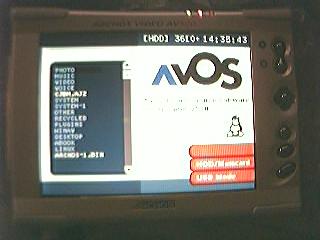


F3=USB MODE
5- Move the original cjbm.ajz file here (the one from archos, which includes the original OS)
6- In windows, open a DOS window ( command prompt ). In windows xp, type--- cd desktop [enter] cd descramble [enter] descramble -mm cjbm.ajz default.bin [enter]
Now go to the descramble folder in the desktop, and you should see that there is a new file called: default.bin
7- Connect the av300 to your computer thru the USB cable, and press the F3 buttom in your av300. The Jukebox should now be recognized by your computer.
8- Delete the .ajz file that's in your av300's HDD.
9- Move in the original .ajz file (the one containing the original OS from archos) and the default.bin file (the one created by descramble) into your av300. Place them in the root directory of your av300 unit. (in other words, don't place it inside any folder)
NOW THE BOOTLOADER (AVOS) AND THE ORIGINAL OS SHOULD BE ABLE TO RUN IN YOUR AV300 UNIT. THE ORIGINAL OS IS STILL VERY IMPORTANT BECAUSE SOME FEATURES, LIKE THE CAMERA FUNCTIONS, HAVE NOT YET BEEN IMPLEMENTED INTO THE AVOS OS. (but are planned...)
10- To be able to run games, apps, etc create a folder called "Plugins" in the root directory of your av300 (in other words, create it inside no other folder).
11- Move the 2 .bin files that came with the bootloader's folder (which you downloaded from http://avos.sourceforge.net ) to the "Plugins" folder. The 2 .bin files should be called rgb.bin and txt.bin
12- Please visit http://avos.sourceforge.net and the avos yahoo group and download any other .bin files which you might want.
so, if you saved the descramble folder in your desktop all you have to do is type what step #6 describes. Under other versions of windows, you must first go to the folder where desktop is stored?...

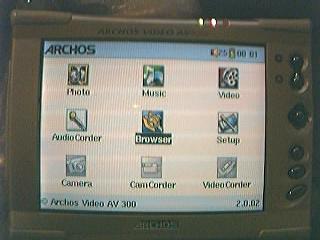
Original OS RUNNING-->
2- Download the file called: "WinAv_V0.2B1.zip" from: http://avos.sourceforge.net/index.php?a=bins
3- Unzip the folder.
4- Since we want to keep the bootloader we will only move the file called "winav.bin" to the "WINAV" folder.
5- You can now execute winav by just clicking on the winav.bin file from the bootloader.
6- In the winav.zip archive, there is also a folder called "desktop", place it (along with the files inside it) inside the "winav" folder.
7- Move the file "boot.bin" which also came with the winav .zip archive inside the "winav" folder in your av300. This will enable the "AV" button in winav. By pressing this button you will be able to go to the bootloader.
///You do not need to copy the "plugins" folder which came with the winav .zip archive to the winav folder in your av300 because we already have a plugins folder in the root directory. If we didn't have the bootloader 0.6e then this would be necesary, but because we still want to keep the bootloader 0.6e, then it is not necessary...
NOW THE BOOTLOADER (avos), WINAV (avos), and the original archos OS SHOULD BE ABLE TO RUN IN YOUR AV300 UNIT. + RUN APPS,GAMES,.TXT FILES, AND MORE!
--- A customizable icon at the bottom. To activate it, put a shortcut called user.wlk in the WinAv folder.
(i will explain more about this later...)
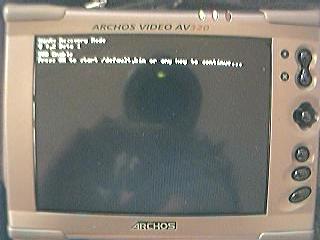
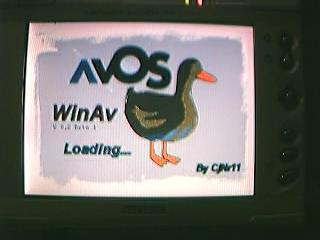
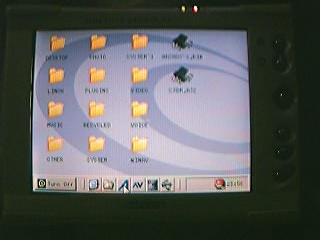
WINAV RUNNING-->
-CONGRATULATIONS-
IF YOU FOLLOWED ALL THE INSTRUCTIONS ABOVE, YOU SHOULD NOW HAVE A "A TRUE COMPUTER" IN YOUR HANDS.
[bootloader 0.6e]
--- The Joystick
*Use the Joystick to move up and down. If you press it up, then you will go up, if you press it down, you will go down.
*Use the Joystick to enter a folder. If you press it to the right, it will enter the folder you are on. If you press it to your left, then it will exit the folder you are in (one lvl).
*In bootloader 0.6e, clicking the joystick won't do anything
---The On/Off buttons
*By pressing the ON button over a folder -> it will open that folder.
*By pressing the ON button over an executable file -> it will execute that file.
*By pressing the OFF button in bootloader 0.6e -> it will execute default.bin (which will make the Original Archos OS run) Note: you can change default.bin to any other name as long as you keep the .bin extension, however, if you change the name "default", pressing the OFF button won't make the original OS run. To make it run, you will have to scroll down and click on it...
*By pressing the OFF button for approx. 3 seconds -> Your av300 will turn off.
---THE F1,F2, & F3 buttons
*F1 is currently not being used by bootloader 0.6e.
*F2 is used to toggle between the HDD and memory card reader. Note: this can only be used if the memory card reader is plugged in, AND a card is inside it
*F3 is used to activate/desactivate the "USB MASS STORAGE DEVICE MODE". When you turn the av300 unit on, this mode is desactivated. To use your av300 as a mass storage device, first turn it on, then connect the usb cable to your pc, then to your av300, (you will see the following appear in the top of your av300 screen: [USB].) ?(contrary to the original OS, you can still use the av300 even if the cable is connected.) Once all of this is done, press F3 and your PC will recognize it. You can now transfer files To/From your av300 (at this point you lose control over your av300)
[v0.2b1]
--- The Joystick
*Use the Joystick to move the cursor up and down, right and left.
*Use the Joystick to enter a folder. Click it over a folder and it will open it. Click it once over a file and it will select it, click it twice and the file will be executed.
---The On/Off buttons
*By pressing the ON button over a folder -> it will open that folder.
*By pressing the ON button over a file -> it will select that file.
*By pressing the ON button twice over an executable file -> the file will be executed.
*By pressing the ON button for approx. 2 seconds in the winav loading screen -> winav will enter "recovery mode".
*By pressing the OFF button -> You will go to the previous folder.
*By pressing the OFF button for approx. 3 seconds -> Your av300 will turn off.
---THE F1,F2, & F3 buttons are now the Menu 1, Menu 2, and Menu 3 buttons
*M1 is used to select more than one file. This will be used to move/delete/copy, etc in future versions of winav.
*M2 is used to scroll up when inside a folder. (or text file, etc)
*M3 is used to scroll down when inside a folder. (or text file, etc)
[bootloader 0.6e] / [winav v0.2b1]
1-Go to the Original Archos OS
---From bootloader: Click the "Off button" and the original OS should start. If not, scroll down and find your .bin file that contains the original OS (it should be default.bin, but you could've changed it to something else .bin (this is why the "off button" didn't work)
---From winav: Click on the "A" button in the "taskbar". The original OS should start. If not find the .bin file containing it.
2-Be sure that the .ajz file containing the original OS is in the root directory (in other words, inside no other folder). To get the latest version please visit www.archos.com
3-Click "setup", then "system" and then "update firmware".
Now the unit will restart and the original OS should start.
4-Delete any other folder/file that was used by avos (if you want to) to free space.
