OK, you just bought your new router/firewall and installed it correctly and you're browsing the net BUT when u try to host or join a game in the Zone, you cant. Usually you get an error like "Connection Failed" when the game launches. Sound familiar? Read on to fix the problem. Some people buy the router/firewall so they can share the internet connection across multiple PCs, others buy them for security and other buy it for both reasons. Before we go any further, you need to understand how the router/firewall handles internet addresses called IP addresses. The can share a single cable/DSL line because it runs something called NAT (Net Address Translation). This basically give the single REAL IP address from your internet provider to the router/firewall and FAKE IP addresses to your individual PCs.
Connection sharing is accomplished because all your PCs traffic goes through the router/firewall, and gets modified to appear as if it is coming from the router/firewall address which is REAL (registered). When a user computer on the "inside" (connected to the router/firewall) sends a message to the outside world (the internet) via the router/firewall running NAT, NAT keeps track of the actual "inside" address of that computer, but substitutes the assigned "outside" address (REAL registered address) into the message before it is sent into the Internet. When a reply comes back from the outside, NAT restores the actual address before sending the reply to the user computer. NAT can do this from many PCs on the "inside" i.e. connected to it. This is how a single REAL (registered) IP address is shared by multiple PCs. In fact, because of the way this works if you had 3 PCs at home connected to a single router/firewall and they all connected to www.yahoo.com at the same time, the folks at yahoo would think that they were getting 3 "hits" from 1 computer not 3.
Security is also accomplished via NAT. Because NAT translates FAKE (unregistered) IP addresses from your PCs to a REAL (registered) IP address, nobody from the outside (the internet) can initiate a connection to any of your PCs because there is now REAL (registered) path to get to those PCs. NAT will never pass traffic from the net to a PC on the inside without being specifically told to do so.
Most Secure/Efficient Option
The most secure option to play games in the zone is to use a feature call Port Forwarding of your router/firewall. This can be done using your existing hardware without the need for any more software to be installed. The Zone requires that certain ports (think of these as pipes) be able to get through the router/firewall. The following is a list of ports that need to be forwarded:
| Application | Port Number or Range to be Forwarded |
| Zone | 443 |
| Zone | 6667 |
| Zone | 28800-29100 |
| Links 2k1 & 2k3 (DirectPlay 7) | 47624 |
| Links 2k1 & 2k3 (DirectPlay 7 & 8) | 2300-2400 |
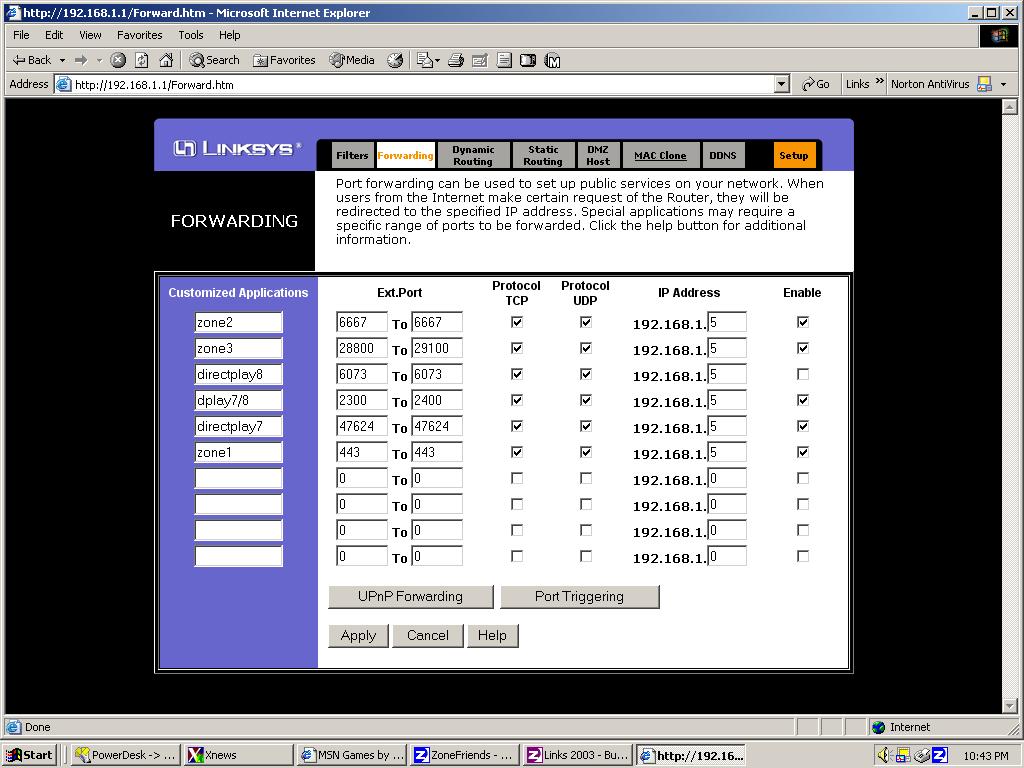
The Port Forwarding screen is usually in the Advanced sections of the router/fiewall setups. Click here to see my Port Forwarding settings. On this screen you are basically telling the firewall/router to take packets coming from the internet on these ports and forward them or pass them onto a specific PC on the inside. You'll need to get the FAKE IP address of your game pc and enter it in all the rows under the IP Address column. You can do this by going to a DOS window (command prompt) and entering the ipconfig command (ipconfig followed by the Enter Key). Mine happens to be 192.168.1.5. Yours will probably be a different number, specifically the last digit will probably be different. This option is the safest and most efficient option because your PCs are protect and you don't need any additional programs such as software firewalls running. These programs take up CPU and can slow the meter down in Links.
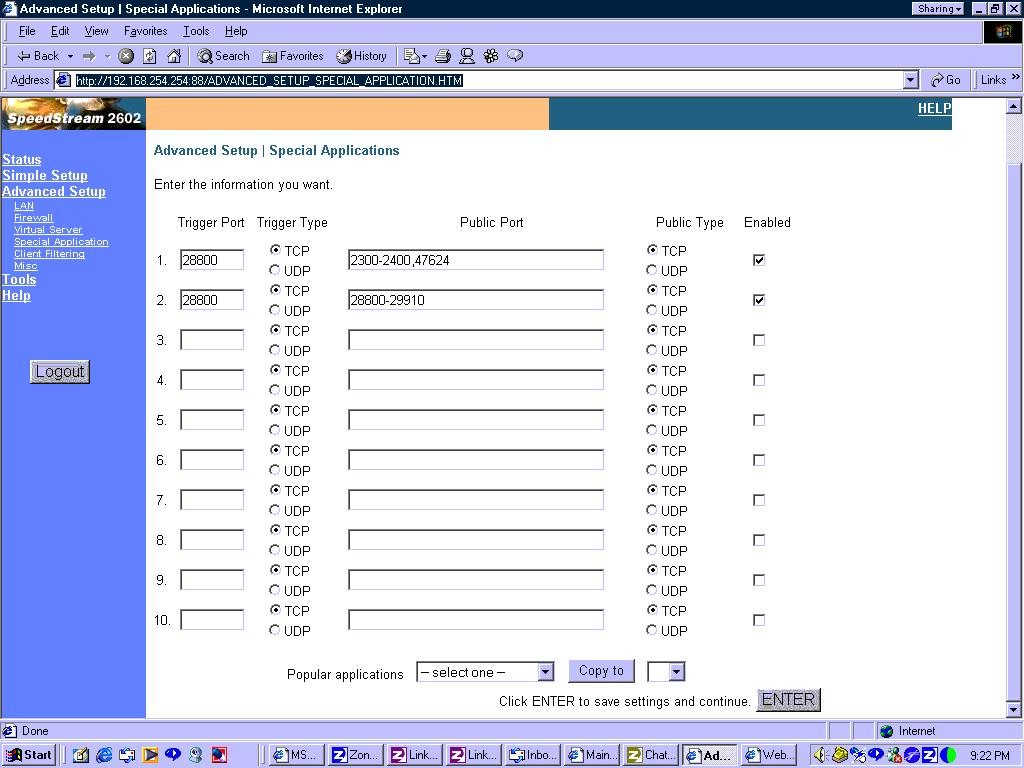
Here is a link to a screencap of the setup screen for a Siemans SpeedStream2602 - courtesy of ripemushroom.
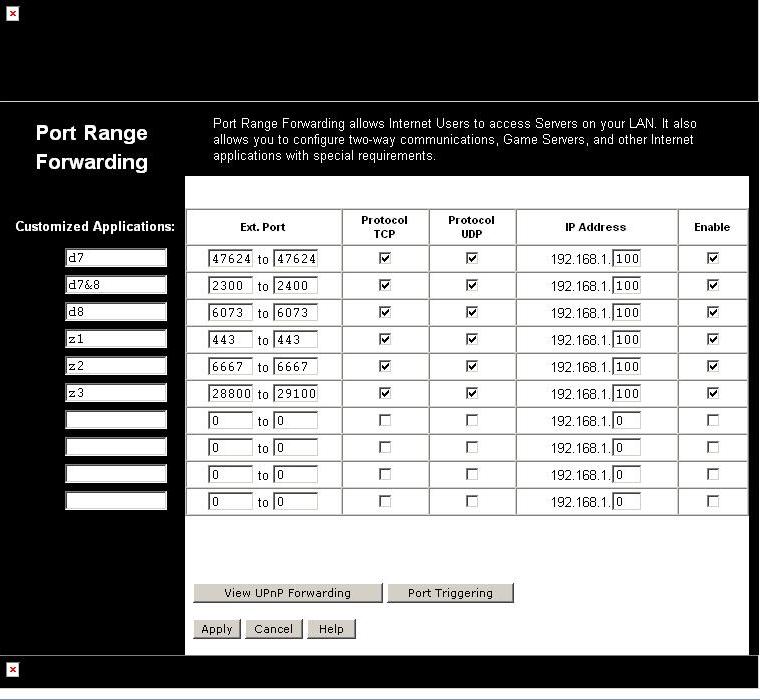
Here is a link to a screencap of the setup screen for a Network Everywhere (Linksys) Model #NR041 - courtesy of ripemushroom.
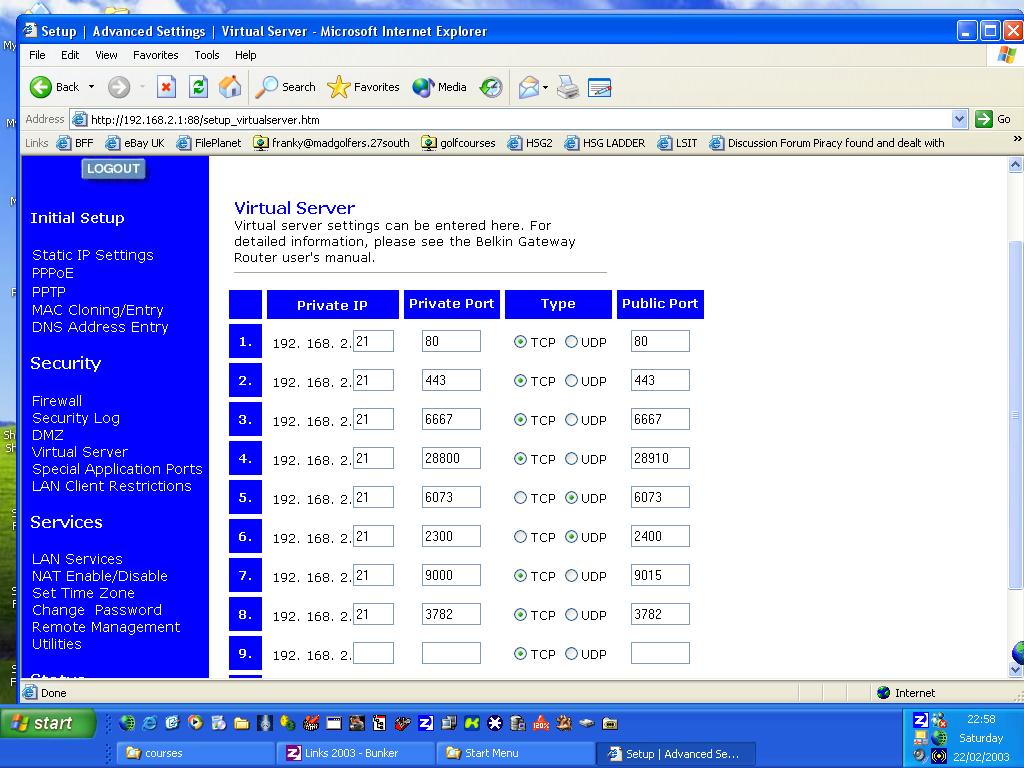
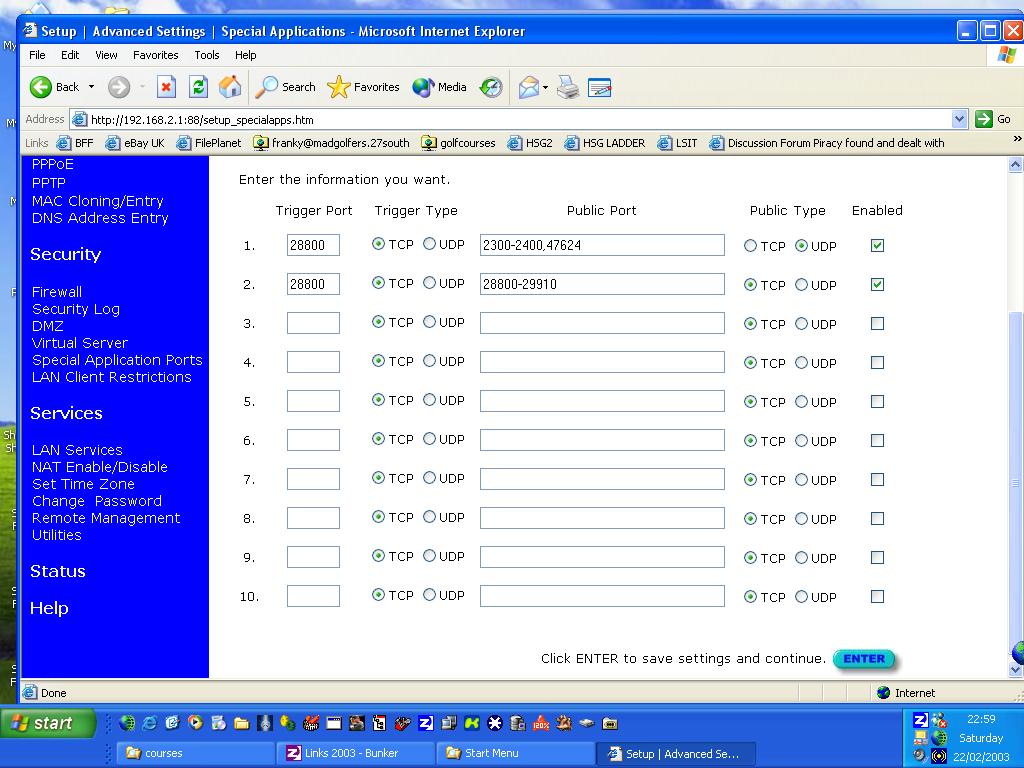
Here are a couple of links to screen caps (screen1, screen2) to setup port forwarding for a Belkin F5D5230-4 courtesy of HSG_Frankydoom. This setup uses Triggers which are even safer to use, when they work. They limit the number of ports that are ALWAYS open until those ports are actually needed. Good luck using Triggers with most Linksys routers. I've tried this using a Linksys BEFSR41 and a BEFSX41 with no luck. Maybe Triggers will work when Linksys cuts the crap and get some good programmers to stop the firmware roulette they play every month or so. Each new firmware they release seems to fix some issues (sometimes) and break a few more features....
Easiest/Most Unsecure Option
WARNING: Only use this option if you REALLY don't care about the security of your PC! Please read the following warning before you use the following setup option:
http://www.linksys.com/tech_helper/advanced.html
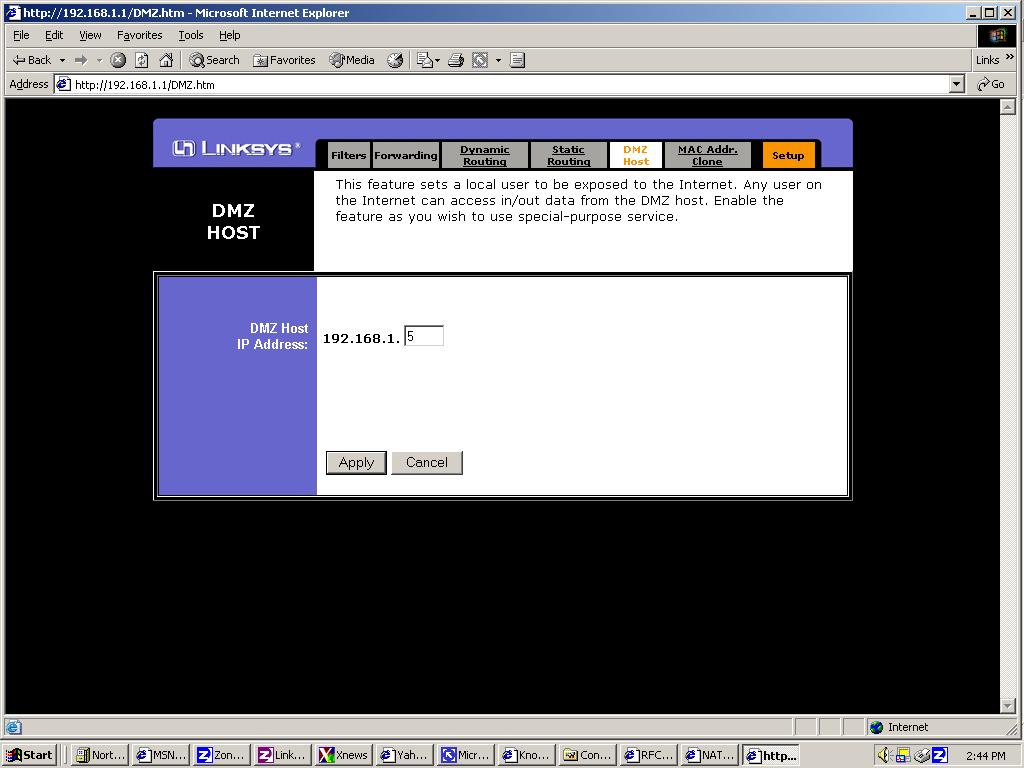
The easiest option but MOST vulnerable in terms of security is to just set your game PC as the DMZ host. This option basically bypasses the firewall security feature of your router/firewall. It does this by allowing you to specify one PC as a DMZ (Demilitarized Zone) host. This tells the router to take any traffic, initiated from the "outside", and pass it along to the PC specified as the DMZ host, effectively exposing the PC out on the net. There are MANY security risks associated with doing this especially with "always on" connections such as cable and DSL lines. Those of you not familiar with network security should really think twice about using this options. It's very easy to set but very risky also. If you like to get an idea about how much information can be obtained from your PC using this option, set the DMZ host and go to www.grc.com and run ShieldsUp. This will give you some idea to the level your PC exposed.
Having said all that, if you still want to use this option, you can find it in the advanced section of most router/firewall setups. You will need to obtained the FAKE IP address of your game PC using the ipconfig command (see above) and enter the last digit in the DMZ host setup screen. Here is a screen shot of my Linksys router screen. There are no problems hosting games if this option is used.
Secure/Less Efficient Option
Perhaps the best solution may be the following option which is a combination of sorts. The problem with setting the DMZ host is that you are effectively bypassing the firewall feature of your router/firewall. The solution to this is to use a software firewall like ZoneAlarm (http://www.zonealarm.com) running on your game PC which is also the DMZ host. This is a little more complicated as you have to install and configure ZoneAlarm but it is very secure and there are no problems with hosting games in the Zone. I wont get into the setup of ZoneAlarm here but it's a very easy program to install and configure. Check out their website for help. The downside of this option is that you are now running one additional program in the background which takes CPU and can slow down the swing meter in Links.
ZoneAlarm
OK, I changed my mind since I have received many question about ZoneAlarm. To setup ZoneAlarm to play Links, you need to reduce Internet security settings to "Medium." At "Medium" security you do not lose application control functionality. Make sure you have the latest service packs installed for the operating system you are using. ZoneAlarm understands to dynamically open and close ports as needed so no adjustments need to be made with the firewall. From the Programs panel, when you give an application rights to access the Internet, it is designated as trusted. For Links, you will also need to apply server rights also.
XP Firewall
Most of the questions asked about problems using XP's built in firewall are usually answered by "Just disable it!". You can get that info here. While this works, it leaves the PC exposed and vulnerable to attack and looking on Microsoft's record on internet security, is this something you really want to chance. I haven't tried this since I refuse to install XP but, you should be able to open the same ports in XP's firewall using the following instructions from Microsoft. This definitely sounds like a tedious tasks since it doesn't sound like you can specify a range of ports, just individual ports. Can someone please try this and let me know if specifying a range of ports like 28800-29100 works. Try typing in 28800-29100 in the External port and Internal port boxes.