| 10. Horizontally shift each object in respect to the ground. |
After you apply the depth map to each object in image, you need to nudge the object so that the bottom of the object is in same location in reference to the ground. Look at origial picture to get a feel for where the object should be, and move the object horizontally to the location. Try not to move the object verically. |
| 11.Flatten all layers, so that the resulting images will have no holes. |
Do not display the undisplaced object layers. Make sure that the layers are in order of closeness, where the closest objects are on top and the ground is in back of all the objects and the background on the bottom. You may see holes in the composite image; here you should clone adjasent pixcels to the background in order fill the holes.
Before you flatten all layers, save the file as the left image keeping the layers information. Now flatten the visable layers. |
| 12. Change both images to gray scale. |
With Both the right and left images open, change the mode of both images to gray scale. |
| 13. Create a third gray scale images of same size, and paint it black. |
The third gray scale image in the Green in the RGB composite. |
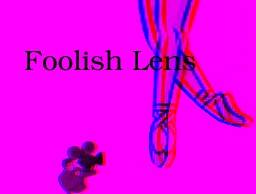
| 14. Compose the three images to RGB mode, where red is the left image, green is the black, and blue is the right |
Here is where the anaglyph come together |
| 15. Anaglyph done. |
Save as new file. |
|
|