BACH PLAYING THE ORGAN
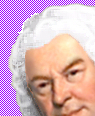
Here is a question I have about editing images with Paint Shop Pro version 10. I know that what I want to accomplish cannot be done with PSP5. I know that it can be done with IconLover v4.16, and probably an up-to-date version of ArtIconsPro. I am almost certain that PSP10 (and 11, or maybe even 9) can do it, but I cannot find any documentation about how. So. Here is a picture of Bach that I re-did using PSP5. I'll use Bach's hair (the wig I made him, actually) later.
BACH PLAYING THE ORGAN
I upgraded to PSP10 after using PSP5 and a million plugins for ten years. The critical reason was and is PSP5's inability to export or Save As PNGs files with 24 million colors plus alpha-channel transparency. PSP10 can, and PSP can also work with files that have 16-bit (not just 8-bit) color depth. The translucency is what I wanted, and icons and some PNG files have it. You see the icon, you see the drop shadow, you see your desktop underneath, and you see through the lighter parts of the shadow as you see through sunglasses. PSP5 can make a PNG with 24 million colors, but any transparency in it will be made opaquer; PSP5 can make a PNG with transparency, but the number of colors has to be reduced to 256, as one does with GIFs. I use IconLover to make icons. It can save an image as an ICO or a PNG, and both will have the kind of translucency I've described. PSP10 can't Save As an ICO, but it can Save As a translucent PNG. Because it can, there's some reason to suppose that, editing a translucent image, it can replace colors as well as blend them.
My question is about PSP10, not IconLover. When you edit an ICO or a PNG with IconLover, you can use a toolbar icon that toggles between replacing the colors of the pixels underneath, and blending the new colors and the colors underneath. I cannot find any such control in PSP10. I want to be able to apply a line in PSP and have it replace, not blend with, the colors underneath. An example:
 ORIGINAL |
 DETAIL, BAD HAIR |
 BAD HAIR FIXED, IconLover |
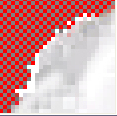 BAD HAIR, PSP, ORIG |
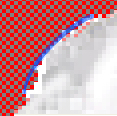 BAD HAIR, PSP, 2ND |
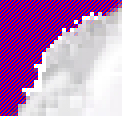
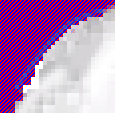
Let's pretend that there's a rough spot in the outline of Bach's hair ("original"), and that there's a transparent background behind his head ("detail, bad hair"). I want to fix that fast. In IconLover, I toggle "replace pixels" and put in an antialiased, 50%-opaque bezier line (for the sake of your seeing this, I made the line blue). IconLover puts in the line and even its almost-transparent edges replace the white pixels that were underneath it ("bad hair fixed, IconLover"). That's an actual screenshot; you can see how there are different translucencies in the new line and how the white underneath them has been made to go away.
Now I take the same image into PSP10 ("bad hair, PSP, orig). And I apply an identical bezier line. The result is "bad hair, PSP, 2nd": the line does not replace the pixels underneath it. You can see that the line works where there was 100% transparency underneath. But where the line goes over pixels with any color, the color of the line blends with the underneath-pixels and becomes an opaque blend of the two colors. But I want to put in a line that replaces the rough opaque edge with a smooth edge.
IconLover is something like 1.3 MB altogether. If it can replace as well as blend, PSP10 should be able to. The workaround I've discovered is, in PSP, to put the new line on a new layer and merge them. But before I can merge, I have to go to the bottom layer and erase every opaque pixel that would interfere with the new line's translucency, and that can be a real chore.
Is what I want to do possible by manipulating the blend-modes, either blending layers or using tools that in Tool Options can apply color in a blend mode?
Is it possible by some other means?
If you know the answer, please let me know it.
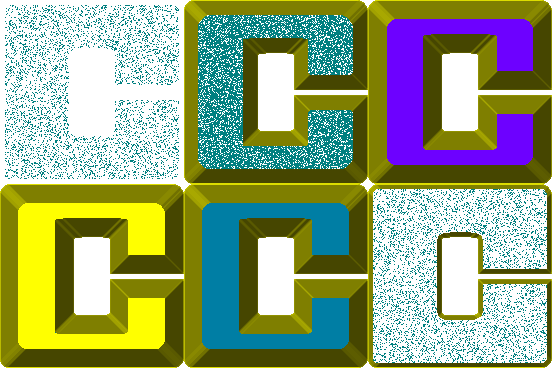
If you even think seriously about this question and its answer, you may take the image below and use it however you want. I made it because I think that "chiseled text" is an overrated effect that is usually ugly and that doesn't really work unless you use fonts that are all almost-perfectly-square letters. This "C" is how I think "chiseled text" is shown off to best advantage. Go on. Scroll down and laugh.