|
 How to
Configure Sounds How to
Configure Sounds
You can configure sounds for incoming
events from each user.
- Click the ICQ
button.
- Select Preferences.
- Click the Events
tag.
- Check the Play Sound
check box (if it's not already so by default). The Configure
button becomes active.
- Click the Configure
button.
The following dialog appears.
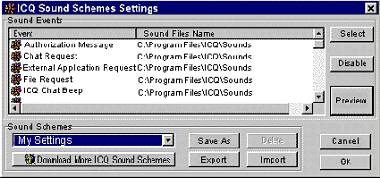
You can also use this dialog to
see what are the authorized names for sound schemes.
- Select an event from the list (click it).
- Click Select. The Browse for ... sound dialog appears.
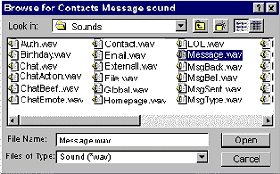
- Select the WAV
file you would like for your event and click Open.
The sound file you chose is now configured to the event you selected.
- Click the Preview
button (back in the ICQ Sound Schemes Settings dialog)
to hear the sound.
Disable Sounds for Events
You also have the option to
disable sounds for only certain events.
- In the ICQ Sound Schemes
Settings dialog, select the event you want to mute.
- Click Disable
- A box will pop up and ask you if you're sure you want to disable sound for this event. Click Yes.
Other Sound Options
In the Sound
Schemes drop down menu (at the bottom) there are 3 options:
- ICQ Defaults, with which your events
are configured by default. Those are the sounds that ICQ Comes with when you download it.
- My Settings, which you
can configure as you wish.
- No Sounds, when chosen disables the
sounds and all events come mute.
You can also Import, Export and change
file names.
To Change File Names
- Select the event from the list.
- Click Save As. A dialog appears which
enables you to enter a different name for the file.
- Click OK.
To Import Sound
Files
- Select the event from the list.
- Click Import. The Browse for sound scheme dialog appears.
- Browse your computer to find the sound file you want and
click Open.
To Export Sound
Files
- Select the event from the list.
- Click Export. The Save as dialog appears.
- Browse your computer to find where you want to save the
sound file you exported and click Save.
The file created is a *.scm file, which includes all the sound files in it. Therefor when
sending us sound schemes you create, there is no need sending us the sound files as well,
since they are already included.
Configure Alerts for
Individual Users on Contact List
 |
Click the user's name on your Contact List.
- Select Alert/Accept
Modes.
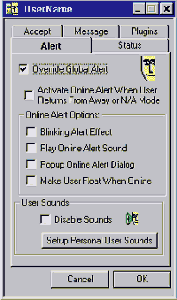
The alerts dialog appears.
- Select the Alert tab.
- Check the Override
Global Alert check box.
- All the alert options become active for you to configure
If you wish to configure a personal sound for a user click
the Setup Personal User Sounds button |
To change event sounds for a specific user:
Select a user and right click for the menu.
Choose Alert/Accept Modes
and click Sound Events from the pop up menu.
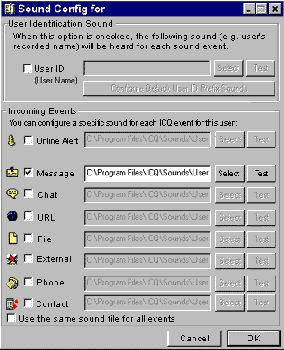
Now, select the sounds you would
like, test them, and hit ok.
| You can use any ".WAV" file to configure your ICQ
sounds. |
|
| You can also get Sounds Schemes from ICQ ... |
|
|

|
