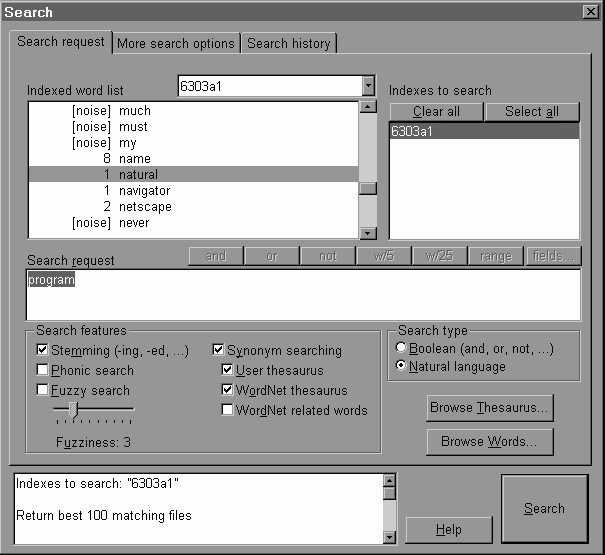
 User can simply compose the search statement in the Search request area and turn on/off a number of search features below it and then click Search button to proceed with a search.
H6303 INFORMATION STORAGE AND RETRIEVAL
ASSIGNMENT 1
NAME: CHU HO CHEUNG DOMINIC
COMPARE AND CONTRAST THE ESSENTIAL FEATURES OF THE DB/TEXT AND DTSEARCH SOFTWARE
This report discusses the database design and creation, search and retrieval features of two IR software, namely, Inmagic DB/Text and dtSearch. In each case, a small database is built using 4 bibliographic records from LISA Plus.
A) Inmagic DB/Text
First, define textbase – text database structure, specify a name for the textbase and define the fields.
i) Defining fields
Define one field after another. For each field, specify
The following is an example of the Textbase structure for a simple bibliographic database
Textbase name: 6303a1
Fieldname Fieldtype Indexing(T-term,W-word)
Author last name Text TW
Author first name Text TW
Title Text TW
Journal Text TW
Volume Number T
Issue Number T
Year Number T
Page no Number T
ISSN Number T
Keywords Text TW
Abstract Text TW
Photo Image T
Besides, one can specify the validation rules for each field:
Entry Validation options:
Content Validation options:
In this example database, entry validation: Field entry required and Unique entries only are chosen for Author last name to ensure all records have unique only authors last names populated.
Whenever the database structure is changed, DB/Text will automatically refresh the indexes where necessary (e.g. when a new field is added or the indexing type is changed for existing fields).
ii) Populating the records into the database
A default tabular form is ready for user to key in data for each record, for fields of image type, DB/Text expect the user to fill in the path and filename of the image.
In our example, if the user try to save a new record with blank Author last name, a warning message
Entry in field ‘Author last name’ cannot be empty .
Appear and user must fill in the field before the record can be saved.
If the user try to save a new record with existing Author last name, say Blake, a warning message
Entry in field ‘Author last name’ should be unique, but is not.
Appear and user must fill in the field with a different last name before the record can be saved.
New records can be added / updated / deleted using the default form listing all fields of a record and the indexes are updated on completion of each action.
For large volume of inputs, user can choose to import from external source, provided that the input file follow the specification of the subjected database. In our example, a valid external source is preferably an ASCII file with each records separated by CR(carriage return)/LF(line feed) and each field separated by comma or tab.
E.g.
Weiss,A.,Building bridges to Java,Internet World,9,1,1998,94,
10643923,World Wide Web,Discusses ways in which JavaScript routines can be written to produce Java applets. Presents a step by step procedure for carrying out the program,a:\7arrow1.bmp
(Assume the above is in a record in 1 line without breaks in the external source files)
will be recognized as a valid record using the express import function. To accept external source of other format like HTML, Lotus 123, a separate add-on DB/Text import filter must be installed.
To browse all records in the database, just click on the Find All Records (globe button in the toolbar) to trigger the Find All Records command, which actually runs a query with criteria as select all records.
A default report of all records will be displayed. User can design their own report layout to display only fields in concern. Besides printing out the reports, user can also write the current report to 3 different file formats: Plain text, Rich text format(RTF), or HTML to facilitate processing the reports in other applications.
In our example, to view the image file for each record, just click Show Record Images button and the subjected image will be displayed in a separate window in which user can perform simple functions like zoom in/zoom out, rotate image, invert colors.
Two searching interfaces are provided:
1) QBE - Query by Example
Type criteria into boxes and optionally toggle Boolean AND, OR, NOT buttons. Click the Execute Query (Green Go button) to submit the search.
User can place either a word, a term or Boolean / proximity search query in each box to conduct a search on a particular field.
2) Command query
Type criteria as a statement, using a particular syntax. Useful when specifying complex criteria.
Notice that search is not case-sensitive.
The following features example of searches using QBE and corresponding Command query which attain the same effect:
|
QBE statement |
Corresponding command query |
|
i) Word/Phrase search |
|
|
world wide web |
find (Keywords ct world wide web) |
|
at Keywords field |
|
|
retrieve records with phrase World Wide Web |
|
|
ii) Term search |
|
|
Java |
find (Keywords ct java) |
|
at Keywords field |
|
|
retrieve records with term Java |
|
|
iii) Truncation: right truncation only using * |
|
|
e.g. Java* at title box give records with title with word with stem Java like Java or Javascript |
find (Title ct java*) |
|
iv) Comparison/range search |
|
|
e.g. in year box |
|
|
1996 retrieve records published in 1996 |
find (Year ct 1996) |
|
>1996 retrieve records published after 1996 |
find (Year >1996) |
|
1996:1997 retrieve records published between year1996 and 1997 inclusively |
find (Year ct 1996:1997) |
|
v) Proximity search |
|
|
e.g. in keywords box |
|
|
find (Keywords ct world w2 web) |
|
|
returns records with World Wide Web where web appear within 2 words from world |
|
|
world p2 web |
find (Keywords ct world p2 web) |
|
returns records with World Wide Web where world precedes at most 2 words from web |
|
|
vi) Boolean search (using AND, OR, NOT) |
|
|
|
|
java / javascript |
find (Title ct java / javascript) |
|
retrieve records with Java or Javascript |
|
|
|
|
author last name: Blake |
|
|
AND keywords: world wide web |
find (Author last name ct blake) and (Keywords ct world wide web) |
|
Retrieve records with last name as Blake and with world wide web in the keywords field |
B) dtSearch
Database design and creation
1) Creating index file
dtSearch basically accept user supplied files as the database records and perform indexing on them to update an index file for later search and retrieval operations.
User can choose to create a basic index(just specify the name for the index and the index file will reside at dtSearch program directory) or an advanced index where user can specify the name and path of the index file and options for accent-sensitive and case-sensitive indexing.
For a case-sensitive indexing it means Food, FOOD, food will be treated as different words.
For accent sensitive index accents will be taken into account in indexing words.
The index size will be relatively bigger if any of the two options are turned on.
2) Populating the database
To populate the database, user simply supplies dtSearch the file to be indexed one file after another by Add file
button or the whole directory of files by Add folder button.
File name: dtSearch support filename filter and user can supply filename pattern like
SMITH*.DOC to select files like SMITHA.DOC, SMITH11.DOC
File Formats : dtSearch automatically recognizes major word processor files, DBF files, ANSI files, and ZIP files through the filter available. User can also the exclude filter to skip certain type of files from being indexed.
Once files are added and OK button is pressed, updating of index will proceed and status displayed. A completion alert box tells user how many files are added to the index.
User can choose from pull down menu to reach update index dialog box allow user to maintain the index anytime. The index manager allows user to copy/delete/compress an existing index.
Once index is created, user can click the search button to start searching for records by composing the search request
Search and retrieval features
User is allowed to browse the whole index file as shown in a complete Indexed word list, showing number of hits and the indexed word(e.g. name occur 8 times in the example below). Common words, which are not useful in searches, are called noise words(e.g. must in the example shown).
User can simply compose the search statement in the Search request area and turn on/off a number of search features below it and then click Search button to proceed with a search.
Presentation of search results
All search results are presented by a list of files with words indexed meeting the search criteria, listing in he upper pane the information of the subjected filenames, order by relevance score in % or no. of hits, path of file, date of creation and title of the file. The lower pane shows the contents of the subjected file and hits(match in searches) are highlighted in yellow. User can press the previous / next button to view all the hits.
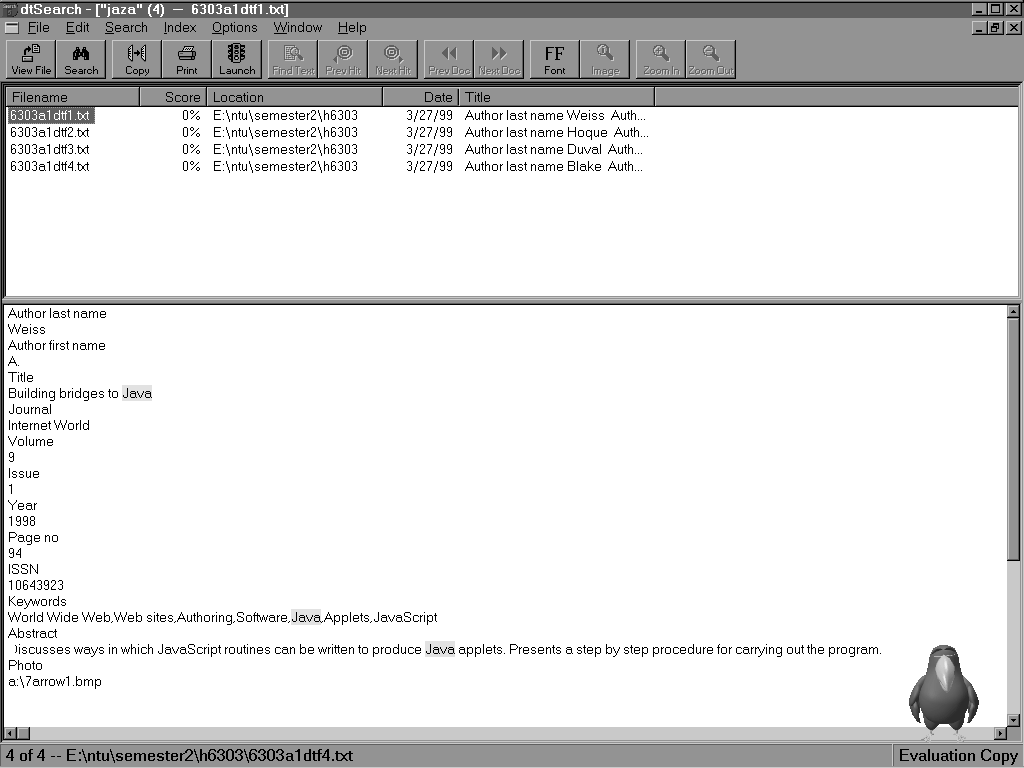 Search report can be generated with options to select the amount the contents to be included.
Many search features are available:
i) Stemming
e.g. function will retrieve records with words function or functions
apply will retrieve records with apply or application etc.
ii) Truncation
Wildcard search at any position is supported (* for any no. of characters and ? for single characters)
java* for Java and Javascript, etc
*a?a for Lava and Java and Strata, etc
iii) Phonic
search for words supplied and also words of same pronunciation
For example, a phonic search for program will also find programme
iv) Fuzzy
this search feature helps to find even words that are misspelled. The degree of acceptable misspelling is controlled by the Fuzziness bar, the greater the Fuzziness the higher extend of misspelling will be accepted.
This is particularly useful for documents scanned and translated from image to text using OCR where 100% recognition is not always guaranteed.
e.g. raising the Fuzziness to 3 and searching a word Jaza will match records with word Java
v) Synonym search
A thesaurus is used to find synonyms of words in your search request.
The thesaurus can be user defined for from the Wordnet concept network which can cover Synonym, Antonym(opposite meaning), Hypernym(sub categories of search word), Hyponym(search word belongs to this category), Meronym(member of search word) and Holonym(search word is a member of it).
Search type radio button allow user to specify if a search is a Boolean search or natural language search
vi) search options exclusive to Boolean search type
a) Boolean (AND, OR, NOT)
e.g. easy AND data
retrieves records with both words easy and data
b) Proximity (w/5 – within 5 words, w/25 – within 25 words are supported)
e.g. examples W/5 action
return records where action is within 5 words from examples
c) Range
user will be prompt with a dialog box to key in the numeric range by specifying the lower and upper bound which translate into the syntax lower bound~~upper bound
e.g. 1~~8
returns records indexed with numbers between 1 and 8 (inclusive).
User can also choose to specify just lower or upper bound.
d) Field search
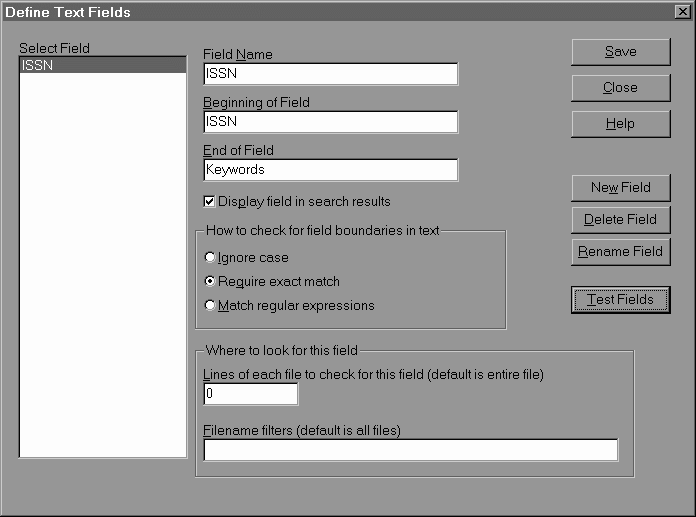
supported provided fields are defined by user like ISSN field beginning marker is ISSN and end marker is next field tag Keywords
and then user can use fields search option to specify the field to search
vii) search type Natural language (when Boolean, proximity, range, fields are disabled)
A natural language search request is any combination of words, phrases, or sentences. After a natural language search, dtSearch sorts retrieved documents by their relevance. Weighting of retrieved documents takes into account: the number of documents each word in your search request appears in (the more documents a word appears in, the less useful it is in distinguishing relevant from irrelevant documents); the number of times each word in the request appears in the documents; and the density of hits in each document. Noise words and search connectors like NOT and OR are ignored..
e.g.
java illustrated
returns results with scored in rank terms of % of relevance
viii) More search options
user can specify combination of indexed or unindexed search, filtering by filename, date and size and limit number of search results records.
ix) Search history provide a means to refine search statements using all previously conducted searches statements and the following strategies:
|
Strategy |
Resultant search statement Eg. Current search statement: illustrated Selected historical search statement: java |
|
Insert – append a current statement to the selected historical one |
|
|
Broaden – apply an OR Boolean operator with a selected historical search statement on the current one |
(java ) OR (illustrated) |
|
Narrow – apply an AND Boolean operator with a selected historical search statement on the current one |
(java) AND (illustrated) |
|
Exclude - apply a NOT Boolean operator with a selected historical search statement and AND with the current one |
(NOT java) AND (illustrated) |
C) Discussion
Database design and creation
Both software provide easy-to-use interface for user to create a database. DB/Text allows user to specify the structure of the database at field level and type, indexing method(term or word) and validation rules of each field which is not available in dtSearch. In DB/Text user can change the fields definition even when the textbase is already populated with records.
To populate records into the database, DB/Text rely on the form for data entry which is tedious. While an import function is available, the external source must follow a specified format according to the textbase structure which is not always practical provided sources of different format and layout. dtSearch is relatively more flexible as indexing is performed in any recognizable files without stringent limit on the format.
Both software support links to external image files. DB/Text use a photo field to store the location of image file while DB/Text associate image file to indexed document by filename rather than contents in the document. Links to another textbase at field level is only available in DB/Text
Index management of dtSearch seems more extensive as compression of index is available to save storage space. The same feature is not reflected in DB/Text.
Comparison of search features between DB/Text and dtSearch
The following tables compare the search features between the 2 software:
|
Type of search |
DB/TextWorks |
dtSearch |
|
Word or phrase |
Available |
|
|
Term |
Available |
Available |
|
Truncation |
Only right truncation using * |
More flexible Wildcard search is supported using * for any no. of char and ? for single char at any positions |
|
Comparison/range |
Use = < > <= >= : in a Term indexed field.
|
Only lower bound ~~ upper bound is supported equivalent to <=, >= and : in DB/Text |
|
Proximity |
Use the proximity operators w# and p# in a Word indexed field. |
Only w/5 and w/25 are supported, no preceding operators |
|
Boolean |
Type Boolean operators (& / !) between items in a box to represent and, or, and not. For example, cars&boats finds records only if they contain both words (cars and boats). cars/boats finds records that contain either word (cars or boats). cars!boats finds records about cars but not boats.Toggle the AND, OR, NOT button in front of a box to combine multiple requests. |
AND, OR, NOT are used |
|
Natural language |
Not available |
Relevance score is available |
|
Refining search using historical search statements |
Not available |
Available |
|
Search using multiple indexes |
Available when user search multiples fields, indexes of each field will be used |
Available only when multiple indexes files are created |
|
Synonym |
Not available |
Using user-defined or Wordnet thesaurus |
|
Stemming |
Not available |
|
|
Fuzzy |
Not available |
Available |
|
Phonic |
Not available |
Available |
DB/Text is stronger in supporting phrase indexing, comparison/range search and proximity search where dtSearch is stronger truncation(wildcard supported), natural language search, synonym and refining search using historical search statements.
Comparison of retrieval features between DB/Text and dtSearch
DB/Text allow users to export the full search results into text files, RTF or HTML for further processing while dtSearch allow user to the select amount of context of search results to be included in a search report.
dtSearch also lets user browse the index file and export it to text files. User can speed up composition of search statement by choosing the indexed words in the index file shown.
In terms of presentation of search results, DB/Text provide user design options in the layout/fields to include in the reports which is not available in dtSearch.
Application
DB/Text is more useful in building database that required validation of records according to certain rules like bibliographic records, however the limitation on the tightly defined structure make it less flexible in handling documents of free text structure, which is well handled by dtSearch. DB/Text has higher capability in generating reports of search results in terms of layout and fields to be included.
Both software have numerous searching capability and yet user must go through training to utilize all the power features. Otherwise, the QBE in DB/Text and Natural language search in dtSearch are the best places for novice users to jumpstart their search.
-- END OF REPORT --
D) APPENDICES
Contents are extracted from LISA plus database and used to build DB/Text textbase.
Documents are then exported from records of the DB/Text textbase and indexed by dtSearch.
Weiss
Author first name
A.
Title
Building bridges to Java
Journal
Internet World
Volume
9
Issue
1
Year
1998
Page no
94
ISSN
10643923
Keywords
World Wide Web,Web sites,Authoring,Software,Java,Applets,JavaScript
Abstract
Discusses ways in which JavaScript routines can be written to produce Java applets. Presents a step by step procedure for carrying out the program.
Photo
a:\7arrow1.bmp
2) h6303a1dtf2.txt
Author last name
Hoque
Author first name
R.
Title
Brewing Javascript
Journal
Internet World
Volume
8
Issue
2
Year
1997
Page no
104
ISSN
10643923
Keywords
Javascript,Software,Authoring,Web pages,World Wide Web
Abstract
Presents an illustrated guide to the use of Javascript, introduced by Netscape with their Navigator 2.0. It is designed as a cost free, easy to learn scripting language for the tailoring and personalizing of World Wide Web (WWW) home web pages and for performing a range of other functions. Points to the advantage of Javascript over Java in its ability to manipulate the content and appearance of the web page itself. (The author may be contacted by electronic mail at [email protected]).
Photo
a:\7arrow2.bmp
3) h6303a1dtf3.txt
Author last name
Duval
Author first name
B. K.
Title
Microcomputer applications in the library
Journal
Library Software Review
Volume
16
Issue
3
Year
1997
Page no
164
ISSN
07425759
Keywords
Library technology,Software,World Wide Web,JavaScript
Abstract
Explains how Java, a programme language similar to C++ relates to HTML and Javascript. Examines Javascript as a means of increasing user interactivity with a Web page. Discusses Javascript fundamentals and includes several examples of it in action. Original abstract-amended.
Photo
a:\7arrow3.bmp
4) h6303a1dtf4.txt
Author last name
Blake
Author first name
P.
Title
Create Web pages with automated expertise
Journal
Information Today
Volume
13
Issue
3
Year
1996
Page no
53
ISSN
87556286
Keywords
Internet Studio,JavaScript,InTEXT,Software,Authoring,Web pages,World Wide Web
Abstract
Describes new products available to assist Web page authoring. A fresh generation of tools is being developed to make it easy to create `live' documents based on Sun's Java and its rivals. Reviews InTEXT to generate HTML pages and automatic hypertext links with a facility to view, search, summarize and retrieve data using natural language. 28 companies including Apple, Silicon Graphics and Hewlett-Packard have signed up for JavaScript, a program from Netscape to aid the creation of Java applets. Discusses Java's chief rival in World Wide Web publishing, Microsoft's Internet Studio. Discusses the implications of Internet Studio's reliance on Object Linking and Embedding.
Photo
a:\7arrow4.bmp