
|
 |
 |
 |
 |
 |
 |
 |
| � |
| Ice Cream |  |
|
| � | ||
 |
Step 1 (Creating the Twisted Ice Cream) |
|
From
the Create Panel
|
|
|
|
Step 2 |
|
Select the Select and Move
Click on Zoom Extents All
then Go to the Modify Panel
|
|
|
|
Step 3 |
From
the Modify Panel  click
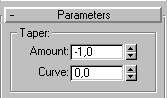
on Taper button and enter the following parameters: click
on Taper button and enter the following parameters:
|
|
|
|
Step 4 |
| Click
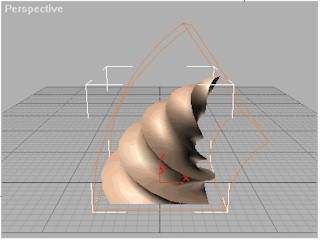
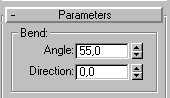
on Bend on the Modify Panel and enter the following parameters:
|
|
|
|
Step 5 (Material Editing) |
1.
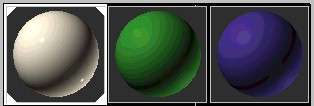
Click on the Material  and select the Material #1 rename it Cream and enter the following parameters
: (as show in the previous tutorial).
and select the Material #1 rename it Cream and enter the following parameters
: (as show in the previous tutorial).
Ambient (RGB) : R:100, G: 85, B: 75 Diffuse (RGB) : R:250, G: 240, B: 220 2. In the Material Editor click on Maps button to open the maps rollout then click on the None button related to Bump and choose Bitmap from the Material/Map Browser. Now click on the long Bitmap button under the Bitmap Parameters and select the following file: Paper.jpg from the Maps folder in the 3dsmax directory Click on Go Back to Parent
3. Select the Ice Cream Shape
then go back to the Material Editor and select the material Cream then
click on Assign |
|
 |
Step 6 (Final) |
|
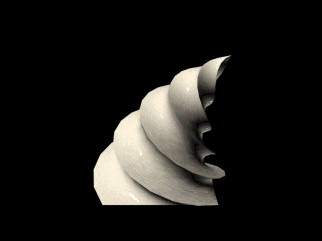
This is the Final rendering
of the Perspective viewport. |
|
�
 open Geometry
  and
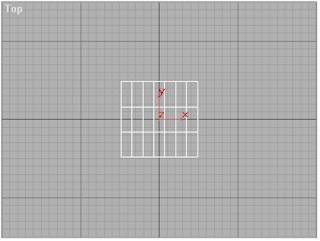
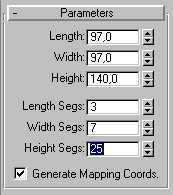
click on Box then draw the following shape on the Top viewport, and enter
the following parameters
and
click on Box then draw the following shape on the Top viewport, and enter
the following parameters
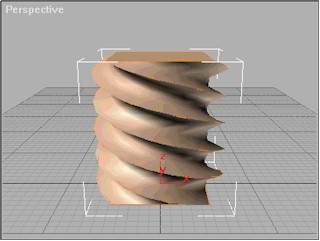
 button then right click
on it and enter the following parameters to center the object. X: 0,0,
Y: 0,0, Z: 0,0.
button then right click
on it and enter the following parameters to center the object. X: 0,0,
Y: 0,0, Z: 0,0. 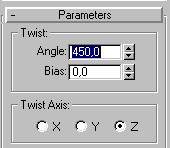
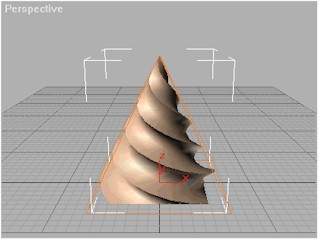
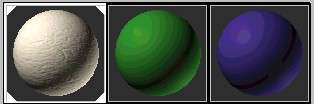
 and enter a 150 to
the bump Amount
and enter a 150 to
the bump Amount 
 to
assign the material to the shape.
to
assign the material to the shape.