for Un-Compressing and Compressing MSTS Shape Files
By Jim England
You must have Route Riter installed
somewhere on your system
to use this tutorial
The right side user window in Route
Riter is not used in this tutorial
---------------------------------------------------------------------------------------------
Open Route Riter by clicking its
program icon in your start menu
From here on its step by step instruction
Please read everything carefully
as it is important!!
---------------------------------------------------------------------------------------------
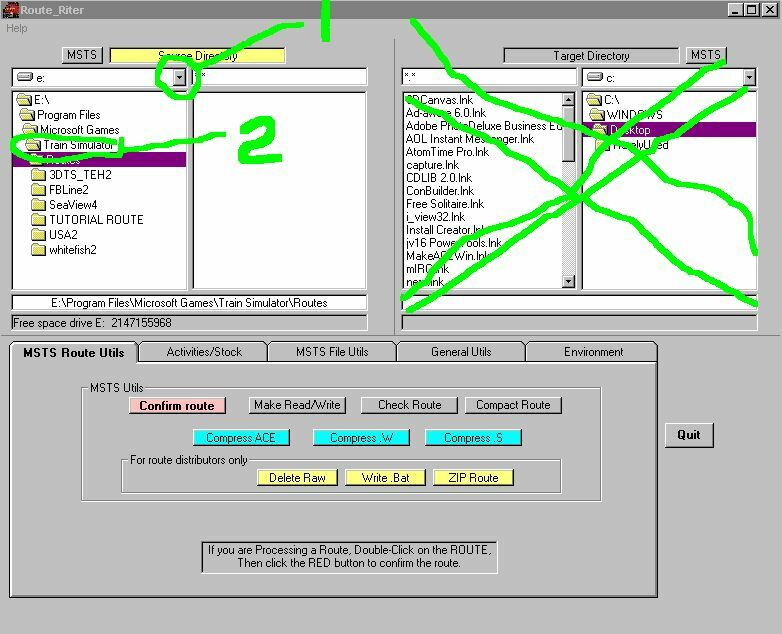
Step 1- Select the drive that contains
your MSTS program files
Step 2 - By default, Route Riter
starts in your Train Simulator/Routes folder
Change it by double clicking on
the Train Simulator folder
and changing to the Trainset folder
by double clicking on trainset folder.
This will open the Trainset folder
below in tree format showing all
of your trainset folder names.
--------------------------------------------------------------------------------------------
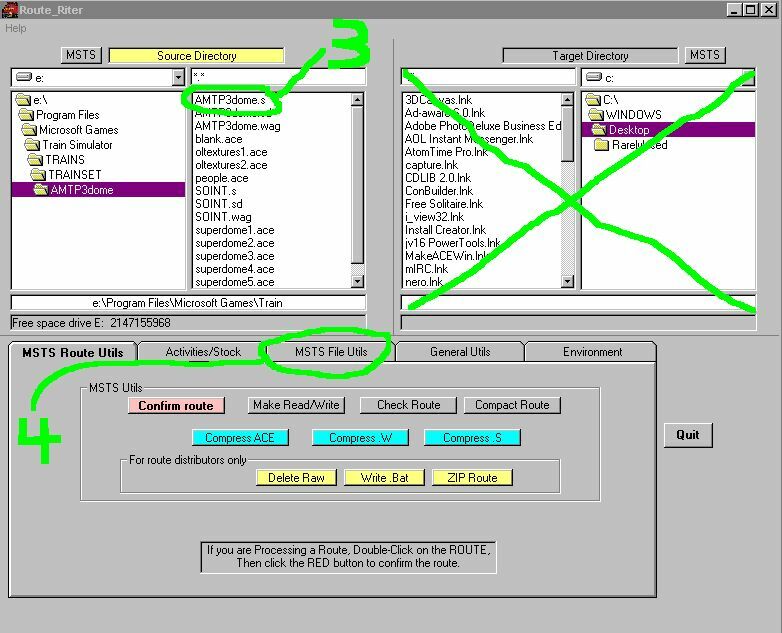
Step 3 - As you can see from the
pic below that inside the trainset folder
I have double clicked on the AMTP3dome
and all of its contents are displayed in the contents view window
Single click the AMTP3dome.s to
highlight it
Step 4 - Click on the MSTS File
Utilities Tab to show all the available functions for this part of Route
Riter
-----------------------------------------------------------------------------------------------
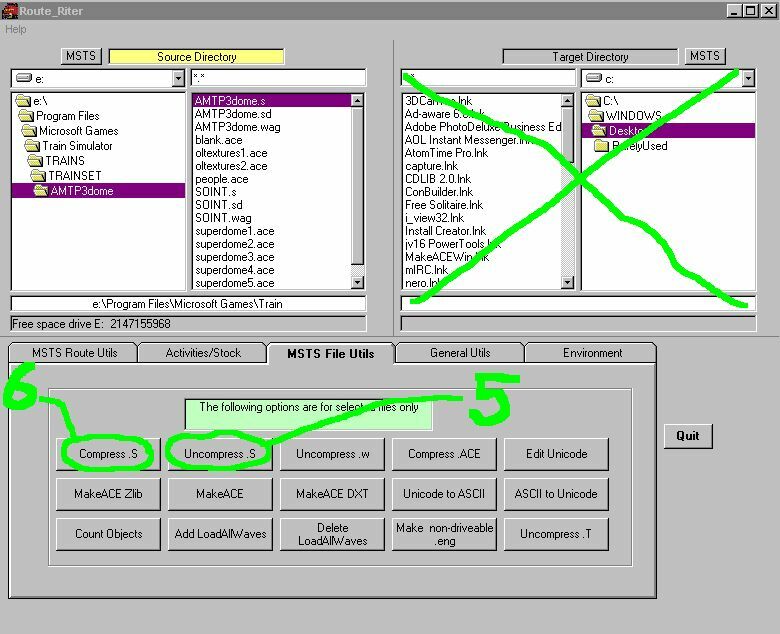
Step 5 - Since you have selected
the AMTP3dome.s, you can now click the Un-Compress S tab
This will open a MS-DOS type window
and you'll see
a program called ffeunicode actually
Un-Compresssing the binary shape
file into english text format
Close the ffeunicode program by
clicking the X in top
right hand corner when it looks
like it not doing anything anymore and finished un-compressing your shape
file
Step 6 - After editing your Ace
file entries in the shape file to match your car or loco, click the Compress
S tab to convert the english text shape file back to binary code again
seeing ffeunicode program pop up in the background and Compress the file
back to the way it was before you Un-Compressed it
Again close the ffeunicode box
by clicking the X in top right hand corner when it looks like its finished
and not doing anything
--------------------------------------------------------------------------------------------------
Route Riter can Un-Compress a shape
file pretty fast
but it takes it a bit to Re-Compress
them as its cruching the code like Winzip does to compress files to reduce
file size.
I have experienced computer crashes
trying to Un-Compress 3DTrains F7 Freeware A and B locos. It must be a
huge shape file as Route Riter chokes on it trying to Un-Compress those
large shape files. they are the only ones I haven't been able to Un-Compress
so far.
Also as a side note--The Default
MS/Kuju SD40-2 shape file will not Compress in Route Riter. All the MS/Kuju
shape files I have seen are in Un-Compressed format. I don't know why it
won't compress. maybe it was designed that way for reasons unknown to me.
------------------------------------------------------------------------------------------------
I hope this tutorial helps you
learn the process for working with shape files.
Its pretty easy once you learn
the process.
Have Fun!!!
Jim England - 10/30/03
------------------------------------------------------------------------------------------------
Back
to Homepage
