Tutorial
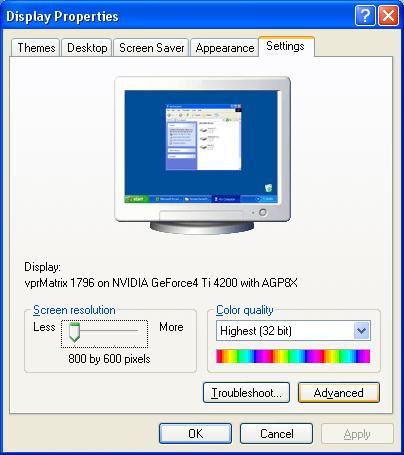
Your
screen may or may not look like this but similar. This is using WINXP
Professional. Make sure your monitor is selected and not just 'plug
and play monitor' if possible (if you have drivers for your monitor,
install them!). Now change your Screen Resolution to what you want in
Counter-Strike. After that, click the Advanced button.
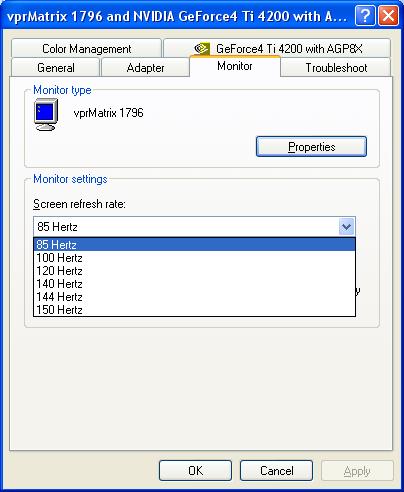
Notice
how this monitor can go up to 150 Hertz. You DO NOT need more than
100 Hertz to be fine. 85 is good as well (will give you 85FPS....100
is max FPS in Counter-Strike as is many games). Now, that I know my
Hertz in here and my Resolution, i can load up the nVIDIA Refresh
Fix...
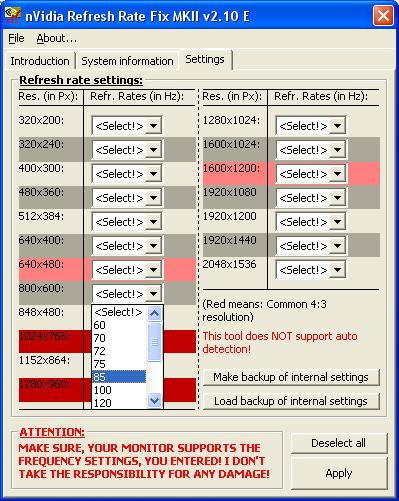
Because my monitor allows for 85 Hertz and
I want to use 800x600 mode, I will select the appropriate boxes.
I also will hit Make Backup of internal
settings. After that, I will hit apply. You're all set! Enjoy your
new High FPS
Home