 |
† Wayfarer Shell: †
Origionally copied from Windows 3.x Schemes featuring Makeover - Wayfarer. The links have been updated 8-15-2003, and if for whatever reason they do not work, don't blame me.
|
Wayfarer
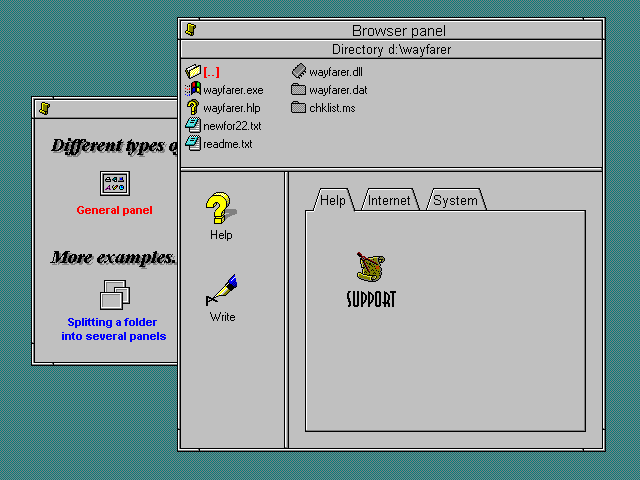
Wayfarer is a unique and highly customisable shell. The trade off with that is that unfortunately it does tend to eat system resources. However, if you want to try a different shell it's worth giving it a go. This screenshot show how customisable Wayfarer is. The window shown has a file browsing dialogue in the top pane (similar to Windows Explorer in Win95), some quick launch icons (similar to Program Manager groups) and some tabs with various icons (similar to not much that I've seen!) I set these panels up to display the three main views you can use, but you can have a window with any one of these three, or combinations with panels set as you want them. Windows normally minimise on use, but by right-clicking the small scroll on the top left you can "pin" the window in place. Very cool and very stable.
 |
Wayfarer Program Manager
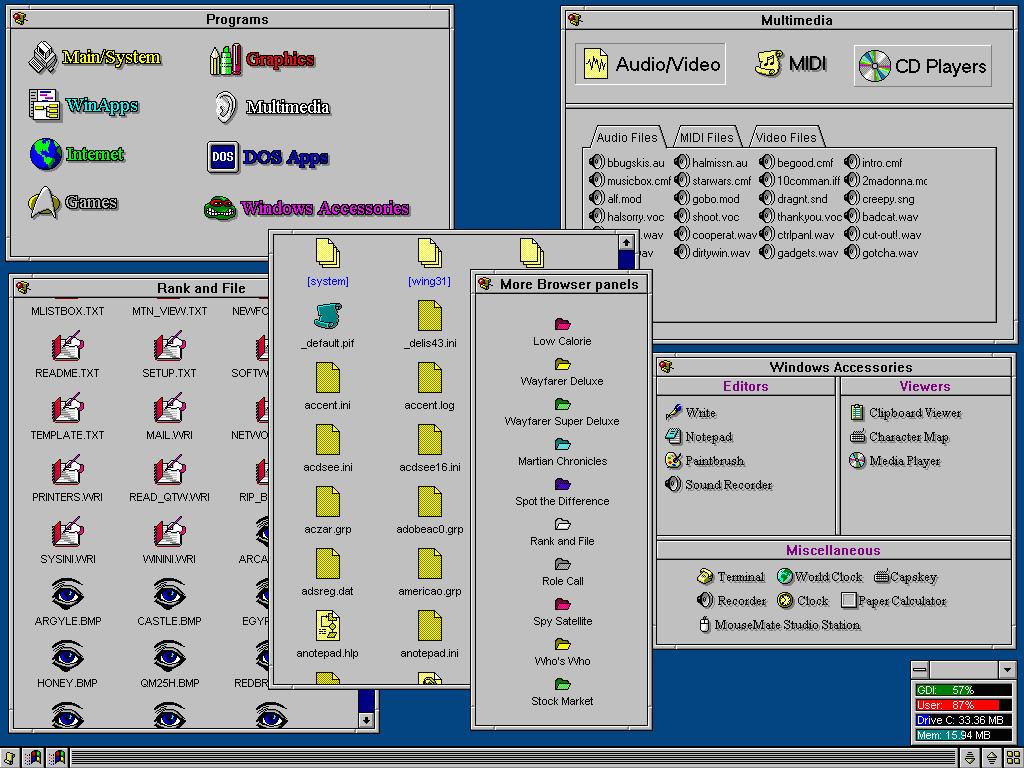
This is Wayfarer 2.2, the most customizable program manager ever made as far as I know. It's completely up to you how you want it to look. Small or large icons, fancy fonts, custom panels, etc. Everything is panel-based. Start off with a blank panel/window and go to town. There are three panel styles: General, progman-style for icons/groups, Tabs, and Browser (file manager). They can be separate or combined as shown in the example.
First we have a general (Programs) panel I use as the starting point using silly icons and embossed fonts. The Multimedia window is a good example of combined panel types. A single panel was split into two (panels can be split top/bottom and left/right), the top for launching programs, the bottom for files. The bottom panel uses tabs which in turn use browser panels for listing files. The Accessories window shows a three-way split where mini-icons called gadgets are used. Each section has its own title, also.
The Browser panels can be designed any way you want and I have two examples shown here along with a samples window showing all ten Browser examples listed. I must add though that the Browsers aren't all that useful. You can start programs from them but can't do any file management it seems (copy, rename, move, etc.).
Wayfarer is a single-click environment. There is no double clicking whatsoever which is good but takes getting used to. If you need to act on an icon such as modify, delete, etc. just right click on it. To reduce screen clutter panels will disappear once a program is run from it. So when you click on a panel and it comes up, then click on an application from it the original panel closes. Panels can be pinned to the desktop, however, by right clicking at the upper left on the titlebar. As part of the customizable nature of Wayfarer you can even turn off captions (titlebars) as shown in one of the Browser panels.
Wayfarer provides a taskbar at the bottom. It has nowhere near the functionality of other Win95-style taskbars and can be turned off if so desired. The three buttons on the far right will minimize, maximize, or tile all running apps. The far left button is the main button. Right clicking will bring up a menu to access Options..., Run..., help, and save settings. Left clicking will bring up the main/default panel with help, examples, etc. One can do whatever they want with it and customize it just like everything else.

