| Modifying Your Text and Paragraphs |
| While your text is still selected, click on the "B" button to Bold your text. Once completed, just click off of the highlighted text to see the finished product. |
 |
| The next step in the process is to select and highlight your title, "My Goals and Dreams". Once this is highlighted, you should change the font to "Century," "16 point," "Bold," and Underline it using the button that shows a "U". |
| To modify an existing text (use file Intro to Word), select and highlight all the text you want to adjust. Once highlighted, select the drop down box beside the name of the text font you are using such as, 'Times New Roman'. Then select a new font, in this case use the type called "Bell MT". All of the selected text should now have changed to Bell MT type. The next box allows you to select the point size of the font you have chosen. For our example, click on the drop down box and select 14 point. |
 |
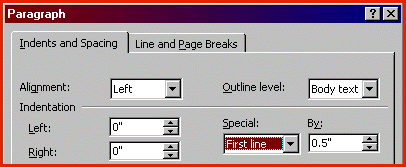
| The next procedure is to indent your paragraphs. On the Menu bar click the Format menu and then select the Paragraph command. To begin, put your cursor in front of the first word of the paragraph and click, so that it is blinking. To set a first-line indent under the Indents and Spacing tab, click the drop down box under Special: and then select First line. It will automatically change the By: box to indent 0.5". Then click the "OK" button. Repeat this procedure for the second paragraph as well. |
 |
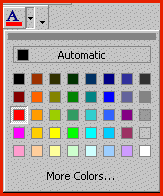
| You can also change the color of your font by selecting your text by highlighting it and then click on the Font color button. Then click on the color you want from the color palette. For our first try, try the dark blue color. Then change your title to a different color to experiment. |
| Practice by highlighting and changing your font to observe different types of fonts. |
 |
| Be sure to "Save" your changes!! Save your file as: Text Mod |
 |