|
|
|
|
|
|
|
|
|
|
|
|
|
|
|
|
|
How to Adjust a Word Document |
|
|
| Select the text from the "Technology and Society" section 04 called "The Digital Revolution of Sports".� Highlight and copy the text, and then paste it into a new Word document.� Convert the text to Calisto MT, 12 point, bold.� Add the Title: "A Revolution in Sports" in Calisto MT, 16 point bold, then center it and underline.� Save the file as SportsRev into your student folder.� |
|
|
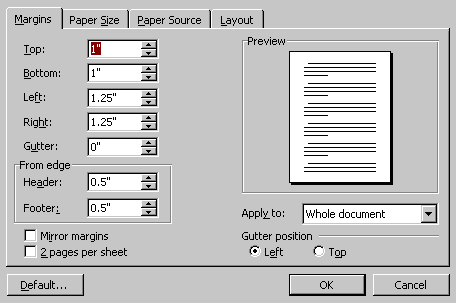
| Then select "File" from the menu bar and click on "Page Setup ..." a window like the following should appear: |
|
|
 |
|
|
| Under the "Margins" tab, make the following changes to your document. |
|
|
| Change the top margin to 0.8" |
|
|
| Change the bottom margin to 0.6" |
|
|
| Change the left margin to 1.0" |
|
|
| Change the right margin to 0.9" |
|
|
| When you have made all the changes, click OK and the adjustments should now appear on your document. |
|
|
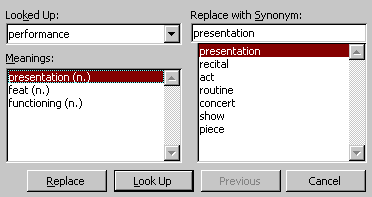
| In the second paragraph highlight the word "performance" and select "Tools" from the Menu Bar, then "Language" and click on "Thesaurus ..."� This should bring up a window that looks like the following: |
|
|
 |
|
|
| This allows you to find a substitute word for "performance" and replace it if necessary.� This comes in handy if you have used the same word a couple of times in your document. |
|
|
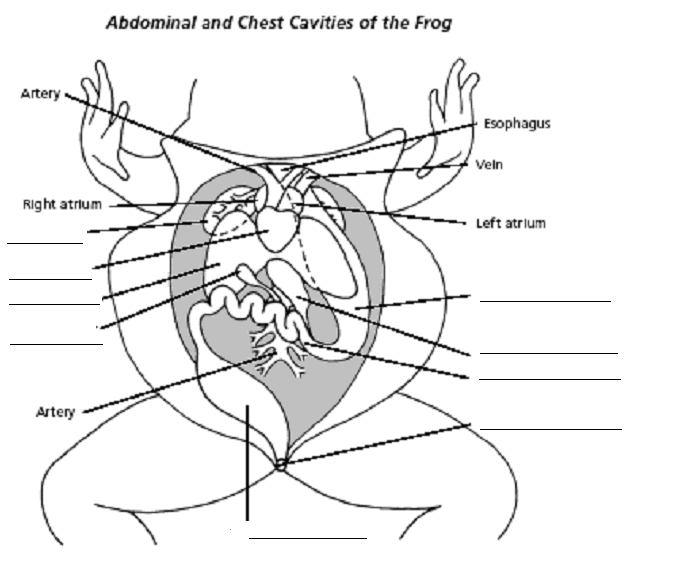
| Next, add tabs (0.5") to each paragraph of your document.� You can highlight each paragraph and select "Format" from the Menu Bar, then click on "Tabs ..."; this should bring up a new window that looks like the following: |
|
|
 |
|
|
| It should appear with the cursor blinking in the top left box called "Tab stop position:" If you enter "0.5" into this box and select OK you should now have a tab set in your document.� Proceed to the beginning of each paragraph and click to get a blinking cursor in front.� You should then be able to press the "Tab" key on the keyboard and it will indent the text for that paragraph. |
|
|
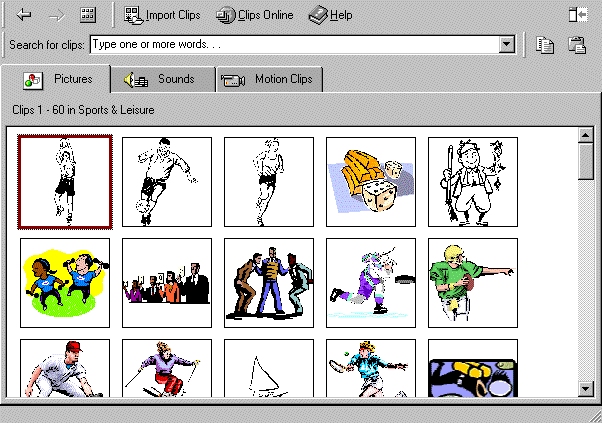
| The next task is to learn how to insert a picture or image.� Press the "Enter" key twice to double-space below the end of the last paragraph.� With the cursor blinking, select "Insert" from the Menu bar, then choose "Picture" and then select the option "Clip Art ..." This may take a few seconds to bring up a new window called "Insert Clip Art."� Scroll down and select on the category called "Sports & Leisure" then find and click the baseball player.� By double clicking on the picture, the image should be inserted of the ball player underneath the last paragraph. |
|
|
 |
|