This is copied from site
http://www.howstuffworks.com/mouse.htm
|
How Computer Mice Work |
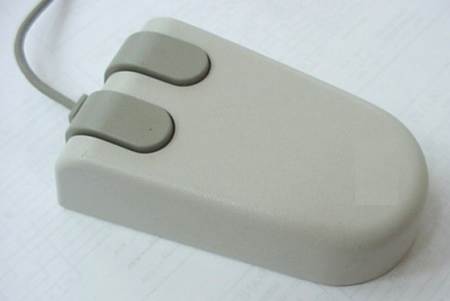
Mice first broke onto the
public stage with the introduction of the Apple Macintosh in 1984, and since
then they have helped to completely redefine the way we use computers! Every
day of your computing life, you reach out for your mouse whenever you
want to move your cursor or activate something. Your mouse senses your motion
and your clicks and sends them to the computer so it can respond appropriately.
Evolution
It is amazing how simple and effective a mouse is, and it is also amazing how
long it took mice to become a part of everyday life. Given that people
naturally point at things -- usually before they speak -- it is surprising that
it took so long for a good pointing device to develop. Although originally
conceived in the 1960's, it took quite some time for mice to become mainstream.
In the beginning there was no need to point
because computers used crude interfaces like teletype machines or punch cards
for data entry. The early text terminals did nothing more than emulate a
teletype (using the screen to replace paper), so it was many years (well into
the 1960s and early 1970s) before arrow keys were found on most terminals. Full
screen editors were the first things to take real advantage of the cursor keys,
and they offered humans the first crude way to point.
Light pens were used on a variety of machines as a pointing
device for many years, and graphics tablets, joy sticks and various other
devices were also popular in the 1970s. None of these really took off as the
pointing device of choice, however.
When the mouse hit the scene attached to the
Mac, it was an immediate success. There is something about it that is
completely natural. Compared to a graphics tablet, mice are extremely
inexpensive and they take up very little desk space. Mice in the PC world took
longer to gain ground, mainly because of a lack of support in the operating system.
Once Windows 3.1 made Graphical User Interfaces (GUIs) a standard, mice came
into the PC world very quickly.
Inside
a Mouse
The main goal of any mouse is to translate the motion of your hand into signals
that the computer can use. Almost all mice today do the translation using five
components:
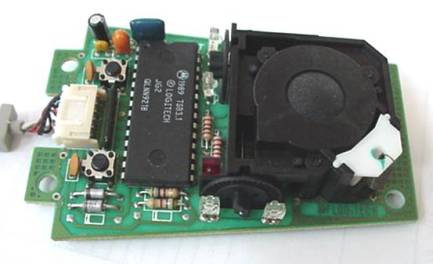
The guts of a mouse
A ball inside the mouse touches the desktop and rolls
when the mouse moves.
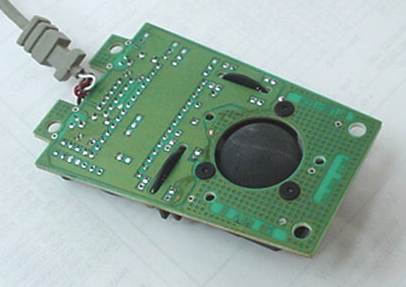
The
underside of the mouse's logic board. The exposed
portion of the ball touches the desktop
Two rollers inside the mouse touch the ball. One of
the rollers is oriented so that it detects motion in the X direction, and the
other is oriented 90 degrees to the first roller so it detects motion in the Y
direction. When the ball rolls, one or both of these rollers roll as well. The
following image shows the two white rollers on this mouse
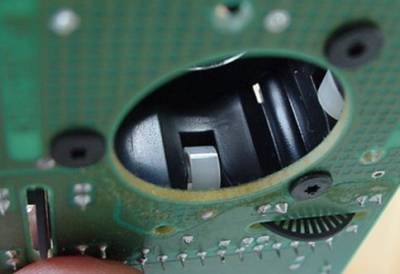
The rollers that touch the ball and
detect X and Y motion
The rollers each connect to a shaft, and the shaft
spins a disk with holes in it. When a roller rolls, its shaft and disk spin.
The following image shows the disk:
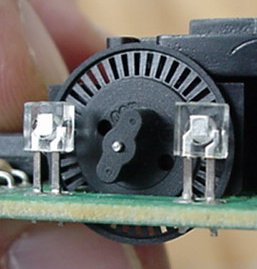
A typical
optical encoding disk. This disk
has 36 holes around its outer edge.
On either side of the disk
there is an infrared LED and an infrared sensor. The holes in the disk break
the beam of light coming from the LED, so that the infrared sensor sees pulses
of light. The rate of the pulsing is directly related to the speed of the mouse
and the distance it travels.
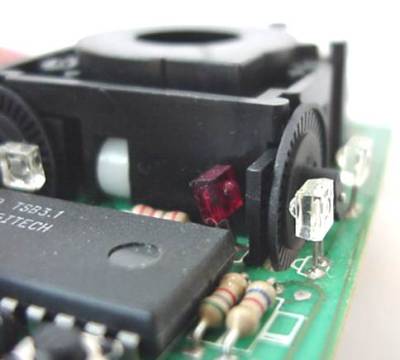
A close-up
of one of the optical encoders that track
mouse motion. There is an infrared LED (clear) on one side of the
disk and an infrared sensor (red) on the other.
An on-board processor chip
reads the pulses from the infrared sensors and turns them into binary data that
the computer can understand. The chip sends the binary data to the computer
through the mouse's cord.
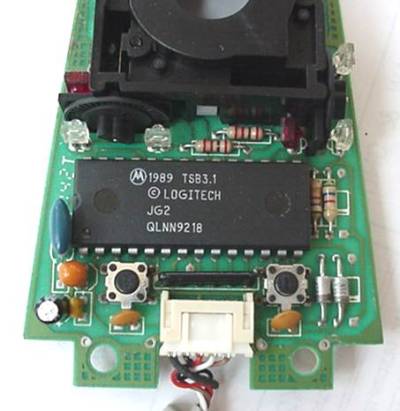
The logic
section of a mouse is dominated by an encoder chip,
a small processor that reads the pulses coming from the
infrared sensors and turns them into bytes sent to the computer.
You can also see the two buttons that detect clicks
(on either side of the wire connector).
Almost all mice used on
personal computers use this optomechanical arrangement. The disk moves
mechanically, and an optical system counts pulses of light. On this mouse, the
ball is 21 mm in diameter. The roller is 7 mm in diameter. The encoding disk
has 36 holes. So if the mouse moves 25.4 mm (1 inch), the encoder chip detects
41 pulses of light.
You
might have noticed that each encoder disk has 2 infrared LEDs and 2 infrared
sensors, one on each side of the disk (so there are four LED/sensor pairs
inside a mouse). This arrangement allows the processor to detect the disk's
direction of rotation. There is a piece of plastic with a small, precisely
located hole that sits between the encoder disk and each infrared sensor. It is
visible in this photo:
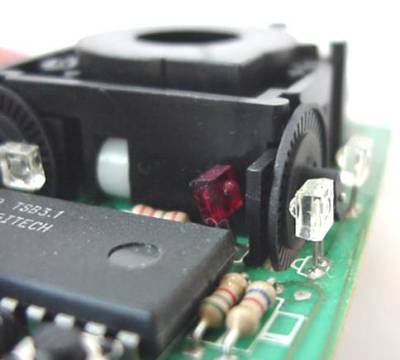
A close-up of one of
the optical encoders that track mouse motion.
Note the piece of plastic between the infrared sensor (red) and the encoding
disk
This
piece of plastic provides a window through which the infrared sensor can
"see". The window on one side of the disk is located slightly higher
than it is on the other -- one half the height of one of the holes in the
encoder disk, to be exact. That difference causes the two infrared sensors to
see pulses of light at slightly different times. There are times when one of
the sensors will see a pulse of light when the other does not, and vice versa. This
page offers a nice explanation of how direction is determined.
Data Interface
Just about all mice in use today have PS/2 type connectors, as shown here:
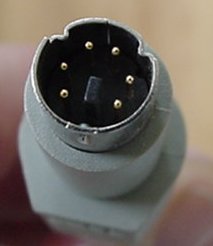
A typical PS/2
Connector. Assume that pin 1 is
located just to the left of the black alignment pin
and the others are numbered clockwise from there.
These pins have the following functions
(refer to the above photo for pin numbering):
- Unused
- +5 volts (to power the chip and LEDs)
- Unused
- Clock
- Ground
- Data
Whenever the mouse moves or
the user clicks a button, the mouse sends three bytes of data to the computer.
The first byte's 8 bits contain:
- Left button state (0 = off, 1 = on)
- Right button state (0 = off, 1 = on)
- 0
- 1
- X direction (positive or negative)
- Y direction
- X overflow (the mouse moved more than 255 pulses in 1/40th of a
second)
- Y overflow
The next two bytes contain
the X and Y movement values respectively. These two bytes contain the number of
pulses that have been detected in the X and Y direction since the last packet
was sent.
The
data is sent from the mouse to the computer serially on the data line, with the
clock line pulsing to tell the computer where each bit starts and stops. 11
bits are sent for each byte (1 start bit, 8 data bits, 1 parity bit and 1 stop
bit). The PS/2 mouse sends on the order of 1,200 bits per second. That allows
it to report mouse position to the computer at a maximum rate of about 40
reports per second. If you are moving the mouse very rapidly, the mouse may
travel an inch or more in 1/40th of a second. This is why there is a byte
allocated for X and Y motion in the data protocol.
This is copied from site