Microsoft Photo
Editor
comes with the Windows 98 operating system. It is a basic image editing program.
With it you can resize an image, adjust brightness and contrast, crop, and change
image resolution and format.
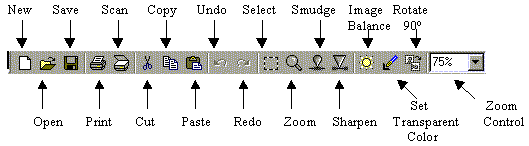
- Toolbar Icons
-
- Start
the Program
- Click on the
 button, choose Programs, then Microsoft Photo Editor
- Open
a File
- 1. Pull down
the File menu
 Open . . .
- 2. Locate your
file or image
- 3. Click Open
- Resize an
Image
- 1. Pull down
the Image menu Resize . . .
- 2. Enter the
new width and height or the percentage of the original
- 3. Click OK
- Adjust Image
Brightness/Contrast/Color Balance
- 1. Either click
on the Image Balance icon
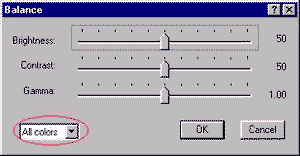
 or pull down the Image menu and choose Balance . . .
- 2. Slide the
Brightness bar to change the brightness
- 3. Clide the
Contrast bar to change the contrast
- 4. Slide the
Gamma bar to change the color balance
- 5. You can change
individual colors by pulling down the All colors menu
- 6. Click OK
when done
- Crop an Image
- 1. Click on
the Select icon
 on the toolbar
- 2. Drag the
mouse over the area you want to keep
- 3. Pull down
the Image menu Crop
- 4. Click OK
- Change
Image Resolution
- 1. Pull down
the File menu Properties . .
- 2. For Web paegs,
set the Resolution to 72 Pixels
- 3. Click OK
- Change File
Format/Saving
- 1. Pull down
the File menu
 Save As . . .
- 2. In the Save
as type box, click the file format you want:
-
.gif for drawings
-
.jpg for photographs
- 3. Give the
file a name. (There can be no spaces in the file name,)
- 4. Click OK
- Create Transparent
GIF Image
- If you are putting
a gif image on the Web, you can make the image's background transparent
so the background color of the web page shows through, ie., the transparent
areas of the image will take on the same color as the web page.
 You cannot make jpg images transparent.
- 1. Click on
the Set Transparent Color icon

- 2. Position
the tool over the color you want to make transparent, and click
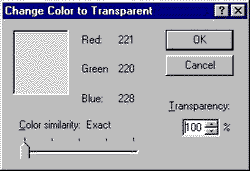
- 3. The Change
Color to Transparent dialog box appears
- 4. Click OK