
Inserting a Picture into a Microsoft Application
1. Open the Microsoft
Word document, PowerPoint presentation, Publisher document, or what ever you
are inserting your picture into.
2. Click on Insert at the tool bar at the top of the screen.
3. Go to Picture and then to From File.
4. Go to 3 ½ Floppy (A).
5. Click on the picture that you want to insert.
Rotating Pictures
1. Open Microsoft
Photo Editor or other editing program by going to Start > Programs > Photo
Editor (or the name of the other program).
2. Go to File > Open and open the photograph you want to insert.
3. Click the Rotate bottom on the toolbar.
4. Copy the photograph and paste it into your other document or application.
Formatting Pictures in Office Applications
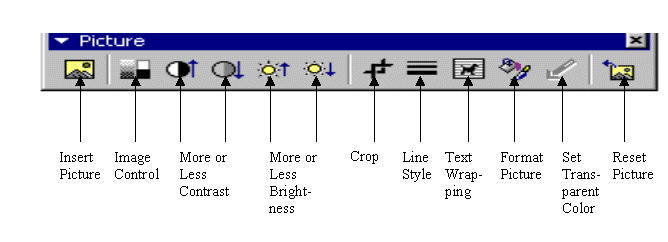
1. If your Picture toolbar is NOT turned on, turn it on by going to View>Toolbars>Picture. Once you turn it on, you can move the toolbar to the top, side, or bottom of your desktop simply by clicking on the bar at the bar at the top of the toolbar and dragging it to the location you desire.
Printing Your Pictures
1. When printing
pictures, go to Properties and change the Print Quality to the best available
on your printer.
2. If you use photographic paper, you will have better quality. You will have
to go to Properties and change the paper type.