USING ADOBE PHOTOSHOP
5.5 |
|
Adobe
Photoshop 5.5 is one of the most powerful software applications for image editing, touch
up, color correction, and painting and drawing. You can use it to work with images that
have been digitized on flatbed or film/slide scanners, or to create original graphic
images. The image files you create in Photoshop can be printed to paper or optimized for
use in multimedia presentations, Web pages, or animation/video projects.
In this step-by-step tutorial, you will create a poster that can be
printed to paper, displayed on the desktop of a� computer, or viewed on the Web. You
will learn how to work with a scanned image in Photoshop and how to incorporate this image
into a graphic design that you will create from scratch in Photoshop.
Before You Begin
To create a
good design using Photoshop 5.5, you will need patience and a little forethought. The
ability to communicate ideas visually is extremely important, but this process can be
intimidating. Storyboarding design ideas can help with this process. Storyboards are a
visual tool for communicating design ideas in their early stages. Most media producers
(e.g., film and television directors, video game designers, animators, comic book artists)
use storyboards to articulate their ideas and concepts. For example, the sample
storyboards below illustrate the primary objectives of this tutorial:
- To create an 8-inch x 10-inch poster, composed of a scanned image and graphic elements
created
- in Photoshop, that can be printed to paper, displayed on the desktop, or viewed on the
Web.
- To edit, touch up and adjust the color and tonal qualities of a scanned image.
- To design graphic elements using Photoshop's selection, coloring, and drawing tools.
Storyboards can also help you visualize the graphic elements in your
project and the design techniques you will use to create them. When storyboarding your
ideas, keep the following guidelines in mind:
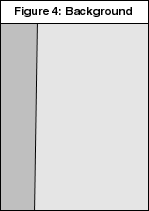
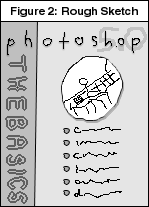
- Start by sketching out the overall concept of the design. (See Figure 2.)
- Using this concept sketch, try to identify all of the different elements that make up
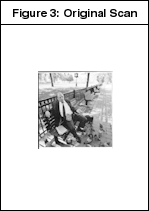
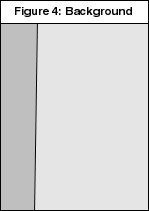
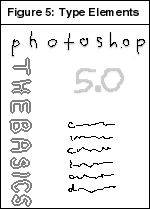
your design, and then sketch these elements independently. (See Figures 3 through 6.)
- Decide how to create the elements in Photoshop.
The first storyboard panel pictured (Figure 1) displays the finished poster you will be
creating in this tutorial. It is composed of a series of photographic and graphic
elements. The second storyboard panel, Figure 2, is a rough sketch of the design. Figures
3 through 6 break the poster into its basic parts. Keep in mind that these storyboard
panels present only one way of visualizing the finished poster; there is no right or wrong
way to dissect a design.
Downloading the Tutorial Files
You can download the files associated with this tutorial from the Web at http://acomp.stanford.edu/studio/tutorials/.
To download the files, follow these steps:
Launch Netscape Navigator or Internet Explorer and go to the Web site
listed above.
Once you have accessed the site, click on the Tutorial Downloads
hyperlink.
Netscape or Internet Explorer will prompt you to pick a location where
you want to save the file.
If you are working in the Multimedia Studio, save the file to the User
Space partition. If you are working on another system, save the file in a location of your
choice.
Once the file has been downloaded to your system, double-click on it to
decompress its contents. (Depending on your computer's set-up, it may decompress
automatically.) A folder called "Tutorial_Media" will appear in the User Space
partition or on the system you are using.
You are now ready to begin stepping through the tutorial, which is
comprised of two main sections: Working with Bitmap Images and Creating New Content. At the end of this document you will find a list
of referrals to further resources.
Part 1: Working with Bitmap Images
This section of the tutorial covers working with existing bitmap image
files in Photoshop 5.5. It illustrates techniques for performing the following tasks:
launching the Photoshop application,
opening bitmap image files,
duplicating a bitmap image file,
working with the image window,
image editing,
color and tonal adjustment, and
image resizing and resampling.
Bitmap Image Files
A bitmap image is made up of hundreds of dots, called pixels, which are
arranged in a pattern to make up your image. Each pixel contains information about its
color and its location within the image. Bitmap image files tend to be large, but they are
easy to edit pixel by pixel. The quality of a bitmap image is determined by two variables:
the number of pixels displayed per unit of printed length in an image
(also called resolution) and
the bit depth, or richness of color, associated with each pixel.
Each pixel can have a "bit depth" of one to thirty-two bits.
The number of colors available per pixel is determined by the pixel's bit depth. A pixel
with a bit depth of one holds two colors (white and black). A pixel with a bit depth of
eight holds 256 colors. A pixel with a bit depth of twenty-four holds 16.7 million colors.
Photoshop supports the following bit depths:
1-bit color (two colorsblack and white)
8-bit color or Grayscale (256 shades of color or gray)
24-bit color (16.7 million shades of color)
Photoshop's default bit depth is 24-bit color. However, depending on
the configuration of the monitor you are using, all twenty-four bits of color information
may not be available. Some monitors only support eight or sixteen bits of color
information.
Launching Photoshop
The following steps describe how to launch Photoshop on a Multimedia
Studio station:
- Locate the MM Studio Launcher icon on the Macintosh desktop and double-click on
it. If you can't locate the Launcher on your desktop, skip to the next set of
instructions.
- The MM Studio Launcher organizes software applications by use. At the top of the
Launcher window, click on the button labeled Graphic Design.
- Inside the Launcher's Graphic Design folder, click on the Adobe Photoshop button;
this will start the application.
If you can't locate the MM Studio Launcher on the desktop:
�
- In the open Find File window, type Adobe Photoshop and click on Find. A
window labeled "Items Found" will appear.
- Scroll through the contents of the Items Found window until you find the Adobe Photoshop
application program. (It will be listed as an application program in the "Kind"
column of the Items Found window.) Double-click on the application icon to start
Photoshop.
Components
of the Work Area
In Photoshop, the environment in which you edit and manipulate your
image is called the work area. The work area is made up of the elements described below.
Toolbox: Photoshop's toolbox contains most of the tools necessary for selecting,
editing, cropping, touching up, painting, and drawing images.
Menu Bar: Photoshop's menu bar, which is located at the top of the screen,
provides access to a variety of commands and options. Some menu commands add functionality
to the tools in the toolbox and to Photoshop's palettes. Others work independently.
Functions that you can access in the menu bar include:
- Opening, closing, and saving image files.
- Adjusting an image's size and resolution (number of pixels per square inch of image).
- Adjusting an image file's color mode (the color model Photoshop uses to process an image
file's color information).
- Applying special effects filters.
Image Window: Photoshop's image window is the space where you view and
manipulate your image. For more information about the image window, see "Working with
the Image Window".
Palettes: Photoshop's palettes appear as a series of floating windows in the
work area. They control the behavior of tools in the toolbox or work independently. When
you launch Photoshop, the following palettes should open automatically:
- Navigator/Info/Options
- Color/Swatches/Brushes
- History/Actions
- Layers/Channels/Paths
Sometimes palettes are open, but hidden from view. Depending on how Photoshop's
preferences are set, some palettes may not open automatically. To reset the palette
positions in the Photoshop work area so that they are easier to find, follow the steps
listed below.
- Choose File > Preferences > General from the Photoshop menu bar. (You can
also press the command and K keys together.) The Preferences dialog box will open,
displaying the General preferences for Photoshop.
- Click on the button labeled Reset Palette Locations to Default. The palettes
listed above will appear on your desktop.
- If you close a palette to create more space on your desktop and want to open it again,
go to the Windows menu and choose the appropriate Show command to open the desired
palette.
Opening
an Image File
After you launch Photoshop, follow the steps listed below to open the
scanned image that will be used throughout the tutorial.
- Select File > Open from the Photoshop menu bar.
- In the dialog box that appears, click the on the Desktop button.
- Select the User Space partition (or the drive where you stored the Tutorial_Media folder
you downloaded). Click on Open.
- Select the Tutorial_Media folder, then click on Open.
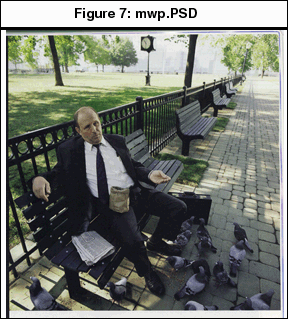
- Select the file named "mwp.PSD," then click on Open. Note: The
".PSD" in the image's file name stands for "Photoshop document,"
indicating that the file has been saved in Photoshop's native file format. For more
information about the Photoshop and other file formats, see Choosing a
Graphic File Format and Saving Your Work of this handout. The Photoshop file should
look like Figure 7 when it is opened.
Making a Backup Copy of Your Image
It is a good idea to make a backup copy of the file you are working on to
avoid accidentally deleting it or making unwanted, permanent changes to it. If the backup
copy is ruined somehow, you can return to your original image file.
To make a copy of mwp.PSD, follow the steps below.
- Choose File > Save a Copy from the menu bar.
- In the dialog box that appears, check to see if Photoshop is configured to save your
backup image in the Tutorial_Media folder. If it is, skip to step 6.
- If Photoshop is not set up to save to this folder, click on the Desktop button.
- Select the User Space icon (or the drive where you saved the Tutorial_Media folder),
then click on Open.
- Select the Tutorial_Media folder, then click on Open.
- Type mwpedit.PSD in the Save a Copy: field.
- Click on the Format pull-down menu and select Photoshop from the choices listed.
- Click on Save to duplicate your original image.
Photoshop will not automatically open the new file, mwpedit.PSD. You
must manually close the mwp.PSD file and open mwpedit.PSD. The following steps describe
how to close the original file and open the duplicate.
- To close the original mwp.PSD image, click on the box in the top left-hand corner of the
image, or choose File > Close (command-W) from the Photoshop menu bar.
- Choose File > Open (command-O).
- In the dialog box that appears, select the mwpedit.PSD file, then click on Open.
Photoshop will open the file and it will appear in the image window.
Working with the Image Window
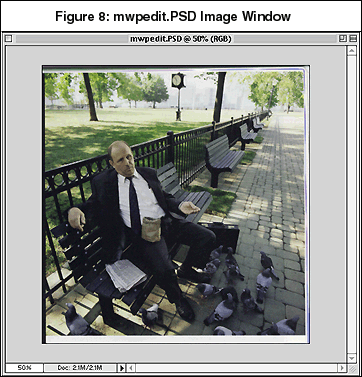
When you open the "mwpedit.PSD" file, Photoshop displays
useful information in the title bars at the top and bottom of the image window. (See Figure 8.) This information includes:
- the name of the image file (e.g., "mwpedit.PSD"),
- the scale (50 percent) of the image,
- the color mode (RGB) in which Photoshop is displaying and managing the image, and
- the size of the image file (2.1 M, where "M" stands for megabytes).
You can easily adjust much of the information displayed in the image
window. To enlarge, or change the scale of your file to 100 percent, double-click on the
Zoom tool in the toolbox. (The Zoom tool looks like a magnifying glass and is located in
the lower right-hand corner of the toolbox.) Notice that while the image resizes to 100
percent, the size of the image window remains the same. To increase the size of the image
window, follow the steps below.
- Click on the zoom box, which is the first of the two small boxes in the upper right-hand
corner of the title bar.
- Then position the mouse over the bottom right-hand corner of the image window.
- Click and hold down the mouse while dragging toward the bottom right-hand corner of the
screen.
- Continue dragging until you can easily see the four corners of the mwpedit.PSD file, as
shown in Figure 8. Release the mouse button.
You may need to reduce the display size of the image file to see all of the image. To
reduce, or change the scale of the image to 50 percent (or a percentage of your choice),
follow the steps below.
- Click on the Zoom tool in the toolbox to select it.
- Press and hold down the option key. The plus sign (+) in the middle of the magnifying
icon will turn into a minus sign (-). ( (+) is for increase magnification, (-) is for
decrease magnification.).
- Position the mouse over the center of your image and click. Each time you click, the
image's size will be reduced. Click until the image's scale reads 50 percent in the title
bar.
- To enlarge the picture again, release the option key (which turns the magnifying icon
back to a (+) ) and click.
Cleaning
Up Rough Edges
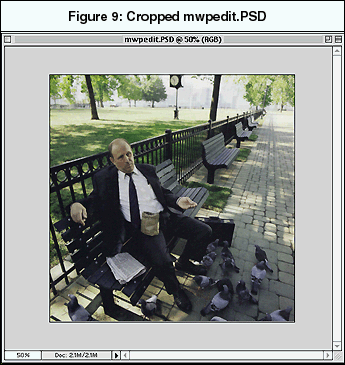
You should now be able to see all four corners of the mwpedit.PSD image
window. When you look at the image, notice that the picture of the man on the park bench
appears crooked. This often happens when images are not perfectly aligned when scanned on
a flatbed scanner.
Photoshop has a variety of tools for straightening crooked images. One
easy way to make a crooked image look straight is to crop out its rough edges. You can use
the Rectangular Marquee tool to crop your image.
Cropping with the Rectangular Marquee: The Rectangular Marquee is
located in the top left-hand corner of the toolbox. The following steps describe how to
use it to crop out sloppy edges in your image.
- Select the Rectangular Marquee in the top left-hand corner of the toolbox by clicking on
it. (You can also type M to select it.) You will use this tool to select the area
of your image that you want to keep.
- Position the mouse over the top left-hand corner of the image. Notice that the mouse
pointer turns into a crosshair.
- Decide how much of the top left-hand edge of your image you want to crop out.
- Click on the mouse button and, while holding it down, drag the mouse down and to the
bottom right-hand corner of the image. As you drag, you will see a dotted selection border
appear around the area you are selecting.
- Keeping the mouse button down, decide how much of the bottom right-hand corner of the
image you want to crop out. Resize the selection border until it includes only the area of
the image that you want to keep.
- Release the mouse button when you are finished making your selection.
- Choose Image > Crop from the menu bar. Photoshop deletes the area outside of
your selection.
- If you are not satisfied with your crop, choose Edit > Undo Crop from
Photoshop's menu bar.
- Repeat the steps described above as many times as necessary until you are satisfied with
the cropped image.
- When you are finished, save your work by choosing File > Save from Photoshop's
menu bar. Remember to continue saving frequently to avoid losing your work if Photoshop
crashes unexpectedly.
When using the Rectangular Marquee, keep the following considerations in
mind:
- Once you have selected an area with the Rectangular Marquee, you can move the selected
area around the image window. Do so by clicking in the center of the selection area, then
dragging the selected area to the desired location in your image or pressing the arrow
keys (right, left, up, down) on the keyboard.
- To exit a marquee selection, choose Edit > Undo Rectangular Marquee (or press
the command and Z keys together) or Select > Deselect (or press the command and
D keys together) from the menu bar.
Making Basic Color and Tonal Corrections
This section describes how to improve or modify the appearance of your
image using Photoshop's color and tonal correction tools. In the context of Photoshop,
color refers to hues, or what we normally think of as colorred, blue, yellow, purple.
Tonal correction tools are used to increase or decrease the range of color valuesdullness,
brightness, intensity, luminosity, shadows and highlights. Increasing the tonal range of
the colors in an image will make more detail visible. Most of the color and tonal
correction tools are accessible via the Image > Adjust... command in Photoshop's
menu bar. This tutorial describes how to use three of Photoshop's color/tone correction
commands: Brightness/Contrast, Variations, and Levels. Use the Brightness/Contrast command
only when you need to make very basic tonal corrections. Use the Variations command when
more elaborate color adjustments are necessary. Use the Levels command to increase the
tonal range of colors in your image by setting precise highlight and shadow values for
your image.
Using the Brightness/Contrast Command: The Brightness/Contrast
command lets you make basic adjustments to an image's tonal range. To adjust your image's
brightness and contrast levels, follow the steps below.
- Choose Image > Adjust > Brightness/Contrast from the menu bar. The
Brightness/Contrast dialog box will appear.
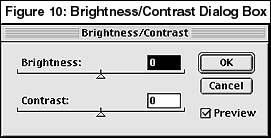
- In the lower right-hand corner of the box, click on the box labeled Preview to
see the difference in the image as you are making changes to the brightness and contrast
settings.
- You can adjust the brightness and contrast by clicking and dragging the appropriate
slider to the left or right to adjust the values. Dragging the sliders to the left
decreases the color levels. Dragging them to the right increases color levels. You can
also enter brightness and contrast values between _100 and 100 in the box above each
slider.
- Click on Cancel to cancel your changes and close the dialog box. To apply the
changes to your image, click on OK.
Using the Variations Command: The Variations command lets you
make visual adjustments to an image's color, contrast, and saturation. To use this
command, follow the steps below.
- Choose Image > Adjust > Variations... from the menu bar. The Variations
window will appear.
- The two swatches at the top of the Variations dialog box, labeled Original and Current
Pick, show before and after views of the image being adjusted.
- At the top right-hand side of the dialog box, radio buttons labeled Shadows, Midtones,
Highlights and Saturation show which part of the image is being adjusted (e.g., dark,
midtone, or light areas).
- The Fine/Coarse slider below these buttons determines the intensity of each adjustment.
Coarse adjustments tend to be more dramatic than Fine adjustments.
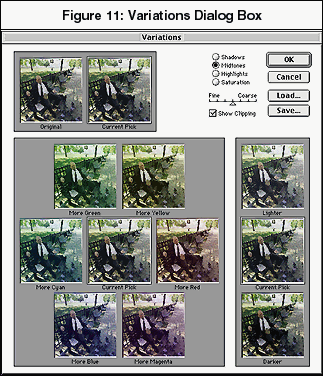
- To alter the tonal range of your image, click on the additive (Red, Green, Blue) and
subtractive (Cyan, Magenta, Yellow) color swatches, one at a time. You can see the effects
of your adjustments in the swatch labeled Current Pick, located at the center of the
dialog box.
- To adjust the brightness of your image, click on the swatches labeled Lighter and
Darker, one at a time. You can see the effects of doing so in the swatch labeled
Current Pick, located between the Lighter and Darker swatches.
- To return to the original state of the colors in your image, click on the swatch labeled
Original in the upper left-hand corner of the Variations dialog box.
- When you are satisfied with your color and tonal adjustments, click on OK to
apply the changes to your image.
- To quit the Variations dialog box without altering your image, click on Cancel.
- Save your work by choosing File > Save from the Photoshop menu bar.
Using the Levels Command: The Levels command, which is a bit more
complex than Brightness/Contrast and Variations, lets you make tonal corrections to your
image by setting the extreme highlight and shadow pixels in the image. This command is
designed to improve the detail in your image. To use the Levels command, follow the steps
listed below.
- Choose Image > Adjust > Levels... from Photoshop's menu bar. The Levels
window will appear.
- The Channel pull-down menu lets you choose which channel of your image you want to
adjust. When your image is in the RGB color mode, you can adjust four different channels:
RGB, Red, Green, or Blue. (For more information about color modes, see Color Models and Modes.)
- The Levels window displays a histogram of the pixels in the image you are working on.
The pixels on the left-hand side of the histogram represent the shadows in your image. The
pixel that is the farthest to the left is the darkest pixel in your image. The pixels on
the right-hand side of the histogram represent the highlights in your image. Similarly,
the pixel that is the farthest to the right is the lightest point in your image. The
pixels in the middle of the histogram are the midtones in your image.
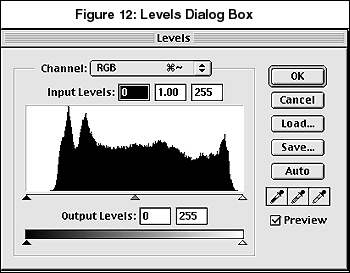
- To set the shadows in your image, drag the black Input Slider triangle (located below
the histogram on the left-hand side of the slider) to the edge of the first group of
pixels on the left-hand side of the histogram.
- To set the highlights in your image, drag the white Input Slider triangle (located below
the histogram on the right-hand side of the slider) to the edge of the first group of
pixels on the right-hand side of the histogram.
- Drag the gray Input slider triangle (located below the histogram in the middle of the
slider) to the left or right to set a value for the midtones in your image.
- To decrease the contrast in your image, drag the Output Levels sliders to the right or
left until you are satisfied with the appearance of your image. These sliders are located
underneath the Output Levels bar at the bottom of the Levels window.
- When you are satisfied with the tones in your image, click on OK to apply the
changes you have made to your image.
Color
Models and Modes
Photoshop supports a variety of color models via its color modes. A color
model is an established method of describing and reproducing color. Photoshop's color
modes are based on the most widely accepted color models. They are used to determine how
Photoshop defines, displays, and prints colors.
The image you are working on, mwpedit.PSD, was created in RGB mode.
(Notice that this is shown in the title bar of the image window. See Figure
8.) You can easily change the image's color mode to Grayscale if you need to
manipulate the image in black and white, or to CMYK color if you are planning on printing
the image. The following section provides basic descriptions of commonly used color modes
in Photoshop, and instructions on how to convert your image into them. Switching an
existing image to a different color mode makes permanent changes to the image; you should
save a copy of your image in its original mode before making mode changes. Switching back
and forth between modes in one copy of an image file is not recommended.
RGB Color mode: Photoshop's default color mode, RGB Color, is based on the RGB
color model, which is used to display color on televisions, computer screens, and video
projection devices. RGB stands for red, green, and blue, the three primary colors from
which all other colors in the visible spectrum can be created. When these three colors are
combined, they create the color white.
When Photoshop is working in RGB Color mode, it can generate over 16.7 million colors,
all based on some mixture of red, green, and blue. In RGB mode, each pixel is allocated a
bit depth of eight. (For more information about bit depth, see Bitmap
Image Files.) This bit depth is the equivalent of 256 colors, which range from 0
(black) to 255 (white).
In Photoshop, RGB images have three channels. While it is possible to edit an RGB image
channel by channel (using the Channels palette), it is much more common to edit all three
channels of an RGB image at once. If you are working on an image that is not already in
the RGB color mode, you can convert it to the RGB color mode by selecting Image >
Mode > RGB Color from the menu bar. To undo this conversion, immediately select Edit
> Undo RGB.
Grayscale mode: Grayscale images have a bit depth of 256 shades of
gray, where 0 is black, 255 is white, and the values in between are variations of gray. In
Photoshop, Grayscale images have one channel. When you convert an image to Grayscale,
Photoshop discards its color information. To convert your image to Grayscale mode:
- Choose Image > Mode > Grayscale from the menu bar.
- A dialog box will appear asking you if you really want to discard the image's color
information. To discard color information and create a Grayscale image, click on OK
in this dialog box. To cancel the mode change, click on Cancel.
- After converting your image to Grayscale, you can undo the conversion by choosing Edit
> Undo Grayscale from the menu bar or by pressing the command and Z keys together
immediately after executing the conversion. Note: For the sake of this tutorial,
undo the conversion using one of these techniques.
CMYK Color mode: CMYK Color mode is based on the light-absorbing qualities of
cyan, magenta and yellow ink on paper. The "K" in "CMYK" stands for
black, the color created when the three inks are combined; they absorb all colors and
create black. (In the actual printing process, a separate black ink is used to create a
darker black.) Convert your image to CMYK Color mode when you are planning on printing
your image to a color printer, or if you need to save color separations for a printing
press. To convert your image to CMYK color mode:
- Choose Image > Mode > CMYK Color from the menu bar. Photoshop will convert
your image to CMYK color mode.
- To cancel the mode change, immediately choose Edit > Undo CMYK Color from the
menu bar, or press the command and Z keys together. Note: For the sake of this
tutorial, undo the conversion using one of these techniques.
Indexed Color mode: When Photoshop works in Indexed Color mode,
it uses a maximum of 256 colors (the equivalent of 8-bit color) and creates a
single-channel image file.
Indexed Color mode
works by surveying the color information in an RGB image file and mapping it onto a Color
Look Up Table (also called a "CLUT") of 256 colors or less. Indexed Color mode
is useful because it supports variable bit depths. (Bit depth is the amount of color
information per pixel. See Bitmap Image Files for more information.)
An Indexed Color image might have a bit depth of eight bits, five bits, or one bit.
Photoshop allows you to choose the bit depth when indexing the color in an image so that
you can achieve maximum file size compression with minimum image degradation. (The smaller
the bit depth, the smaller the file, and the fewer numbers of colors represented in the
image.) To convert your image to Indexed Color mode:
Choose Image > Mode >
Indexed Color from the menu bar.
If your image has more than one layer, a dialog box will appear asking you if you want
to flatten the image. Flattening an image combines all the layers into one, reducing the
image's file size. Click on OK to proceed and flatten your image.
The Indexed Color dialog box will appear. Click in the Preview box to see a
preview of your image as you select options in this dialog box.
The Palette menu lets you select a predetermined CLUT for your image. There are various
choices under the Palette pull down menu. Each of these choices (Adaptive,Perpectual, Web,
etc.) specify a certain palette of colors that you can use to optimize the image. On some
of these choices (Adaptive, for example), you can specify between 2 and 256 colors under
the Colors option. Under the Forced option, you can specify which colors you
want to force force include in your palette (even if they don't appear in the original
image). The forced colors will replace the closest matching palette colors. By checking
the Transparency box, you can chose whether or not to retain certain transparent
regions in your image if they exist.
Under the Options menu, the options are are Matte, Dither, and Amount.
Matte allows you to choose a color to fill in the transparent regions of your
image. Dither allows you to select a type of dithering for your image (Noise, for
example, is perfect for reducing seam patterns in sliced image to be used on the Web if
you plan to put in a table). Amount refers to a percentage that determines how much
dithering is applied to an image. By checking the Preserve Exact Colors box, you
can eliminate the possibility of new colors being introduced to the palette through
dithering.
If you want to cancel the conversion, click on Cancel in the Indexed Color
window.
When you are finished selecting options in the Indexed Color dialog box, click on OK.
Photoshop will convert your image to Indexed Color mode. To undo the conversion, choose Edit
> Undo Indexed Color from the menu bar. Note: For the sake of this tutorial,
undo the conversion using this technique.
Indexed Color Example: Follow these steps to convert your image
to two colors, white and another color of your choice.
- To convert your image into a 1-bit 2 color image, first follow steps 1-3 from above.
- Choose Adaptive under the Palette option. Under the Colors option, enter
2.
- Under the Forced option, change the selection to Custom...
- Now the Custom window will pop up. In this window, there are 256 little tiny
tiles. Click on one of the tiles and choose your own foreground color. Then, click on a
second one and choose white for the background. These two colors will now replace the
appropriate light/dark pixels in your image to create a 1-bit 2 color image.
For additional
information about Photoshop's color modes, select Help > Help Topics... from the
menu bar to access Photoshop's online Help system. In the dialog box that appears, click
on the Index tab and type in color mode.
To save pictures optimized with an Index color for the Web, such as
in a GIF format, please refer to the section of "File Formats for the Web Use."
Using Image Filters
When you view your image at a scale other than 100 percent, it can be
difficult to judge the accuracy of your edits and color/tonal adjustments. To view your
image at 100 percent, double-click on the Zoom tool in the toolbox. The image window
indicates that you are viewing your image at 100 percent.
At 100 percent scale, you may see a distortion called a moir� pattern.
This distortion occurs when two patterns are superimposed on top of each other at acute
angles. The effect usually happens after a halftone image that was printed on thin,
brittle paper (such as magazine or newspaper stock) is scanned. The best way to remove the
moir� pattern is to apply the Despeckle image filter. Despeckle is one of the Noise
Filters within Photoshop's Filter menu. It works by looking for the edges in an image
(e.g., the areas of significant color change) and blurring everything but these edges.
This effect blurs the moir� pattern without distorting the detail of the image. To apply
the Despeckle Noise filter to your image:
- Choose Filter > Noise > Despeckle from the Photoshop menu bar.
- Photoshop immediately applies the filter to your image.
- To cancel the applied filter, choose Edit > Undo Despeckle from the menu bar.
To decrease the impact of the despeckling, choose Filter > Fade Despeckle from
the menu bar and adjust the slider until the desired effect is achieved.
- Save your work by selecting File > Save from Photoshop's menu bar.
Photoshop has an
extensive collection of filters that can add interesting effects to your image. There are
more than fourteen groups of image filters available in Photoshop 5.5. These filters can
be applied to an entire image (as in the example of your mwpedit.PSD image), to a selected
area in an image, or to an individual layer.
For more information about Photoshop's library of filters, choose Help
> Help Contents from the Photoshop menu bar. In the dialog box that appears, click
on Using Filters in the Contents box.
Resampling and Resizing Your Image
Before you can begin work on the rest of the poster, you must choose a
print size and final resolution for your image. The print size of an image is the amount
of physical space it occupies on a sheet of paper when printed. The resolution of an image
is the number of pixels displayed per unit of printed length.
Resolution: Print versus Monitor
The resolution of a printer is typically measured in pixels per inch
(ppi). The resolution of a computer monitor is usually measured in dots per inch (dpi).
Monitor resolution, which is more confusing than printer resolution, is determined by two
variables:
- the size of the monitor and
- the bit depth per pixel.
Usually, Macintosh monitors have a screen resolution of 72 dpi. The
resolution of a PC monitor is approximately 96 dpi. Graphic designers often manipulate
image files in Photoshop with resolutions much higher than 72 dpi or 96 dpi. Photoshop
makes no distinction between ppi and dpi. As a result, images with ppi values larger than
the dpi values of the monitors they are displayed on appear larger than their printed
dimensions. For instance, the file you are currently working on was originally scanned at
150 ppi. Its original printing dimensions were 5.593 inches by 5.82 inches. However, when
the image is displayed on a 72 dpi Macintosh monitor, it appears almost twice as large.
Resampling Your Image
The poster you are designing in this tutorial can be printed to paper or
viewed on the desktop. Normally, however, images meant to be printed are created at a
higher resolution (at least 200 dpi; most laser printers support resolutions up to 600
dpi). It is important to plan how and where you want to make your image viewable before
you start a Photoshop project. For example, if you know you are creating a graphic that
will only be used on the Web, there is no reason to work in a resolution higher than
75dpi; the higher the resolution, the larger the file size, and the slower Photoshop will
process commands.
For the purposes of this tutorial, you need to alter the resolution of
your image so that it will fit on a computer screen. Altering the resolution of an image
is commonly referred to as "resampling." Resampling an image reduces the number
of pixels per unit of printed length without reducing the physical dimensions of the
image. This sometimes causes a dramatic loss in image quality. In this tutorial,
resampling does not dramatically affect the quality of the image you are working on.
Resampling Guidelines: The following are some guidelines to
remember when resampling your image.
- Try to pick even multiples of your image's original resolution. For example, if your
image has a resolution of 150 ppi and you want to resample it to a lower resolution,
resample it to 75 dpi.
- Try not to resample your image to a resolution that is higher than its original
resolution. Resampling to higher resolutions usually degrades the image quality.
Resizing Your Image
You will also need to resize your mwpedit.PSD image to reduce the image's print area on
paper. Resizing an image, like resampling, can affect image quality. Reducing an image's
print area can slightly improve image quality, while enlarging an image's print area tends
to degrade image quality. If you plan on enlarging an image, remember to scan the image at
a higher resolution than you need for printing. This process is called
"oversampling" an image. Note: You should wait until you have completed
all adjustments to your image before resizing it.
You can resample an image's resolution and/or resize its print dimensions
using the Image Size command in Photoshop. The following steps describe how to use the
Image Size command.
- Choose Image > Image Size from Photoshop's menu bar. The Image Size dialog box
will appear.
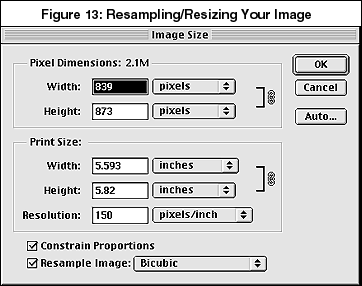
- In the Image Size dialog box, you will see five fields. Ignore the Pixel Dimensions
fields at the top of the window. You will be entering values in the Print Size fields.
- Click on the Constrain Proportions and Resample Image boxes at the bottom
of the dialog box to select them. When you select Constrain Proportions, Photoshop keeps
the proportions of your image the same, regardless of the new values you enter in the
Width and Height fields above.
- In the Resample Image menu, select Bicubic from the pull-down menu.
- In the Print Size fields, select inches from the pull-down menus to the right of
the Width and Height fields. In the Width field, type 4.5. Photoshop automatically
calculates a proportional height, which appears in the Height field.
- Select pixels/inch from the pull-down menu next to the Resolution field. Type 75
in the Resolution field. Notice that altering the resolution of the image decreases the
Pixel Dimensions of your file (which are shown at the top of the window).
- To quit the Image Size window without altering your image, click on Cancel.
- To apply these changes to your image, click on OK in the Image Size dialog box.
- To undo the resampling and resizing alterations you made to your image, choose Edit
> Undo Image Size from the menu bar.
- Choose File > Save from Photoshop's menu bar to save your image.
Part 2: Creating New Content
To complete the rest of your poster, you will use Photoshop to create
graphic elements that will accompany the mwpedit.PSD file. You should have sketched these
elements in your storyboard panels, which are displayed in Figures 3
through 6. In Part 2 of this tutorial, you will learn how to create these elements and
combine them with your mwpedit.PSD image to create a finished poster. This section of the
tutorial covers the following topics:
- creating a new Photoshop file,
- copying an image between Photoshop files,
- working with layers,
- working with color,
- creating a drop shadow,
- working with the Type tool,
- drawing and painting,
- manipulating objects, and
- choosing a graphic file format for your poster.
You will begin by creating a new file in Photoshop 5.5. The new file will
be an RGB image with a resolution of 75 ppi, and you will save it in the Photoshop file
format. The following steps describe how to create a new file with these characteristics.
- Choose File > New... from the Photoshop menu bar. The New dialog box will
appear.
- In the Name field, type mwpPoster.PSD.
- In the Image Size section, select inches from the pull-down menu next to each of
the fields, then type 8 in the Width field and 10 in the Height field.
- In the Resolution field, select pixels/inch from the pull-down menu next to the
field, then type 75.
- In the Mode pull-down menu, select RGB.
- In the Contents section, Photoshop lets you choose a background color for your image.
You can select a white background, the background color shown in the toolbox, or a
transparent background. When you select Transparent, the background of your image is
usually represented by a grid; no pixels are present in a transparent background. For the
image you are creating, click on the button labeled White; the background layer
will be filled with white pixels.
- Click on OK to open the new file. The new image file will open at a scale that
fits your workstation's monitor screen size.
Copying
an Image Between Photoshop Files
This section describes how to copy the mwpedit.PSD image you adjusted in
Part 1 into your new Photoshop file. Note: Your mwpedit.PSD file should still be
open in Photoshop.
- In the mwpPoster.PSD file you created, select Window > mwpedit.PSD. The
mwpedit.PSD image will appear in the image window.
- Choose Select > All from Photoshop's menu bar. A dotted selection border will
appear around your image.
- Choose Edit > Copy to copy your mwpedit.PSD image.
- Select Window > mwpPoster.PSD. The new file you created will appear in your
image window.
- Choose Edit > Paste to paste the mwpedit.PSD image into your new file.
- Save your mwpPoster.PSD file by choosing File > Save from the menu bar. Your
file will automatically be saved in the native Photoshop file format.
Working
with Layers
When you copied the mwpedit.PSD image into your new image file, Photoshop
placed it on a new layer in the mwpPoster.PSD file. Layers, like sheets of clear acetate
used in traditional paper-based layout, are transparent overlays used to create, edit and
organize graphic elements in Photoshop files. Every layer in a Photoshop file can be
manipulated independently without disturbing the other layers. As a result, layers are an
ideal tool for experimenting with design elements in your image. Layers, which can be
manipulated using the Layers palette, can contain type and graphic elements. They can be
altered using Photoshop's filters and image adjustment tools. They can also be copied,
deleted, turned off, linked, reorganized, and selectively merged together.
When you open an RGB image in Photoshop, the file automatically includes a
background layer, which is the first layer in the Layers palette. The Background layer, as
the name implies, contains the background of your image file. The background can consist
of graphic elements, an entire image, or no pixels at all. In the mwpedit.PSD file you
worked on, the background layer included the entire image. In the mwpPoster.PSD file you
just created, the background layer consists entirely of white pixels; the copied image is
not part of the background.
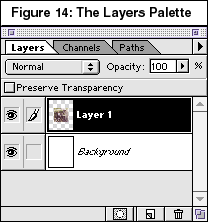
To work with Photoshop's layers, you will use the Layers palette. This
palette, which is shown in Figure 14, usually opens automatically when Photoshop is
launched. (Note: It normally appears grouped with the Paths and Channels palettes).
If the Layers palette is not open in the work area, select Window > Show Layers
to display it. If the Layers palette does not appear after you select Show Layers, follow
the steps in "Components of the Work Area" on page 4 to display the palette.
Naming Layers
In the open Layers palette, you should see two layers:
"Background," which is filled with white, and "Layer 1," which
contains the mwpedit.PSD image. Notice that Layer 1 appears above the background layer (as
shown in Figure 14 above). As you create new layers in your image file, it is a good idea
to name each layer descriptively. Naming layers will help you manage multi-layered
Photoshop files. To rename Layer 1:
- Double-click on Layer 1 in the Layers palette. The Layer Options dialog box will
appear.
- In the Name field, type mwp image to name your layer.
- Click on OK when you are finished. Notice that Layer 1 now appears as "mwp
image".
Controlling the Visibility of Layers
As you work, you may want to hide a layer from view to see different parts
of your design more clearly. You can control the visibility of all layers, including the
background layer, using the Layers palette, which is shown in Figure 14.
Each layer's visibility is controlled by the eye icon located in the first column from the
left in the Layers palette: . The following steps describe how to control the visibility of the "mwp
image" layer in your image file. . The following steps describe how to control the visibility of the "mwp
image" layer in your image file.
- Click on the eye icon next to the "mwp image" layer in the Layers palette to
hide the layer.
- To reveal the layer again, click in the empty eye icon box next to the layer. The eye
icon will appear again and the layer will become visible.
Moving Layers in the Image Window
You can move a selected layer, or a selected area within a layer, around
the image window using the Move tool. The following steps describe how to do so.
- Select the layer you want to move in the Layers palette by clicking on it. (When a layer
is selected, it is highlighted in a different color than the other layers.)
- If you only want to move a portion of a layer, select the desired layer in the Layers
palette, then select the area you want to move with the Rectangular Marquee tool. Click on
the Rectangular Marquee tool in the toolbox, then click and drag to draw a selection
border over the area you want to move. Note: You can use any of Photoshop's marquee
tools to make your selection. For more information about using the marquee tools, see Using the Marquee Tools.
- Click on the Move tool (black arrow) in the upper right-hand corner of the toolbox to
select it.
- Click on the layer or selection that you want to move. While holding the mouse button
down, drag the layer or selection to the desired area in the image window. To nudge the
layer or selection a small distance at a time, use the arrow keys on your keyboard.
Creating New Layers
In Photoshop, new layers are added above the active (highlighted) layer in
the Layers palette. You will be adding two layers between the Background and "mwp
image" layers in your mwpPoster.PSD file. To insert new layers between the two
existing layers, you will need to make the background layer active so that the new layers
will appear above the Background layer and below the "mwp image" layer. The
following steps illustrate how to add these layers.
- Click on the Background layer in the Layers palette to make it active.
- Click on the New Layer icon (
 ), which is located at the bottom
of the Layers palette. (See Figure 14.) A new layer, labeled Layer 1,
will appear above the background layer. ), which is located at the bottom
of the Layers palette. (See Figure 14.) A new layer, labeled Layer 1,
will appear above the background layer.
- Click on the New Layer icon again to add another layer. The new layer, labeled
Layer 2, will appear above Layer 1.
- Double-click on Layer 1 to access the Layer Options dialog box. In the Name field
provided, rename the layer by typing bgcolor 2. Repeat this step with Layer 2.
Rename this layer bgcolor 1.
Changing the Stacking Order of Layers
You can control the order in which layers are stacked after adding them to
the Layers palette. To move a layer to a new position in the Layers palette, simply click
on it to select it and drag it to the new location in the palette. The only layer you
cannot reorder is the Background layer. The following steps describe how to change the
stacking order of the layers in your image file.
- Click on the "bgcolor 1" layer in the Layers palette.
- While holding the mouse button down, drag the "bgcolor 1" layer underneath the
"bgcolor 2" layer.
- As you drag the layer over other layers in the Layers palette, you will see a dark black
line appear between layers. When you see this line appear between the "bgcolor
2" and Background layers, release the mouse button and drop the "bgcolor 1"
layer into place.
- To preserve the layers you've created in your Photoshop file, you must save it in the
native Photoshop file format (.PSD). Since your file is already in this file format, you
only need to select File > Save to save your file with the layers intact. For
more information on saving with or without layers, see Choosing a
Graphic File Format and Saving Your Work.
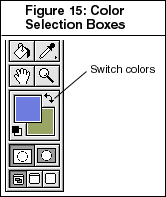
In Photoshop, you can designate two colors to use with Photoshop's
painting and drawing tools. These colors, called the foreground and background colors, are
displayed in the color selection boxes at the bottom of the toolbox. (See Figure 15.) The
foreground color appears in the box on top, while the background color appears in the box
on the bottom. The foreground color is used to paint and draw lines and to fill and stroke
selections. The background color is used to fill in erased or deleted areas of an image.
You will learn how to reverse, change, and use the foreground and background colors in the
following sections.
Switching Foreground and Background Colors
To move the color in the foreground position into the background and move
the background color into the foreground, follow the steps listed below.
- Click on the Switch Colors icon just above the foreground color in the toolbox. (See
Figure 15 above.) You can also press the X key to switch the foreground and background
colors.
- To reverse this change, click on the Switch Colors icon or press the X key again.
Selecting Foreground and Background
Colors
This tutorial discusses three of the most common ways to select foreground
and background colors in Photoshop. For more information about selecting colors in
Photoshop, select Windows > Help Contents.... Choose Painting from the
Contents box and click on the topic called Choosing the foreground and background
colors.
To select a color from your image using the Eyedropper, follow the steps
listed below.
- Select the Eyedropper from the toolbox by clicking on it. The Eyedropper looks like
this:

- Move the Eyedropper over the color in the "mwp image" layer that you want to
select.
- To select a foreground color, click the mouse button once. The desired color will appear
in the foreground color selection box in the toolbox.
- To select a background color, hold down the option key and click on the desired color.
It will appear in the background color selection box in the toolbox.
To select a color using Photoshop's Color Picker:
- Click once on the color selection box whose color you want to change (i.e., the
foreground or background box). Photoshop's Color Picker will appear.
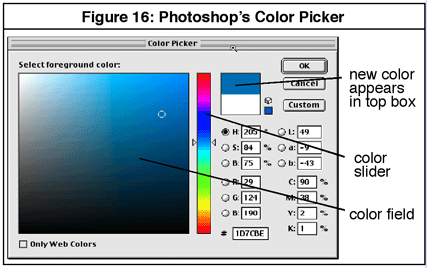
- Notice the small colored square to the right of the color slider at the top of the Color
Picker. When you change a color, the new color you are selecting appears in the top half
of this box. The color you are changing appears in the bottom half of this box.
- Click and drag the triangle sliders on the color slider, which is located to the right
of the color field, to a color of your choice, or click inside the color field on the left
and drag the mouse over the color you want to select.
- When you have selected a color, click on OK.
You can also select a foreground or background color from the Swatches
palette. To do so:
- If the Swatches palette is not open in your work area, select Windows > Show
Swatches from the menu bar. (Note: The Swatches palette may also be grouped
with the Colors and Brushes palettes. To bring it to the front of the grouping, click on
the tab marked Swatches.)
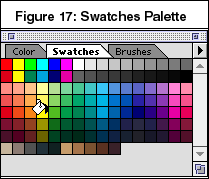
- Move the mouse pointer over the color in the Swatches palette that you want to select.
Notice that your mouse pointer automatically turns into an eyedropper.
- To select a foreground color, click on the desired foreground color in the Swatches
palette. The color you select will appear in the foreground color selection box in the
toolbox.
- To select a background color, press and hold down the option key. While holding the
option key down, click on the desired background color in the Swatches palette. The color
you select will appear in the background color selection box in the toolbox.
Filling Selected Areas with Color
Now that you have selected foreground and background colors, you are ready
to design the graphics for your poster. This section describes how to use Photoshop's Fill
command and Paint Bucket tool to create the two-toned color background of your poster. You
will be working on the "bgcolor 1" and "bgcolor 2" layers you created
earlier in this tutorial.
Using the Fill Command: You will begin by filling the
"bgcolor 1" layer with a solid color. The following steps describe how to use
the Fill command to do so.
- Click on the "bgcolor 1" layer in the Layers palette to select it.
- Choose Select > Select All from the Photoshop menu bar. (You can also press
the command and A keys together.) A dotted selection border will appear around the entire
layer.
- Choose Edit > Fill... from the menu bar. The Fill dialog box will appear.
- In the Contents section, choose whether you want to fill the selection area with the
foreground or background color you have selected. Select either Foreground Color or
Background Color from the Use pull-down menu.
- In the Blending section, type 100 in the Opacity box to set the opacity of the
fill to 100 percent.
- Click on the Mode pull-down menu and select Normal from the choices listed.
- Make sure that the checkbox labeled Preserve Transparency has not been selected. If
there is an X in this box, click on it to deselect this option.
- Click on OK when you have finished entering your settings. The selection border
on your "bgcolor 1" layer will be filled with the foreground or background color
you selected.
Using the Paint Bucket Tool: You can also fill areas with color
using Photoshop's Paint Bucket tool, which is located in the toolbox. The following steps
describe how to fill part of your "bgcolor 2" layer with color.
- Adjust the scale of your mwpPoster.PSD file and the size of its image window so that you
can see all four corners of the image. For more information about adjusting the scale of
your image, see Working with the Image Window.
- Click on the Rectangular Marquee tool in the upper left-hand corner of the
toolbox to select it.
- Click on the "bgcolor 2" layer in the Layers palette to select it.
- Move your mouse pointer to the top left-hand side of the image. Notice that when you
move the mouse pointer over the image your cursor turns into a crosshair. Click the mouse
button and drag down and to the right until you have selected a rectangular area that is
approximately one-quarter of the layer's total width and runs the full length of the image
area. If you need to redo your selection, choose Edit > Undo Marquee or Select
> Deselect from the menu bar, then create a new selection with the Rectangular
Marquee.
- If you used your foreground color to fill your "bgcolor 1" layer, you will use
your background color to fill the selection you just made. If necessary, switch the
foreground and background selection boxes in the toolbox so that the background color is
now the foreground color.
- Click on the Paint Bucket tool in the toolbox to select it.
- Click inside the selected area in your "bgcolor 2" layer to fill it with
color.
- Save your work by selecting File > Save from the menu bar.
Creating a Drop Shadow
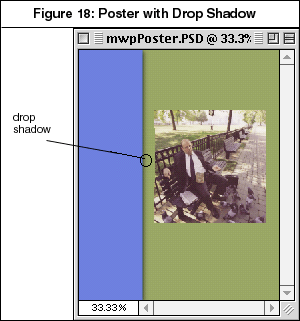
This section describes how
to create a drop shadow for the colored rectangle you created in the "bgcolor 2"
layer. A drop shadow can make two-dimensional graphic and text elements look three
dimensional, giving depth to otherwise flat artwork. Photoshop 5.5 has an automatic drop
shadow feature, which you can access using the Layers menu. To create a drop shadow:
- Click on the "bgcolor 2" layer in the Layers palette to select it.
- Choose Layer > Effects > Drop Shadow... from Photoshop's menu bar. The
Effects dialog box will appear.
- Make sure that the box marked Preview has been checked. If it is not checked, click
inside the box to select this option.
- Adjust the settings in this dialog box to alter the appearance of your drop shadow.
- The Opacity field controls the transparency of the drop shadow.
- The Angle option controls the angle of the drop shadow in relation to the graphic
element (i.e., the colored rectangle in the "bgcolor 2" layer).
- Similarly, the Distance option controls the distance of the shadow from the graphic
element.
- The Blur option controls the amount of blur on the shadow, while the Intensity option
controls the intensity of the color of the drop shadow.
- When you are satisfied with the appearance of the drop shadow effect on layer
"bgcolor 2," click on OK to apply the drop shadow to your layer. The drop
shadow in your image should look like the drop shadow pictured in Figure 18.
- Choose File > Save to save your work.
Working with the Type Tool
You are now ready to add type to the mwpPoster.PSD file. You can add type
to an image in Photoshop using the Type tool, which is located in the toolbox. The type
created in Photoshop is essentially an editable, bitmap image. As a result, when a
Photoshop image that includes type is reduced or enlarged, the type may become blurry or
pixelated, so use the point size settings in the Type dialog box to get the desired type
size. This section describes how to place text into your poster and how to experiment with
some of Photoshop's basic type features.
To place type into your poster:
- Click on the Type tool in the lower right-hand side of the toolbox to select it.
- When you move your mouse over your image, it turns into a cursor. Position the cursor
over the general area in your image where you want to place type, then click the mouse
button. The Type Tool dialog box appears.
- Select a font face for your type from the Font pull-down menu.
- In the Size field, type a desired point size for the font you selected. Select a large
enough font size to make the font visible on the poster.
- Select a color for your font by clicking on the colored box in the Color field.
Photoshop's Color Picker will appear. (For more information about using Photoshop's Color
Picker, see Selecting Foreground and Background Colors.)
To alter the color of your type after entering it in the type field, highlight it with the
mouse, then click on the Color field and change the color.
- Click inside the box labeled Anti-Aliased to make the edges of your type smooth.
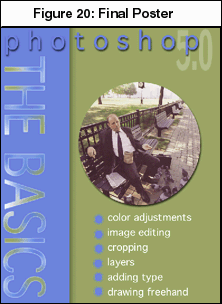
- In the blank field at the bottom of the dialog box, type the word photoshop, as
shown in the final poster in Figure 20. To enter more than one line of type, press the
return key to force a line break.
- To adjust the spacing between lines, type a value equal to or greater than your font
size in the Leading field (e.g., for double-spaced lines, type a number twice the point
size of your font).
- Click inside the Preview box to see how your type will look on your poster.
- To adjust the alignment of your type, choose one of the three alignment options (i.e.,
left aligned, centered, right aligned). These options are located above the Preview box.
- When you are satisfied with your type, click on OK. Your type will appear on your
poster.
- Notice that your type appears on its own type layer in the Layers palette. In Photoshop
5.5, type layers are marked with a capital "T" next to the layer's name. To make
changes to your type, double-click on the appropriate layer in the Layers palette. The
Type Tool dialog box will appear, displaying the type options you entered. Highlight the
text you typed in, then change the type settings. Click on OK to apply your
changes.
- To move type after adding it to your poster, click on the Move tool in the toolbox, then
make the appropriate type layer active in the Layers palette by clicking on it. Click on
the type and move it to the desired location in your image.
- Repeat the steps above until you have added all the type elements displayed in the
example poster in Figure 20. Experiment with the vertical and outline
Type tools (hold down the mouse button on the Type tool to see the entire tool set) to
achieve various effects. Reorder your type layers so that some words overlap. Use
different font faces and sizes to add interest to your poster. For help with rotating,
skewing, or distorting your type, see Manipulating Objects.
- Save your work by choosing File > Save from the menu bar.
Applying Effects to Type
You can apply effects such as drop shadows, bevels, and embossing to
your type the same way you would apply effects to other graphic elements in your image.
The following steps describe how to apply effects to type.
- Select the type layer in the Layers palette.
- Go into the Layers menu and select Effects. Select an effect from the pop-up menu
that appears.
- Enter the desired effect settings in the Effects dialog box that appears.
Rendering Type Layers
You can turn a type layer into a normal layer by choosing Layer >
Type > Render Layer from Photoshop's menu bar. When you render a type layer, you
turn it into a normal image layer. You must do this before you are able to perform certain
manipulations such as applying filters. Once you select this option, you cannot make
adjustments to your type using the Type Tool dialog box. For this reason, make sure you
are satisfied with the appearance and size of your type before rendering the layer it is
on.
Painting and Drawing
Photoshop has a number of tools for painting and drawing images and
objects. Photoshop's Paintbrush, Airbrush, and Pencil allow you to make freehand
illustrations with paintbrush-, airbrush-, or pencil-like strokes, respectively. You can
control the attributes of these tools using each tool's Options palette. You can also use
Photoshop's selection tools and the Stroke command to outline selected areas. This section
describes how to use the freehand drawing tools and the marquee and lasso tools to add new
objects to your poster.
Please Note: Before you begin adding objects to your poster,
create a new layer for your objects by clicking on the New Layer icon in the Layers
palette. (See Creating New Layers for more information.)
Name your new layer "objects." When you are finished creating this layer, click
on it in the Layers palette to make it active.
Using the Paintbrush, Airbrush, and
Pencil
The following steps describe how to draw objects, including the bullet
points shown in the example poster in Figure 20, using Photoshop's
Paintbrush, Airbrush, and Pencil tools.
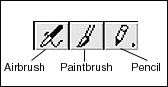
- Select a foreground color for your graphic using one of the techniques described in Working with Color.
- Double-click on the Paintbrush, Airbrush, or Pencil icon in Photoshop's toolbox. The
Options palette for the tool you have selected will appear automatically in your work
area. To create bullet points, double-click on the Paintbrush tool.
- Set the opacity of your strokes by entering a percentage in the Opacity field. Type 100
in this field to set the opacity of your paintbrush strokes to 100 percent.
- The Fade field allows you to enter the fade out rate of your strokes. The number of
steps that you enter in this field is the number of steps that the tool draws before
fading out into transparency. This option can make your strokes look more realistic.
Deactivate this option by typing 0 in the Fade field.
- Choose a brush by selecting Windows > Show Brushes from the menu bar. The
Brushes palette will appear, displaying the available brush sizes and shapes for the tool
you have selected. To select a brush, click on it. Select a large, round brush to create
your bullet points.
- Draw or paint by moving the mouse pointer to the area of your image where you want to
work and then clicking and dragging to create brush strokes. To create a bullet point,
click once with the Paintbrush to create a round dot. Repeat this action to add more
bullet points to your poster.
Using the Marquee Tools
You can add more graphic elements to your poster using the Rectangular
Marquee, the Elliptical Marquee, and the Stroke command. This technique allows you to draw
and outline a variety of shapes.
Drawing with the Rectangular/Elliptical Marquee:
- Make sure that the "objects" layer is active by clicking on it in the Layers
palette. If you want to place your shapes on a new layer, create a new layer for your work
and name it appropriately. (See Creating New Layers for
more information.)
- Select the Rectangular Marquee, located in the upper left-hand corner of the toolbox, by
clicking on it. If you want to use the Elliptical Marquee tool to draw an oval shape,
click and hold down on the Rectangular Marquee tool in the toolbox. A pop-up menu will
appear, displaying a variety of marquee tools. While holding the mouse button down, move
the mouse pointer over the Elliptical Marquee to select it, then release the mouse.
- Make a small rectangular (or elliptical) shape by clicking on the area where you want to
add the rectangle, then dragging down and to the right. A dotted selection border will
appear.
- Choose a color for the outline of the selected area by selecting a foreground color. For
more information about selecting a foreground color, see Working
with Color.
- Choose Edit > Stroke... from the menu bar. The Stroke dialog box will appear.
- In the Stroke section, enter a width for your stroke (in pixels) by typing a number in
the Width field. Give your selection a stroke width between two and five pixels, depending
on the size of your rectangle/ellipse.
- In the Location section, click on the Inside, Center, or Outside
radio buttons to select a stroke location in relation to the selection edge.
- In the Blending section, choose Normal from the Mode pull-down menu.
- Make sure that the Preserve Transparency option has not been selected. If there is an X
in the Preserve Transparency box, click on it to deselect this option.
- Click on OK when you are finished entering your Stroke settings. You will see an
outline appear around the border of your selection.
- To deselect the rectangle (or ellipse) and leave only the stroke outline, choose Select
> Deselect from the menu bar.
Using the Lasso Tools
You can use the lasso tools, like the marquee tools, with the Stroke
command to create outlined shapes. This section describes how to create outlined shapes
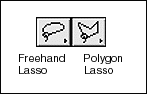
using the Freehand Lasso and the Polygon Lasso tools.
�
Drawing with the Freehand/Polygon Lasso:
- Make sure that the "objects" layer is active by clicking on it in the Layers
palette. If you want to place your shapes on a new layer, create a new layer for your work
and name it appropriately. (See Creating New Layers for
more information.)
- Select the Freehand Lasso from the toolbox by clicking on it. It is located near the top
and on the left-hand side of the toolbox. If you want to use the Polygon Lasso, click and
hold down the mouse button on the Freehand Lasso until the other lasso options appear.
- Move the mouse pointer over the area in your image where you want to draw a selection
border. Then click and drag the mouse to create a freehand selection border. To close your
selection, drag the mouse pointer back to the starting point of your selection. (For the
Polygon Lasso, start your selection by clicking once. Continue by moving the mouse pointer
and clicking to create anchor points around your selection. Notice that when you move the
mouse pointer after clicking, the tool creates a straight-edged selection line. To close
your selection, move the mouse pointer back to the starting point of your selection. A
circle will appear next to the pointer. When you see this circle, click once to complete
your selection border.)
- When you are finished making your selection, release the mouse button.
- Choose a color for the outline of the selected area by selecting a foreground color. See
Working with Color for more information about selecting a
foreground color.
- Choose Edit > Stroke... from the menu bar. The Stroke dialog box will appear.
- Follow steps six through ten in Drawing with the
Rectangular/Elliptical Marquee to enter settings in the Stroke dialog box.
- When you are finished, you should have an outline around the area you selected with the
Freehand Lasso tool. To deselect this area and leave only the stroke outline, choose Select
> Deselect from the menu bar.
Manipulating Objects
You can scale, rotate, skew, or distort objects and type using commands in
Photoshop's Transform menu. The following steps describe how to use Photoshop's Transform
commands:
- Select the Rectangular Marquee from the toolbox by clicking on it.
- Draw a selection border around the object or type that you want to scale, rotate, skew,
or distort.
- Go into the Edit menu and select Transform.... A pop-up menu will appear,
displaying transform options. Select an option (e.g., Scale, Skew, Rotate, Distort) from
this menu.
- A transform box with handles will appear over your selection border.
- To scale an object and maintain its original proportions, hold down the Shift key, click
on a corner handle and drag to resize the object.
- To rotate an object, move the mouse pointer outside the transform box until your cursor
turns into a curved arrow. When you see this arrow appear, click and drag in a circular
motion to rotate your object.
- When you are finished experimenting, choose File > Save from the menu bar to
save your completed project.
For more information about using the Transform menu, choose Help >
Help Contents... from the menu bar. Then click on Editing and Retouching in the
Contents box and select Transforming objects in two dimensions.
Choosing a Graphic File Format and Saving Your
Work
You should now have a copy of your completed poster saved in the native
Photoshop file format (PSD). When your file is in this format, all of Photoshop's editing,
color correction, and retouching tools are available to you as you work on your file.
However, you should save your finished poster in a different file format in order to
optimize it for printing, desktop display or Web use. This section describes how to
prepare your image file for saving, choose the appropriate graphic file format for your
poster, and save it in the desired format. The document Graphic File Formats at
a Glance provides more detailed information; see For More
Information and Assistance for information about how to obtain this document.
Flattening Your Image File
To save your image file into most graphic file formats, you must save a
copy of your image with the layers flattened. Flattening is a process that combines all
image and type layers into one layer. This process significantly reduces the file size of
your image. This section discusses the two most common ways to save a flattened copy of
your image.
Using the Save a Copy Command
You can save a flattened version of your image file by choosing File
> Save a Copy... from Photoshop's menu bar. Using this command allows you to
preserve the original copy of your image file with the layers intact. This command
automatically creates a flattened version of the layered document and gives you access
(via the Format pull-down menu in the Save dialog box) to most of the popular graphic file
formats available in Photoshop.
Using the Flatten Image Command
You can also flatten your image file by selecting Layers > Flatten
Image from Photoshop's menu bar. Photoshop automatically merges all of your layers
into the background layer. Use this command if you want to reduce the overall size of your
file. However, be aware that once you flatten the layers in your file, it will no longer
be easy to alter the individual elements in your poster. The Flatten Image command gives
you access to all of the graphic file formats available in Photoshop. You can access these
formats by choosing File > Save As... from the menu bar. In the dialog box that
appears, click on the Format pull-down menu and choose a file format for your image.
Selecting a File Format
Once you have flattened your image, you are ready to save it into the
appropriate file format. The following sections describe how to determine which file
format to use based on how you will be displaying your poster.
File Formats for Print
If you plan on printing your image file to a PostScript printer, or if you
want to use it in an application that supports PostScript printing such as QuarkXpress or
Adobe PageMaker, you should save your poster in either the TIFF or EPS file format. The
TIFF, or Tagged Interchange File Format, is a cross-platform format that supports lossless
image compression. Lossless compression does not degrade the quality of the original data
in your image during the conversion process. The EPS, or Encapsulated PostScript format
converts bitmap images into PostScript data. Therefore, EPS is an ideal graphic file
format for printing to a PostScript printing device. EPS files can be scaled down without
degrading, but they usually do not display well on desktop monitors.
File Formats for Desktop Display
If you plan to display your image on a Macintosh desktop, or if you need
to transfer your image file from one graphic layout application to another, convert it
into the PICT file format. The PICT, or Picture, file format supports high-resolution
images at multiple bit depths (sixteen or thirty-two bits). When formatting PICT files for
desktop display, be sure to save your files at a resolution that is compatible with your
computer monitor's screen resolution. Most monitors have a screen resolution of 72 to 75
dots per inch (dpi). The PICT file format is useful when creating a CD-ROM, digital video
project, or when working with multimedia production applications (e.g., Adobe Premiere).
PICT files can be opened on the desktop of a PC computer; however, the
PICT format is not considered to be cross-platform and PICT files are not usually used for
display on the PC desktop. If you want to display your image on a PC desktop, try
converting your image into either the TIFF or BMP file format. The BMP, or Bitmap, file
format is the Windows analog to the PICT file format.
File Formats for Web Use
If you plan to display your image on the Web, you can save it in either
the JPEG or GIF file format. The JPEG, or Joint Photographic Experts Group, file format is
primarily used to compress continuous-tone images such as photographs or photo-realistic
artwork. Because it supports 24-bit color display, JPEG is widely accepted as the lossy
format that yields the best overall quality for such images. JPEG also allows you to
control the amount of compression used on an image, so you can trade image quality for
smaller file size or vice versa.
The GIF, or Graphic Interchange Format, was originally developed by
CompuServe and is best used for images with only a few distinct colors, such as icons,
buttons, illustrations and line drawings. Being functionally the same as Indexed Color
mode, this format supports a maximum bit depth of 8-bit color, or 256 colors or shades of
gray. (For more information about Indexed Color mode, see Color
Models and Modes.) GIF supports transparency which is ideal for Web use, since it is
often necessary to have the background show through certain sections of your graphic.
The PNG file format is a new image format standard that recent version Web
browsers support. Since it is new, PNG is not yet used widely on the Web. There are two
types of PNG files: PNG-8 and PNG-24. PNG-8 is an 8-bit image compression format that
corresponds to GIF. PNG-24 is a 24-bit image compression format that corresponds to JPEG.
Optimizing and Saving for Your Image for the Web
To save images for the Web, it is best to use the Save for Web...
option under the File menu. This option lets you optimize the images and compare
different image formats, quality, and compression settings. To save your image for the
Web, choose File > Save for Web... and, using Figure 21 below, follow these
steps:
- On the left hand side of the window, there is a tool bar consisting of the Hand, Zoom,
and Eye Dropper tools. Use these buttons to move your image around, change the
magnification and sample the colors of your optimized image respectively. There is also an
Eyedropper Color box below these tools that show the color currently selected.
- On the left top corner, there are 4 tabs: Original, Optimized, 2-UP, and 4-UP. Original
shows an image box of the original image without file format changes. Optimized
shows an image box of the image optimized with the settings you choose. 2-UP shows
two image boxes that shows a side by side comparison between the Original and the
Optimized versions of your image. 4-UP shows 4 image boxes, comparing three optimized
images of different settings to the Original image. For optimizing your image best for Web
use, it is recommend you use the 4-UP option.
- 3. By clicking on the Image boxes (in 2-UP and 4-UP display modes) and
modifying the image format using the Settings section described in the next step, you can
create side by side comparisons of image under different settings and quality of image.
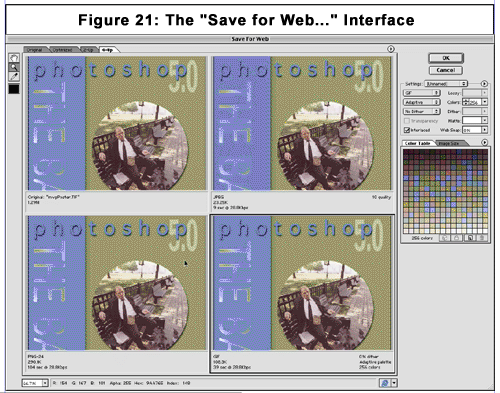
- There is a Settings section
on the right side of the window. By clicking on the Settings pull down menu, you
can choose different pre-set optimizations and formats for your image file. Alternatively,
you can set your own settings in the section below this menu. Choose different file
(compression) formats, quality, colors, diffusion rate, Matte, etc. By trying out
different options, you can achieve the best compression setting vs. image quality ratio
for your images. Using this section, you can optimize your image file in all the different
standardized Web image formats (GIF, JPEG, and PNG). The least number of colors (GIF,
PNG), the less the quality (JPEG), the lower the color bit depth (PNG), and so on,
produces smaller images for faster Internet downloading times.
- There are description panels below the Image Boxes. These description panels show the
image file format, compression settings, file size, and other related information. A
useful piece of information is the download speed in seconds of your file from a modem.
- The section under Settings contains two panels: Color Table and Image
Size. Color Table displays the colors used in an indexed color selection, which
are used by GIF and PNG-8 files. The Image Size panel allows you to modify the
width and height of your optimized image by pixels.
- At the lower right hand corner, there is an useful pull down menu that allows you to
browse your optimized image in a browser that is installed in your system. Use that menu
to preview what your image would look like in a Web browser. Please remember that although
your image appears in a certain display on your computer, different computers may
unexpectedly reproduce an image in different ways depending on monitor type and
calibration.
- Inside the Save for Web... window, there are also little round buttons (
 ) that
give you options to change the display of information inside the window. ) that
give you options to change the display of information inside the window.
- When you are ready to save, click on your preferred optimized image and click on the OK
button to save your file. Read the next section for help on choosing a file name
extension.
Saving Your Image in a Selected File Format
To save your image in any of the formats discussed in this document,
except the Save for Web... function, you must flatten your image before saving in order to
include all layers. Follow the instructions in "Flattening Your Image File" on
page 26 if you have forgotten how to do this. Then select the appropriate file format from
the Format pull-down menu in the File > Save As... dialog box. Type a new
name for your image in the field provided.
When naming your image, add the file extension for the file format you are
using to the end of your file's name. Here are the file extensions used for the file
formats discussed in this tutorial:
- EPS = .EPS
- Photoshop format = .PSD
- BMP = .BMP
- PICT = .PCT
- GIF = .GIF
- PNG = .PNG
- JPEG = .JPG
- TIFF = .TIF
For
More Information and Assistance
Adobe Photoshop is a complex application for image editing and
manipulation, which makes it ideal for most graphic design work. Although it is easy to
become familiar with this application, it is difficult to master it. This tutorial covered
the most popular tools in Photoshop for editing, color correcting, and retouching bitmap
images. Despite the specific nature of the activities covered, you should be able to use
the techniques described in this tutorial for most of your graphic design projects.
The following Web sites include helpful information about using
Photoshop:
|