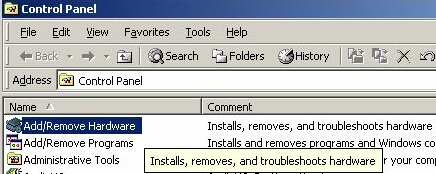
figure 1
| back to homepage | windows tips |
windows tips
Installing a modem
Introduction
Ok, so what's the problem?
Today everything is plug and play so again: "What's the problem of installing a modem?
I really don't know. Sometimes things are easy but sometimes it cost you several days to install something so easy as a modem.
In my situation I always get a: "The data is invalid"
This makes me crazy. What is invalid. The program checks something secret and only gives the message "The data is invalid". How hard can it be for the M$ guys to give a serious message which indicates what really happens with the system.
Configuration
Ok, I have the following pc configuration:
   processor      AMD
   sound cards    Sound Blaster live
   network card   generic card
   video card     NVidia geforce2 mx400
   modem card     E-tech faxmodem 56k (type: PCI56AVP)
The problems
So I checked and dubble checked everything and can't find anything wrong.
No interupt conflicts, no memory problems so I got some options:
And after checking a lot of things and a some days later I could conclude that everything was OK. When the modem card was placed in a Intel pc everything was just fine. Later I tried it with a friend in a AMD pc with Windows XP and .... stil OK.
But everytime you installed the modem or removed and installed it again
you get the following pop-up:
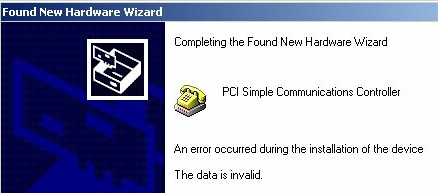
Windows told me that the data was invalid so it could not load the drivers??
So I downloaded new drivers with the same result.
I tried moving the card to a different slot, but stil the same problem.
I'm getting still the same result, "The data is invalid" error.
So looking on the vendors site (I don't give you the address because they don't have anything useful for you) and then serving on the internet I found something helpful, but so so strange and so illogical that I tried it.
The problem describes the same problem for:
but ....
I tried it and ...
The solution
Here is the solution for all who get this strange problem.
This error appears to be due to a protection problem in the Windows registry (!!) and can occur with a variety of drivers (sound cards and SCSI drivers have been reported).
To fix this problem, go to:
   Start >> Run... and type "regedit" (without the quotes) to run the Registry Editor

   go to: HKEY_LOCAL_MACHINE\SYSTEM\CurrentControlSet\ENUM\PCI
and you will see a number of keys of the form "VEN_xxxx", where xxxx are strings like "1102&DEV_0004&SUBSYS_00011103&REV_04". Under each of these folders will be another folder with a long numerical name. Open each folder and look for the "DeviceDesc" which matches the hardware you are trying to install. Right Click on the "VEN_xxxx" for that device and select 'Permissions' and then tick "Allow" for "Full Control". Close Regedit and then continue with the installation of your device.
And in my case it helps.
The modem was recognized, I could install it without any problem and within 2 minutes I was online.
Thanks to an unknown user on "TechSpot" who points me into the right direction.
Windows NT adds another tool in the form of ASSOC, an internal command handled by the command processor itself. If you're running Windows NT, it's a good idea to use ASSOC right now to record all of your current file associations. Open a command prompt window and enter:
ASSOC > FILASSOC.TXT
The resulting file will list all registered extensions and show the internal name of the file type associated with each. If you find that a particular extension has gotten associated with the wrong file type, you can consult this list and restore the correct type.
It's important to refer to this list and use the file-type names reported by ASSOC, because they are generally not the same as the descriptive file-type names displayed in Explorer. For example, ASSOC shows that the association for the extension .txt is "txtfile," while Explorer displays "Text Document." As far as Windows is concerned, the internal name is what matters; the descriptive name is used only for display.
Q: I made a mistake when I tried to open an email. Now all the email files are openend with the wrong program. How can I correct this?
A: First locate a file with the problem type and hold down the shiftkey while right clicking it. This will cause the open with ... menu item to appeear, even though the file type now has an association. Select open with ..., choose the correct program and make sure the always use this program to open this type of file box is checked. Click OK and you are done.
Example
By exident .dat was associated with DAT_auto_file (real-player).
The following steps where made...:
step 1
---------------------------------------------------------------------------
C:> help assoc
Displays or modifies file extension associations

ASSOC [.ext[=[fileType]]]

  .ext      Specifies the file extension to associate the file type with
  fileType  Specifies the file type to associate with the file extension

Type ASSOC without parameters to display the current file associations.
If ASSOC is invoked with just a file extension, it displays the current
file association for that file extension.  Specify nothing for the file
type and the command will delete the association for the file extension.


step 2
---------------------------------------------------------------------------
C:> assoc > c:\fileassoc.txt


step 3
---------------------------------------------------------------------------
C:> assoc .dat
.dat=DAT_auto_file

C:> assoc .dat=

C:> assoc .dat
File association not found for extension .dat
But when you want to start .txt files with your favourite editor
which is not notepad follow the next steps.
To make it permanent select:
"Always use this program to open this file"
to save your settings.
  --------------------------------------------------------------------------------------
  Useful switches
  Syntax:  Explorer [/n] [/e] [,/root, object] [[,/select], subobject]
  --------------------------------------------------------------------------------------
  neither /n nor /e    Launch Explorer in single-pane open view. If the new window
                       would duplicate an Explorer window that's already open,
                       simply activate the existing window.

  /n                   Launch Explorer in single-pane open view. Open a new window even
                       if it duplicates an Explorer window that's already open.
                       Overrides /e if both are present.

  /e                   Launch Explorer in two-pane explore view. Open a new window even
                       if it duplicates an Explorer window that's already open.

  subobject            Specify the drive or folder to be opened in Explorer.

  /select, subobject   Specify the file or folder that will be initially selected.
                       It's parents folder will be opened.

  /root, object        Specify the root of the explorer display. The user cannot
                       navigate upward past the root. By default Desktop is the root.
  --------------------------------------------------------------------------------------
The subobject and select, subobject switches control Explorer's initial display. When you add a folder name to the EXPLORER.EXE command-line to open that folder, you are using the subobject switch. If you precede the full pathname of a file or folder with /select, explorer launches with the specified file or folder highlighted and its parent opened.
The command: explorer /e, /select, c:\winnt\profiles would open the c:\winnt folder and highlights the folder profiles within it.
The /root, object switch is powerful. You can prevent to move upwards in the directory.
With the command EXPLORER.EXE /root, c:\winnt\profiles\user you can NOT move up to
c:\winnt\profiles.
Examples
EXPLORER /e, /select,c:\ opens a 2 pane view with none of the drives expanded.
EXPLORER /e, d:\ opens a 2 pane view that initially displays the contents of drive D:.
EXPLORER /e, /root, d:\data opens a 2 pane that initially displays the contents of the
data folder on drive D:.
The user cannot navigate anywhere other than below that folder
EXPLORER /e, /root, d:\, d:\data opens a 2 pane that initially displays the contents of the
data folder on drive D:.
The user cannot navigate anywhere other than drive D:.
Unix users know and love the shell extension that allows for tab-completion of commands.
Type the first few letters of the program name, text file, directory, or virtually
anything on the system, press Tab, and watch the OS complete the word for
you. This is particularly helpful when you're navigating through deeply
nested subdirectories. In Windows NT 4, it is frustrating to have to
type :
C:\WinNT\Profiles\Administrator\Desktop... at a command prompt
while I know I could merely...
type :
C:\W{Tab}Pr{Tab}A{Tab}D{Tab} in Unix.
It turns out, however, that a little-known Registry setting in Windows NT provides this functionality. As always, before making changes to the Registry, back it up, as a simple typo could cause your entire system to crash. Then launch the Registry editor and navigate to HKEY_CURRENT_USER/Software/Microsoft/Command Processor. Double-click on CompletionChar in the right-hand pane and set its value to 9. Now close the Registry editor, open the command processor, and try it out. You will find that if you type C:\W{Tab} the command line will cycle through all the files or directories that start with "W." Typing additional characters limits the choices accordingly.
You can avoid the need to edit or create the CompletionChar Registry value by creating and running the script below (save it as: complete.reg):
REGEDIT4
[HKEY_CURRENT_USER\Software\ Microsoft\Command Processor]
"CompletionChar"=dword:00000009